🔤 Change App Font
Customize your app's typography by integrating Google Fonts to match your brand's visual identity.
📋 Overview
The eSchool app uses Google Fonts for flexible and beautiful typography. You can easily change the app's font family by selecting any font from Google Fonts and updating a single configuration file.
🔄 Steps to Change Font
Step 1: Choose Your Google Font
- Visit Google Fonts
- Browse and select your desired font family
- Note the exact font family name (e.g., "Roboto", "Poppins", "Open Sans")
Step 2: Update Font Configuration
Navigate to the font configuration file and update the font family:
File Location: assets/google_fonts/
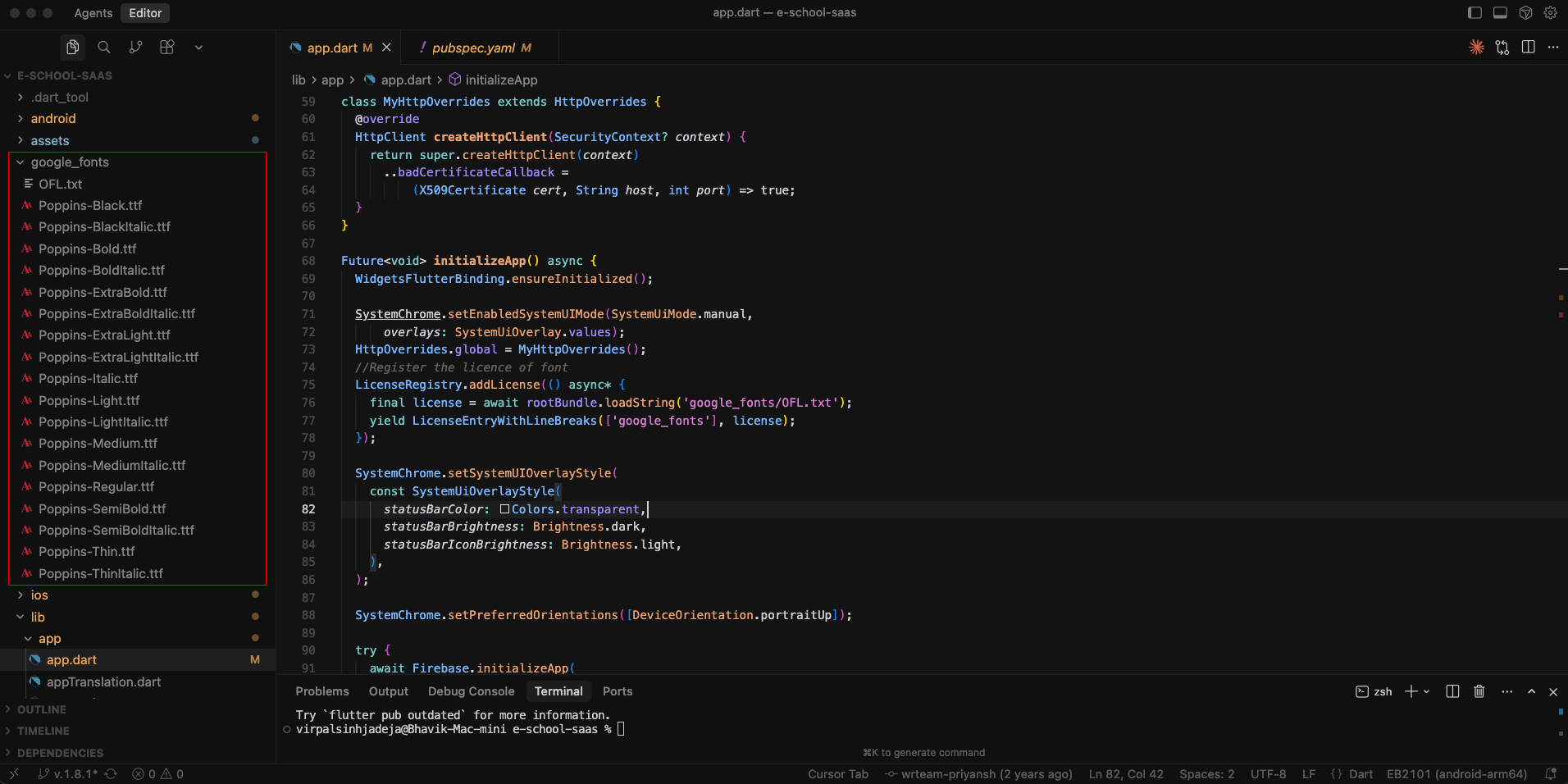
Step 3: Update license file
In the app.dart file, update the license file name in the google_fonts section with the name of the new file you have added.
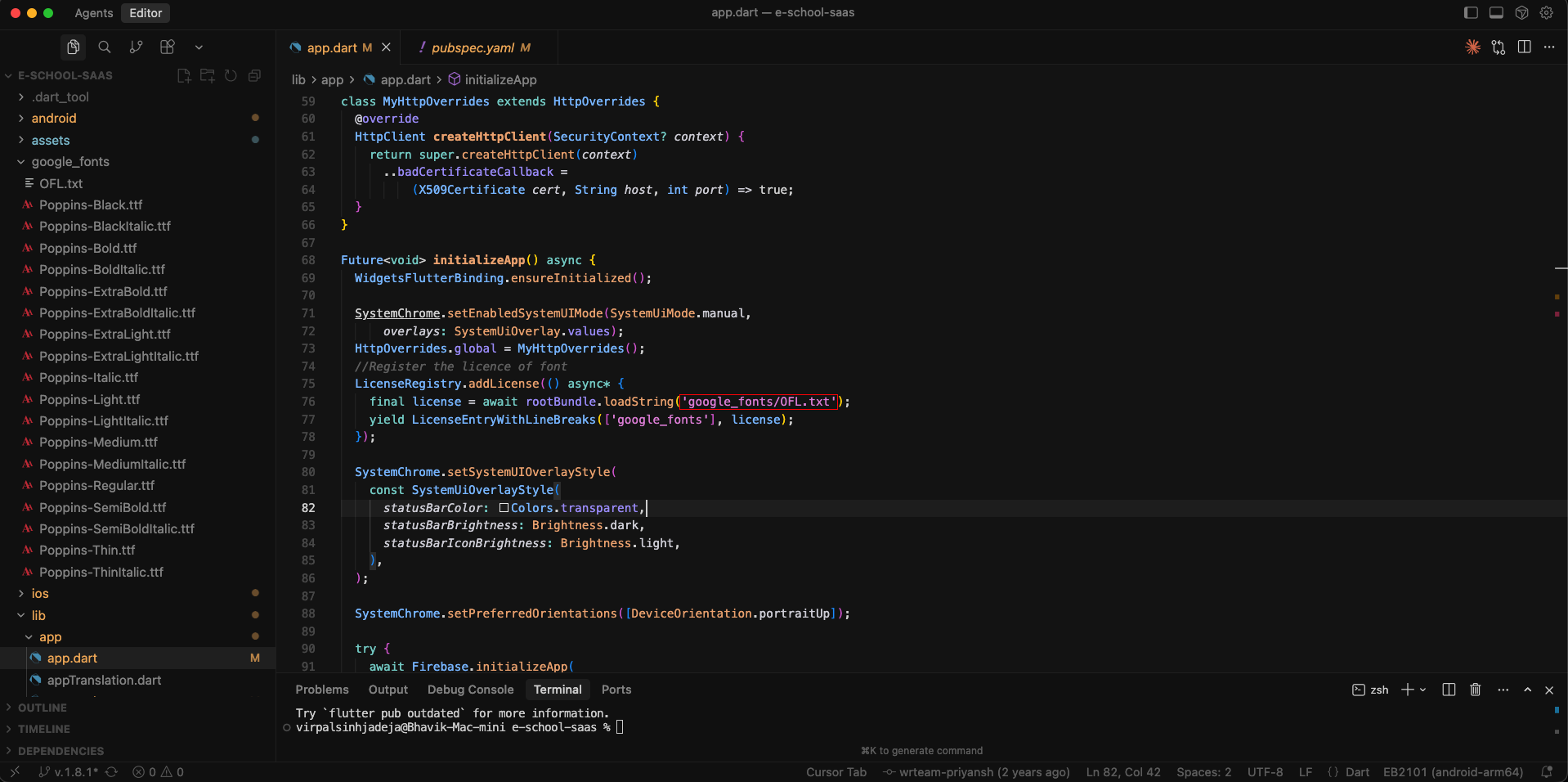
Step 4: Verify Font in pubspec.yaml
The app is pre-configured to use Google Fonts. Ensure the google_fonts package is listed in your pubspec.yaml:
dependencies:
  google_fonts: ^latest_version
If not present, add it and run:
flutter pub get
Step 6: Rebuild the App
After updating the font family name, rebuild your app to see the changes:
flutter clean
flutter pub get
flutter run
The new font will be automatically downloaded and applied throughout the app.
✨ How It Works
The app uses the google_fonts package, which:
- Automatically downloads fonts from Google Fonts on-demand
- Caches fonts locally for offline use
- Applies the font across all text widgets in the app
- Requires no manual font file downloads or asset management
You simply specify the font family name, and the package handles everything else!
💡 Popular Google Fonts
Here are some recommended fonts for educational apps:
- Poppins - Modern, clean, and highly readable
- Roboto - Professional and versatile (Android default)
- Open Sans - Friendly and clear for all screen sizes
- Lato - Elegant and easy to read
- Montserrat - Bold and contemporary
- Nunito - Rounded and approachable
📝 Important Notes
- Font Name Accuracy: Ensure the font family name matches exactly as shown on Google Fonts (case-sensitive)
- Internet Required: The first time the app runs with a new font, it needs internet to download it
- Caching: Once downloaded, fonts are cached and work offline
- Compatibility: All Google Fonts are optimized for mobile devices
- Testing: Always test your chosen font on different screen sizes and devices
⚠️ Troubleshooting
Font Not Changing?
- Check Font Name: Verify the exact spelling and capitalization on Google Fonts
- Clean Build: Run
flutter clean && flutter pub get - Rebuild App: Ensure you completely rebuild the app, not just hot reload
- Internet Connection: Make sure the device has internet on first run with new font
Font Looks Incorrect?
- Some fonts may not support all language characters
- Test with your app's content to ensure proper rendering
- Consider font weights and styles for better readability
🎨 Custom Fonts (Alternative Method)
If you prefer to use custom fonts not available on Google Fonts:
Step 1: Add Font Files
Place your custom font files (.ttf or .otf) in:
assets/fonts/YourFontName-Regular.ttf
assets/fonts/YourFontName-Bold.ttf
Step 2: Update pubspec.yaml
flutter:
  fonts:
    - family: YourFontName
      fonts:
        - asset: assets/fonts/YourFontName-Regular.ttf
        - asset: assets/fonts/YourFontName-Bold.ttf
          weight: 700
Step 3: Rebuild
flutter clean
flutter pub get
flutter run
🔗 Resources
- Google Fonts - Browse available fonts
- google_fonts Package - Package documentation
- Flutter Typography - Official Flutter font guide