📦 Change Package Name
📋 Overview
The package name (also called the bundle identifier on iOS) is the unique identifier for your application on the Play Store and App Store. It must be set correctly before you release your app, as it cannot be changed after publishing without creating a new app listing.
This guide walks you through changing the package name for both Android and iOS in the eSchool SaaS mobile application.
🏷️ Package Name Naming Rules
Before choosing your package name, follow these conventions to avoid build errors or store rejections:
| Rule | Details |
|---|---|
| ✅ Lowercase only | Use only lowercase letters (a–z) |
| ✅ Dot-separated | Use dots (.) as segment separators |
| ✅ Reverse domain format | e.g., com.yourcompany.appname |
| ❌ No spaces | Spaces are not allowed anywhere |
| ❌ No special characters | Avoid @, -, _, #, etc. |
| ❌ No uppercase letters | All characters must be lowercase |
Ensure your package name matches exactly across Android, iOS, and Firebase. A mismatch between platforms is one of the most common causes of Firebase integration failures.
🔸 Special Case: Kotlin Reserved Keywords
If any segment of your package name is a Kotlin reserved keyword (e.g., in, is, as, when, object, class), you must wrap that segment in backticks (`) in your Kotlin source files.
Example — for a package like in.co.mydomain.myapp:
package `in`.co.mydomain.myapp
This is a Kotlin language requirement and does not affect your Android manifest or Gradle config — only the package declaration at the top of .kt source files.
🔄 Steps to Change Package Name
1️⃣ Prepare the Project
-
Unzip the downloaded code. After unzipping you will have the E-School - Flutter Code folder. Open it in Android Studio or Visual Studio Code.
-
Install Flutter dependencies — open the IDE terminal, navigate to your project root, and run:
flutter pub get -
iOS only — if you are targeting iOS, also run:
cd ios
pod install
cd ..
2️⃣ Change the Android Package Name
Run the following command in your terminal from the project root:
flutter pub run change_app_package_name:main your.new.package.name
Replace your.new.package.name with your actual package name (e.g., com.yourcompany.eschool).
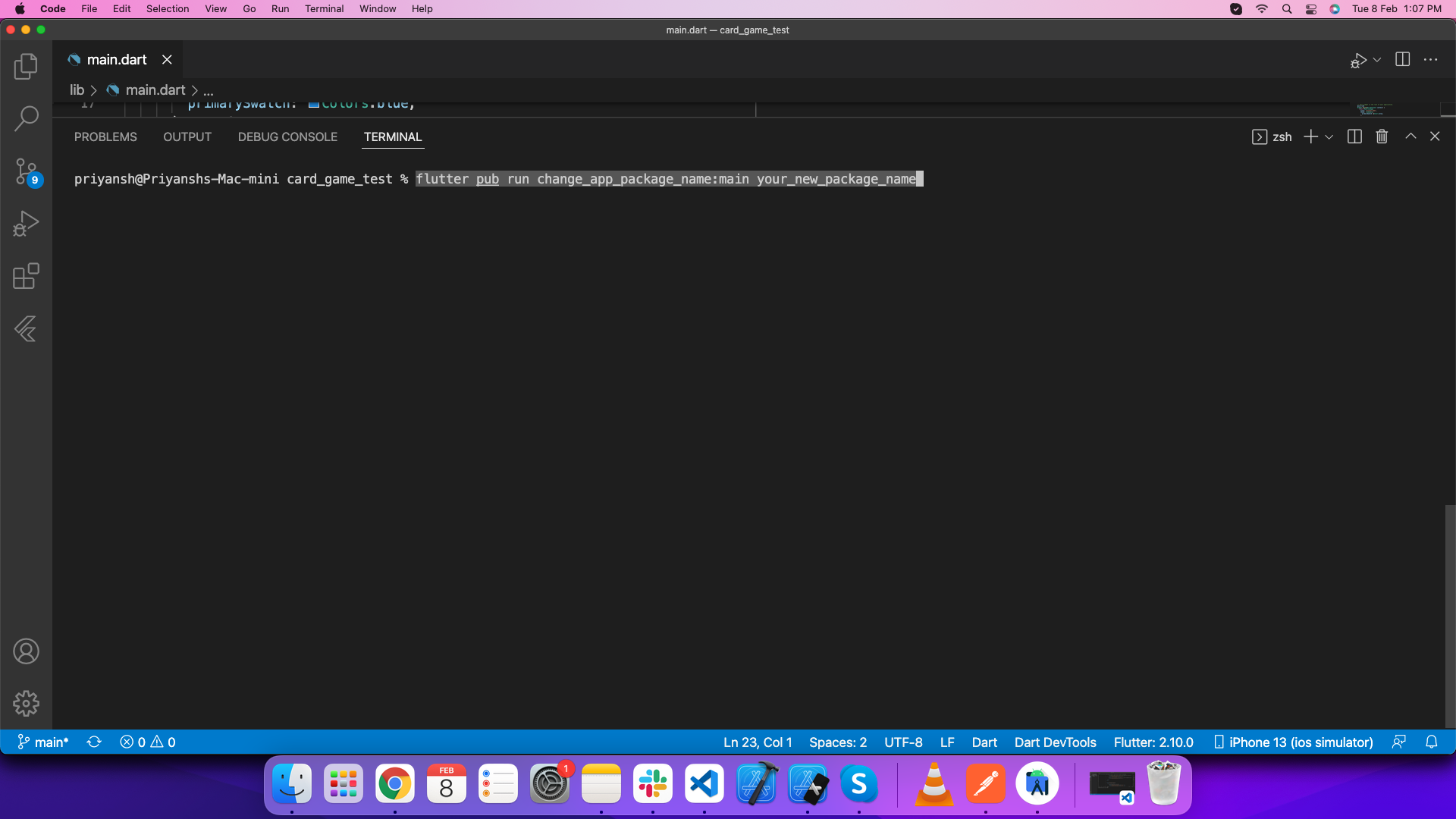
This command automatically updates the package name across all required Android files including AndroidManifest.xml, Gradle config files, and Kotlin source directories.
3️⃣ Change the iOS Bundle Identifier
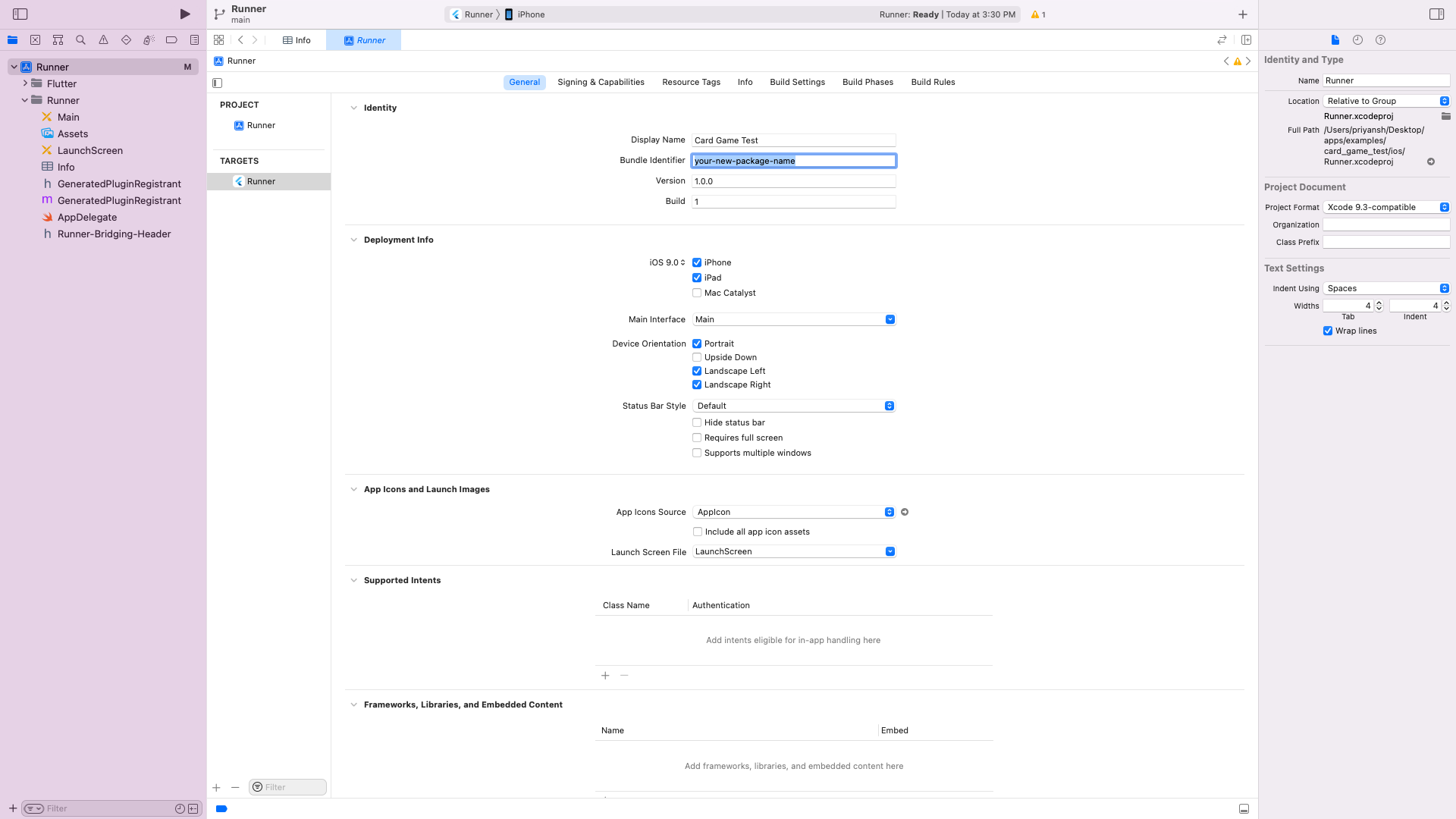
- Open the
iosfolder of the project in Xcode - In the left panel, select Runner
- Go to Targets → Runner → General → Identity
- Update the Bundle Identifier field with your new package name
✅ After Changing the Package Name
Once both platforms are updated, complete the following checklist before running the app:
- Clean the build — run
flutter cleanfollowed byflutter pub get - Update Firebase — regenerate and replace
google-services.json(Android) andGoogleService-Info.plist(iOS) with files tied to the new package name. See 👉 Integrate with Firebase - Verify iOS — confirm the Bundle Identifier in Xcode matches your new package name exactly
- Test on both platforms — run the app on an Android emulator and an iOS simulator to confirm everything works
If you change the package name but do not update Firebase configuration files, Firebase services (authentication, push notifications, Firestore) will fail silently. Always regenerate and replace the Firebase config files after renaming.
💡 Example
| Platform | Example Package Name |
|---|---|
| Android | com.yourcompany.eschool |
| iOS (Bundle ID) | com.yourcompany.eschool |
| Firebase Project | com.yourcompany.eschool |