🏗️ Generate Release Version
Create and add Key Store file for Android:
-
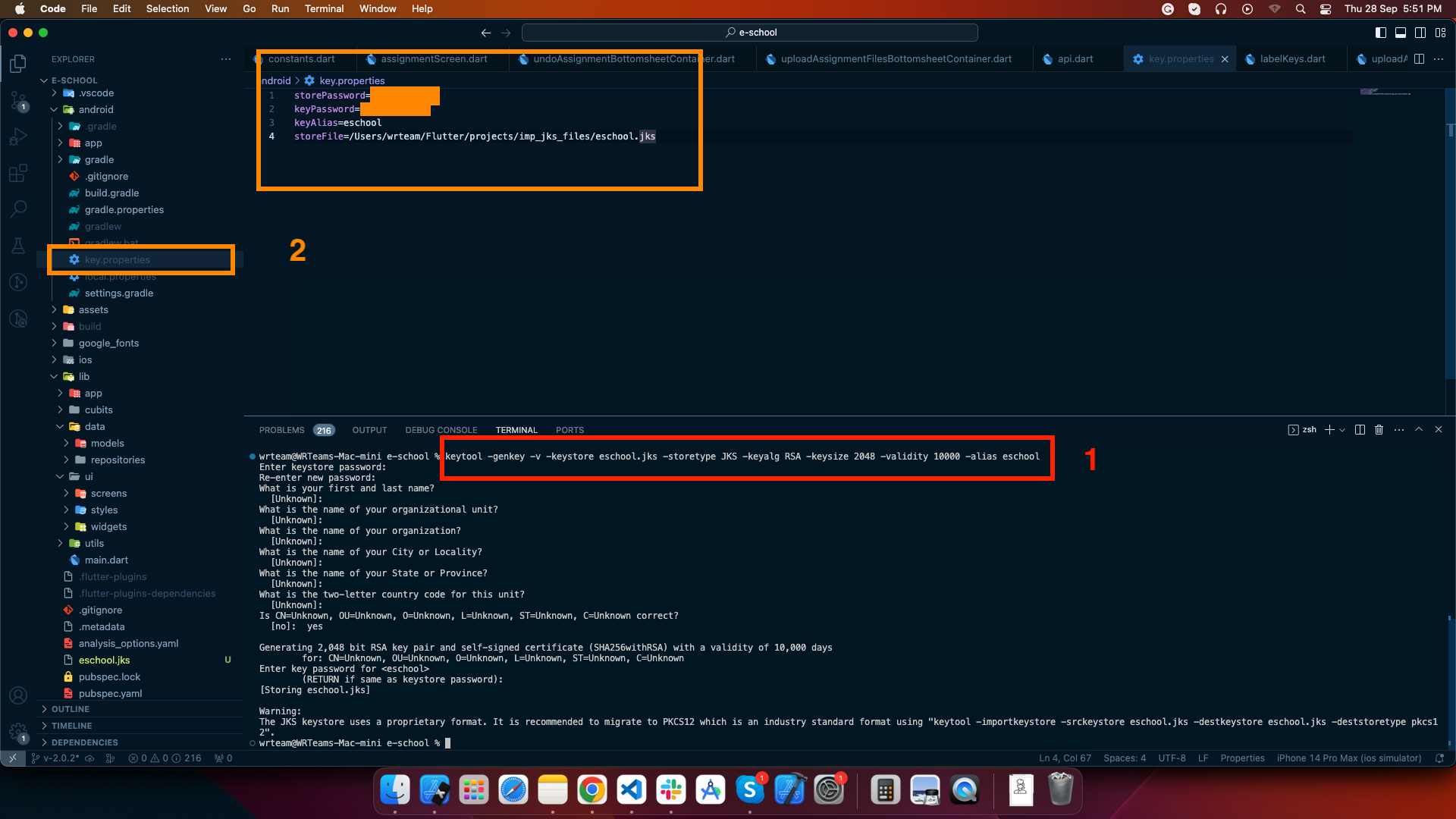
To generate a keystore file, run the following command:
keytool -genkey -v -keystore your-keystore-file.jks -keyalg RSA -keysize 2048 -validity 10000 -alias your-aliasYou can replace "your-keystore-file.jks" with your preferred filename, but ensure you keep the ".jks" extension. Similarly, you can change "your-alias" as needed, but make sure to remember it. During this process, you will be prompted to set a password; please note that the password characters won't be visible on the screen.
Additional information may be requested, but you can simply press Enter to skip those as they are optional fields.
-
Create a file named "key.properties" in your project's "android" folder and add the following details, which correspond to the information you used in the previous step:
storePassword=[your-password-from-previous-step]
keyPassword=[your-password-from-previous-step]
keyAlias=[your-alias-from-previous-step]
storeFile=[your-keystore-file-location]
Replace the placeholders ("[]" brackets) with the actual details you used. Once these two steps are completed, you can generate either an APK file using the following command:
flutter build apkOr an app bundle file for the Play Store upload with:
flutter build appbundle
Follow these links for more information on generating the release version:
-
To generate release android app-bundle and publish to playstore follow https://flutter.dev/docs/deployment/android
-
To generate release iOS apk and publish to appstore follow https://flutter.dev/docs/deployment/ios