▶️ Run This App
This guide will help you run the eSchool mobile application in both debug and release modes.
📋 Prerequisites
Before running the app, ensure you have:
- Flutter SDK installed and configured
- Android Studio or Xcode installed (depending on your target platform)
- A physical device or emulator/simulator ready
🐛 Running in Debug Mode
Debug mode is ideal for development, offering hot reload support and detailed logging for faster iteration.
Step 1: Connect Your Device or Start Emulator
For Android:
- Connect a physical device via USB (ensure USB debugging is enabled)
- Or start an Android emulator from Android Studio
For iOS:
- Open iOS Simulator from Xcode
- Or connect a physical iPhone/iPad via USB
Step 2: Verify Device Connection
Run the following command to list all connected devices:
flutter devices
This will display all available devices. Note the device ID if you want to run on a specific device.
Step 3: Run the App
# Run on the default device
flutter run

# Run on a specific device
flutter run -d <device-id>
Debug Mode Features
- Hot Reload: Press
rin the terminal to instantly see UI changes - Hot Restart: Press
Rto restart the app while maintaining the device state - Debug Console: View real-time logs and error messages
- Performance Overlay: Monitor app performance metrics
- Fast Compilation: Quicker build times for faster development
🚢 Running in Release Mode
Release mode provides optimized performance for production testing. The app runs faster with smaller file sizes.
Build and Install Release APK (Android)
# Build release APK
flutter build apk --release

# Install on connected device
flutter install --release
Build for iOS (Release)
# Build release version for iOS
flutter build ios --release
Then open the project in Xcode and deploy to your device.
🛠️ Common Commands Reference
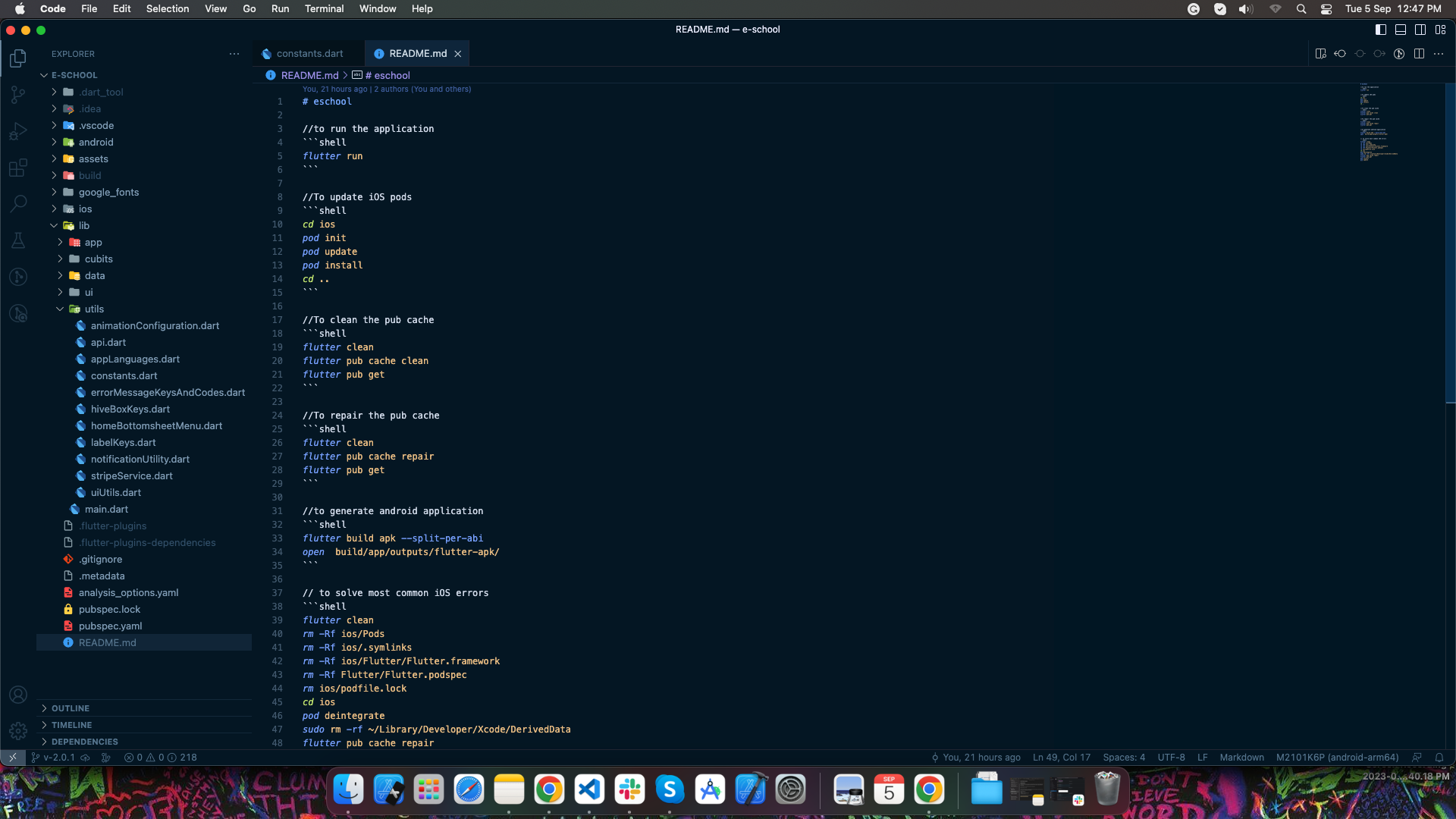
For a complete list of commonly used Flutter commands and troubleshooting steps, refer to the README.md file in the project root directory.
The README includes:
- Shell scripts for quick setup (Android Studio users)
- Common error fixes
- Build and deployment commands
- Configuration tips
💡 Quick Tips
- First Run: The first build may take several minutes. Subsequent builds will be faster.
- Clean Build: If you encounter issues, run
flutter cleanfollowed byflutter pub getbefore rebuilding. - Device Selection: Use
flutter devicesto see all available devices and their IDs. - Performance Testing: Always test in release mode before deploying to production.
⚠️ Troubleshooting
If you encounter issues while running the app:
- Run Flutter Doctor:
flutter doctorto check for missing dependencies - Clean Project:
flutter clean && flutter pub get - Restart IDE: Close and reopen Android Studio or VS Code
- Check README: Refer to the project's README.md for specific fixes
- Update Flutter: Ensure you're using a compatible Flutter version