🚌 Transportation Module ✨ NEW FEATURE
This is a newly added feature in the latest version of eSchool SaaS. It provides a comprehensive transportation management system for vehicles, routes, drivers, and student transportation requests.
The Transportation Module is a comprehensive system designed to streamline and manage all aspects of school transportation. This powerful feature enables schools to efficiently manage vehicles, routes, pickup points, drivers, transportation requests, and expenses—all from a centralized platform.
Overview
The Transportation Module integrates seamlessly across the Admin Panel, Student/Parent App, Teacher App, and Driver App, providing a complete end-to-end solution for school transportation management. It ensures student safety, optimizes route planning, and maintains transparent communication between all stakeholders.
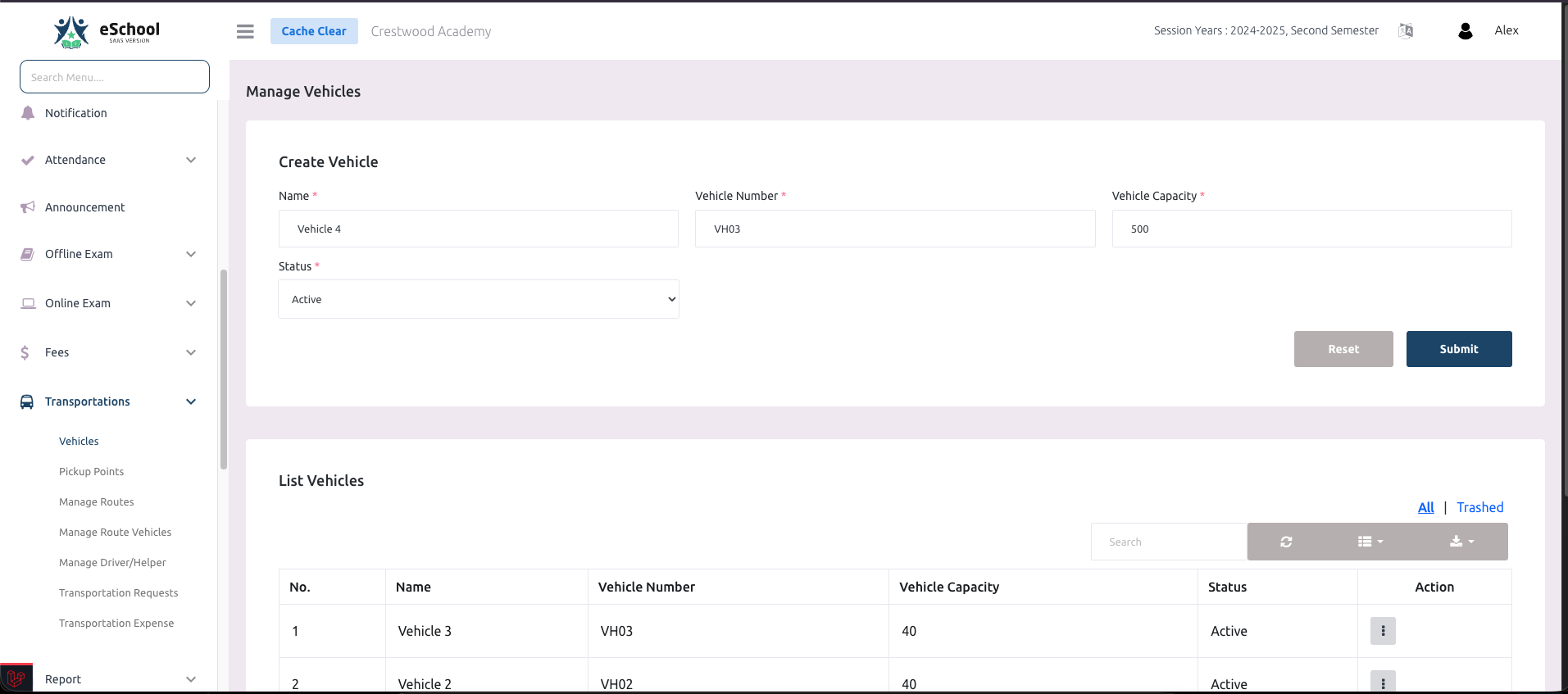
Admin Panel Features
The Admin Panel provides administrators with comprehensive tools to manage the entire transportation system. Access the Transportation module from the main navigation menu to manage all transportation-related activities.
1. 🚐 Manage Vehicles
Create and manage your school's fleet of vehicles with detailed information.
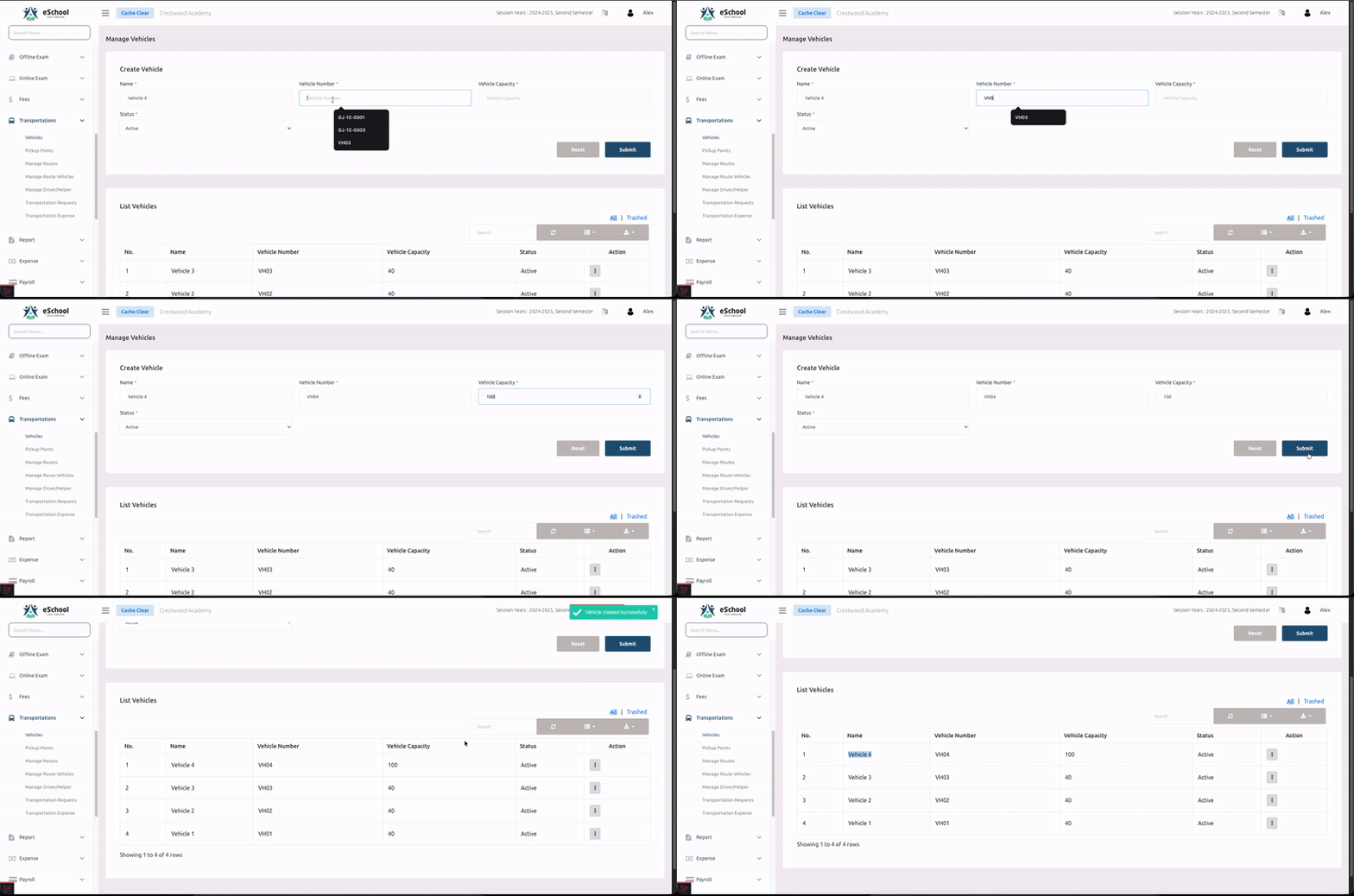
How to Create a Vehicle:
- Navigate to Transportations > Vehicles from the sidebar menu
- Click on the Create Vehicle section
- Fill in the required details:
- Name: Enter a unique name for the vehicle (e.g., "Vehicle 4")
- Vehicle Number: Enter the registration/license plate number (e.g., "VH03")
- Vehicle Capacity: Specify the maximum number of passengers
- Status: Select Active or Inactive
- Click Submit to save the vehicle
Vehicle List Features:
- 📋 View all vehicles in a comprehensive table
- 🔍 Search and filter vehicles
- ✏️ Edit or delete existing vehicles
- 👁️ View vehicle status at a glance
- 📊 Track vehicle capacity and availability
2. 📍 Manage Pickup Points
Define pickup/drop-off locations and set transportation fees based on distance.
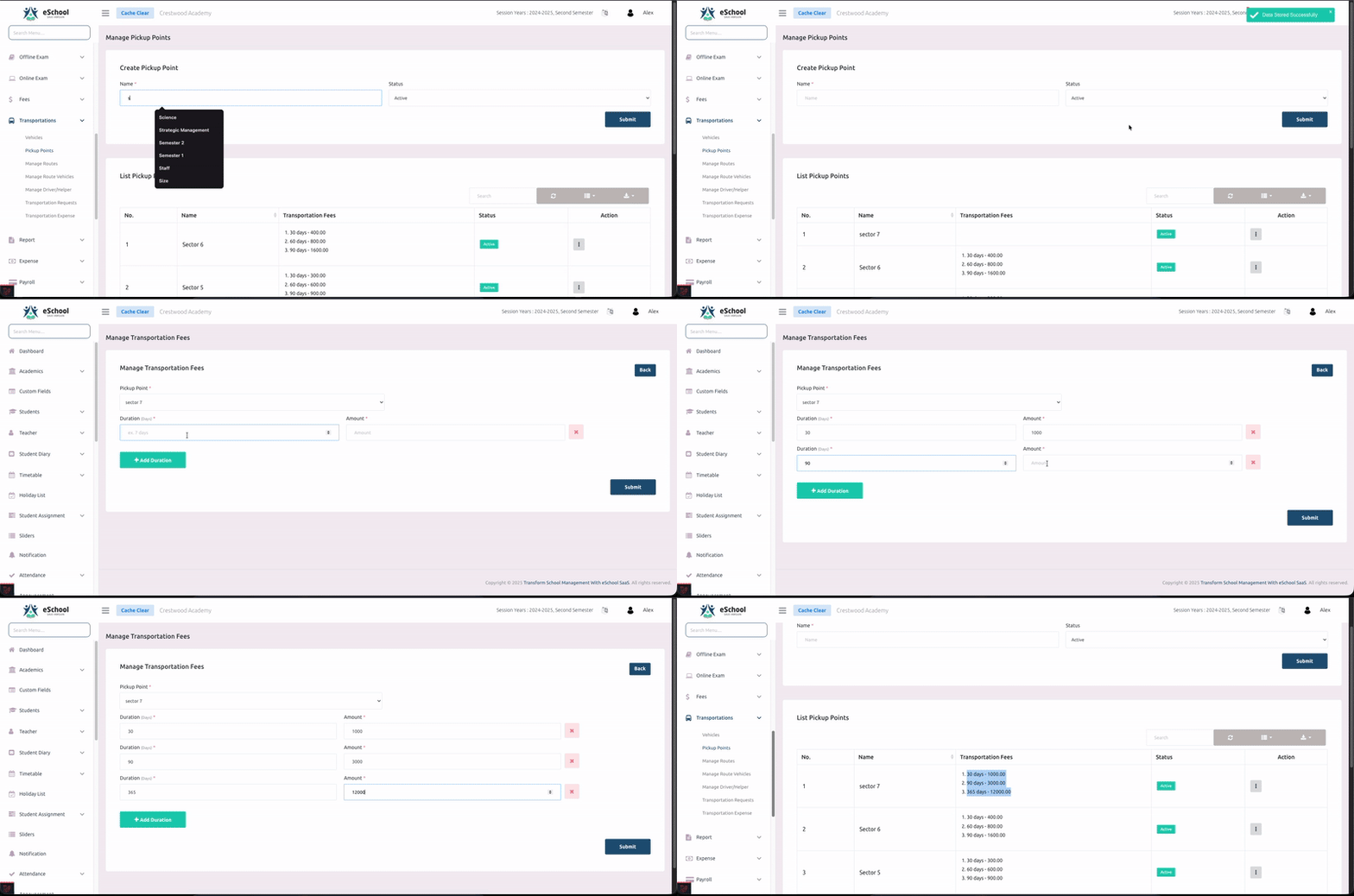
How to Create a Pickup Point:
-
Navigate to Transportations > Pickup Points
-
Click on Create Pickup Point
-
Enter pickup point details:
- Name: Enter the location name (e.g., "Sector 6", "Sector 5")
- Status: Set as Active or Inactive
-
Set Transportation Fees (Distance-based pricing):
- Define fee slabs based on distance ranges:
- 1-30 days: ₹800.00
- 2-60 days: ₹600.00
- 3-90 days: ₹1600.00
- Add multiple fee structures as needed
- Define fee slabs based on distance ranges:
-
Click Submit to save the pickup point
Pickup Point Features:
- 🌍 Create unlimited pickup points
- 💰 Set flexible fee structures based on subscription duration
- ⚙️ Manage pickup point status
- 📑 View all pickup points in a list with fee details
- 🗑️ Edit or delete pickup points as needed
3. 🗺️ Manage Routes
Create and configure transportation routes with multiple pickup points and timing details.
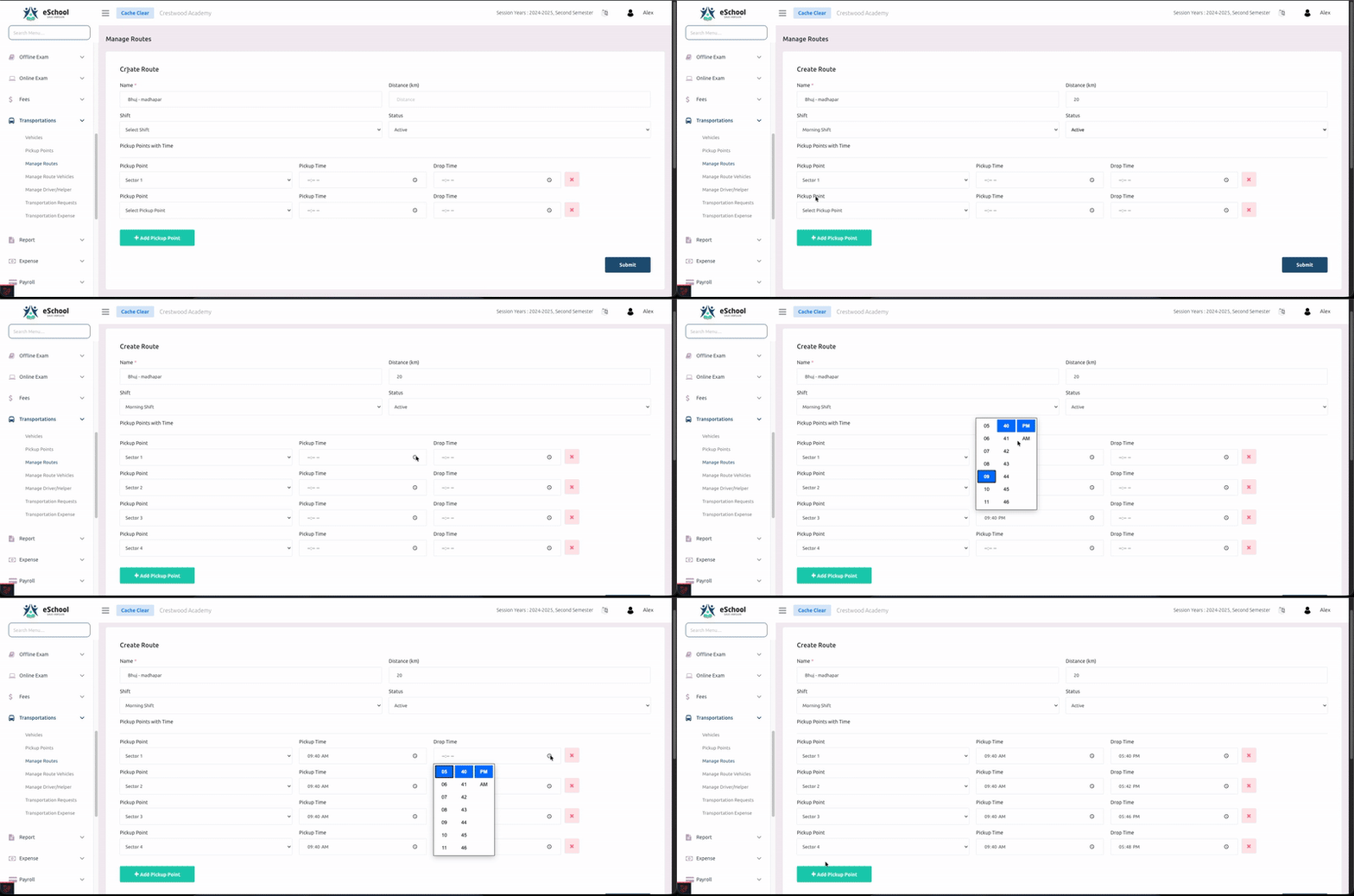
How to Create a Route:
-
Navigate to Transportations > Manage Routes
-
Click on Create Route
-
Enter route information:
- Name: Enter the route name (e.g., "Bhuj-Mandvi")
- Distance (km): Specify the total route distance
- Shift: Select the shift (Morning, Evening, or Both)
- Status: Set route as Active or Inactive
-
Add Pickup Points with Timings:
- Select a pickup point from the dropdown
- Set Pickup Time for student pickup
- Set Drop Time for student drop-off
- Click + Add Pickup Point to add more stops
- Remove unwanted points using the delete icon
-
Click Submit to save the route
Route Management Features:
- 🛣️ Create multiple routes for different areas
- 📍 Assign specific pickup points to each route
- 🌅 Define morning and evening shifts
- ⏰ Set precise pickup and drop-off times
- 🎛️ Manage route status (Active/Inactive)
4. 🚌 Manage Route Vehicles
Assign vehicles, drivers, and helpers to specific routes with pickup and drop shift timings.
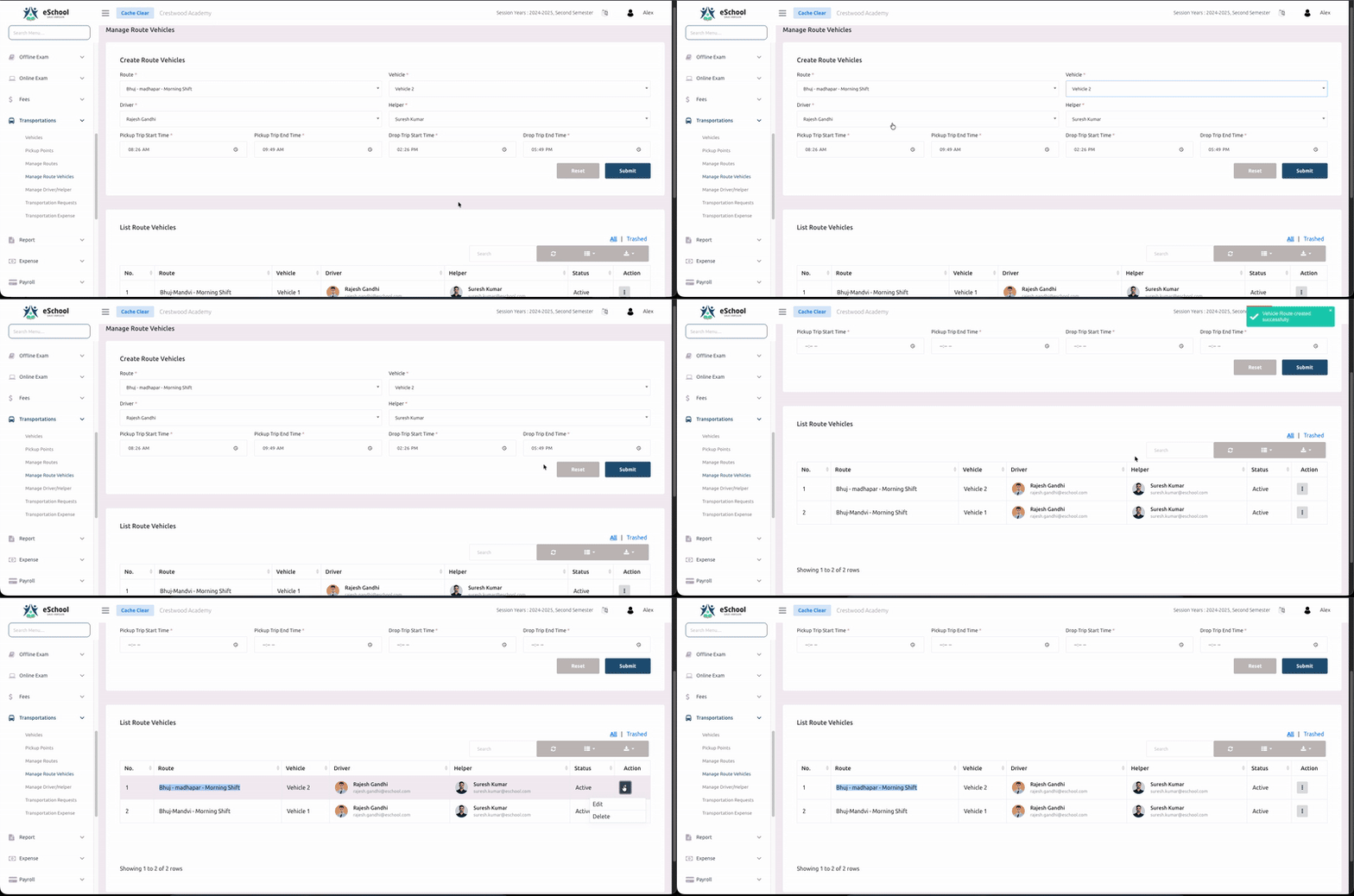
How to Assign Route Vehicles:
-
Navigate to Transportations > Manage Route Vehicles
-
Click on Create Route Vehicles
-
Select route details:
- Route: Choose the route from the dropdown (e.g., "Bhuj-Mandvi - Morning Shift")
- Vehicle: Select the vehicle to assign to this route
-
Assign staff:
- Driver: Select the driver for this route
- Helper: Select the helper/assistant for this route
-
Set timing details:
- Pickup Trip Start Time: Set when the pickup trip begins (e.g., "08:16 AM")
- Pickup Trip End Time: Set when the pickup trip ends (e.g., "09:49 AM")
- Drop Trip Start Time: Set when the drop trip begins (e.g., "02:26 PM")
- Drop Trip End Time: Set when the drop trip ends (e.g., "01:49 PM")
-
Click Submit to save the route vehicle assignment
List Route Vehicles:
After creating route vehicles, view them in the comprehensive list showing:
- Route: Route name and shift (e.g., "Bhuj-Mandvi - Morning Shift")
- Vehicle: Assigned vehicle (e.g., "Vehicle 1")
- Driver: Driver profile with photo and name (e.g., "Rajesh Gandhi")
- Helper: Helper profile with photo and name (e.g., "Suresh Kumar")
- Status: Active or Inactive
- Action: Edit or delete assignments
Route Vehicle Management Features:
- 🔗 Link routes with vehicles efficiently
- 👨✈️ Assign dedicated drivers and helpers to routes
- 🕐 Set precise pickup and drop shift timings
- 👁️ View complete route assignments at a glance
- 🔄 Manage multiple shifts for the same route
- ✏️ Update assignments as needed
- 📊 Track vehicle utilization across routes
5. 👨✈️ Manage Driver/Helper
Manage driver and helper profiles with comprehensive personal and professional information.
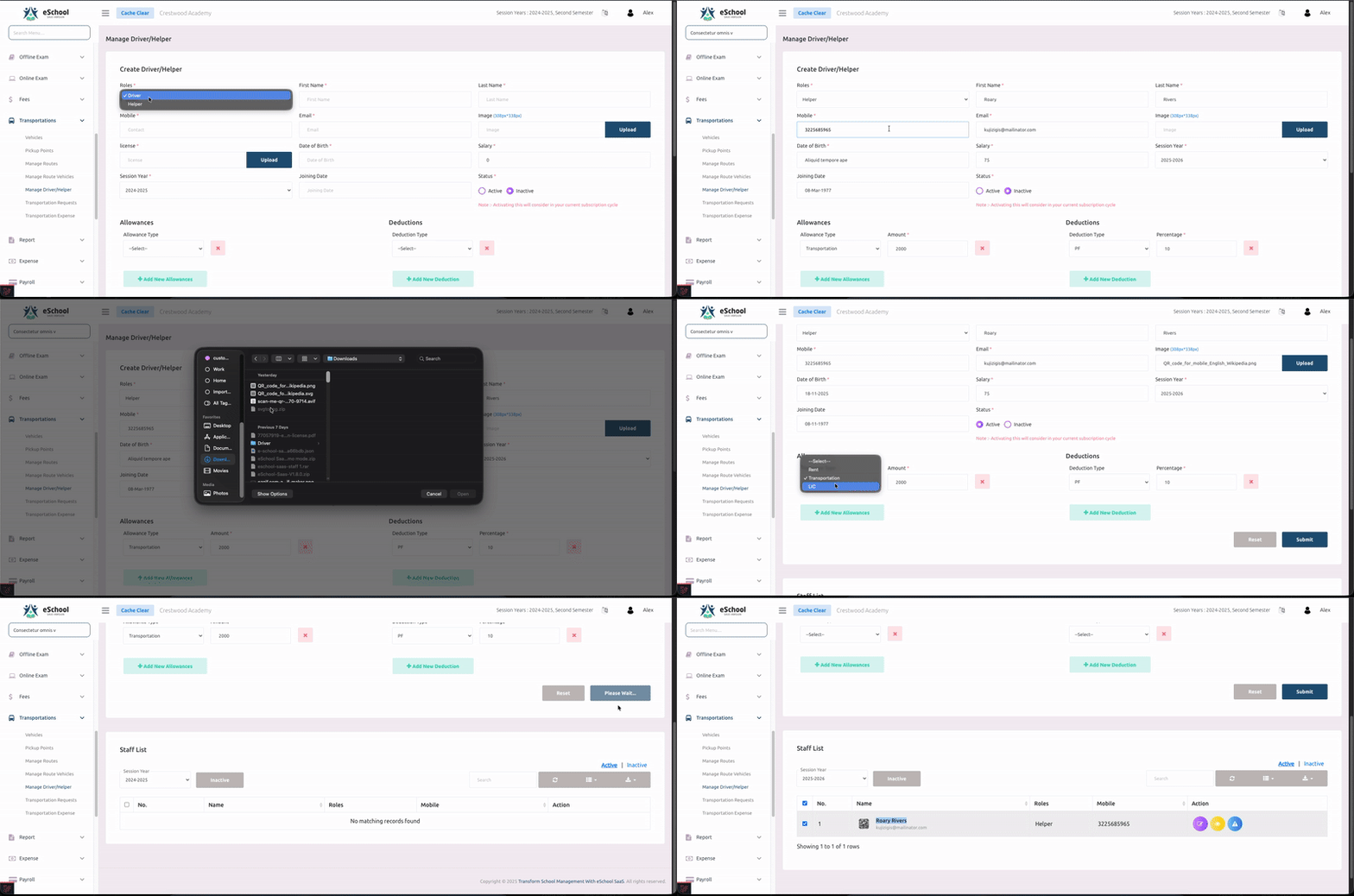
How to Add a Driver/Helper:
-
Navigate to Transportations > Manage Driver/Helper
-
Click on Create Driver/Helper
-
Select the Role: Driver or Helper
-
Fill in personal information:
- First Name and Last Name
- Email Address
- Image: Upload profile photo (JPG/JPEG/PNG)
- License: Upload driving license document (if Driver)
- Date of Birth
- Session Year: Select the current session
-
Enter employment details:
- Joining Date
- Salary: Monthly salary amount
- Status: Active or Inactive
-
Add Allowances (Optional):
- Click + Add New Allowances
- Select allowance type and amount
-
Add Deductions (Optional):
- Click + Add New Deductions
- Select deduction type and amount
-
Click Submit to save the driver/helper profile
Driver/Helper Management Features:
- 👤 Maintain complete driver and helper profiles
- 📄 Upload and store license documents
- 💵 Track salary and compensation details
- 💼 Manage allowances and deductions
- 📊 Monitor employment status
- 🔗 Link drivers to specific routes and vehicles
6. 📋 Transportation Requests
View and manage student transportation requests from parents.
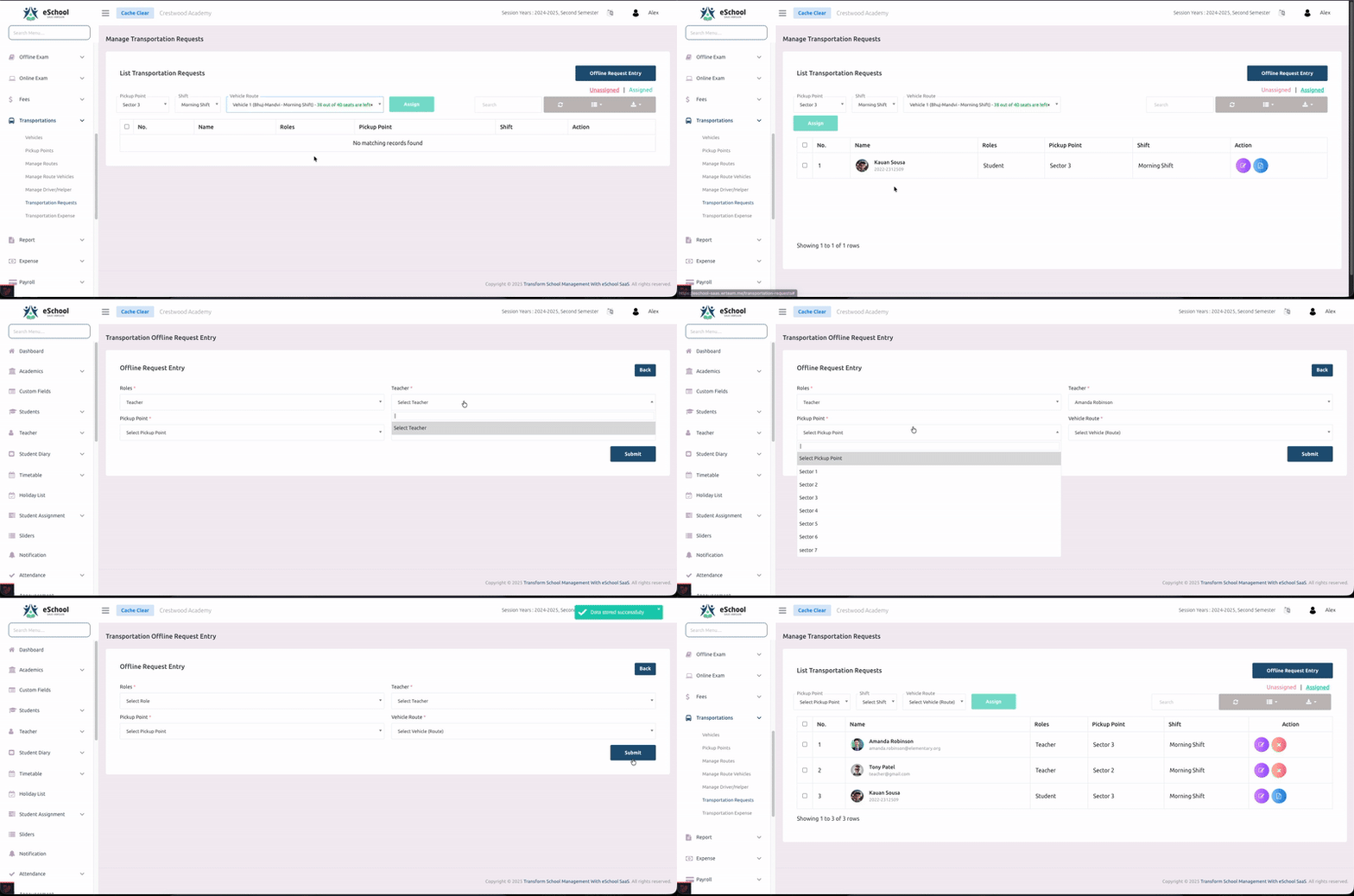
Request Management Features:
-
Navigate to Transportations > Transportation Requests
-
View all pending transportation requests
-
Filter requests by:
- Pickup Point: Filter by specific location
- Shift: Filter by Morning or Evening shift
- Vehicle Route: Filter by route name
- Status: Unassigned, Assigned, or Rejected
-
Offline Request Entry:
- Click Offline Request Entry to manually add requests
- Useful for walk-in requests or phone inquiries
-
Review student details including:
- Student name
- Requested route
- Pickup point
- Preferred shift
-
Take action: Assign, Reject, or Edit requests
Benefits:
- 🎯 Centralized request management
- ✅ Quick approval workflow
- 🔍 Easy filtering and search
- 📝 Offline request support
- 🔄 Real-time status updates
7. 💰 Transportation Expense
Track and manage all transportation-related expenses.
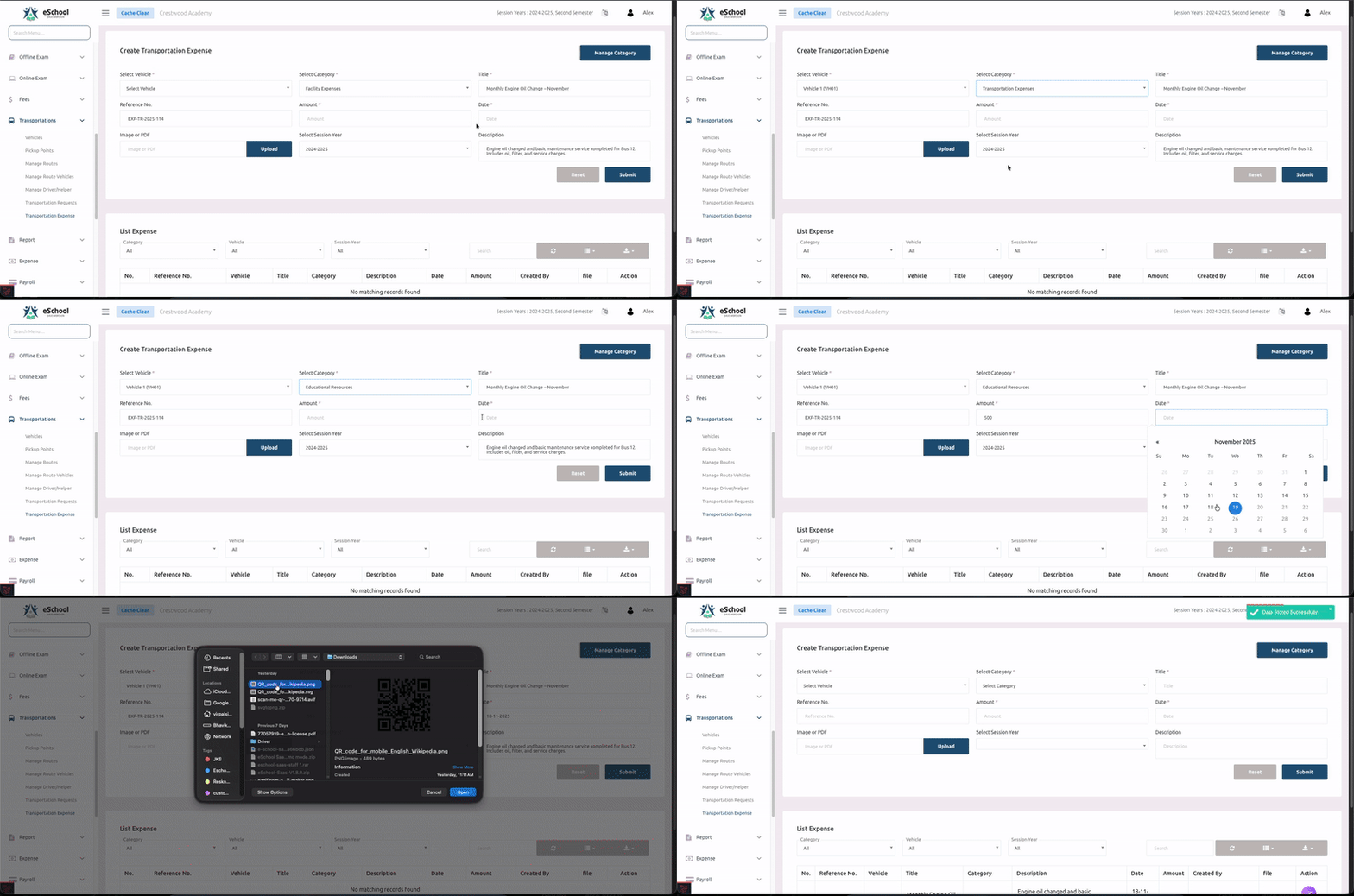
How to Create a Transportation Expense:
-
Navigate to Transportations > Transportation Expense
-
Click Manage Category to create expense categories first (e.g., "Facility Expenses", "Oil Charge")
-
Click on Create Transportation Expense
-
Fill in expense details:
- Select Vehicle: Choose the vehicle from the dropdown
- Select Category: Select expense type
- Title: Enter expense description (e.g., "Monthly Engine Oil Change - November")
- Reference No.: Enter bill/receipt number
- Amount: Enter expense amount
- Date: Select the expense date
- Select Session Year: Choose the session year
- Description: Add detailed notes about the expense
- Image or PDF: Upload supporting documents
-
Click Submit to save the expense
Expense Tracking Features:
- 📂 Categorize expenses by type
- 📎 Attach receipts and invoices
- 🚐 Track expenses by vehicle
- 🔍 Filter by category, vehicle, or session year
- 📊 Generate expense reports
- 💵 Monitor transportation budget
- 📜 View expense history with all details
📱 Driver App Features
The Driver App provides drivers with all the information they need to execute their routes efficiently and safely. It includes comprehensive trip management, real-time updates, and seamless communication features.
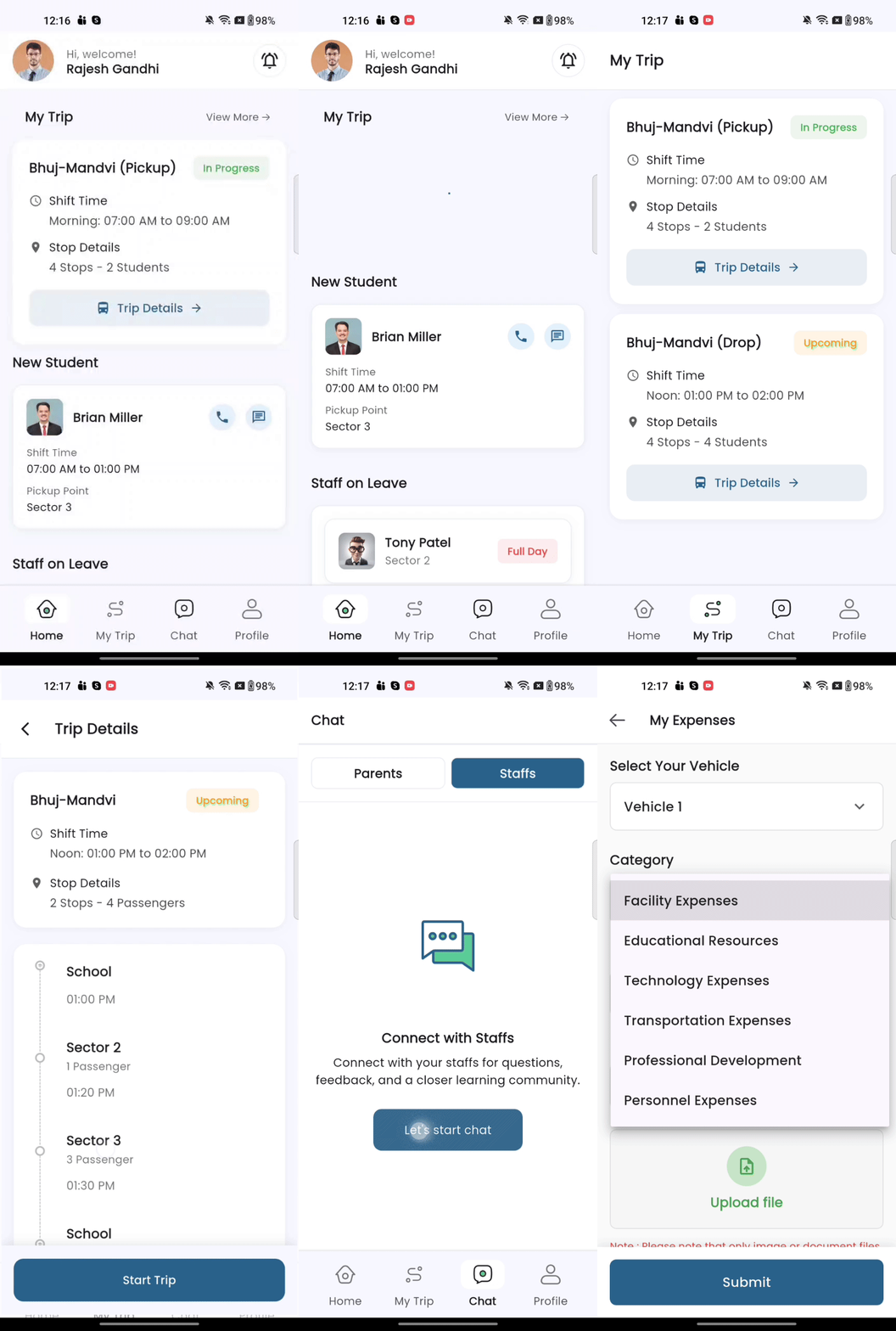
Trip Assignment & Management
Upcoming Trips
When the Admin assigns a trip to a driver for the first time, it automatically appears under the Upcoming Trips section. This allows drivers to:
- 📅 View all newly assigned trips
- 🎯 Prepare for upcoming routes
- 📋 Plan their daily schedule
- 👁️ Review trip details before starting
My Trips Section
The My Trips section is the central hub for managing all assigned routes. Drivers can view and manage their trips efficiently.
Trip Card Information
Each trip card displays:
- Route Name: e.g., "Bhuj-Mandvi (Pickup)"
- Trip Status: Upcoming, In Progress, or Completed
- Shift Information: e.g., "Morning: 07:00 AM to 09:00 AM"
- Quick Stats: Number of stops and total passengers
Viewing Trip Details
When a driver taps on any trip card, they can view complete trip information:
- Total Stops: Number of pickup/drop points on the route
- Total Students: Number of students assigned to the trip
- Total Teachers: Number of teachers (if applicable) on the trip
- Stop-wise User List: Detailed list of all users at each stop with:
- User names and photos
- Pickup point locations
- Contact information
- Attendance status
🚍 Starting a Trip
Start Trip Button
At the bottom of the trip details screen, drivers will see a "Start Trip" button.
How to Start a Trip:
- Open the trip from My Trips section
- Review all trip details and stop information
- Tap the "Start Trip" button
- Trip status changes to "In Progress"
- The trip timeline becomes active
Trip Start Notifications
Once the driver starts the trip, the system automatically sends real-time notifications to all associated users:
Notification sent to:
- ✅ All students on the trip
- ✅ All parents of students on the trip
- ✅ All teachers on the trip
Notification message:
"🚌 Your bus has started. The driver is on the way!"
This ensures everyone is informed that the transportation service is now active.
🛑 Stop-wise Attendance Management
The Driver App includes a comprehensive stop-wise attendance system managed by the helper.
At Each Stop
When the bus reaches a stop, the following workflow occurs:
Step 1: Arrival at Stop
- The helper opens the stop details
- Views the list of all users assigned to that stop
- Sees user photos and names for easy identification
Step 2: Mark Attendance
- The helper marks attendance for each user at the stop:
- ✅ Present: User boards the bus
- ❌ Absent: User is not at the stop
- Attendance is recorded in real-time
Step 3: Complete Stop
- After all attendance is marked, the stop is marked as "Reached"
- The system records the timestamp
- The stop status updates in the timeline
Step 4: Live Updates for Users
- In the Student/Parent App and Teacher App, users see live updates
- The timeline shows which stops are:
- ⏳ Upcoming: Not yet reached
- 🟢 Reached: Completed with attendance
- 🔵 Current: Bus is currently at this stop
🔔 Next Stop Notifications
The system provides proactive notifications to users as the bus approaches their stop.
How It Works:
- When Stop 1 is completed (attendance marked and stop reached)
- The bus moves toward Stop 2
- All users assigned to Stop 2 receive a notification
Notification message:
"🚏 Your stop is approaching. Please be ready!"
Benefits:
- ⏰ Users get advance notice to prepare
- ⚡ Reduces wait times at stops
- 📈 Improves punctuality
- 😊 Enhances user experience
- ✅ Prevents missed pickups
🏁 Trip Completion
When the route is finished, the helper ends the trip to notify all stakeholders.
How to Complete a Trip:
- After reaching the final stop
- Complete attendance for all users
- Tap the "End Trip" button
- Trip status changes to "Completed"
- The trip moves to trip history
Trip Completion Notifications
All users associated with the trip receive a notification:
Notification message:
"✅ Your trip has been completed successfully. Thank you for using our transportation service!"
Trip Summary:
- Total stops completed
- Total students transported
- Trip duration
- Attendance summary
Key Features Summary for Drivers:
1. Dashboard Overview
- View all assigned routes
- Quick access to trip status
- Current assignments at a glance
2. Shift Information
- Clear display of shift timings
- Example: "Morning: 07:00 AM to 09:00 AM"
- Helps drivers plan their schedule
3. Stop Details
- Number of stops on the route
- Total students to pick up/drop off
- Example: "4 Stops - 2 Students"
- Stop-wise user breakdown
4. Attendance Management
- Mark attendance at each stop
- Real-time status updates
- Absent/present tracking
- Attendance history
5. Staff on Leave
- View information about helpers or staff on leave
- Plan accordingly for route coverage
- Temporary assignment notifications
6. Navigation Menu
- Home: Main dashboard with trip overview
- My Trip: View and manage all assigned trips
- Chat: Communication portal with parents/school
- Profile: Personal profile and settings
Driver App Benefits:
- ✅ Real-time trip management and tracking
- ✅ Easy communication with parents/students
- ✅ Clear shift and timing details
- ✅ Comprehensive attendance system
- ✅ Automated notifications to all users
- ✅ Stop-wise progress tracking
- ✅ Student safety and accountability
- ✅ Professional trip management
- ✅ Offline functionality for areas with poor connectivity
- ✅ Complete trip history and reports
👩🏫 Teacher App Features
Teachers can access transportation information for students in their classes.
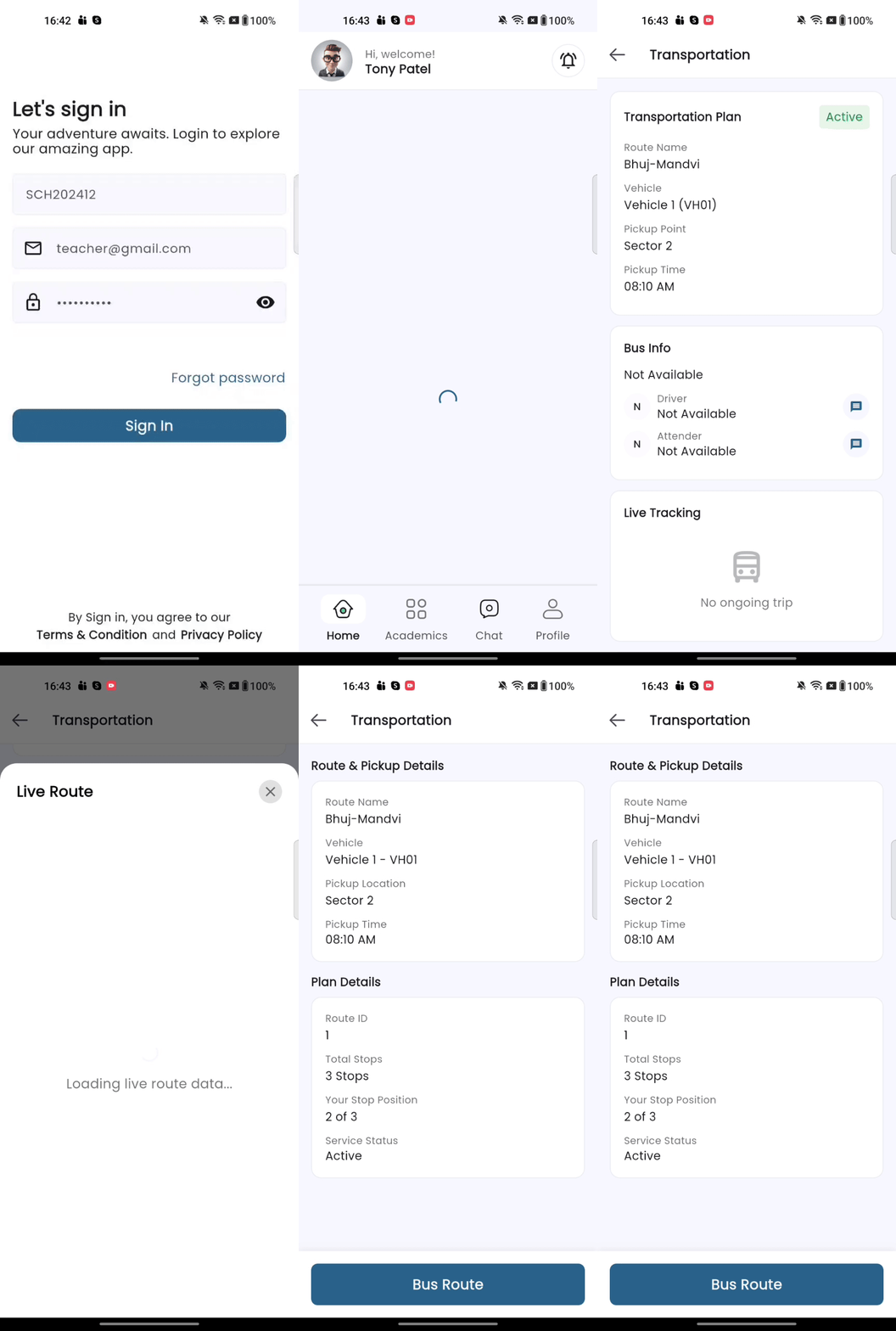
Teacher App Capabilities:
1. Transportation Home Screen
The Transportation Home Screen in the Teacher App provides comprehensive transportation information for teachers who are assigned to use school transportation. This screen displays the same data available to students and parents, ensuring transparency and consistency across all user roles.
Home Screen Display:
When teachers open the Transportation section, they can view:
-
Transport Plan Details:
- Assigned route name
- Current transportation plan status (Active/Inactive)
- Plan expiry date
- Pickup point location
- Shift timing (Morning/Evening)
-
Bus Information Card:
- Vehicle Details: Bus name and number
- Driver Information:
- Driver name with photo
- Direct call button to contact driver
- Chat button for messaging driver
- Helper/Attendant Information:
- Helper name with photo
- Direct call button to contact helper
- Chat button for messaging helper
-
Live Tracking Section:
- Trip Status Indicator: Shows whether trip is Upcoming, In Progress, or Completed
- Timeline View: Visual representation of all stops with current bus position
- Next Stop Information: Shows the upcoming stop and estimated time
- Track Button: Tap to view full-screen live tracking with route overlay
-
Attendance Management:
- View personal transportation attendance history
- Check attendance status for current and past trips
- See which stops were completed
- Track Present/Absent records
-
Quick Actions:
- Change Stop Request: Button to request pickup point change
- Renew Plan: Quick access to transportation plan renewal (when expiry approaches)
- View Route: See complete route details with all stops
- Contact Support: Direct link to transportation support
How to Request Stop Change from Home Screen:
- From the Transportation Home Screen
- Tap on "Change Stop" or "Request Stop Change" button
- View current stop details
- Select new preferred pickup point from available options
- Enter reason for stop change request
- Submit request to Admin
- Receive notification when request is approved/rejected
Data Consistency Across Apps:
Note: The transportation data shown on the Teacher App Home Screen is identical to what is displayed in the Student/Parent App. This ensures all transportation users (students, parents, and teachers) have access to the same accurate and up-to-date information including:
- Bus details and staff contact information
- Live tracking and trip status
- Stop information and timings
- Attendance records
- Plan details and expiry dates
- Request management capabilities
Benefits for Teachers:
- ✅ Complete visibility of their transportation service
- ✅ Direct communication with driver and helper
- ✅ Real-time bus tracking for safety and planning
- ✅ Self-service stop change requests
- ✅ Easy access to attendance records
- ✅ Consistent information across all users
- ✅ Quick access to all transportation features
👨👩👧 Student/Parent App Features
Parents and students can access transportation services and track their routes through the mobile app.
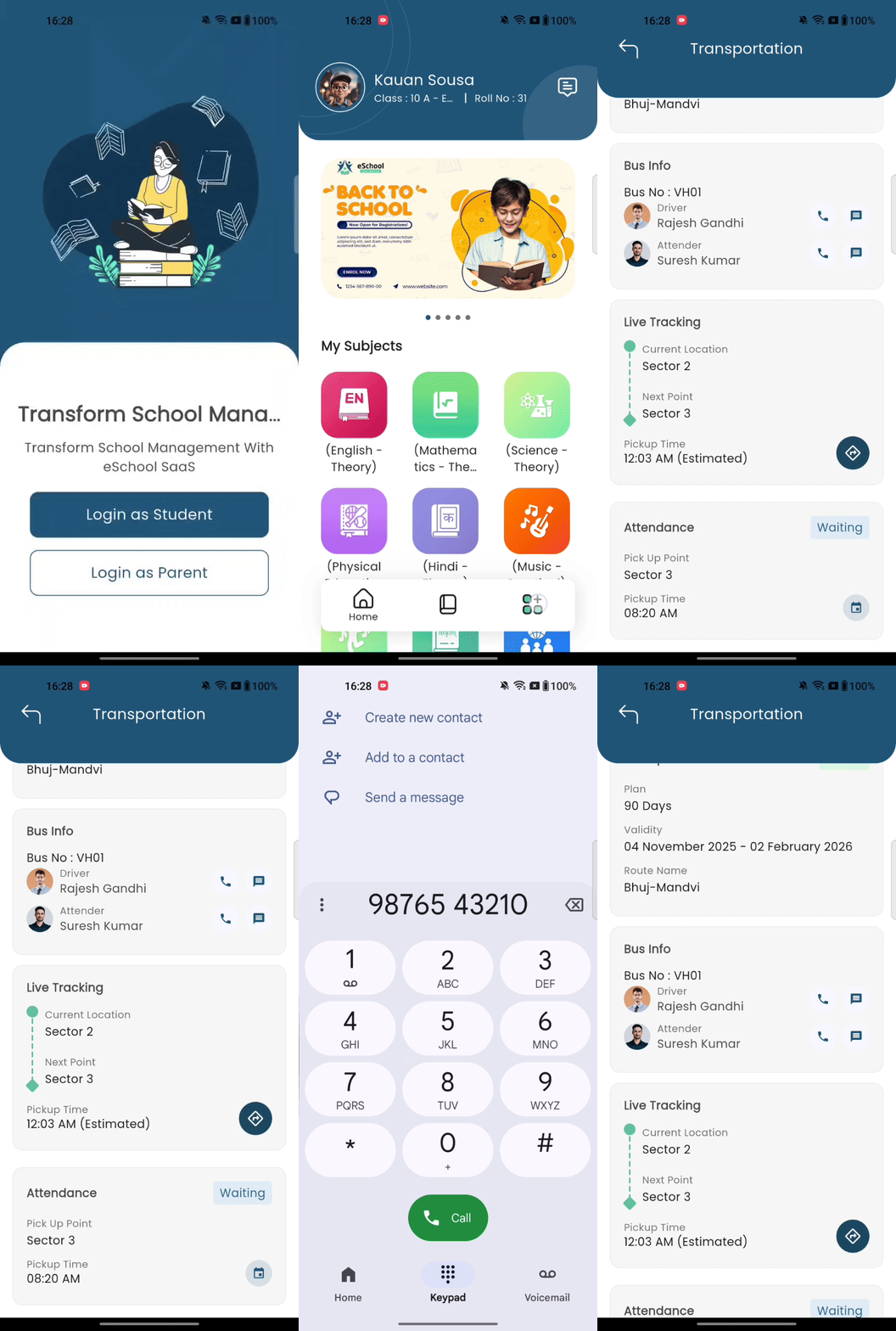
Key Features for Parents/Students:
1. 🔐 Easy Login
- Login as Student: For older students to track their own transport
- Login as Parent: For parents to monitor their child's transportation
2. 📝 Transportation Request
- Submit transportation requests for new enrollment
- Select preferred route and pickup point
- Choose morning or evening shift
- Track request status (Pending, Approved, Rejected)
3. 🗺️ Route Information
- View assigned route details
- Check pickup point location
- See scheduled pickup and drop-off times
- View driver contact information
4. 💰 Transportation Fees
- View applicable transportation charges
- Check payment status
- Access fee receipts
- Make online payments
5. 👨✈️ Driver Information
- View driver profile and photo
- Access driver contact number
- Helper/assistant information
- Emergency contact details
6. 📍 Change Stop/Pickup Point
- Parents can change the pickup/drop-off point directly from the app
- No need to visit the school office
- Request stop change with reason
- Admin approval workflow
- Instant confirmation once approved
How to Change Stop:
- Open the Transportation section in the app
- View current pickup point details
- Tap on "Change Stop" or "Request Stop Change" button
- Select the new desired pickup point from available options
- Select preferred shift (Morning/Evening) if applicable
- Enter reason for change (optional)
- Submit the request
- Admin reviews and approves/rejects the request
- Receive notification about approval status
- New stop becomes active upon approval
Benefits:
- ✅ Convenient address changes
- ✅ Seasonal residence adjustments
- ✅ Emergency stop modifications
- ✅ No paperwork required
- ✅ Quick approval process
7. 🔄 Renew Transportation Plan
- View transportation plan expiry date
- Receive expiry reminder notifications
- Renew plan directly from the app
- Multiple subscription duration options
- Secure online payment
How to Renew Transportation Plan:
- Navigate to Transportation section
- Check current plan status and expiry date
- If plan is expiring or expired, tap "Renew Plan" button
- Select subscription duration:
- 1 Month (30 days)
- 2 Months (60 days)
- 3 Months (90 days)
- Quarterly
- Half-yearly
- Full year
- Review transportation fees for selected duration
- Confirm pickup point and route
- Proceed to payment
- Complete payment using available payment methods
- Receive payment confirmation and updated plan details
Benefits for Parents/Students:
- 🛡️ Enhanced safety and peace of mind
- 👁️ Real-time visibility of student transport
- 💬 Easy communication with school and driver
- 💰 Transparent fee structure
- 📝 Convenient request management
- 🚨 Emergency preparedness
- 📍 Self-service stop changes
- 🔄 Hassle-free plan renewal
- 🏢 No office visits required
🎯 Benefits of Transportation Module
For School Administrators:
- ✅ Centralized transportation management
- ✅ Automated route optimization
- ✅ Comprehensive expense tracking
- ✅ Efficient driver and vehicle management
- ✅ Streamlined request approval process
- ✅ Data-driven decision making
- ✅ Reduced administrative workload
For Parents:
- ✅ Real-time transportation updates
- ✅ Enhanced child safety
- ✅ Direct driver communication
- ✅ Transparent fee structure
- ✅ Easy request submission
- ✅ Peace of mind
For Drivers:
- ✅ Clear route and schedule information
- ✅ Student contact details
- ✅ Easy communication tools
- ✅ Professional trip management
- ✅ Reduced confusion and errors
For Teachers:
- ✅ Better student tracking
- ✅ Improved parent communication
- ✅ Understanding of student situations
- ✅ Emergency preparedness
🚀 Getting Started with Transportation Module
Step 1: Initial Setup (Admin Panel)
- Create all vehicles in your fleet
- Define pickup points across your service area
- Set up transportation fee structures
- Create routes with pickup/drop timings
- Add driver and helper profiles
Step 2: Route Assignment
- Link vehicles to specific routes
- Assign drivers to routes
- Set shift timings (morning/evening)
- Activate routes
Step 3: Student Enrollment
- Parents submit transportation requests via app
- Admin reviews and approves requests
- Students are assigned to routes and pickup points
- Parents receive confirmation
Step 4: Daily Operations
- Drivers view assigned trips in Driver App
- Students/parents track transportation in their app
- Teachers monitor student transport status
- Admin tracks all operations in real-time
Step 5: Expense Management
- Record all transportation expenses
- Categorize and track spending
- Upload receipts and documents
- Generate expense reports
💡 Best Practices
Route Planning:
- 🗺️ Group students by geographic proximity
- ⚡ Optimize routes to minimize travel time
- 🚦 Consider traffic patterns and peak hours
- 🔄 Plan alternative routes for emergencies
Safety Measures:
- ✅ Verify all driver licenses and documentation
- 🔧 Conduct regular vehicle maintenance
- 📱 Share driver information with parents
- 📞 Maintain emergency contact lists
- ✅ Implement student attendance tracking
Communication:
- 📢 Send timely notifications about delays
- 🔄 Update parents about route changes
- 💬 Maintain open communication channels
- ⚡ Respond promptly to parent queries
Expense Management:
- 📝 Record all expenses immediately
- 📎 Keep digital copies of all receipts
- 📂 Categorize expenses properly
- 📊 Review expenses regularly
- 💰 Plan budgets based on historical data
❓ Frequently Asked Questions
Q: How are transportation fees calculated? A: Fees are based on pickup points and distance. Admins can set flexible fee structures with different durations (monthly, quarterly, etc.).
Q: What happens if a driver is on leave? A: Admins can reassign the route to another available driver, and all stakeholders will be notified of the change.
Q: Can transportation requests be submitted offline? A: Yes, admins can add offline transportation requests directly from the Admin Panel.
Q: How do parents contact the driver? A: Driver contact information is available in the parent app and student app with call and message options.
Q: Can we track transportation expenses by vehicle? A: Yes, the expense module allows filtering and tracking expenses by individual vehicles, categories, and time periods.
Q: Can parents change the pickup point from the app? A: Yes, parents can request a stop/pickup point change directly from the Student/Parent app. The request goes to the admin for approval, and parents receive a notification once approved.
Q: How do I renew my child's transportation plan? A: Parents can renew the plan directly from the app. Navigate to the Transportation section, tap "Renew Plan," select your preferred duration, and complete the payment. You'll receive instant confirmation.
Q: What happens if my transportation plan expires? A: You'll receive reminder notifications 7 days, 3 days, and 1 day before expiry. If expired, the transportation service will be paused until you renew. You can renew anytime from the app.
Q: Can teachers help with transportation stop changes? A: Yes, if authorized, teachers can assist parents in requesting stop changes and monitoring transportation plan renewals for their students.
Q: How long does it take for a stop change request to be approved? A: Once submitted, the admin reviews the request. Approval time depends on school policy, but parents receive instant notifications once the request is processed.
🔧 Settings
To configure Transportation Module settings, navigate to System Settings > Transportation Settings where you can:
- Enable or disable the transportation feature
- Set notification preferences
- Configure expense categories
- Manage transportation permissions
- Set up payment gateways for transportation fees
📞 Support
For additional assistance with the Transportation Module, please contact:
- Email: support@eschool.com
- Documentation: Refer to the main eSchool documentation
- Technical Support: Contact your system administrator
The Transportation Module is designed to make school transportation safer, more efficient, and transparent for everyone involved. Regular updates and new features are added to enhance the experience. 🚌💙