Firebase Setup
The Student Web Portal uses Firebase Cloud Messaging (FCM) to deliver push notifications to students for assignments, exams, and school updates.
1. Create a Firebase Project
- Go to the Firebase Console.
- Click Add Project and give it a name (e.g., "eSchool Student Web").
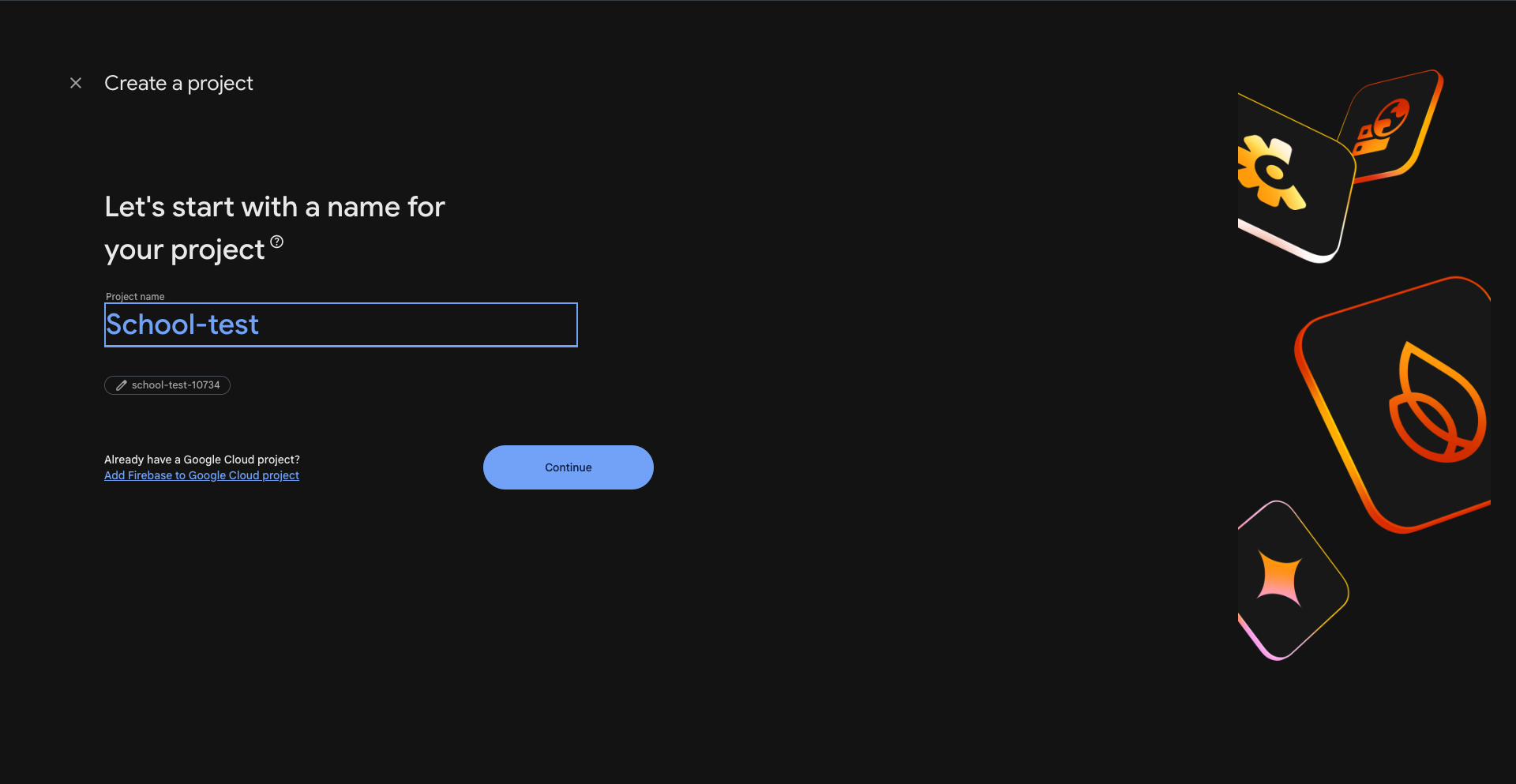
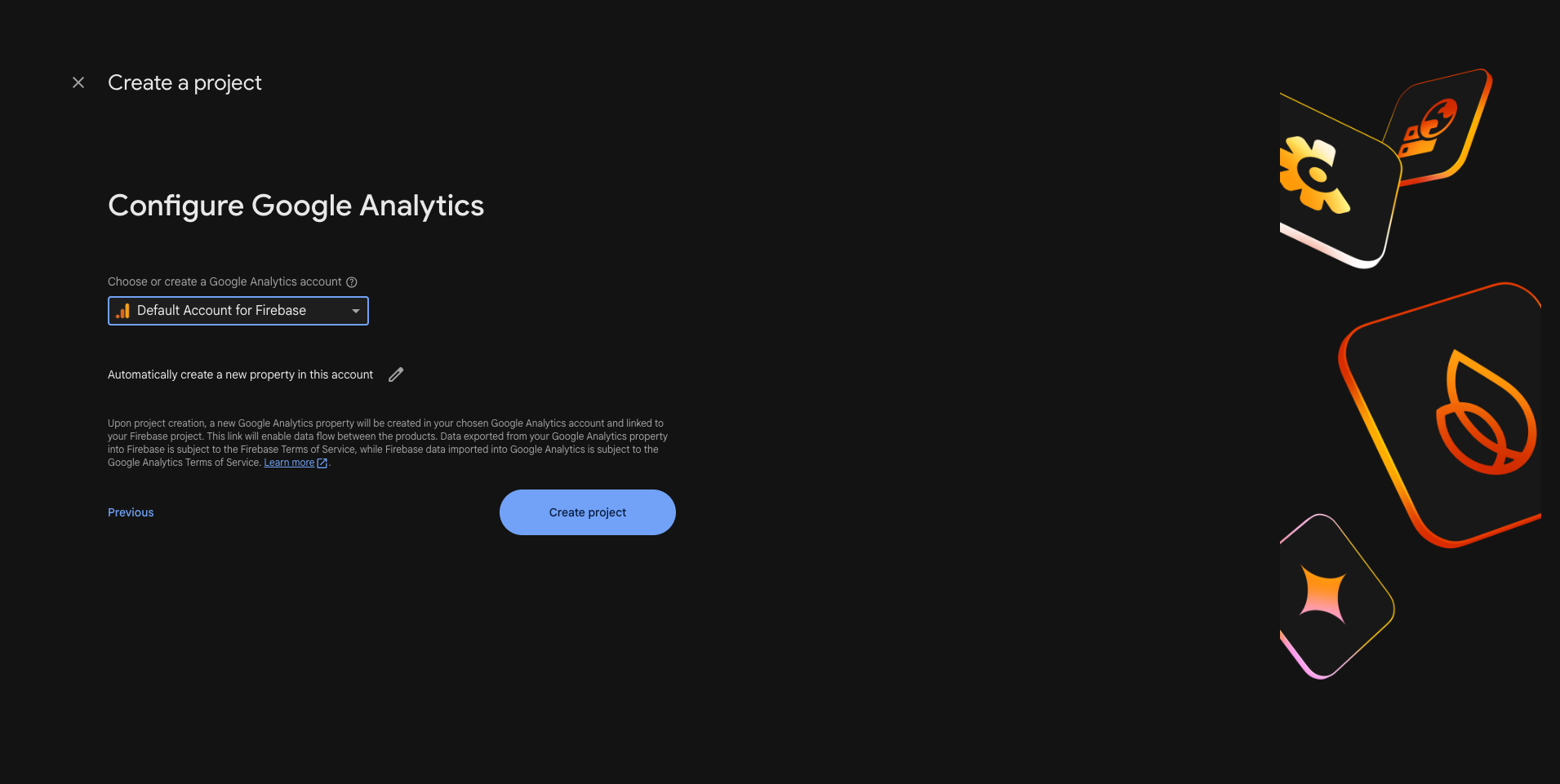
- Follow the steps and click Create Project.
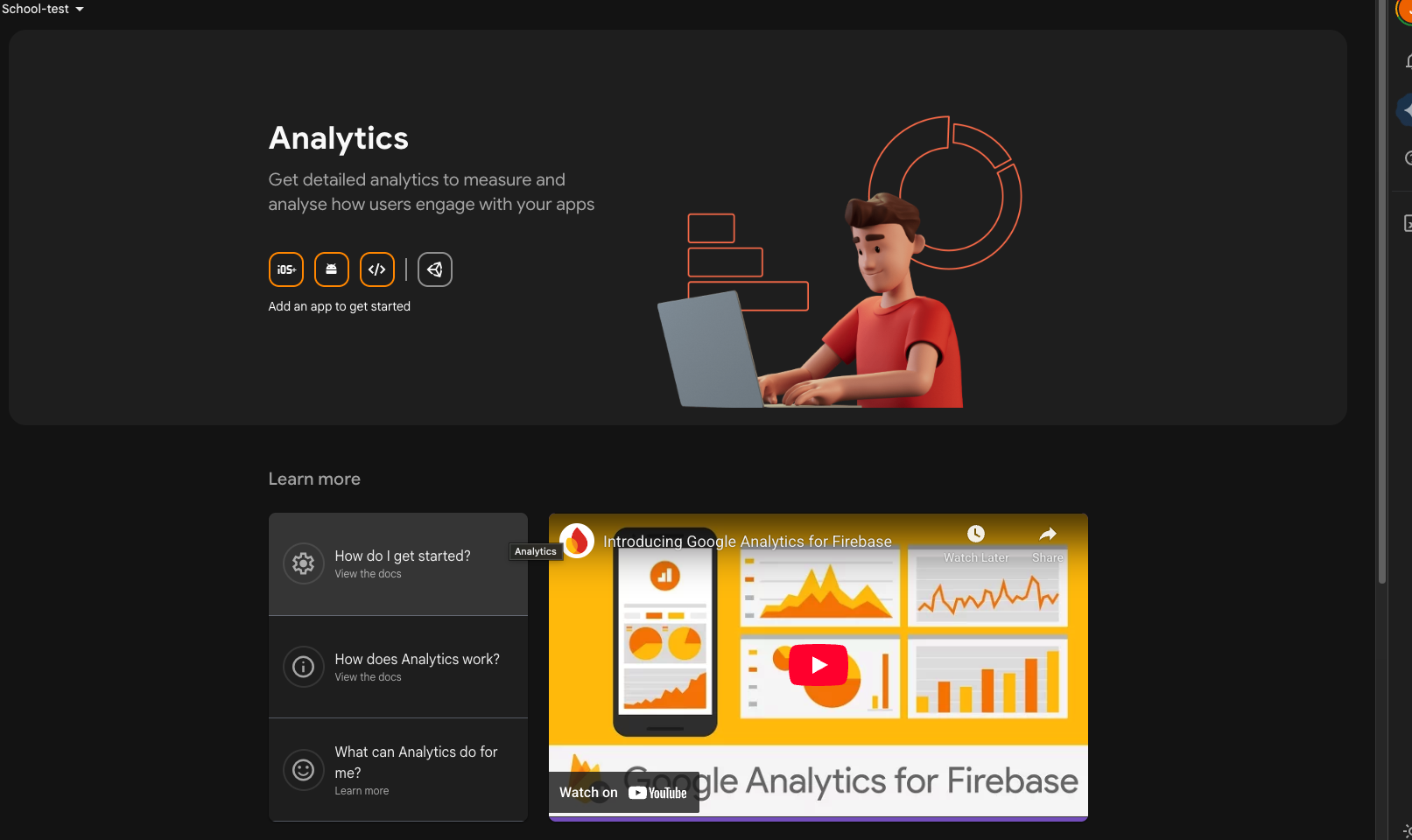
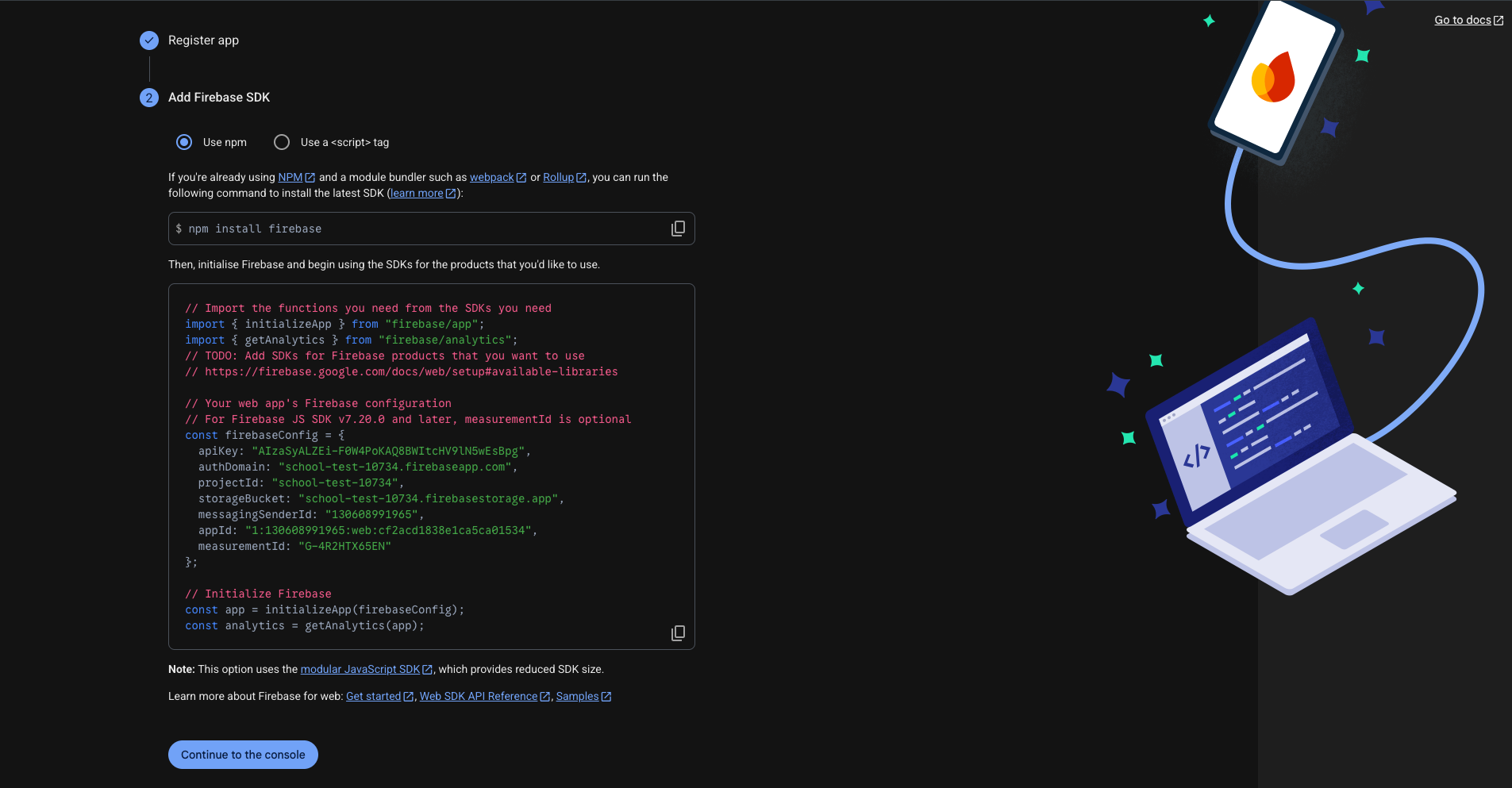
2. Register Your Web App
- In your project dashboard, click the Web icon (
</>) to add a new app.
- Enter an app nickname (e.g., "Student Portal").
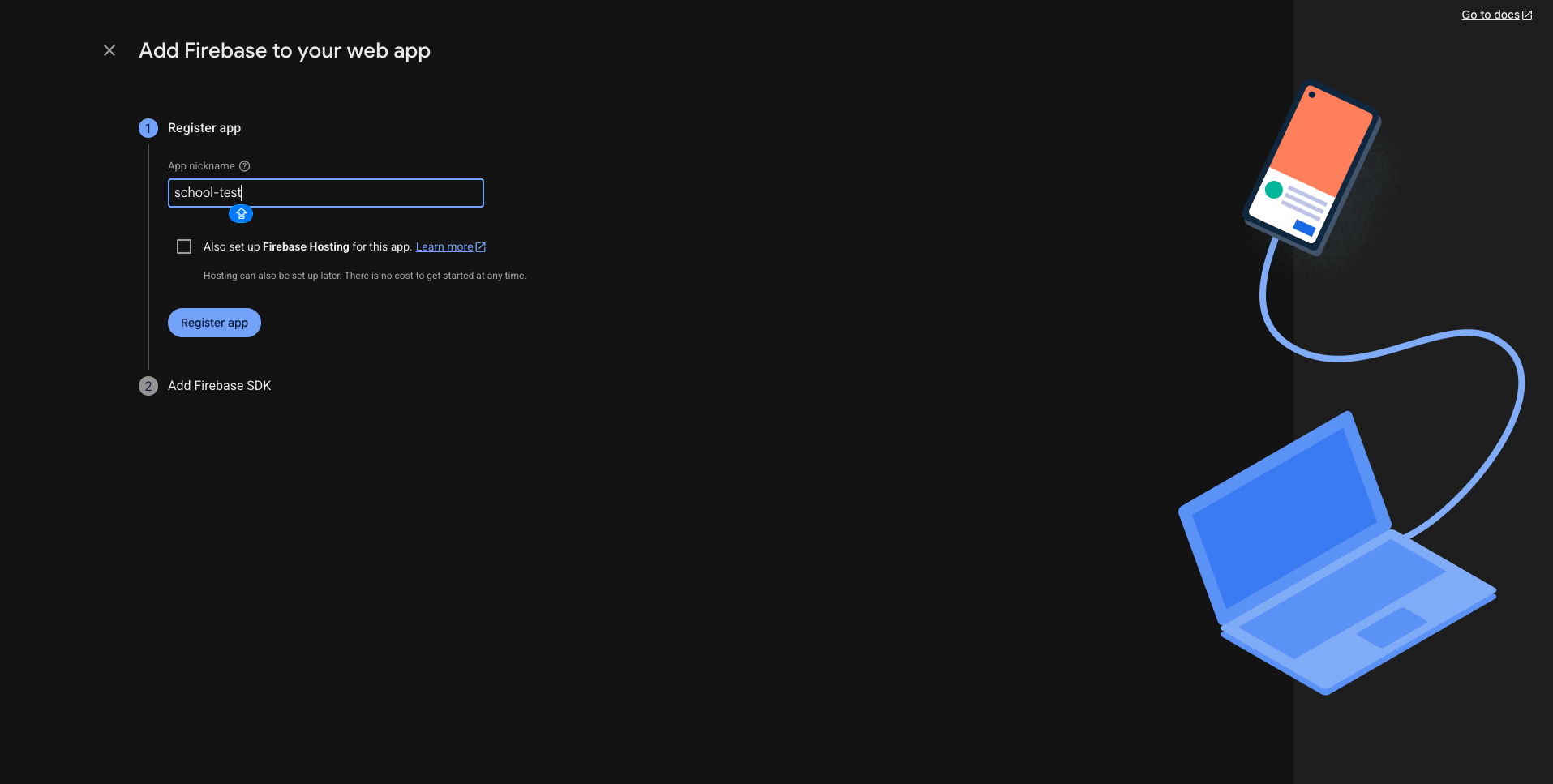
- Click Register app.
- You will see a
firebaseConfigobject. Keep this window open or copy the values.
3. Enable Cloud Messaging
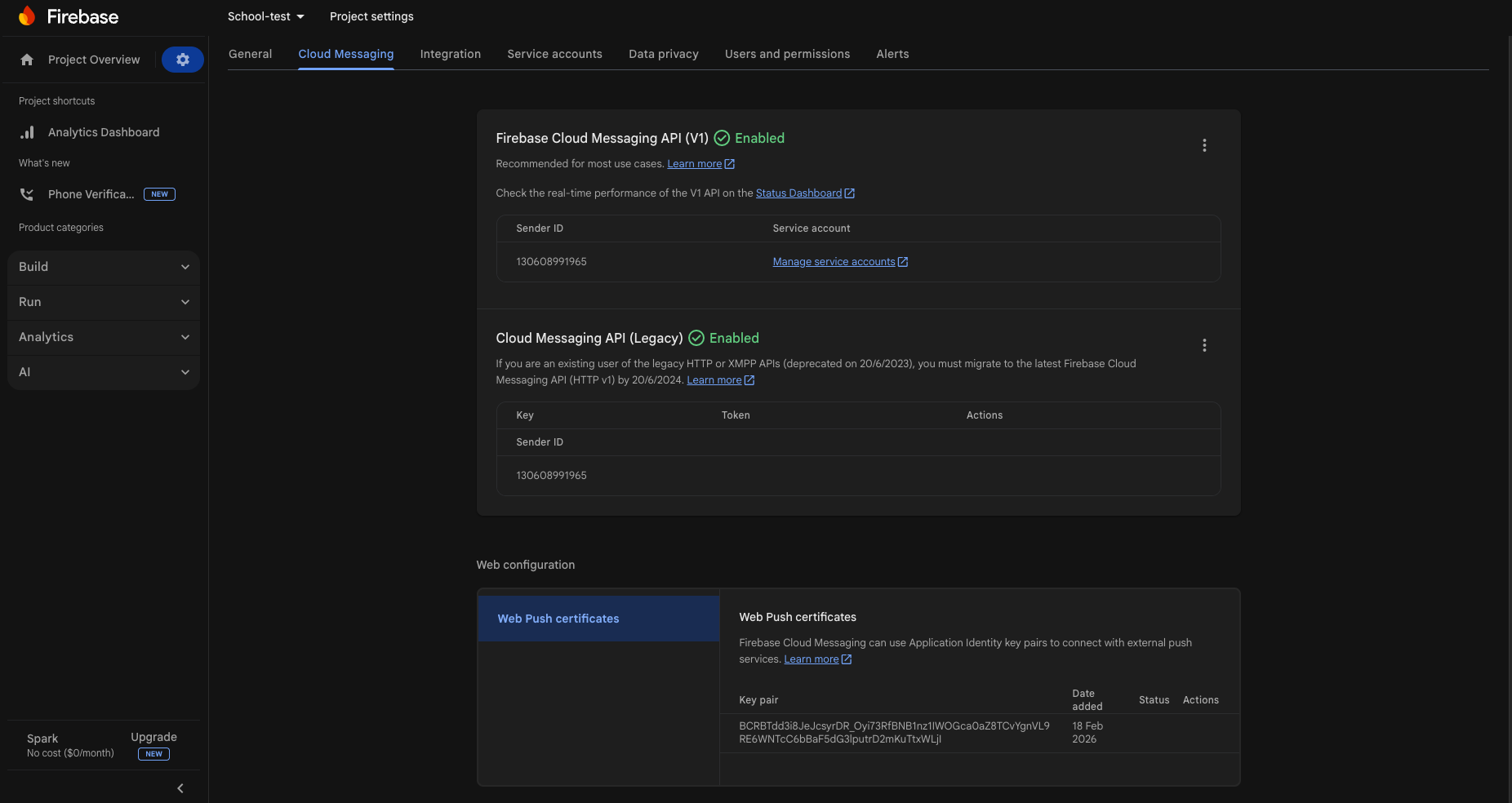
- Go to Project Settings (gear icon) → Cloud Messaging.
- Under Firebase Cloud Messaging API (V1), ensure it is enabled.
- Scroll down to Web configuration → Web Push certificates.
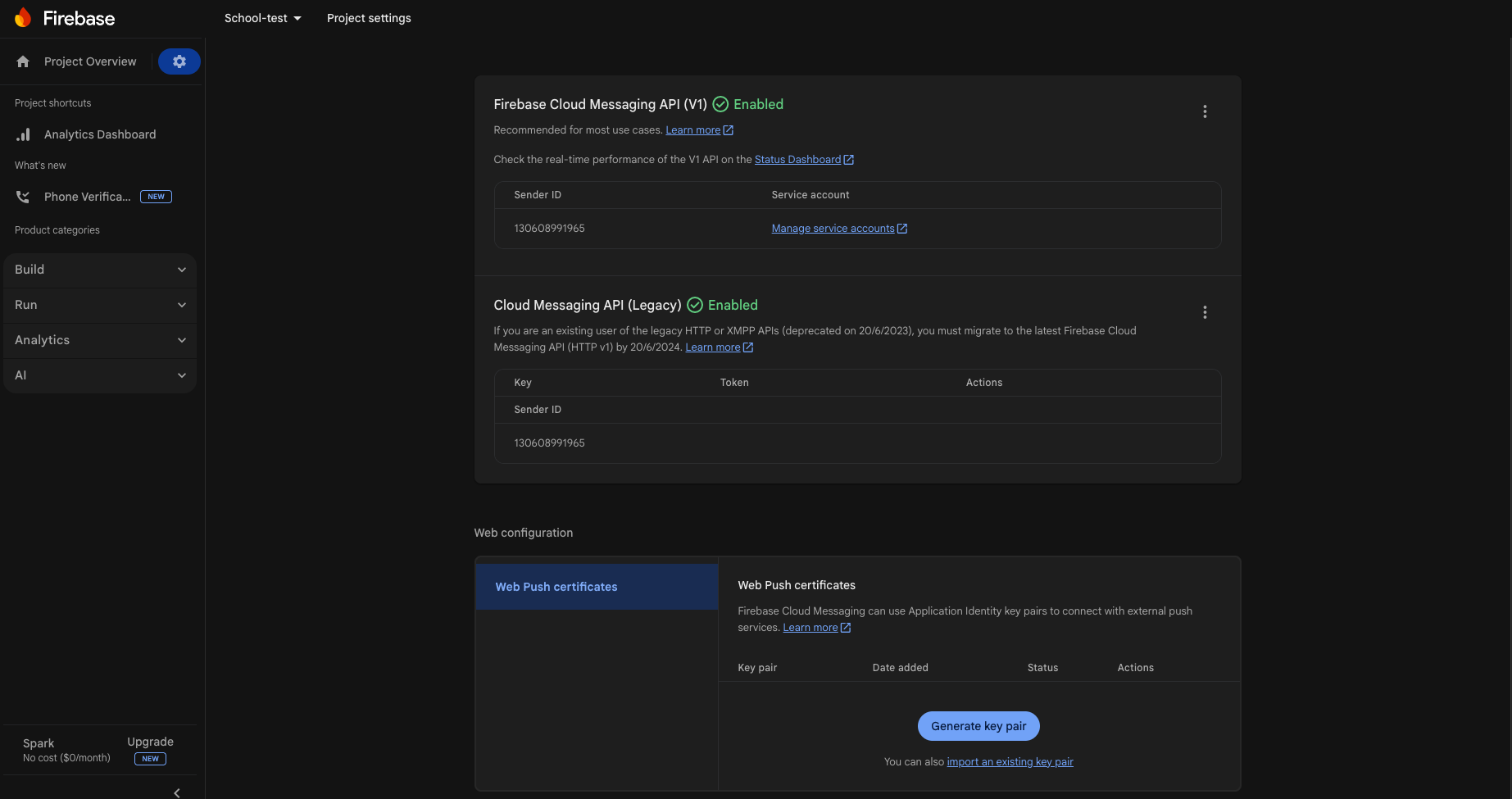
- Click Generate key pair. This is your VAPID Key. Copy it.
4. Update Project Files
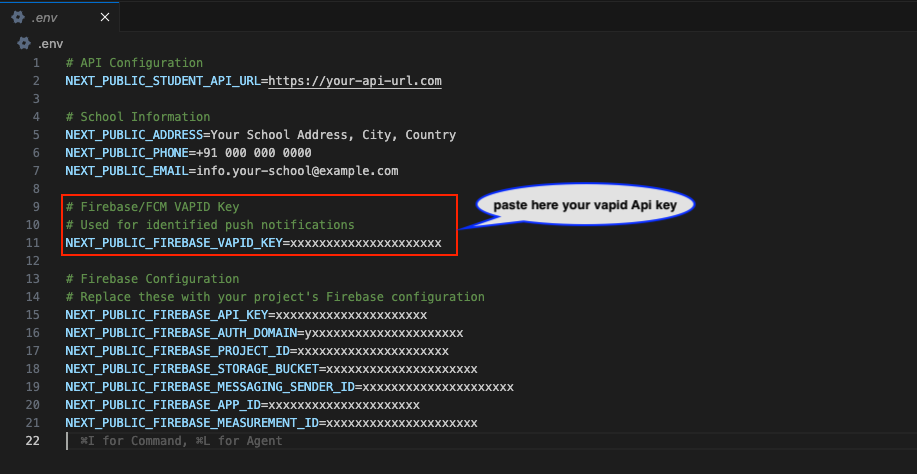
A. Environment Variables
Add the configuration values to your .env.local file as shown in the Installation Steps guide.
B. Service Worker
Update the Firebase configuration in public/firebase-messaging-sw.js.
- Open
public/firebase-messaging-sw.jsin your editor. - Update the
firebaseConfigobject with your credentials (around line 30).
// public/firebase-messaging-sw.js

const firebaseConfig = {
  apiKey: "your-api-key",
  authDomain: "your-project.firebaseapp.com",
  projectId: "your-project-id",
  storageBucket: "your-project.firebasestorage.app",
  messagingSenderId: "your-sender-id",
  appId: "your-app-id",
  measurementId: "your-measurement-id",
};
Note: The service worker file uses raw configuration values and doe not require the NEXT_PUBLIC_ prefix.
5. Verification
- Deploy your app to an HTTPS domain (Firebase notifications require HTTPS).
- Open the portal in your browser.
- You should see a prompt asking for notification permissions.
- If allowed, the device will be registered for push notifications.
Push Notifications and Localhost
Firebase push notifications generally do not work on http://localhost (except for some browsers under specific conditions). Always test on a secure https:// domain.