Gemini AI Setup
Use this guide to enable and secure Gemini‑powered features in the Admin Panel. It covers free evaluation keys and production‑ready keys with IP protection, plus rate limits and testing.
What this setting controls
- Master toggle to enable Gemini AI features
- API key storage used by the server for the Generative Language API
- Global and per‑user daily rate limits
- Cache management for AI‑generated content
Prerequisites
- A Firebase project for your app backend (
https://console.firebase.google.com/) - A linked Google Cloud project with billing enabled for production use
Option A — Free evaluation (Google AI Studio key)
Best for development/demo. Limited quotas and no IP restriction.
- Open
https://aistudio.google.com/app/apikey. - Click Create API key and copy it.
- In Admin Panel go to
Settings→System Settings→Gemini AI:- Toggle Enable Gemini AI features.
- Paste the key into Gemini API Key.
- Set your global and per‑user daily limits (set
0for unlimited). - Click Save.
Note: Use only from your backend. Do not expose keys in the browser.
Option B — Production (Google Cloud key with IP & API restrictions)
Recommended for live environments with higher quotas and stronger security.
1) Enable the API
- Open Google Cloud Console →
APIs & Services→Library. - Enable Generative Language API (
generativelanguage.googleapis.com).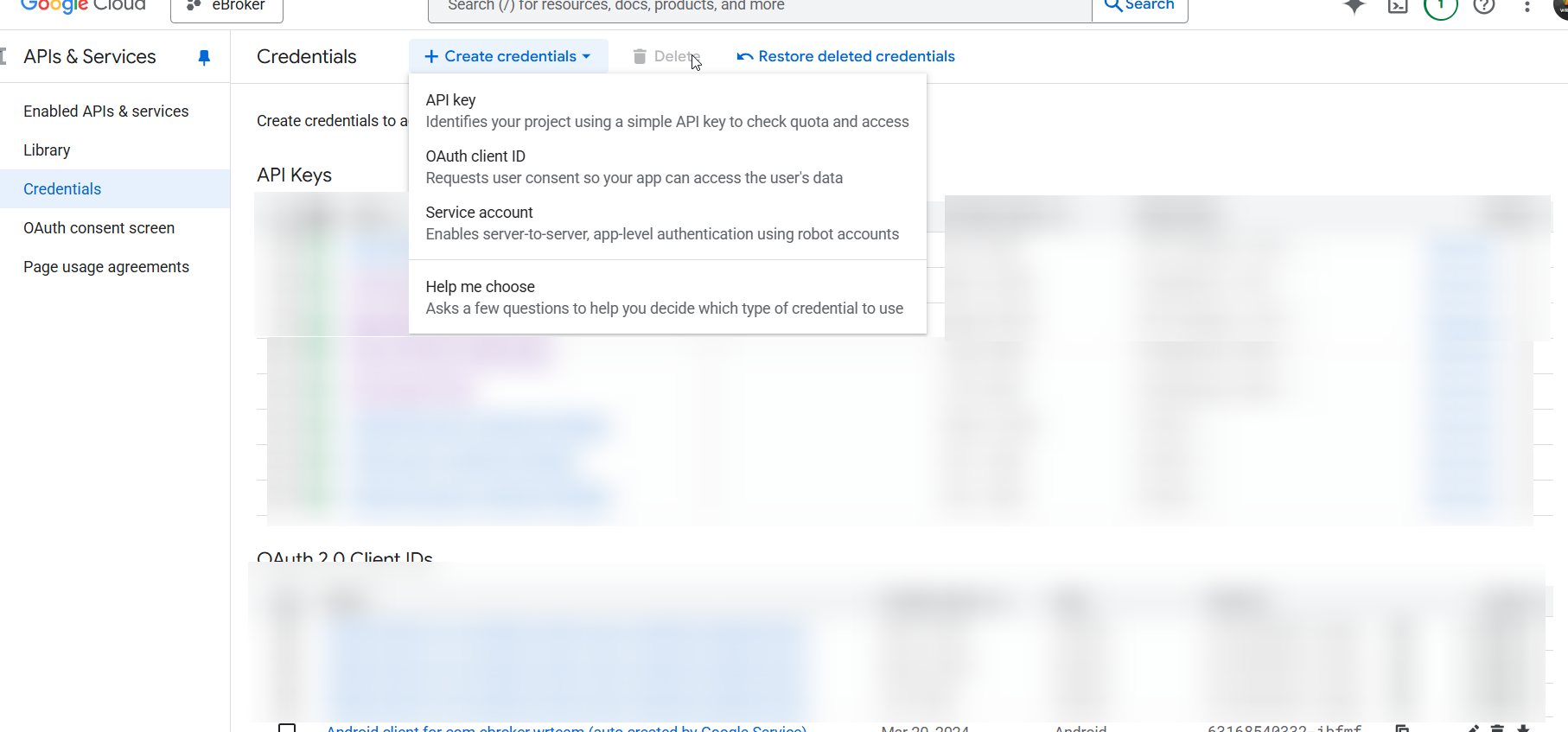
2) Create a restricted API key
- Go to
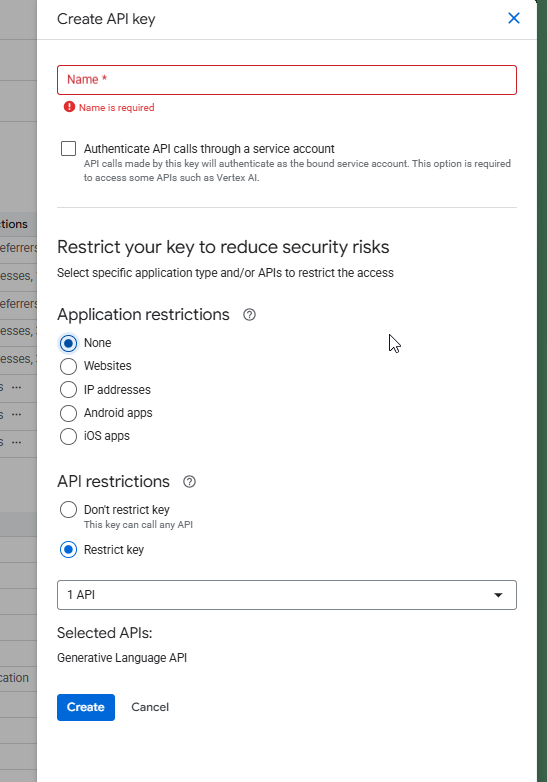
APIs & Services→Credentials→ Create credentials → API key. - Name it clearly (e.g.,
eBroker Gemini Server Key). - Click the key → Restrict key:
- Under API restrictions: select Restrict key → choose Generative Language API.
- Under Application restrictions: choose IP addresses and add your server's public IPv4 and (if applicable) IPv6.
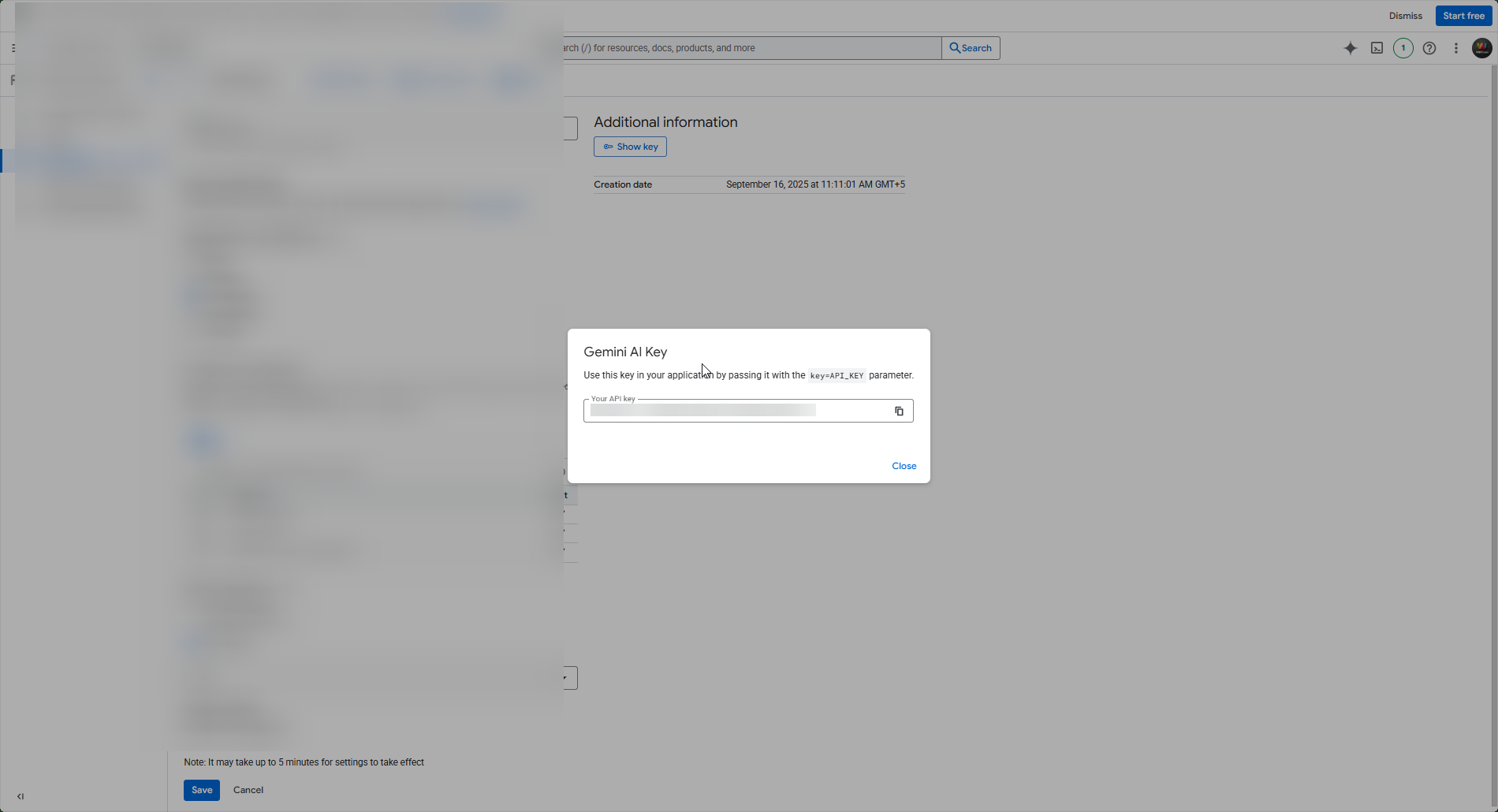
- Save and copy the key.
3) Configure in Admin Panel
- Log in to Admin Panel →
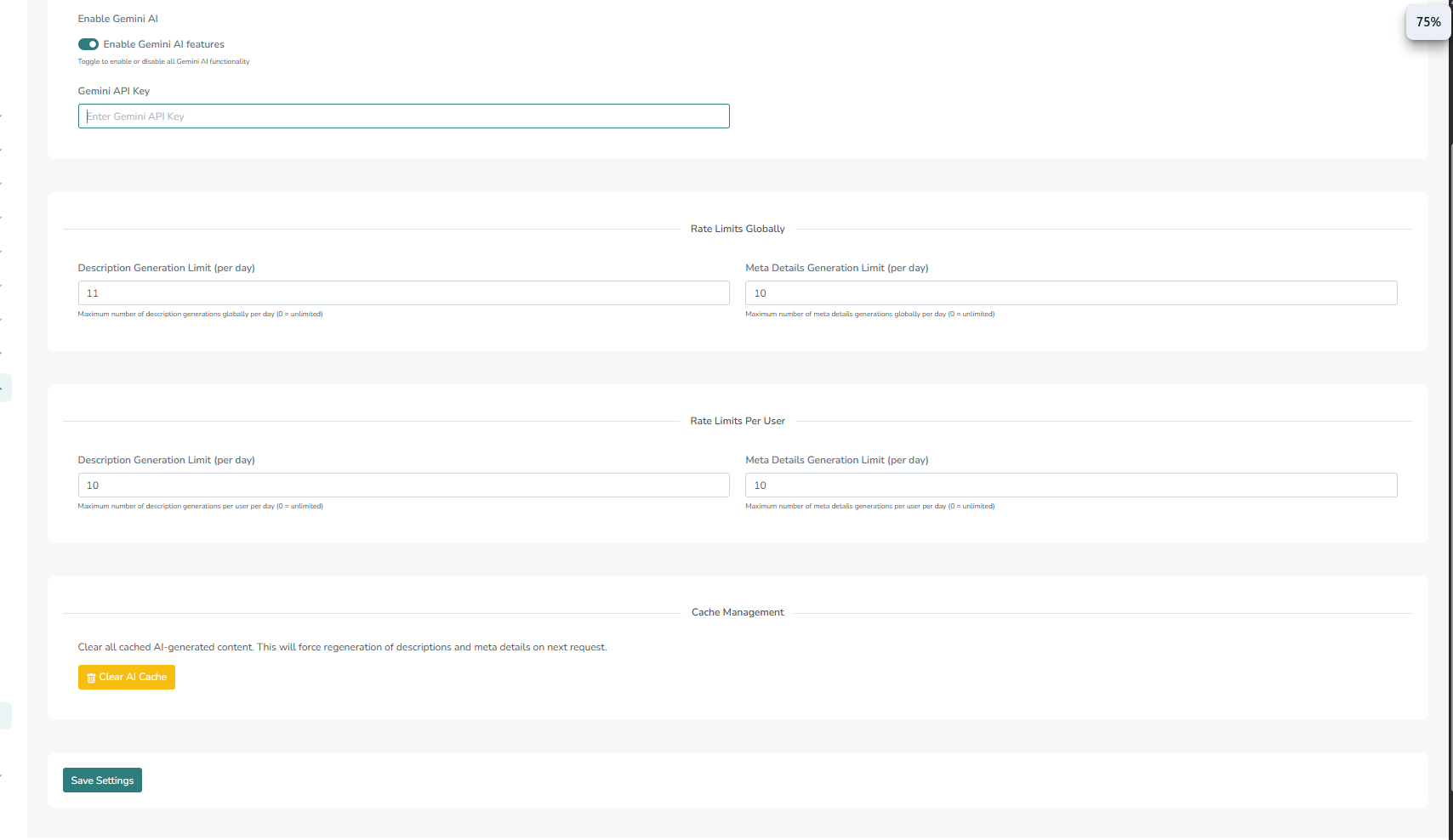
Settings→System Settings→Gemini AI. - Toggle Enable Gemini AI features.
- Paste the key into Gemini API Key.
- Set rate limits (see recommendations below).
- Click Save.
If your server's egress IP changes, update the key's allowed IPs or you'll get
403errors.