Map API Key and Place API
For location features to work properly in your app, you need to set up Google Maps and Places API. Follow these steps:
Setting up Google Cloud Console
- Open Google Cloud Console
- Select your project
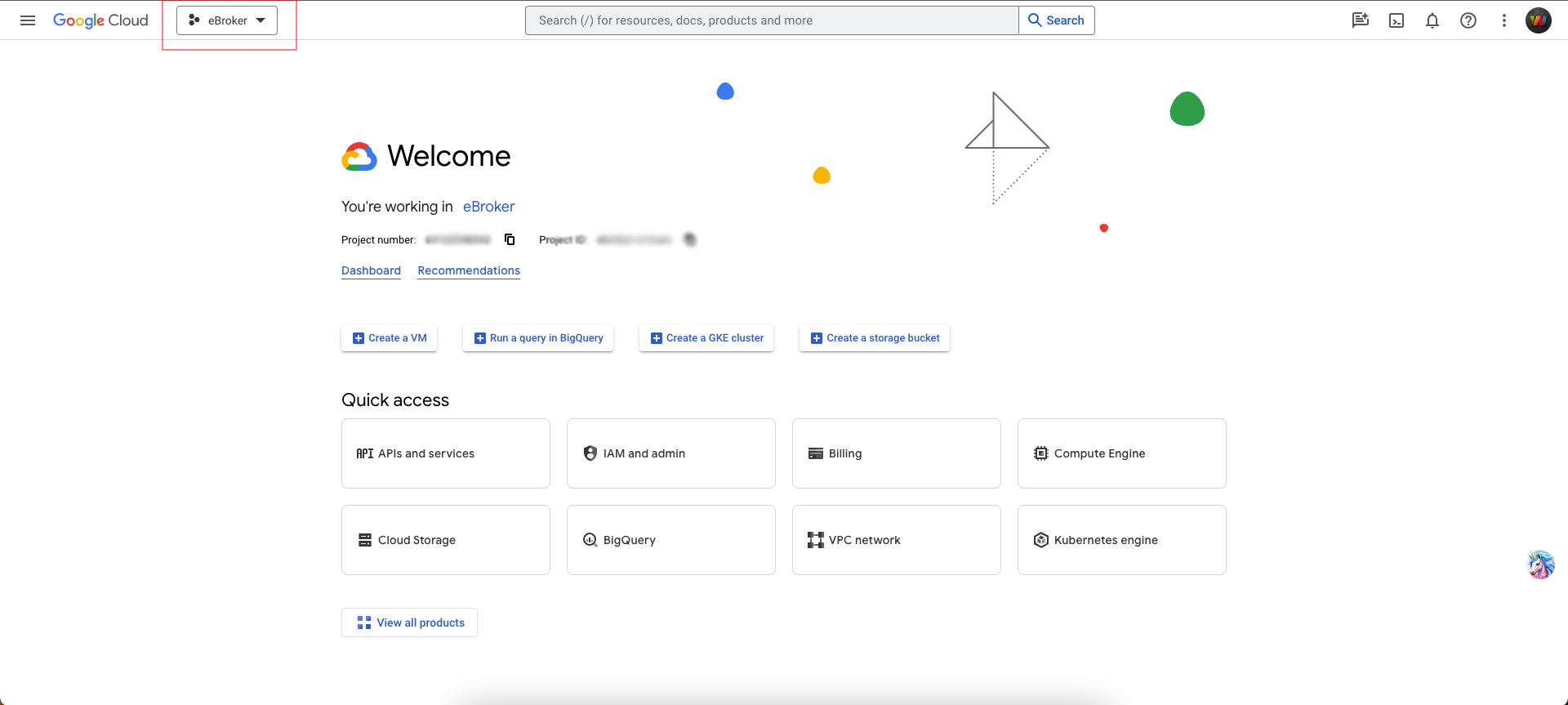
- Enable the following APIs from "Enable API and Services":
- Geocoding API
- Places API
- Geolocation APIs
- Maps SDK for Android
- Maps SDK for iOS
- Maps JavaScript API
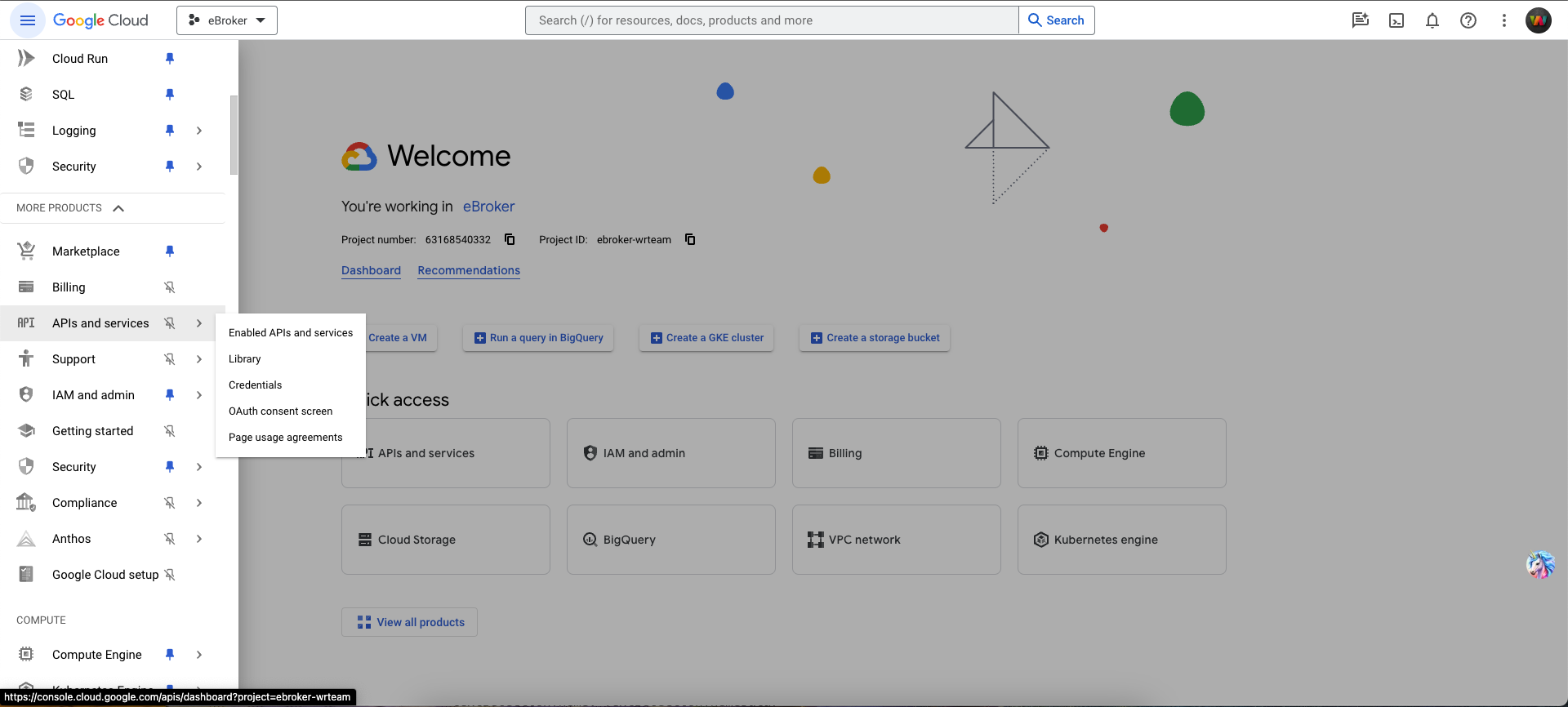
API key options and restrictions
You can use either a restricted two-key setup (recommended) or a single unrestricted key (simpler but less secure):
-
Option A — Restricted (recommended):
- Create API Key 1 (server key) with these APIs enabled: Places API, Geocoding API, Geolocation API.
- Restrict API Key 1 by your server IP address(es), add ipv4 and ipv6(if exists) addresses.
- Create API Key 2 (web key) with this API enabled: Maps JavaScript API.
- Restrict API Key 2 by your website URL (HTTP referrer).
-
Option B — Single key (not recommended for production):
- Create one API key with all four APIs enabled: Places API, Geocoding API, Geolocation API, Maps JavaScript API.
- Do not apply restrictions.
Setting Up Places API
For the Places API to work (which enables location search functionality):
-
Enable billing on your Google Cloud project
Note: This is mandatory for Places API to work
-
Copy your API key from Google Cloud Console
-
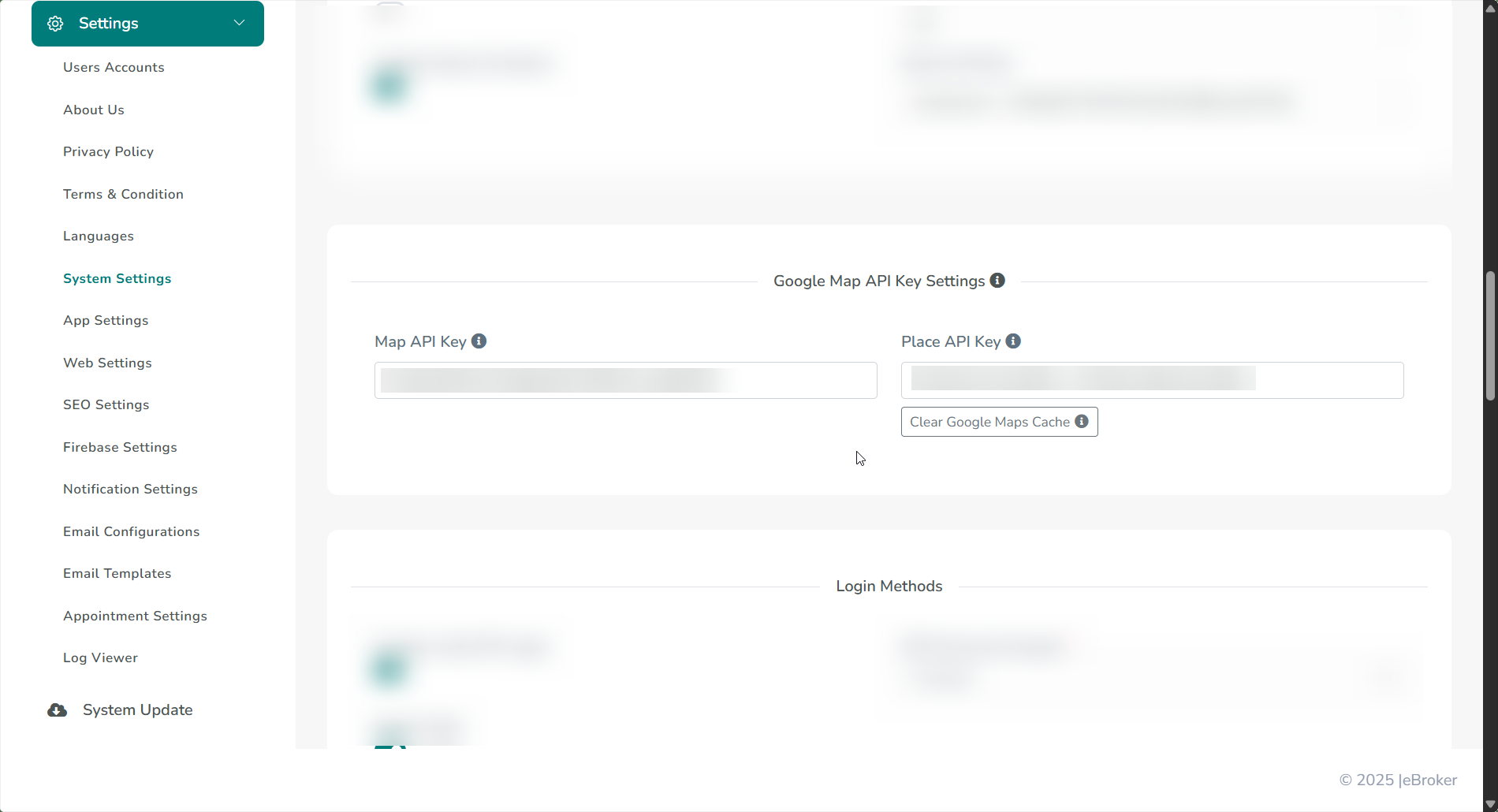
Open your admin panel and go to System Settings
-
Paste the key(s) as per your chosen option and save
Note:
- If you used the restricted setup (Option A): use the IP-restricted server key in the "Places API" field, and the referrer-restricted web key in the "Map API Key" field.
- If you used a single key (Option B): use the same key in both the "Map API Key" and the "Places API" fields.
Important: Without enabling a billing account, location search will not work in the app, admin panel, or web application.