Razorpay Setup
Set API Keys
Follow these steps to set up Razorpay payment gateway in your eBroker application:
Step 1: Get API Keys from Razorpay
- Login to your Razorpay Dashboard
- Navigate to the API Keys section
- Generate a new API key pair if you don't already have one
- Copy both the Key ID and Key Secret
Step 2: Configure in Admin Panel
- Go to Admin Panel > Settings > Payment Settings
- Enable Razorpay by toggling the switch
- Paste the Key ID and Key Secret into the respective fields
- Save the changes
Setup 3: Setup Webhook
Step 1: Login to Razorpay Dashboard
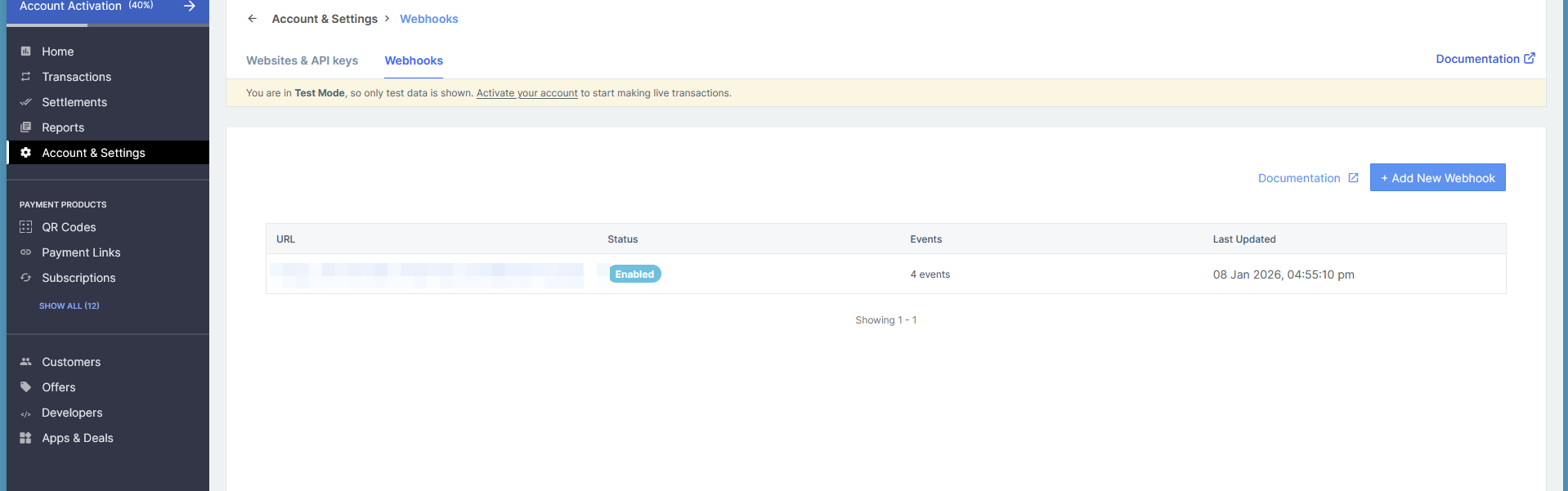
Step 2: Click Account & Setting option -> Developers
Step 3: Click Webhooks
Step 4: Click Add New Webhook
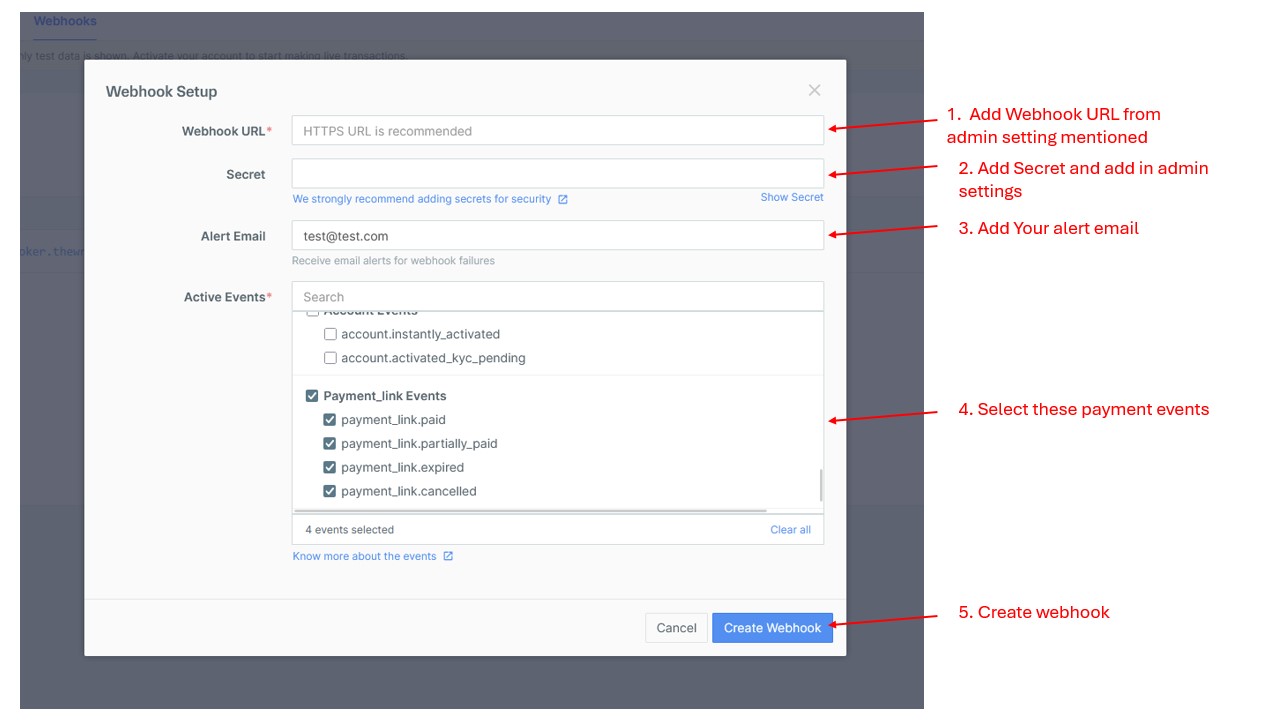
Step 5: Add Webhook Secret in your admin -> settings -> payment settings -> Razorpay -> RazorpayWebhook Secret
Step 4: Test the Integration
- Create a test payment to verify the integration works correctly
- Check that payment status updates properly in your admin dashboard
tip
For security, never share your Razorpay Key Secret publicly. Only use the test mode keys during development.