Change App Logo & Assets
Both eSchool and eSchool Teacher share the same asset structure, so updating branding is the same for both.
Location of Assets
- General images:
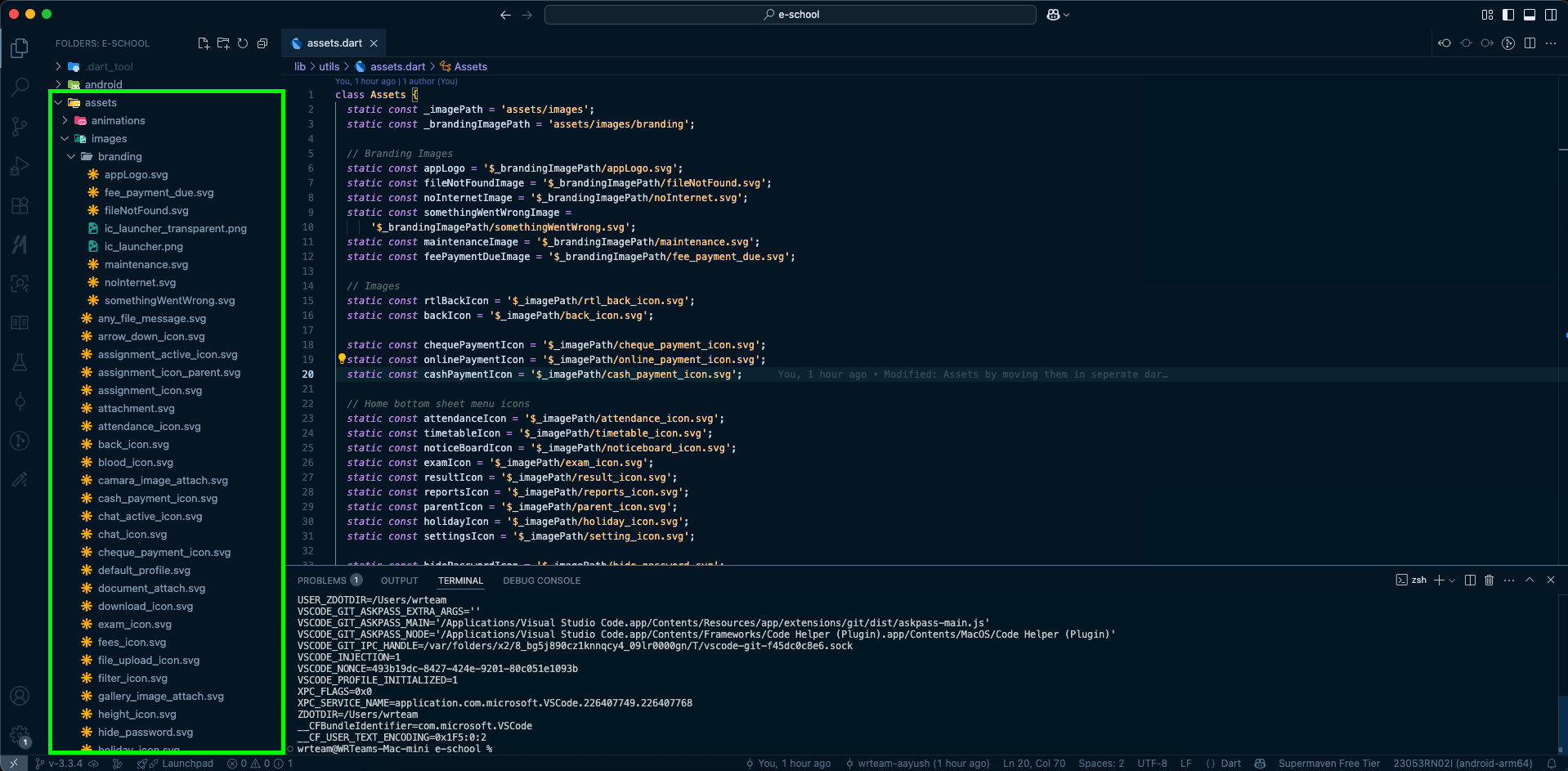
assets/images/ - Branding-related assets:
assets/images/branding/
This folder contains 3 main logo files you need to update:
| File | Usage |
|---|---|
appLogo.svg | Used inside the app (e.g., splash, login) |
ic_launcher.png | Used for launcher icon on Android & iOS |
ic_launcher_transparent.png | Used as adaptive icon foreground and notification icon on Android |
Optional assets like noInternet.svg, fileNotFound.svg, etc., can also be customized for full visual branding.
Quick Method: Auto-Generate Launcher Icons
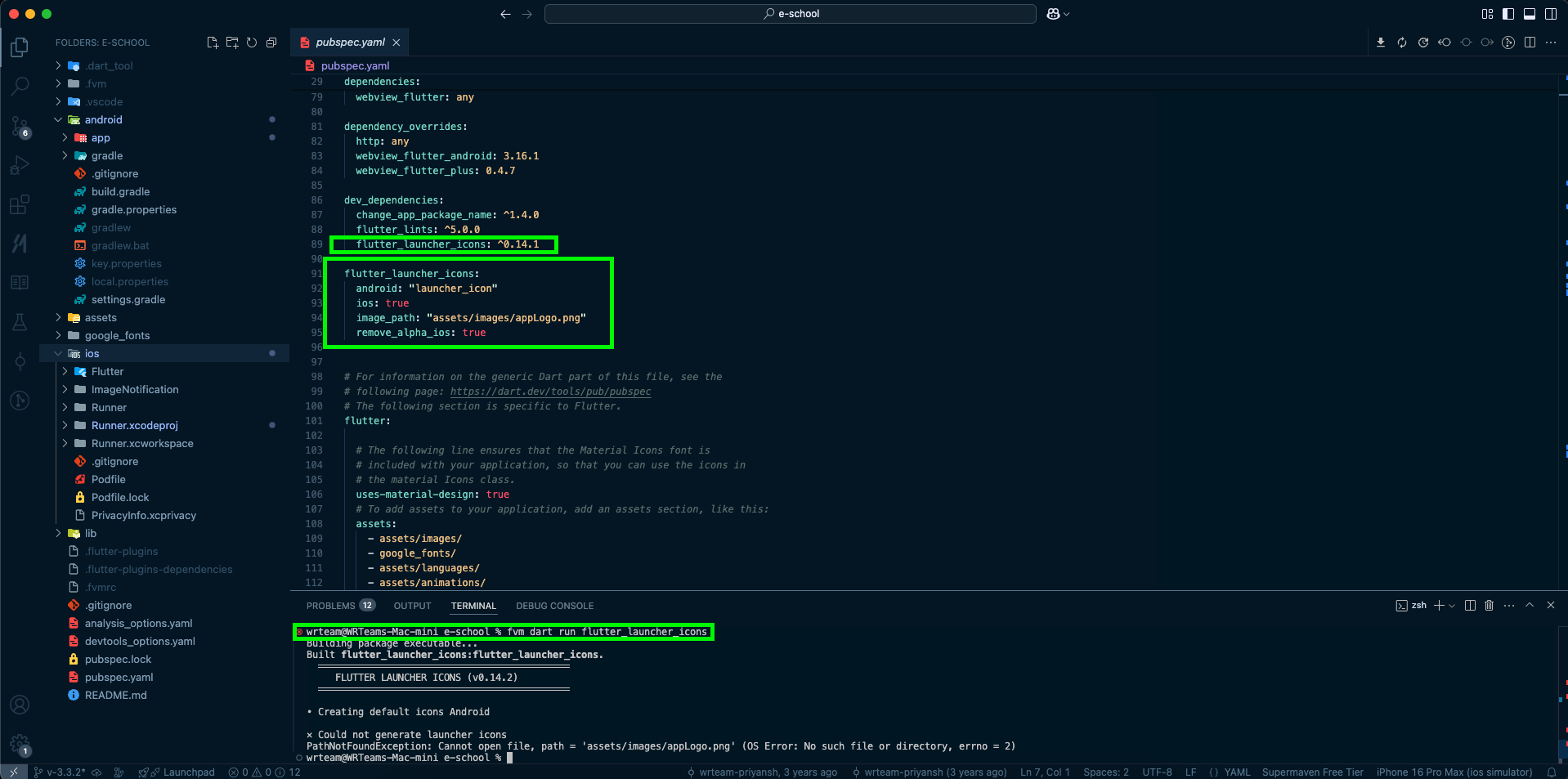
Once you've replaced the three logo files with your own (keeping the same names and formats), run:
dart run flutter_launcher_icons
This command auto-generates the required icon assets for both Android and iOS using the configuration already present in pubspec.yaml.
No need to edit pubspec.yaml – it's ready to go.
Manually Add Launcher Icon (Optional)
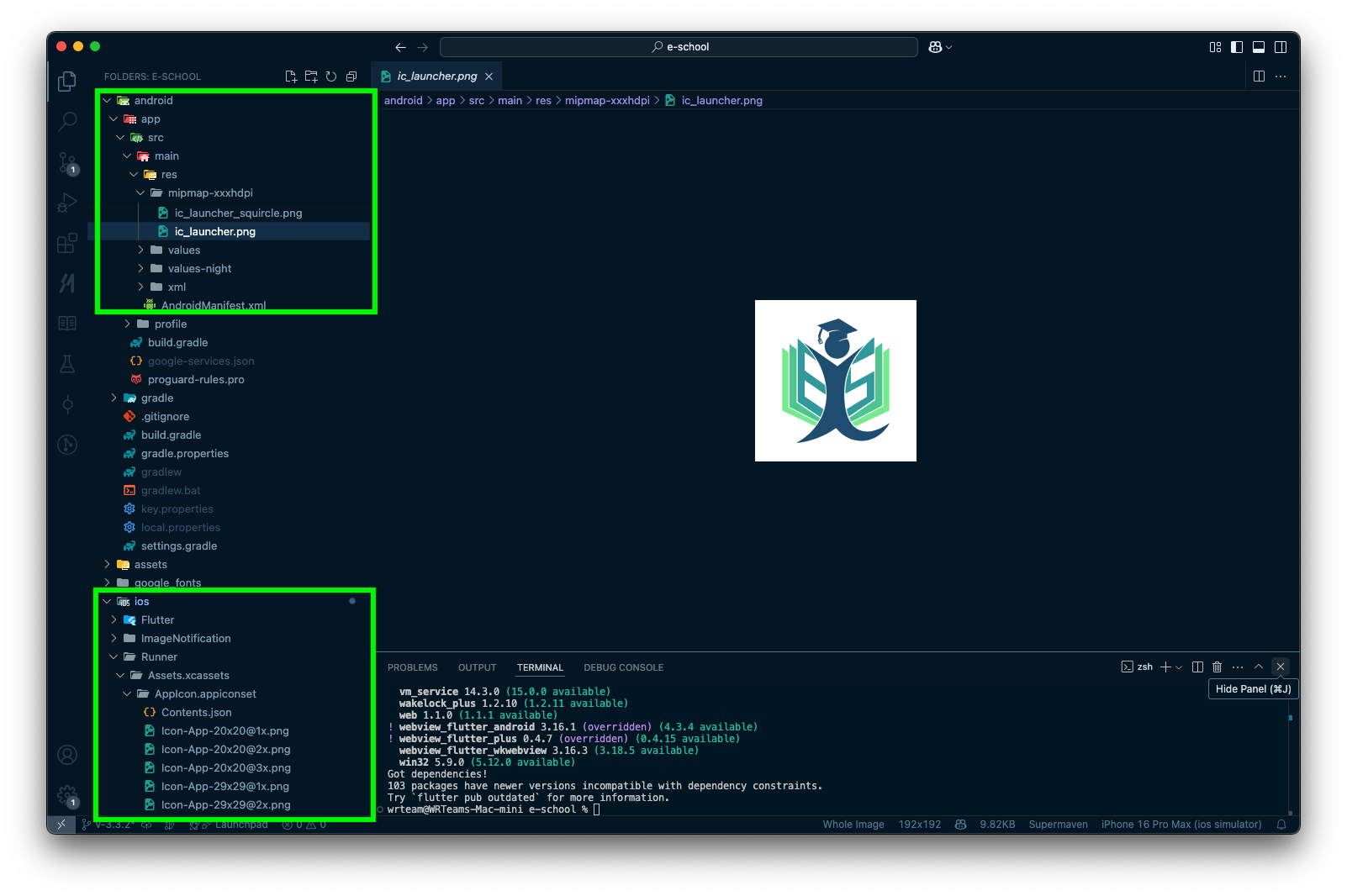
If you prefer to skip the automatic command, you can generate launcher icons using any online generator and manually add them to your Android and iOS resource folders.
Android
- Place icons in the respective
res/mipmap-*folders:mipmap-mdpi/,mipmap-hdpi/,mipmap-xhdpi/, etc.
- For adaptive icons, use:
ic_launcher.png(background)ic_launcher_foreground.png(foreground layer)
- Also update:
AndroidManifest.xmlto ensure the correct icon is referenced- Notification icon in the notification utility if you’ve changed the filename
iOS
- Replace icon assets inside:
ios/Runner/Assets.xcassets/AppIcon.appiconset/ - Ensure all required sizes are present or regenerate using Xcode's asset tools
After placing all files manually, rebuild the project:
flutter clean
flutter pub get
flutter run