Integrate with Firebase
There are two ways to connect your Flutter app to Firebase: manually through the Firebase Console, or using the FlutterFire CLI. The ELMS app itself is configured using the FlutterFire CLI (it generates firebase.json and lib/firebase_options.dart, which are used in main.dart via Firebase.initializeApp(options: DefaultFirebaseOptions.currentPlatform)), so that approach is recommended.
Option A: FlutterFire CLI (Recommended)
1. Install the Firebase CLI and log in
Prerequisite: Node.js (and npm) must be installed on your machine, since the Firebase CLI is distributed as an npm package. Download it from nodejs.org (LTS version recommended) and verify the installation:
node -v
npm -v
Once Node.js is installed, install the Firebase CLI and log in:
npm install -g firebase-tools
firebase login
2. Install the FlutterFire CLI
dart pub global activate flutterfire_cli
3. Run flutterfire configure from your project root
flutterfire configure
This will:
- Let you select (or create) a Firebase project
- Let you select the platforms to configure (Android, iOS, etc.)
- Automatically download and place
google-services.jsoninandroid/app/andGoogleService-Info.plistinios/Runner/ - Generate
lib/firebase_options.dartand afirebase.jsonmanifest at the project root
4. Initialize Firebase in main.dart
import 'package:firebase_core/firebase_core.dart';
import 'package:elms/firebase_options.dart';

await Firebase.initializeApp(options: DefaultFirebaseOptions.currentPlatform);
5. Configure iOS notifications
https://firebase.flutter.dev/docs/messaging/apple-integration
Note: If you later add, remove, or rename an app in the Firebase Console, re-run flutterfire configure to regenerate firebase_options.dart and the platform config files instead of editing them by hand.
Option B: Manual Setup (Firebase Console)
1. Create Firebase project in your account
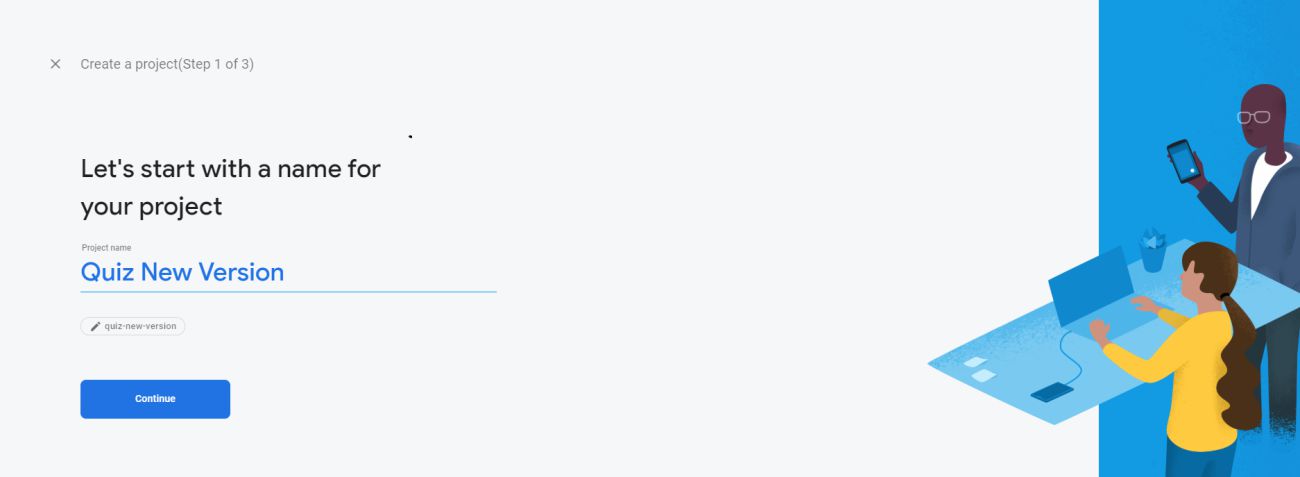
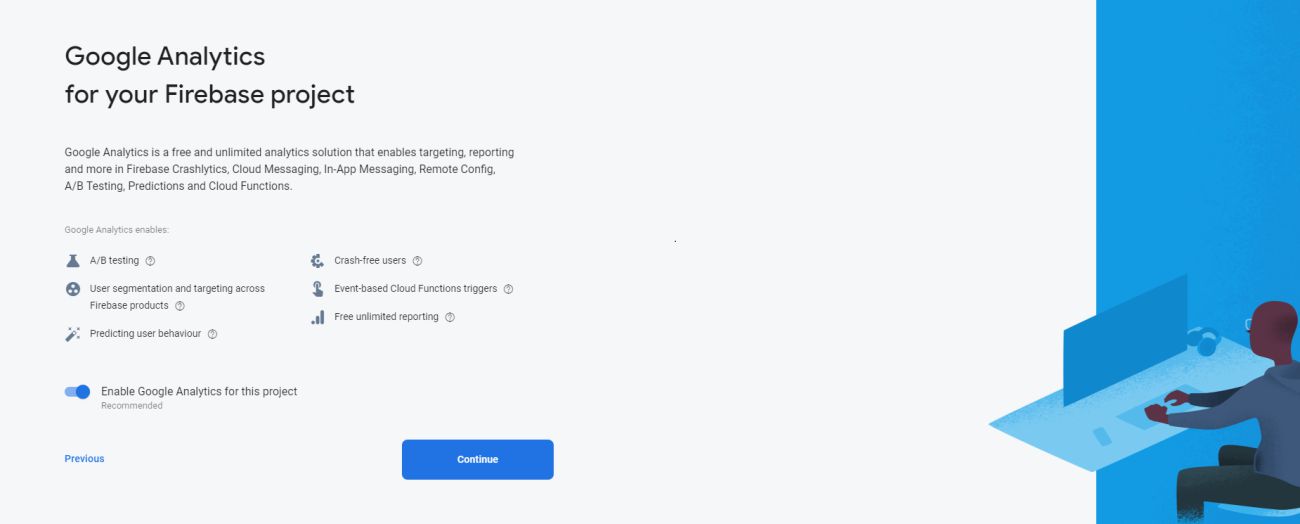
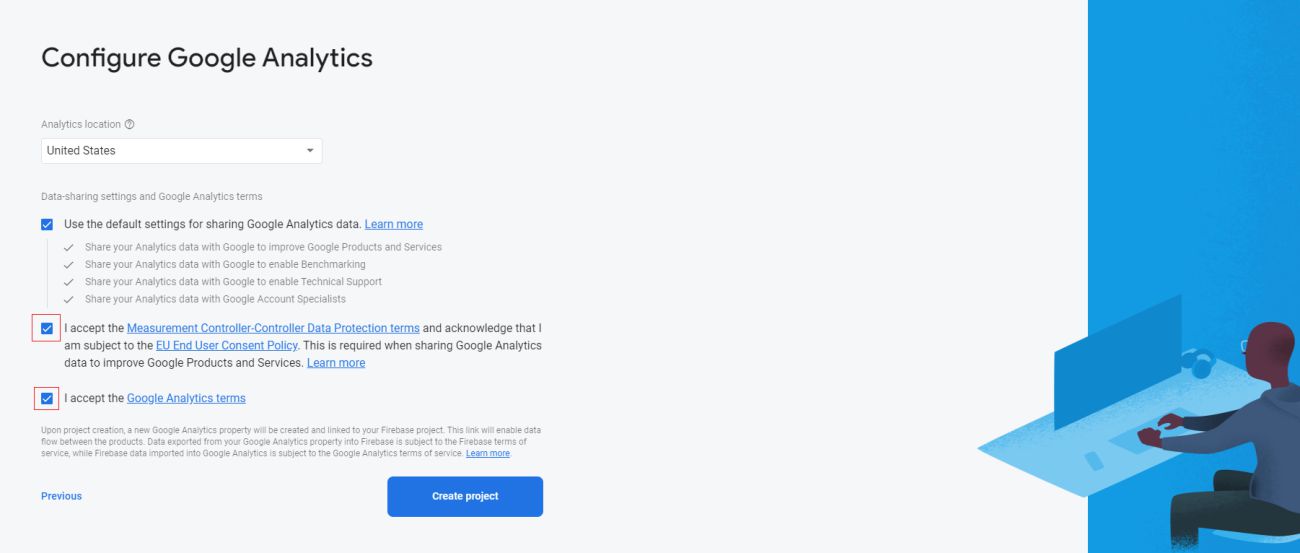
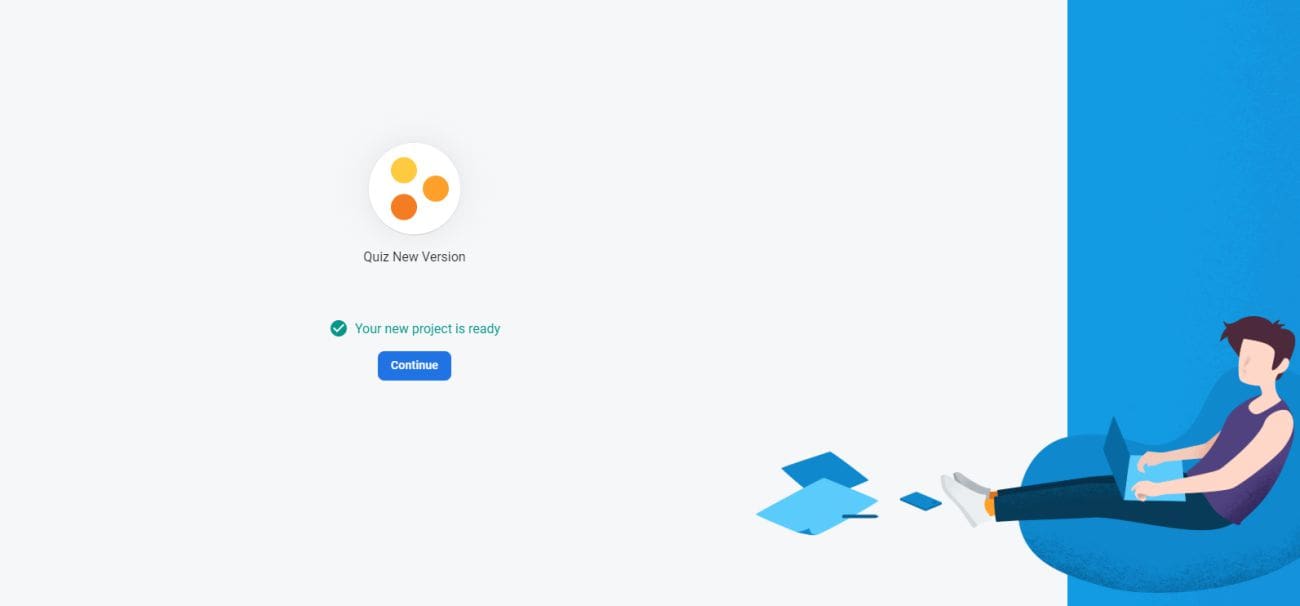
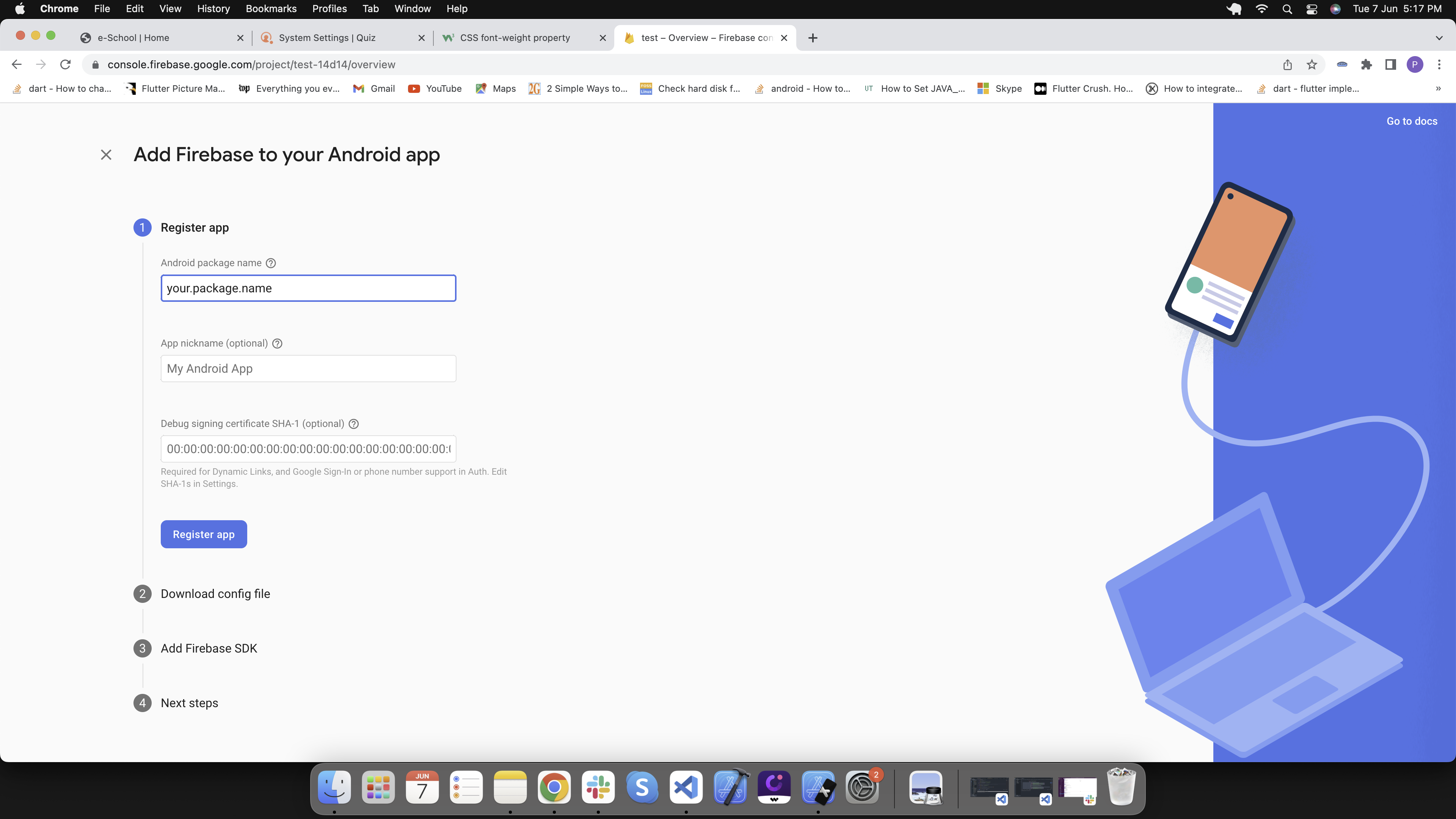
2. Add android application to your Firebase project
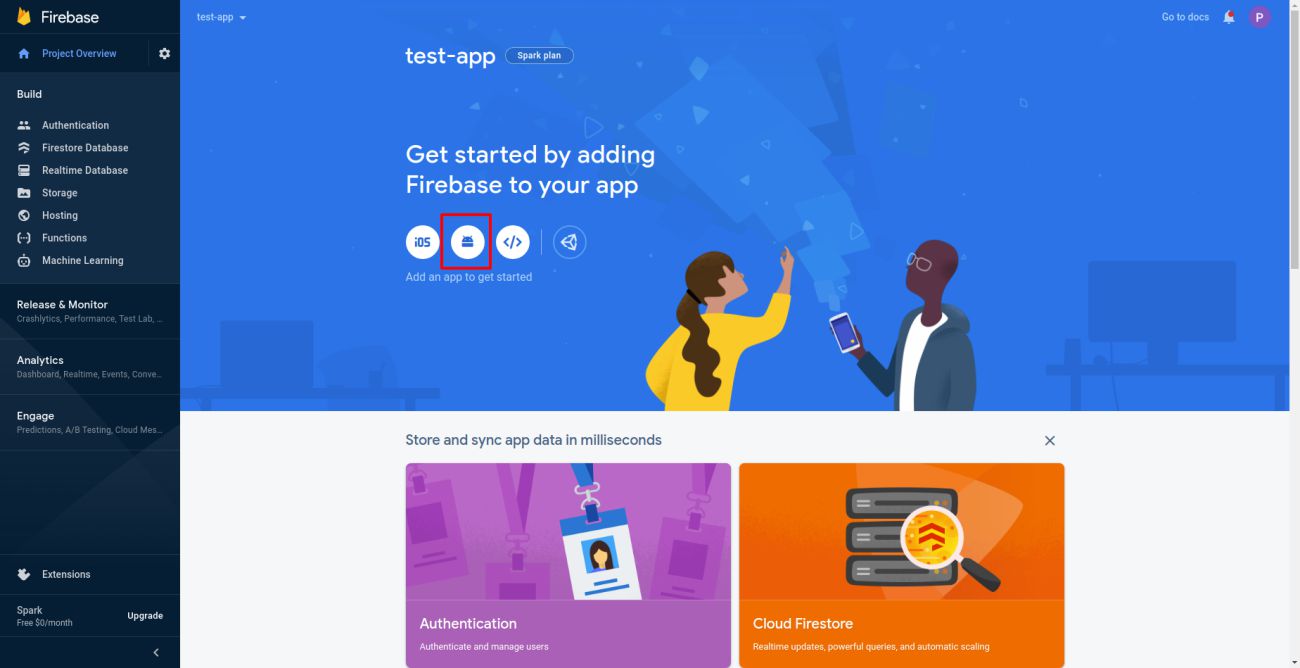
Download the google-service.json file and add in this folder android/app/
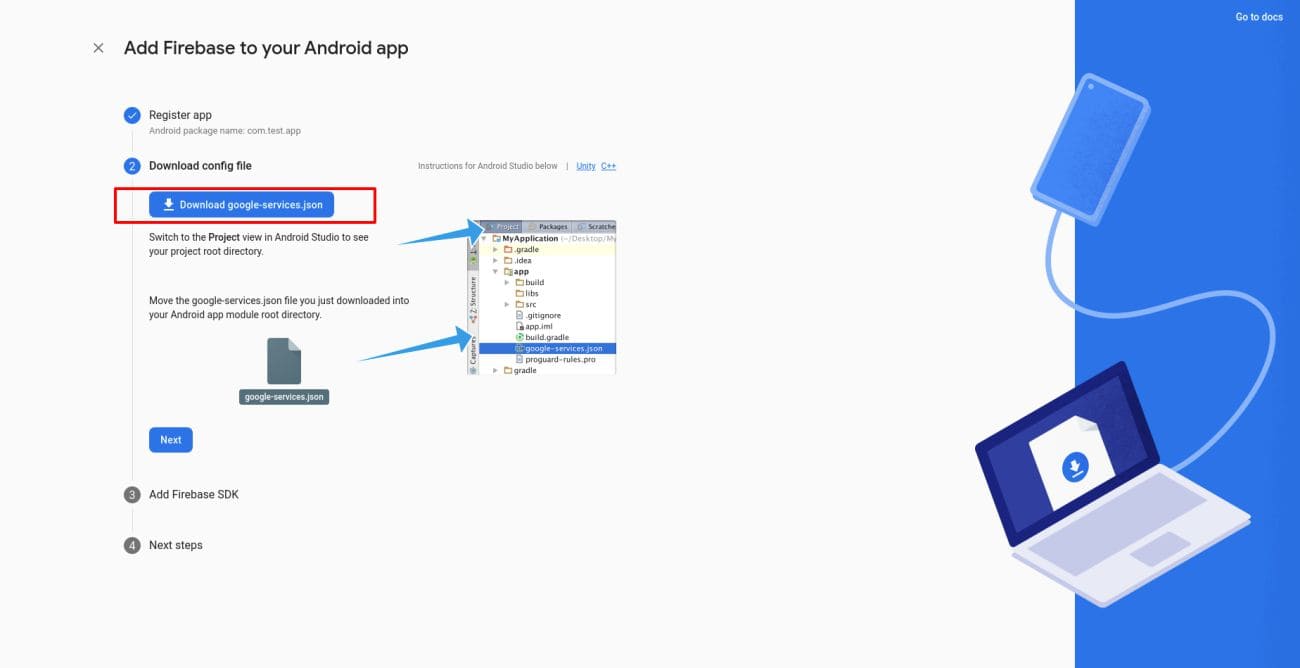
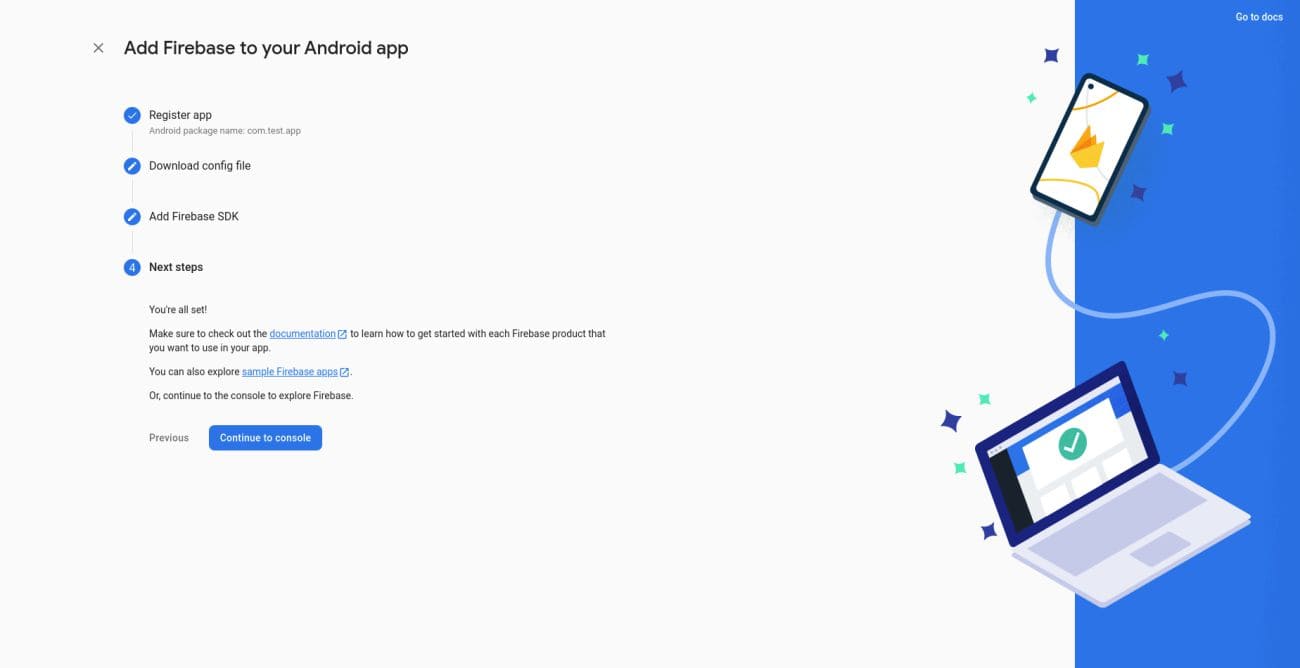
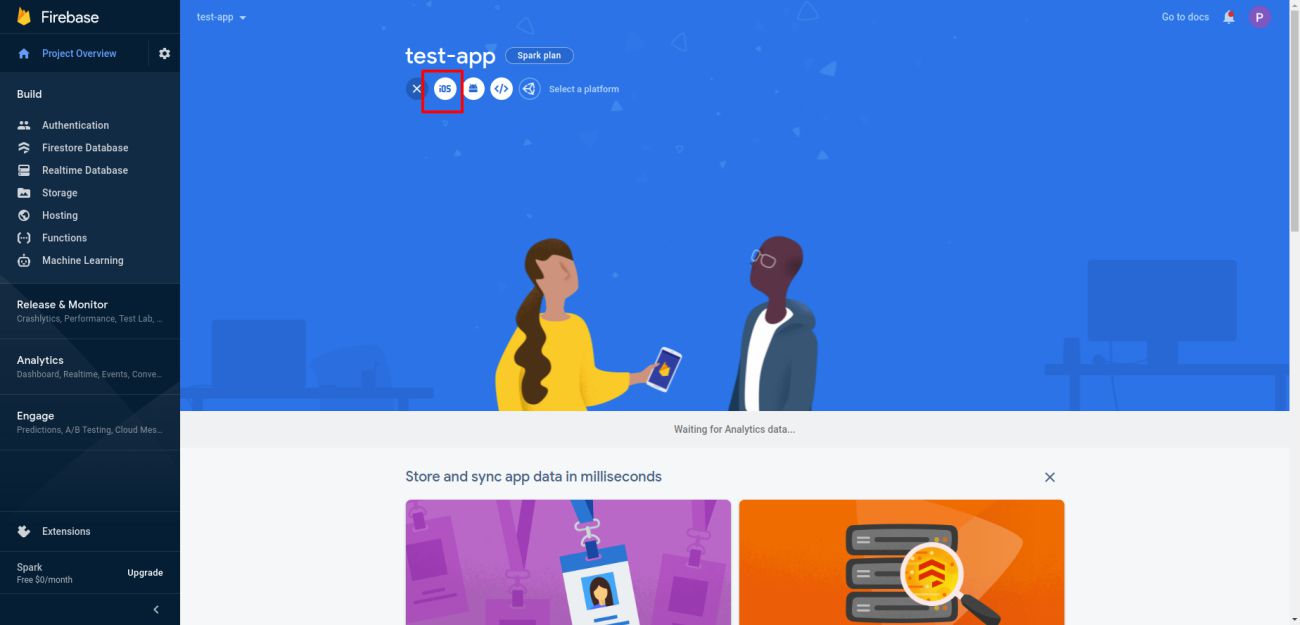
3. Add ios application to your Firebase project
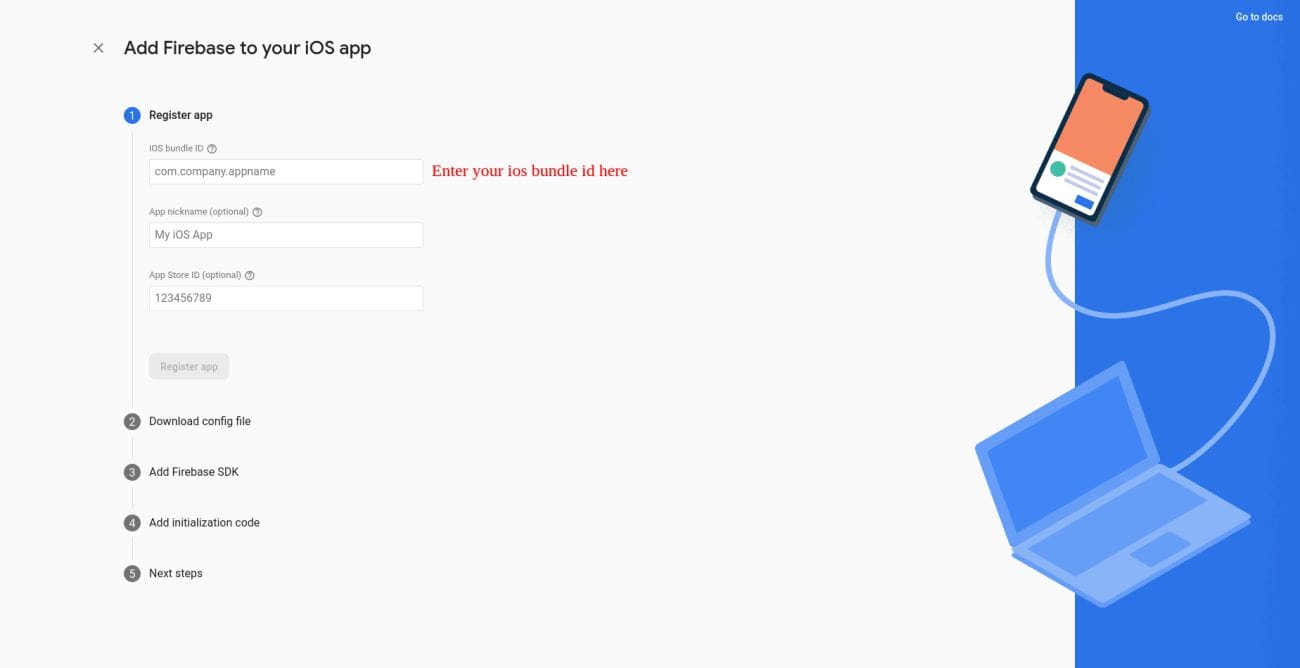
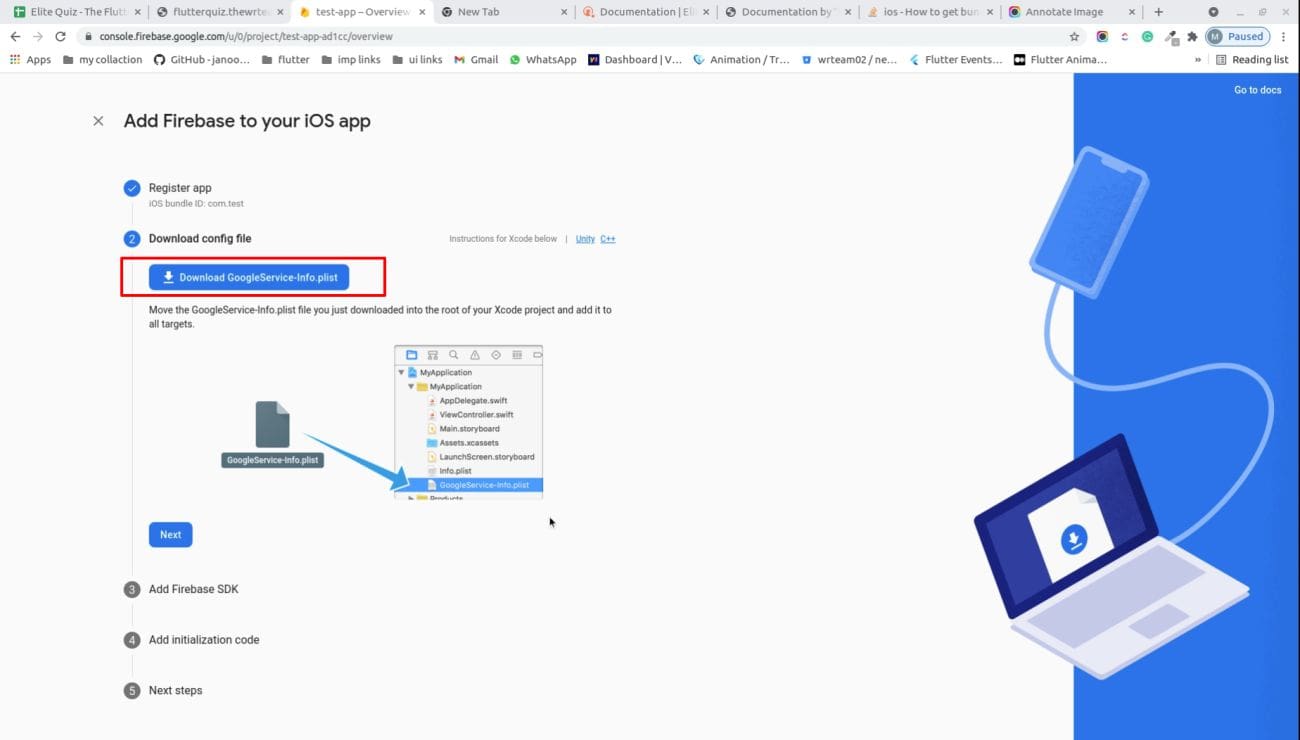
4. Download GoogleService-Info.plist and add in this folder ios/Runner/
5. Please configure this settings in-order to send ios notifications.
https://firebase.flutter.dev/docs/messaging/apple-integration
6. You have configured Firebase in your project successfully
Additional Resources: For detailed Firebase setup and configuration: Firebase Setup Guide