How to Change App Logo
Overview
This guide shows you how to change your app logo for both Android and iOS using the flutter_launcher_icons package.
Step 1: Add Package
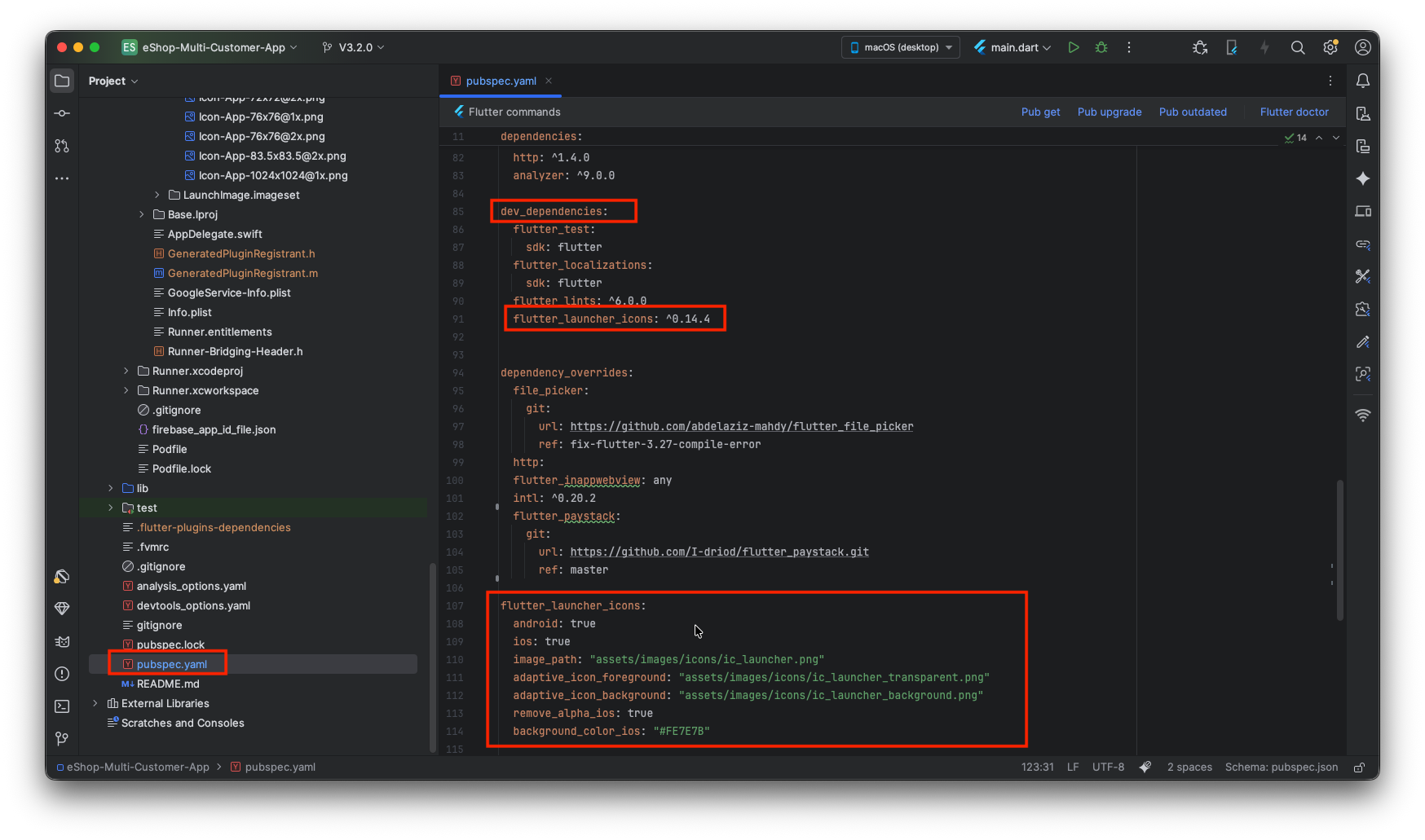
Open pubspec.yaml and add the package under dev_dependencies:
dev_dependencies:
  flutter_test:
    sdk: flutter
  flutter_localizations:
    sdk: flutter
  flutter_lints: ^6.0.0
  flutter_launcher_icons: ^0.14.4
Then run:
flutter pub get
Step 2: Configure Icons
Add this configuration in your pubspec.yaml file:
flutter_launcher_icons:
  android: true
  ios: true
  image_path: "assets/images/icons/ic_launcher.png"
  adaptive_icon_foreground: "assets/images/icons/ic_launcher_transparent.png"
  adaptive_icon_background: "assets/images/icons/ic_launcher_background.png"
  remove_alpha_ios: true
  background_color_ios: "#FE7E7B"
Configuration Options:
android: true- Generate icons for Androidios: true- Generate icons for iOSimage_path- Main app icon (1024x1024px recommended)adaptive_icon_foreground- Foreground for Android adaptive icons (transparent PNG)adaptive_icon_background- Background for Android adaptive iconsremove_alpha_ios- Remove transparency from iOS iconsbackground_color_ios- Background color for iOS icons (hex code)
Step 3: Prepare Your Icon Images
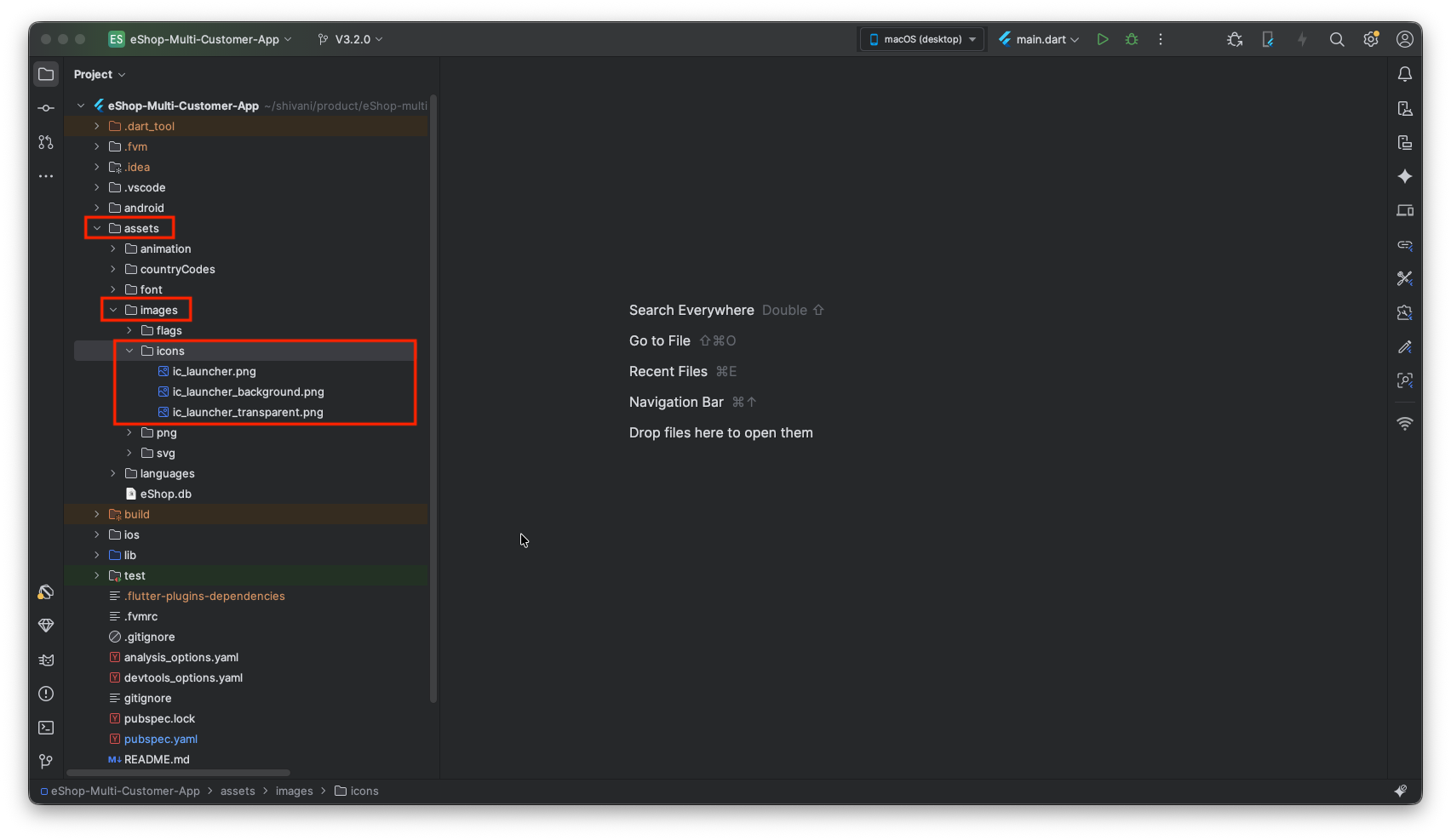
Create these icon files in your project:
- Main Icon:
assets/images/icons/ic_launcher.png(1024x1024px) - Adaptive Foreground:
assets/images/icons/ic_launcher_transparent.png(1024x1024px with transparency) - Adaptive Background:
assets/images/icons/ic_launcher_background.png(1024x1024px)
Step 4: Generate Icons
Run this command to generate all icon sizes automatically:
flutter pub run flutter_launcher_icons
This will create all required icon sizes for both Android and iOS platforms.
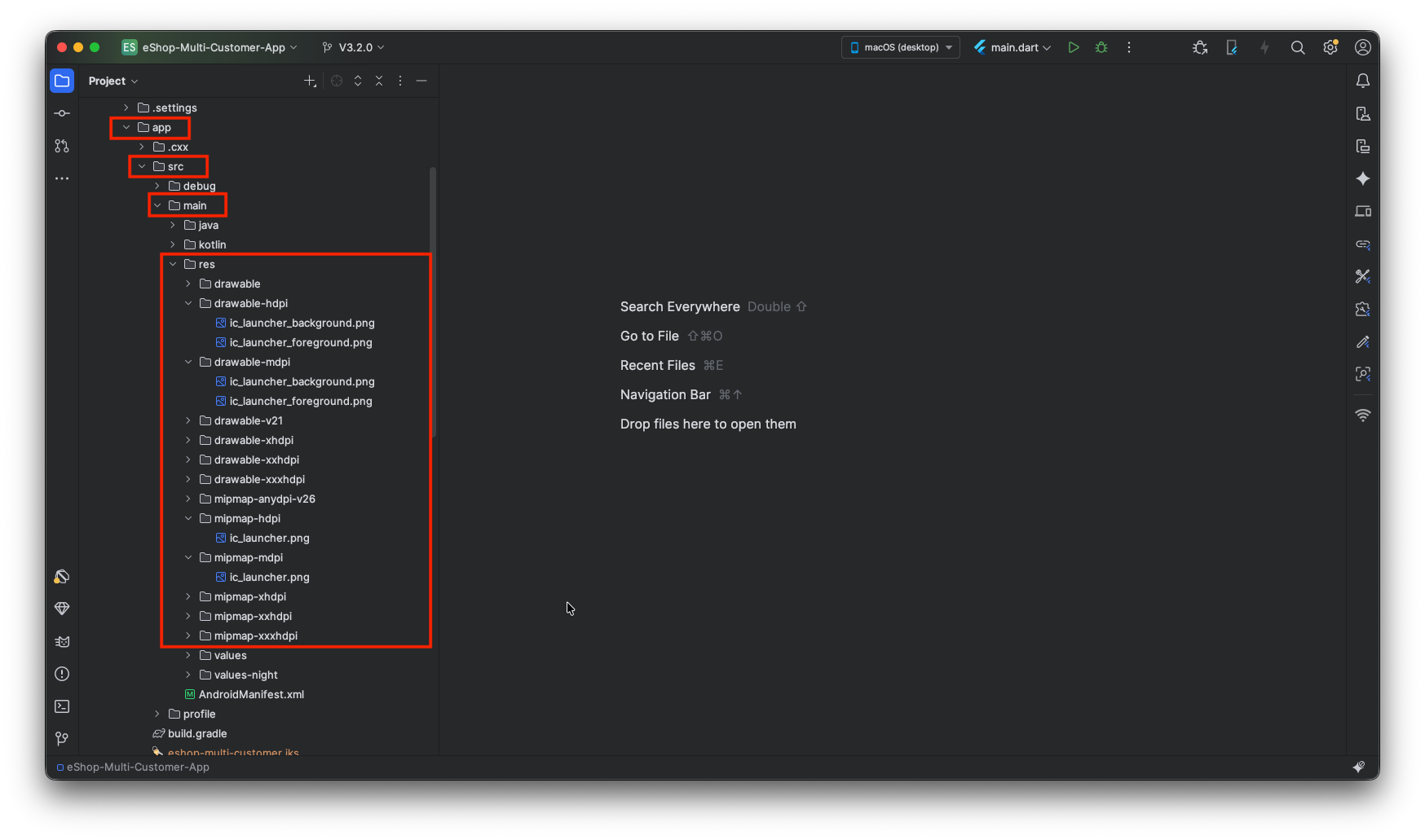
Android Icons Generated
After running the command, icons will be generated in the Android folders:
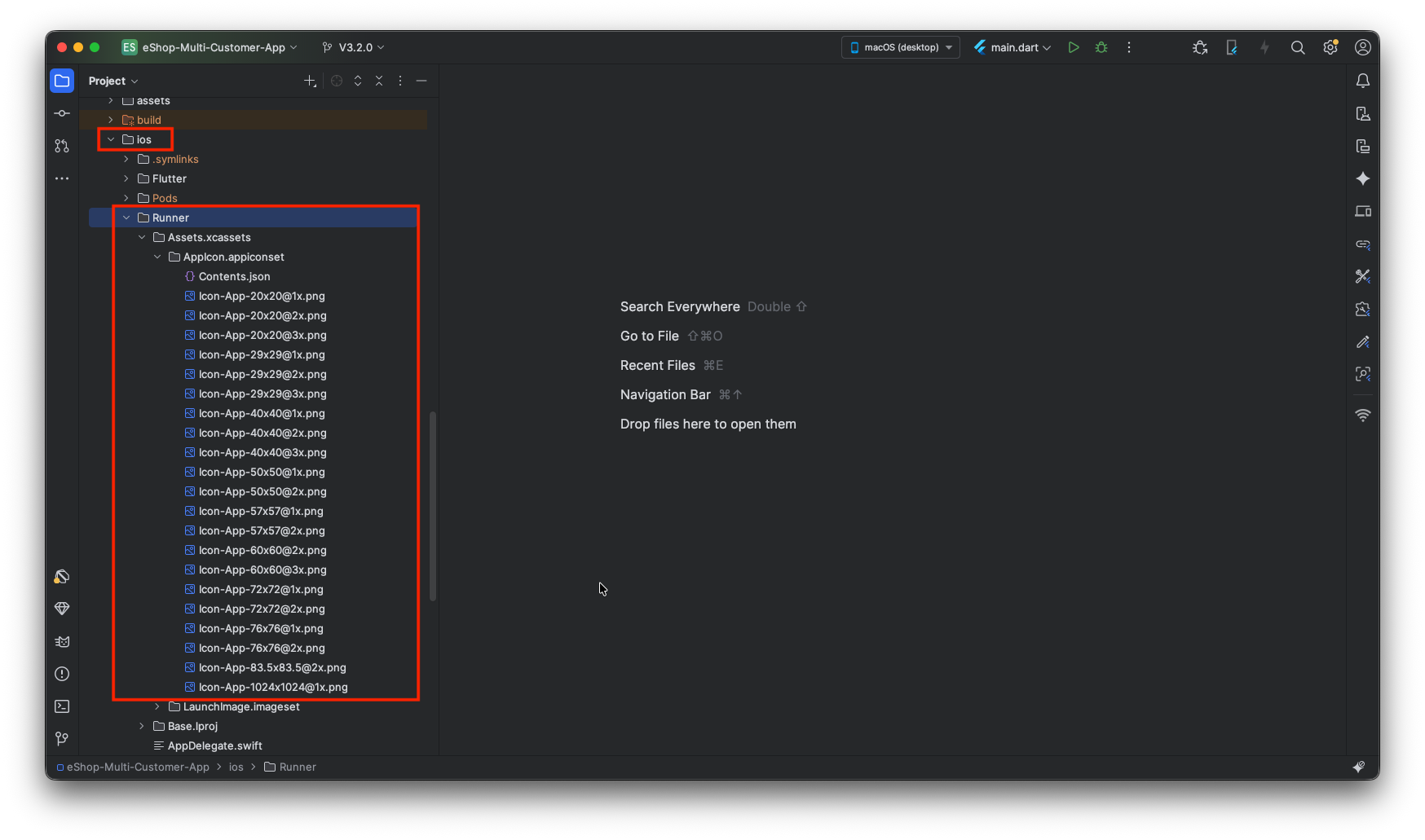
iOS Icons Generated
Icons will also be generated in the iOS assets folder:
Step 5: Clean and Run
After generating icons, clean and rebuild your project:
flutter clean
flutter pub get
flutter run
Note: For iOS, you may need to delete the app from the simulator/device before reinstalling to see the changes.
Important Tips
- Image Format: Use PNG files
- Recommended Size: Start with 1024x1024px icons
- iOS Transparency: Set
remove_alpha_ios: trueto remove transparency - Testing: Always test on both Android and iOS devices
- Adaptive Icons: Android adaptive icons look best with centered designs
Quick Reference
# Install package
flutter pub get

# Generate all icons
flutter pub run flutter_launcher_icons

# Clean and rebuild
flutter clean
flutter pub get
flutter run