🔄 Laravel Queue Implementation
📋 Overview
The school creation process in e-School SaaS involves several time-consuming operations that are now handled efficiently through Laravel's queue system, improving both user experience and system performance.
⚙️ Key Operations
- 🗄️ Creating a new database for each school
- 🔄 Running database migrations
- 👥 Setting up default roles and permissions
- 📝 Inserting initial data and settings
- 📧 Sending welcome emails
⭐ Benefits
- ⚡ Immediate user interface response
- 🚫 No blocking operations
- ⏱️ Background processing (2-3 minutes)
🏗️ Architecture
📦 Job Classes
SetupSchoolDatabase (app/Jobs/SetupSchoolDatabase.php)
- 🎯 Manages database creation and migrations
- 📊 Updates school status automatically
- 📨 Handles welcome email dispatch
🔧 Setup Instructions
💻 Local Setup (Development)
For local development, you can run the queue worker directly in your terminal. Run these commands within the system root directory:
For Mac & Ubuntu OS:
while true; do php artisan queue:work; done
For Windows PC:
while($true) { php artisan queue:work; echo "Restarting worker..." }
php artisan queue:work?Yes, the original php artisan queue:work command works correctly. However, when you update your system in a local environment, some job files may be modified, requiring a queue restart to apply the changes.
Since local PCs typically don't have Supervisor configured to automatically restart the queue worker, the process would stop and not start again on its own. Using the while loop ensures the worker starts automatically whenever it stops or is restarted, which is especially useful during system updates on a local PC.
Important: On production servers, you must use Supervisor instead of these manual loops for reliability.
🎯 Option 1: aapanel Control Panel (Recommended)
If you are using aapanel control panel, you can directly install supervisor from the app store and configure Laravel queue from there. This is our recommended option for aapanel users.
📱 Install Supervisor from App Store
- Open your aapanel control panel
- Navigate to the App Store section
- Search for Supervisor
- Click Install to add it to your system
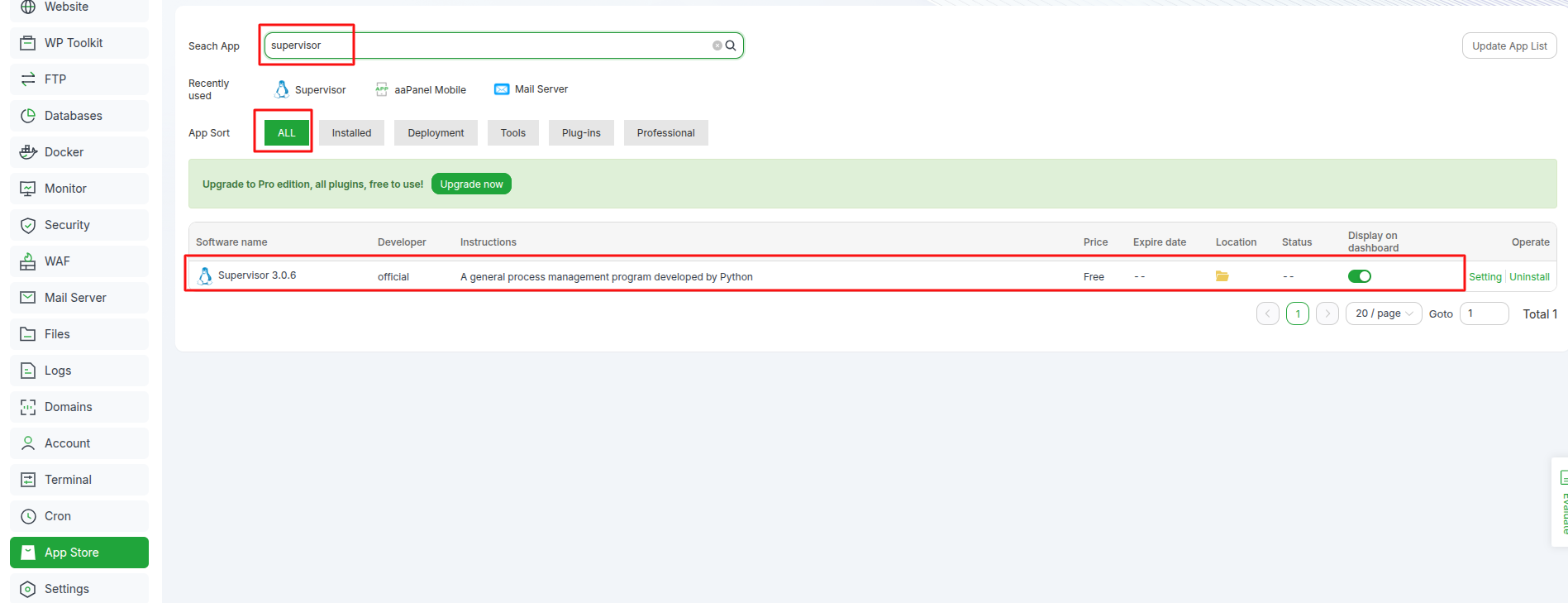
⚙️ Configure Laravel Queue Worker
After installing supervisor, configure your Laravel queue worker:
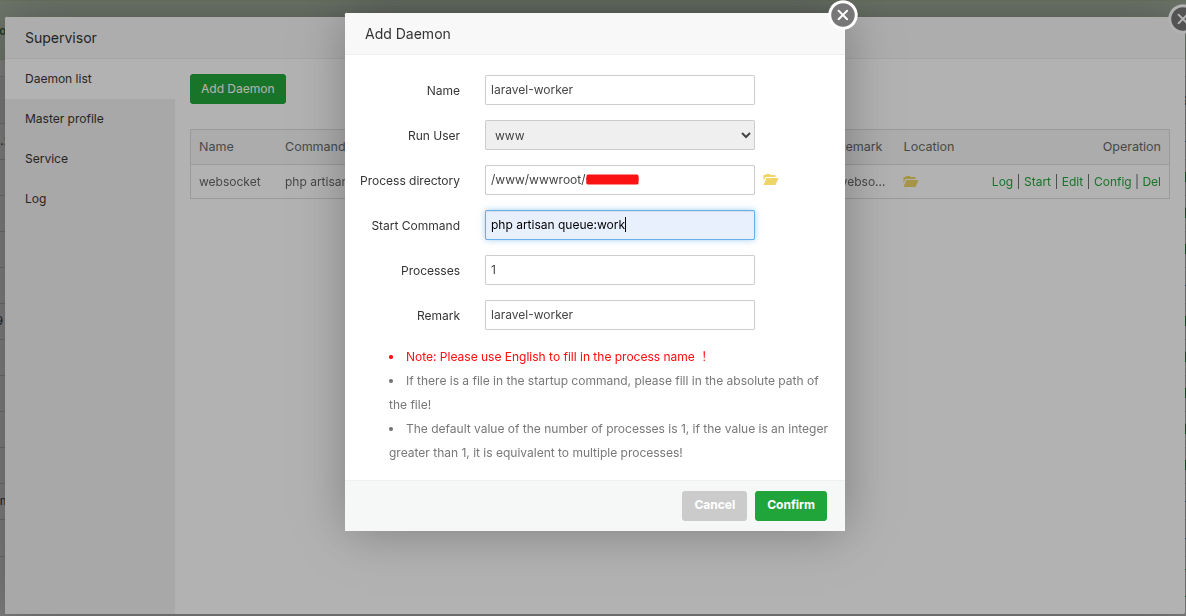
✅ Benefits of aapanel Method
- 🚀 Easy Installation: One-click installation from app store
- 🎛️ User-Friendly Interface: Graphical configuration options
- 🔧 Integrated Management: Centralized control panel access
- 📊 Real-time Monitoring: Built-in status monitoring
- 🛠️ Simplified Configuration: No manual command line setup required
🖥️ Option 2: Manual Installation (Traditional Method)
If you prefer manual installation or are not using aapanel, follow the traditional setup method below.
1️⃣ Queue Configuration
Update .env file with queue driver:
QUEUE_CONNECTION=database
2️⃣ Queue Worker Setup
Start processing jobs:
# Process all queues
php artisan queue:work

# For production (with supervisor)
# See configuration below
📊 School Status Codes
- 0️⃣ Pending/Setup in progress
- 1️⃣ Setup completed successfully
🚀 Production Deployment
🔧 Supervisor Configuration
Note: If Supervisor is already installed on your server, you can skip steps 1️⃣ below and proceed directly to creating the configuration file.
1️⃣ Install Required Packages
Open the Terminal from an SSH Connection:
sudo apt-get update
sudo apt-get install supervisor
2️⃣ Create Configuration File
sudo nano /etc/supervisor/conf.d/laravel-worker.conf
3️⃣ Add Configuration
Add the following content to the configuration file:
[program:laravel-queue]
command=php artisan queue:work
directory=/path/to/your/project
autorestart=true
startsecs=3
startretries=3
stdout_logfile=/path/to/your/project/storage/logs/queue-out.log
stderr_logfile=/path/to/your/project/storage/logs/queue.err.log
stdout_logfile_maxbytes=2MB
stderr_logfile_maxbytes=2MB
user=www
priority=999
numprocs=1
stopsignal=QUIT
process_name=%(program_name)s_%(process_num)02d
4️⃣ Update Supervisor
sudo supervisorctl reread
sudo supervisorctl update
5️⃣ Check Status
sudo supervisorctl status
⚡ Performance Benefits
-
🎯 Enhanced User Experience
- Instant response to requests
- No waiting time for users
-
💪 System Efficiency
- Non-blocking operations
- Better resource utilization
-
📈 Scalability
- Multiple concurrent processes
- Efficient resource management
-
🔄 Reliability
- Automatic retry mechanism
- Failed job handling
🔍 Troubleshooting Guide
❌ Common Issues
-
🚫 Jobs Not Processing
- ✅ Verify queue workers are running
- ✅ Check queue driver configuration
- ✅ Inspect failed_jobs table
-
⚠️ School Setup Failures
- 📝 Review error logs
- 🔑 Check database permissions
- 🔄 Use retry commands for failed jobs
-
📧 Email Issues
- ⚙️ Verify email configuration
- 🔒 Check SMTP settings
- 📋 Review email logs
🔒 Security Guidelines
-
🗄️ Database Security
- ✅ Proper queue worker permissions
- ✅ Restricted database access
-
📁 File System
- ✅ Correct storage permissions
- ✅ Secure log directories
-
🔐 Environment Security
- ✅ Protected configuration values
- ✅ Secure production settings