App Customization
Customize the Elite Quiz App to match your brand identity and preferences.
Update App Launcher Icons
We use the flutter_launcher_icons package to generate launcher icons for Android and iOS. This approach makes the process quick, easy, and reproducible—especially helpful for setup and app updates.
Setup Steps
Tip: For optimal results, separate your logo foreground from the background.
-
Navigate to
assets/config/launcher_iconsand update these files:app_logo_icon.png: 1024x1024 recommendedbackground.png: 432x432 recommendedforeground.png: 432x432 recommended
Image Format Note: You can use JPG format, but you'll need to modify the
flutter_launcher_icons.yamlfile to specify the correct image format, otherwise it won't work.
- Run the following command in your project directory to generate the icons:
dart run flutter_launcher_icons
-
Verify Generated Icons
- Android icons: Generated in
android/app/src/main/res/ - iOS icons: Generated in
ios/Runner/Assets.xcassets/AppIcon.appiconset/
- Android icons: Generated in
-
Additional Options
- For platform-specific icons, use
image_path_androidandimage_path_ios - To remove alpha channel from iOS icons, add
remove_alpha_ios: true
- For platform-specific icons, use
Apply Changes
After generating the icons, rebuild your app to see the changes:
flutter clean
flutter pub get
flutter run
Update App Logos in the App
You can customize the app logo that appears in the Splash screen, Sign in/ Sign up etc screens:
-
Navigate to
assets/images/svg/directory in your project. -
Update the following images:
splash_logo.svg: shown in the splash screen.placeholder_logo.svg: default placeholder logo shown across screens.
-
Then rebuild the app to see the changes.
Customize App Colors
Customize your app's color scheme to match your brand identity. We recommend using your own brand colors instead of the default Elite Quiz colors.
Navigate to lib/commons/utils/color_tokens.dart and update the color constants with your brand colors:
  static final primary = ColorShades(const Color(0xFFEF5388)); // Primary branding color (#EF5388)
  static final neutral = ColorShades(const Color(0xFF808080)); // Neutral gray color (#808080)
  static final error = ColorShades(const Color(0xFFFB2C36));   // Error / alert color (#FB2C36)
  static final success = ColorShades(const Color(0xFF34C759)); // Success color (#34C759)
  static final orange = ColorShades(const Color(0xFFFA5A4A));  // Accent orange color (#FA5A4A)
  static final purple = ColorShades(const Color(0xFF8A56F2));  // Accent purple color (#8A56F2)
  static final blue = ColorShades(const Color(0xFF2093FC));    // Accent blue color (#2093FC)
  static final yellow = ColorShades(const Color(0xFFD5A400));  // Accent yellow color (#D5A400)
Navigate to `lib/core/config/colors.dart` and update the color constants with your brand colors:

```dart title='lib/core/config/colors.dart'
/// Light Theme Colors
const klBackgroundColor = Color(0xffffffff); // White color for containers, cards, lists
const klCanvasColor = Color(0xcc000000); // Black color for overlays
const klPageBackgroundColor = Color(0xfff3f7fa); // Main scaffold background color
const klPrimaryColor = Color(0xffef5388); // Primary branding color
const klPrimaryTextColor = Color(0xff45536d); // Main text color

/// Additional theme colors available in the file
Save the file and restart your app to see the changes
Customize App Fonts
Customize typography by adding custom fonts to your Elite Quiz App. Follow the steps below to add and configure a new font family:
Setup Steps
-
Add Font Files to Assets: Copy your font files (e.g.,
.ttfor.otf) into theassets/fonts/directory in your project:assets/fonts/Poppins-Regular.ttfassets/fonts/Poppins-Bold.ttf
-
Declare Font Family in
pubspec.yaml: Openpubspec.yamland map the font family and weights under theflutter:section:pubspec.yamlflutter:
fonts:
- family: Poppins
fonts:
- asset: assets/fonts/Poppins-Regular.ttf
weight: 400
- asset: assets/fonts/Poppins-Bold.ttf
weight: 700Run
flutter pub getafter savingpubspec.yaml. -
Define Font Constant: Open
lib/core/theme/app_text_theme.dartand add a constant for your font family name:lib/core/theme/app_text_theme.dartstatic const String poppins = 'Poppins'; -
Apply Font Constant: Reference the font constant (e.g.,
TextStyle(fontFamily: poppins, ...)) in your shared text styles file.
Never hardcode font family string literals (such as 'Poppins' or 'Nunito') directly inside screen or widget files. Always reference the constant declared in app_text_theme.dart to maintain consistency across the app.
Managing System Languages (Translations)
System languages control the interface translations for the mobile app, admin panel, and web application.
Default App Language File
The mobile application stores its default translation strings in:
assets/languages/template.json
This file contains all the default key-value pairs for the application's UI strings.
Do not modify or change the JSON key names. Only translate or update the string values. Changing the key names will prevent the app from resolving the correct translations.
Managing Translations via Admin Panel
You can update, add, and edit app language translations dynamically directly from the admin panel without needing to rebuild or redeploy the app:
- Go to your admin panel.
- Navigate to General Management > Languages.
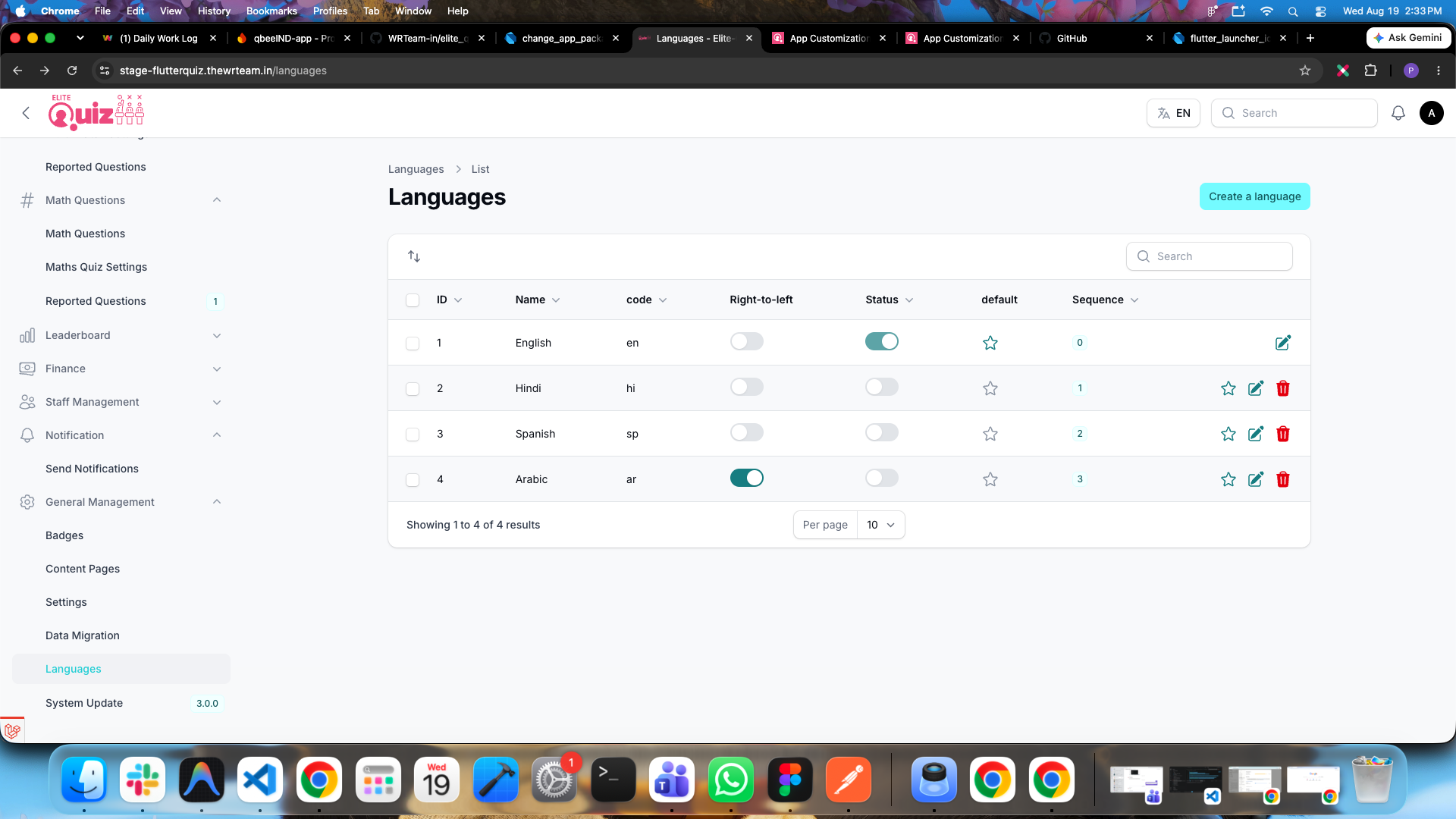
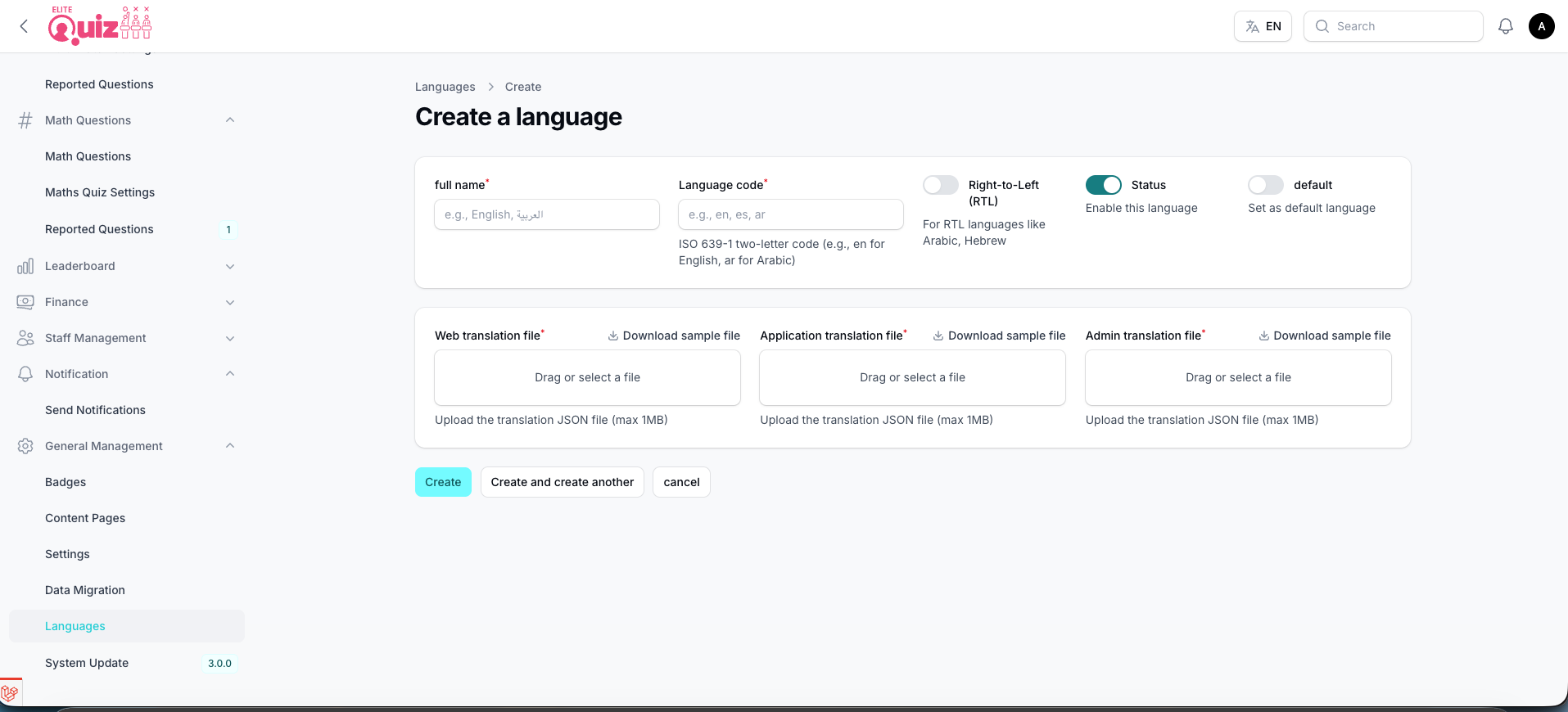
- Click on Create Language and upload or fill in the JSON translation data following the key-value format from
assets/languages/template.json.
Managing Quiz Languages (Content Type)
Quiz languages (noted as Content Type in the admin panel) control the content structure of your app, including categories, subcategories, and questions. This system allows you to have completely different content structures for different languages across all quizzes.
Key Features
- Content Separation: Each language can have its own category structure and questions
- Flexible Organization: Different content for Hindi vs English, or any other language combination
- Content Mode Control: Enable or disable Content Type mode depending on whether you want single or multiple content languages
Configuration
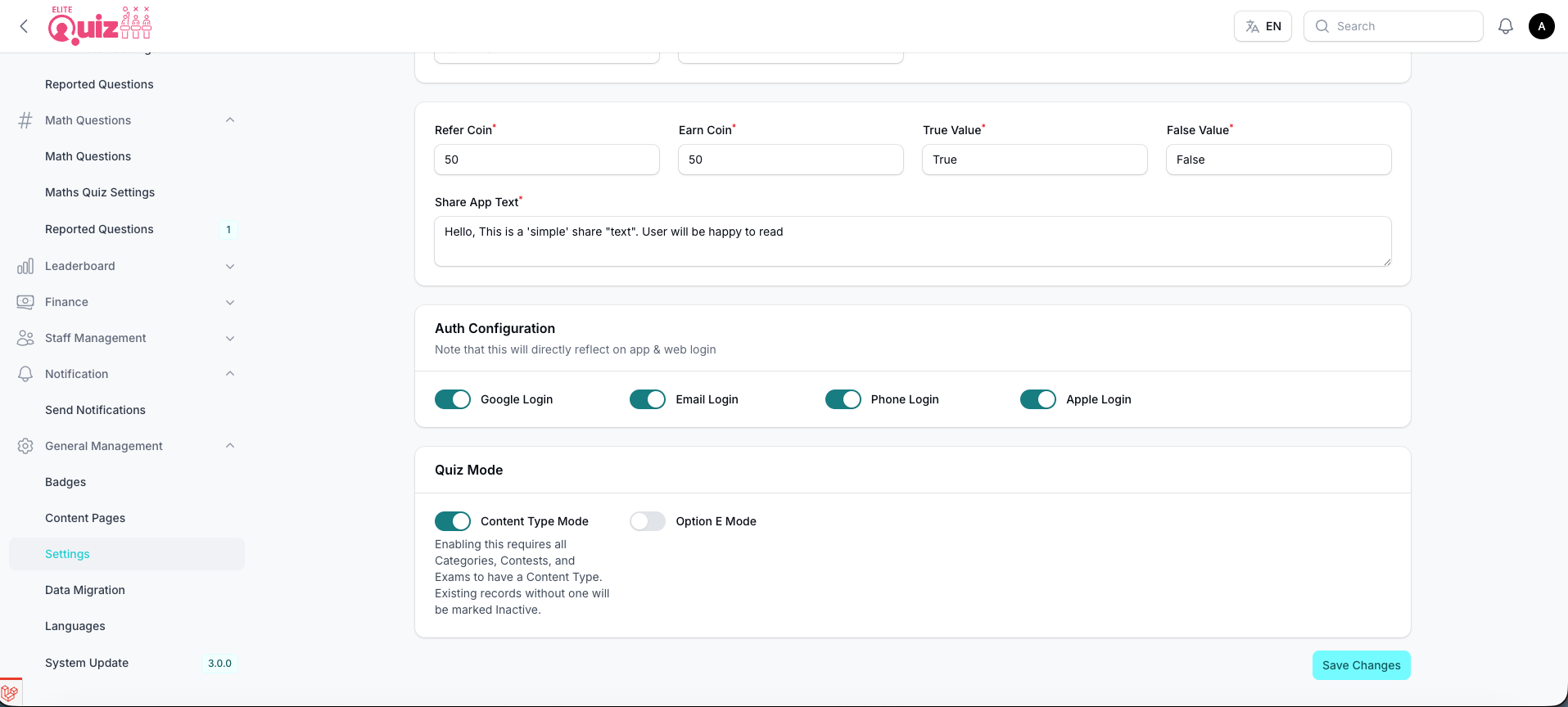
To enable or disable Content Type mode:
- Go to General Management -> Settings -> System Configurations -> Quiz Mode.
- Toggle the Content Type Mode (Enable/Disable) option.
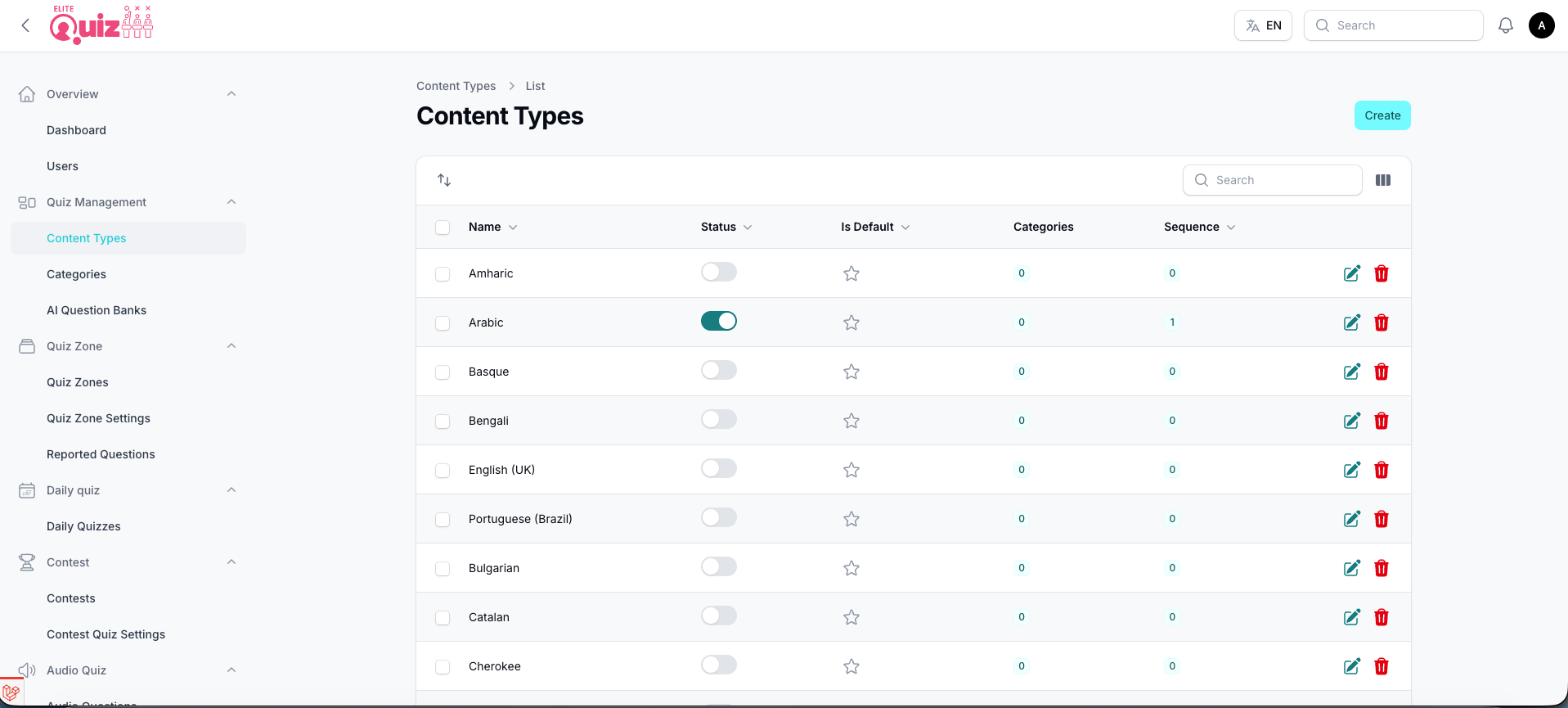
To manage Content Types (Quiz Languages):
- Navigate to General Management -> Content Types in your admin panel.
- Add or configure your desired content languages/types.
Advanced Usage
While we refer to this as "language-wise" categorization, you can actually use it for various organizational structures:
- Classes: Different content for Class 7 vs Class 10 students
- Subjects: Separate content by academic subjects
- Regions: Location-specific content
- Professions: Career-specific quiz content
- Interests: Interest-based content organization
The possibilities are endless for organizing your quiz content!
Admin Panel Settings
Explore the admin panel for additional customization options:
- System Utilities: Configure quiz behavior and rules
- System Configurations: Advanced system settings
Take time to review all available options to fully customize your Elite Quiz experience.
Manage Profile Avatars
Elite Quiz allows users to select preset avatar images for their profiles. You can easily add or update preset profile avatars by following the steps below.
Setup Steps
-
Add the SVG Avatar File: Drop your SVG avatar file into the
assets/avatars/folder in your project (e.g.,avatar_15.svg). -
Register the Avatar Path: Open
lib/core/constants/assets_constants.dartand add the string path to theAssets.presetAvatarslist:lib/core/constants/assets_constants.dartstatic const List<String> presetAvatars = [
'$_avatarBase/avatar_1.svg',
'$_avatarBase/avatar_2.svg',
// ...
'$_avatarBase/avatar_15.svg', // Append new avatars at the end
];
The avatar selector automatically calculates grid items and rows based on Assets.presetAvatars.length.
- Always Append to the End: User profiles store preset avatars by their index position in the list. Always append new avatars at the end of
presetAvatars. Removing or reordering items will shift list indices and cause existing users to display incorrect avatars. - Keep Paths in Sync: Ensure the filename in
assets/avatars/matches the constant string inassets_constants.dartexactly to prevent runtime asset loading errors.
Manage Battle Chat Emojis
Elite Quiz features real-time battle chat where players can send quick emojis during matches. You can add new battle chat emojis or customize existing ones following the steps below.
Setup Steps
-
Add the SVG Emoji File: Drop your new SVG emoji file into the
assets/images/svg/chat_emojis/folder in your project (e.g.,9.svg). -
Register the Emoji Path: Open
lib/core/constants/assets_constants.dartand add the string path to theAssets.chatEmojislist:lib/core/constants/assets_constants.dartstatic const List<String> chatEmojis = [
'$_chatEmojiBase/1.svg',
'$_chatEmojiBase/2.svg',
'$_chatEmojiBase/3.svg',
'$_chatEmojiBase/4.svg',
'$_chatEmojiBase/5.svg',
'$_chatEmojiBase/6.svg',
'$_chatEmojiBase/7.svg',
'$_chatEmojiBase/8.svg',
'$_chatEmojiBase/9.svg', // Append new emojis at the end
];
The battle chat emoji picker automatically renders items based on Assets.chatEmojis.length.
- Always Append to the End: Battle messages reference chat emojis by their list index position. Always append new chat emojis at the end of the
chatEmojislist. Deleting or reordering existing entries will shift indices and cause battle messages to display the wrong emoji. - Keep Paths in Sync: Ensure the filename in
assets/images/svg/chat_emojis/matches the constant string inassets_constants.dartexactly to prevent runtime asset loading errors.