Web Customization
Elite Quiz allows for extensive customization of the user interface and branding elements.
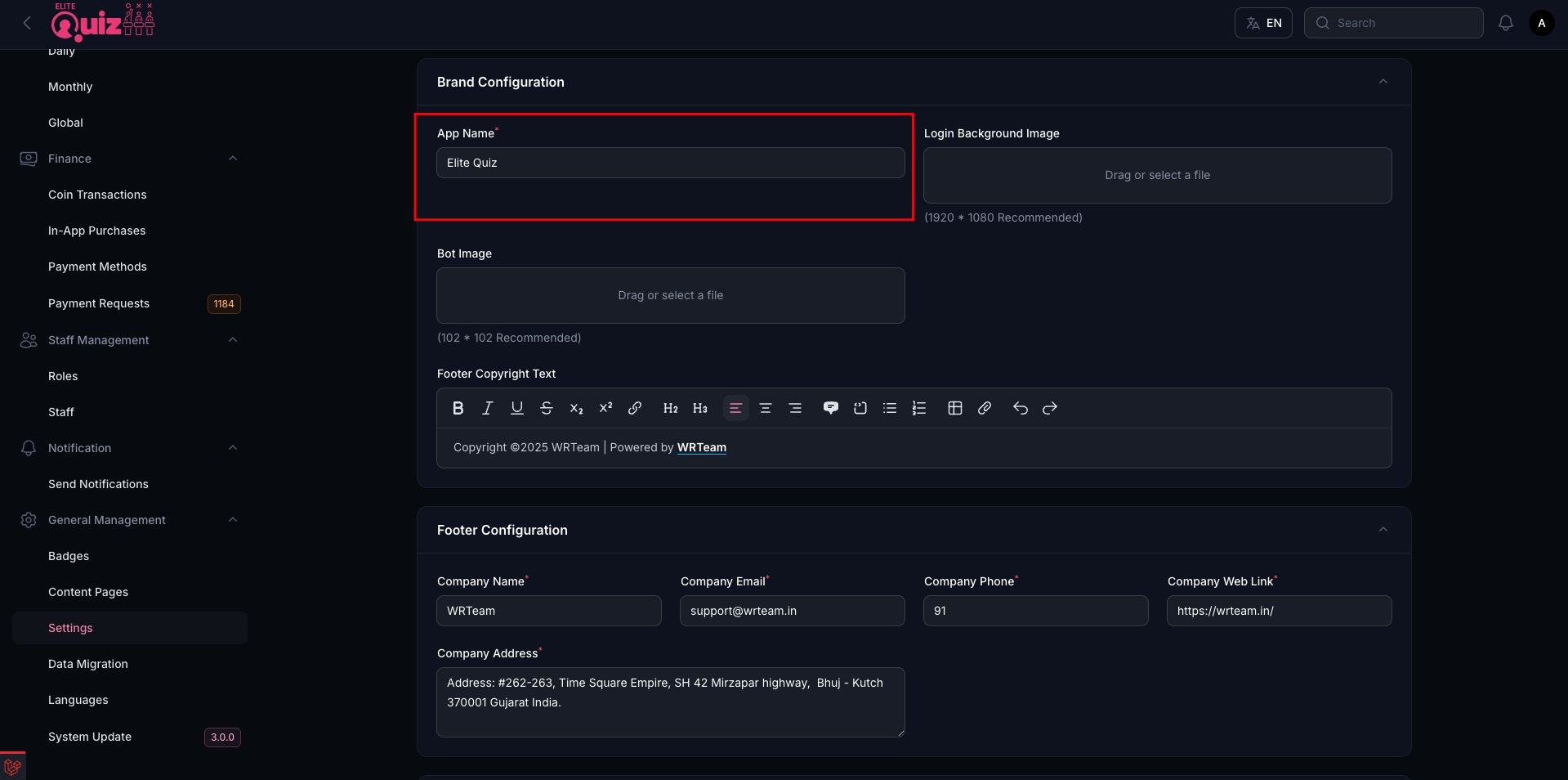
Changing Name
To change the name:
- Go to Admin Panel > Profile and change the value of appName
Changing Logo
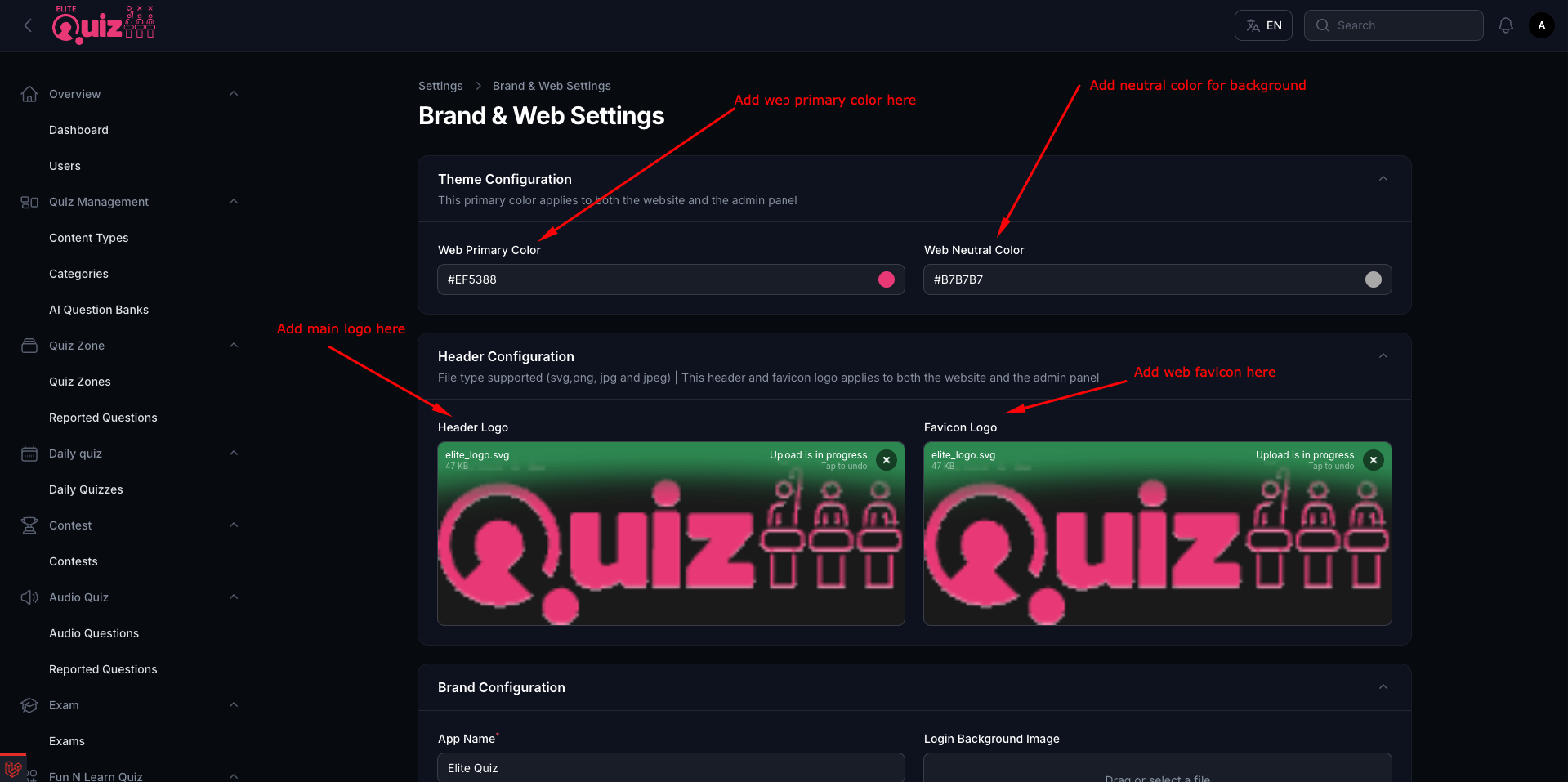
To change logo, favicon, Firebase, footer data, quizplay images, etc:
- Go to Admin Panel -> Web & Brand Settings
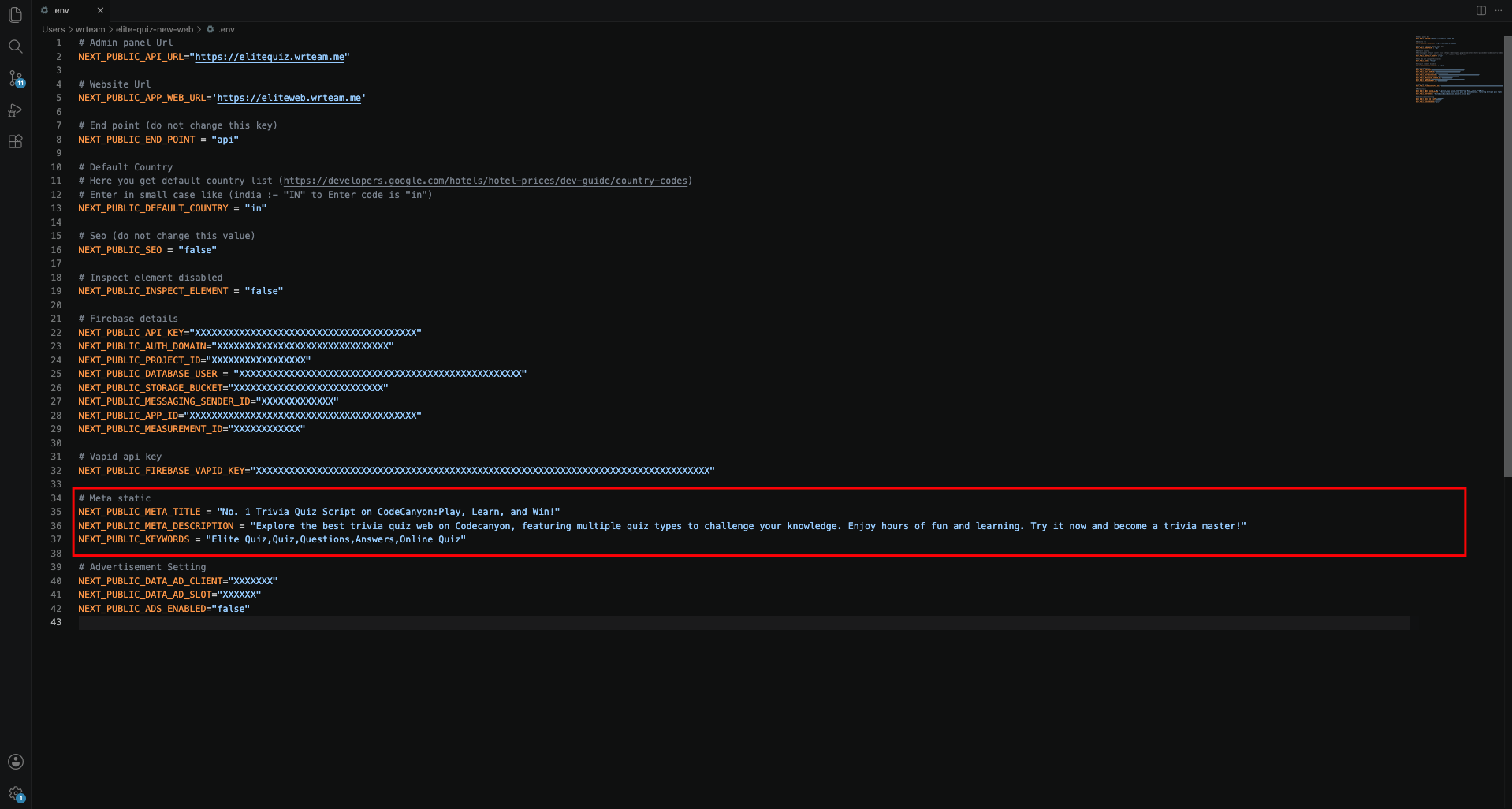
Setting SEO Meta Tags
- Go to .env file to configure SEO meta tags
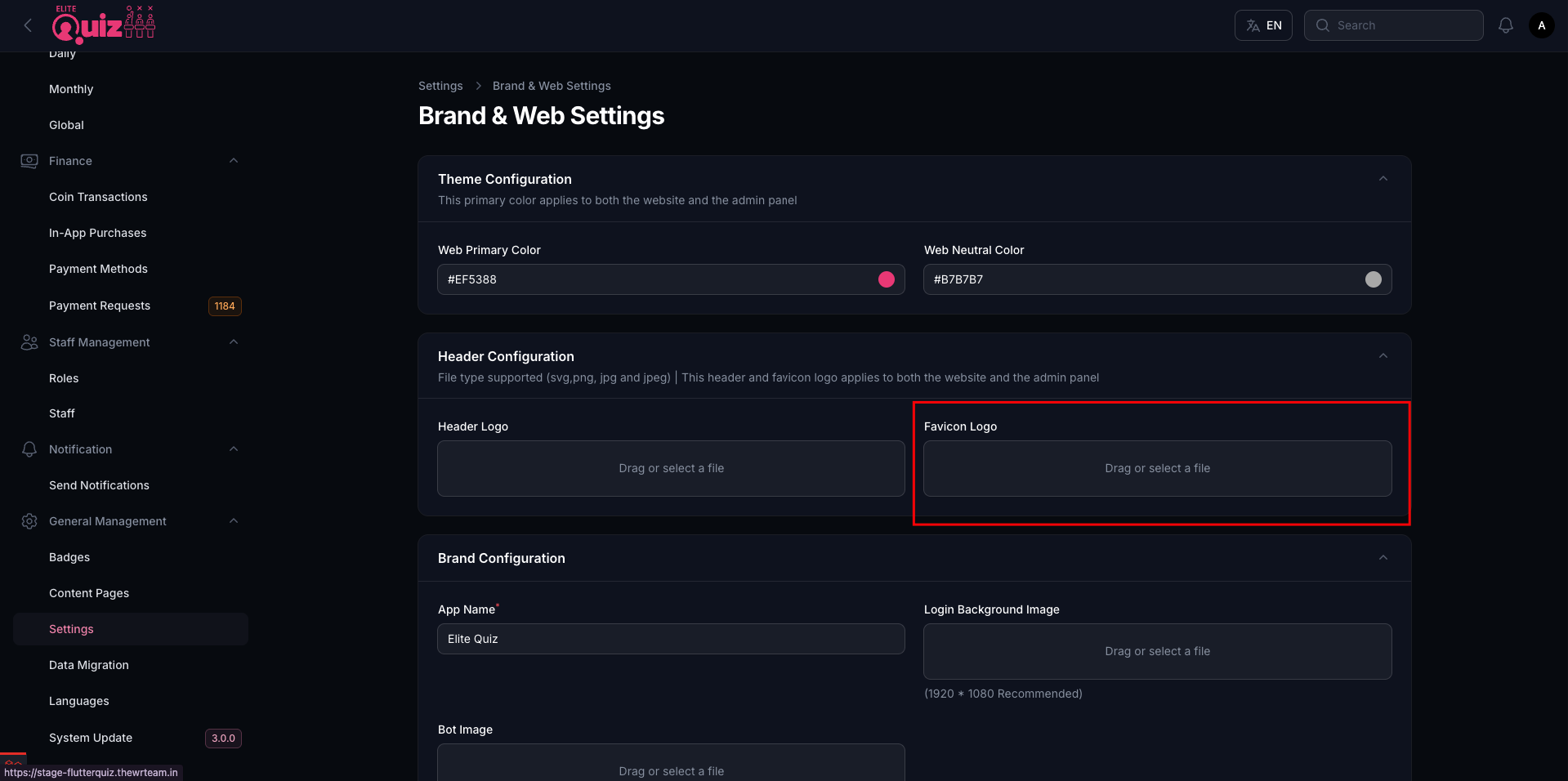
Changing Favicon Icon
Note: Please set your favicon icon as favicon.ico name and format is only ico set. You can use this tool to convert image to ico: Favicon Generator
- Go to Admin Panel -> Web & Brand Settings
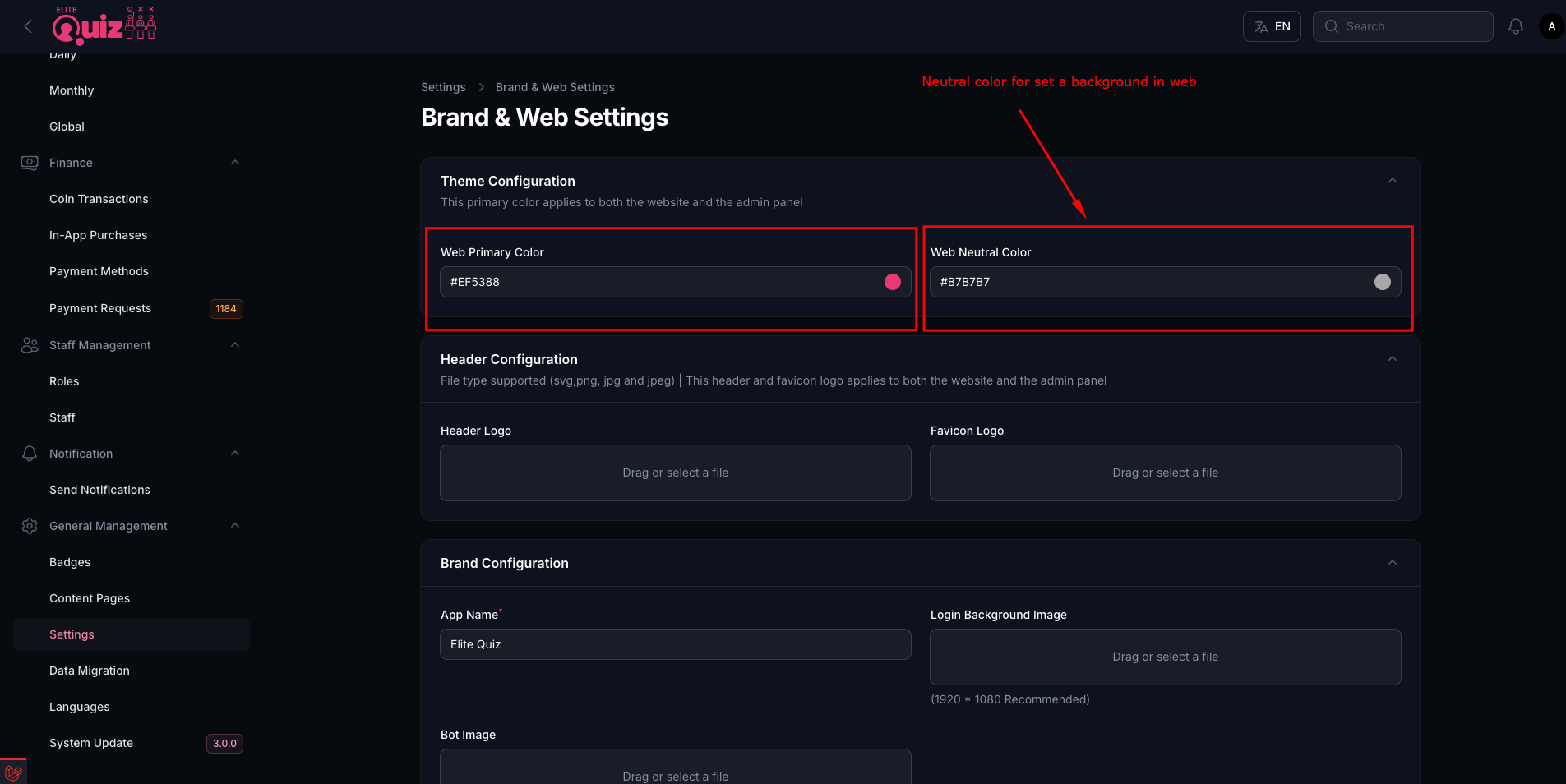
Changing Application Colors
To change the application colors:
- Add your colors in Admin Panel -> Web Settings
Adding Slider on Homepage
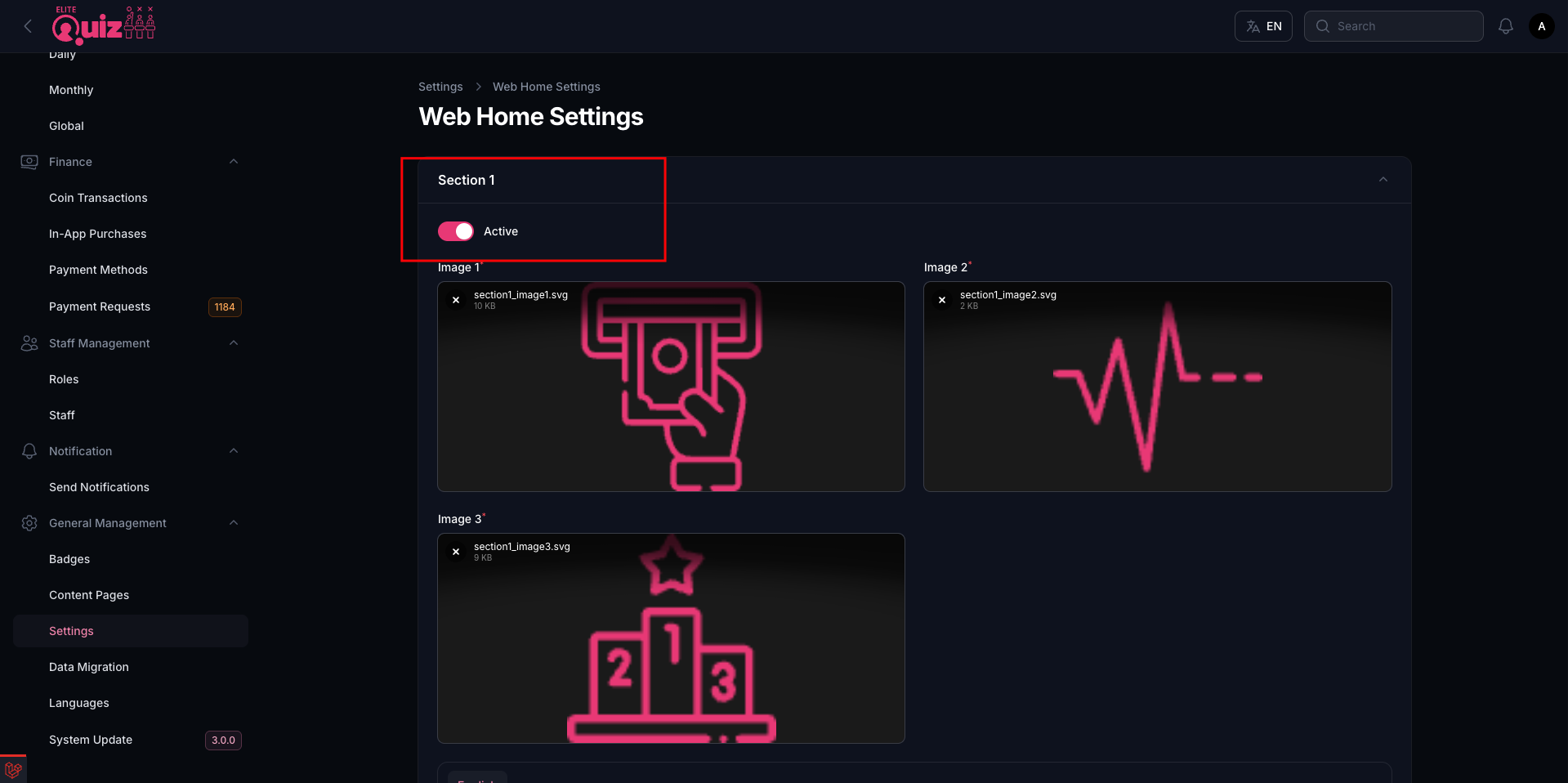
To add or modify sliders on the homepage:
- Go to admin panel -> web home settings
Setting Domain URL
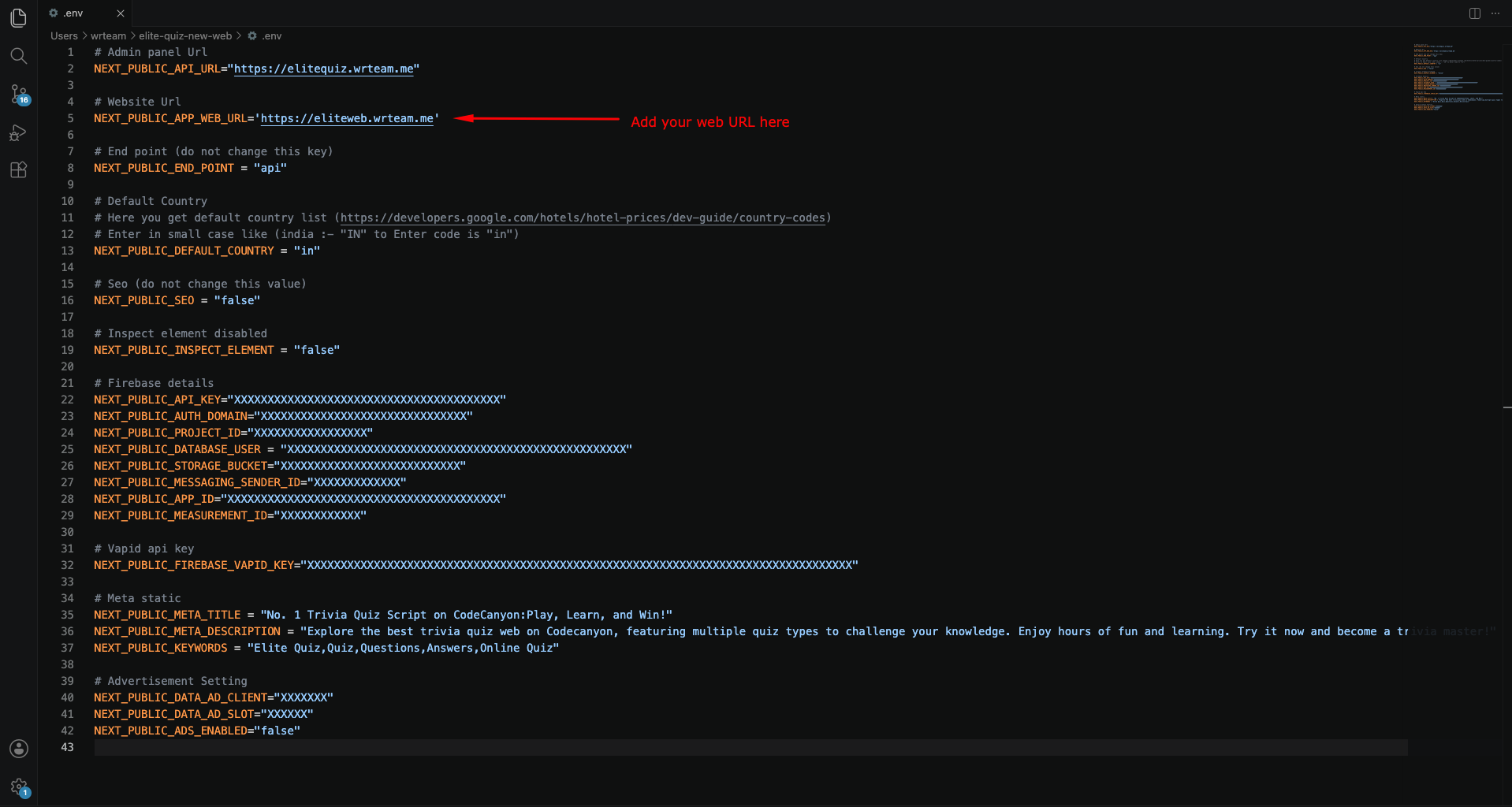
To set the Domain URL:
- Go to .env file
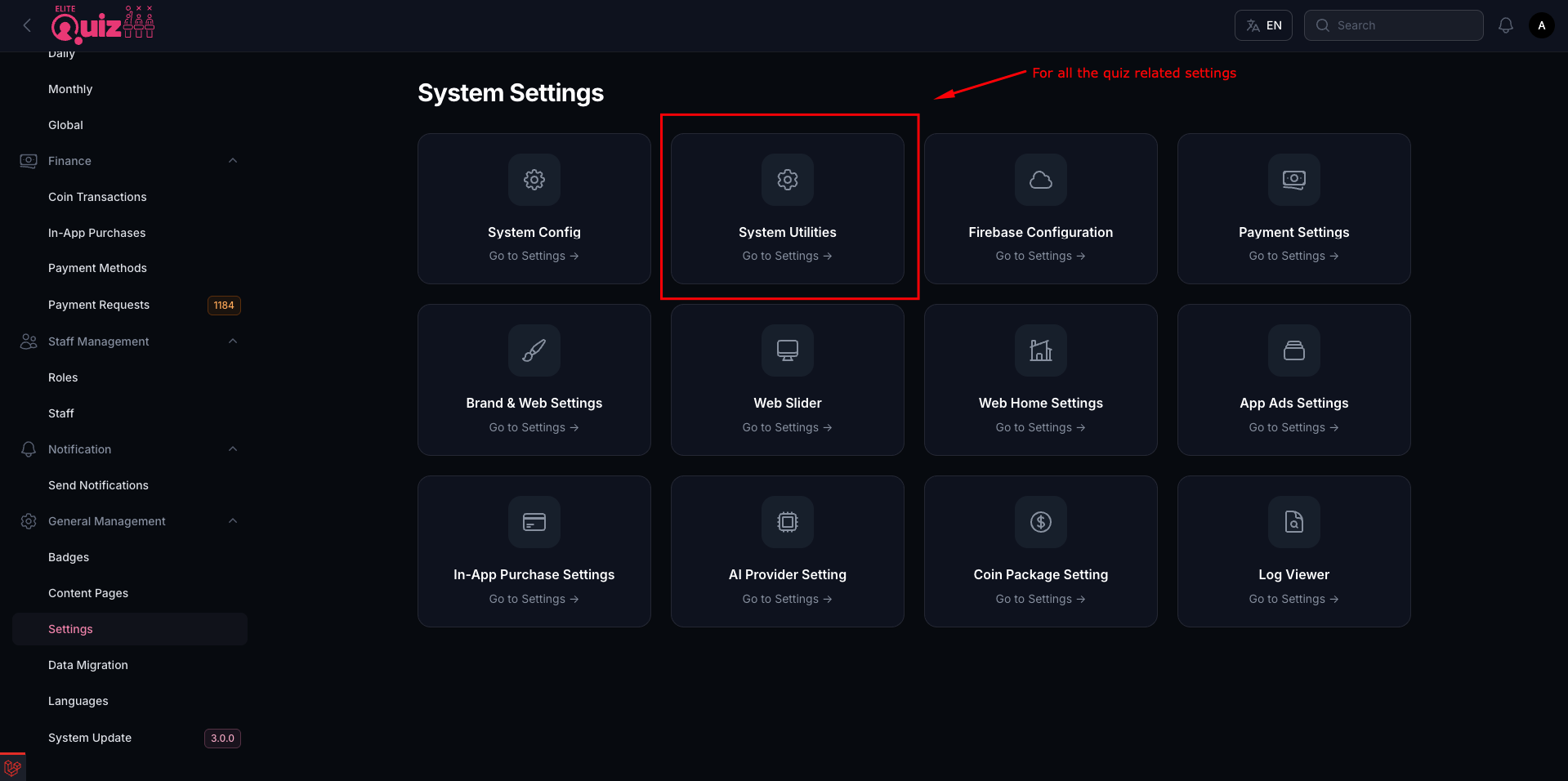
- Go to Admin Panel -> System Utilities
Disabling Home Sections
To disable specific sections on the homepage:
- Go to Admin Panel -> Web Settings -> Web Home Settings
Adding Google AdSense
To add Google AdSense to your application:
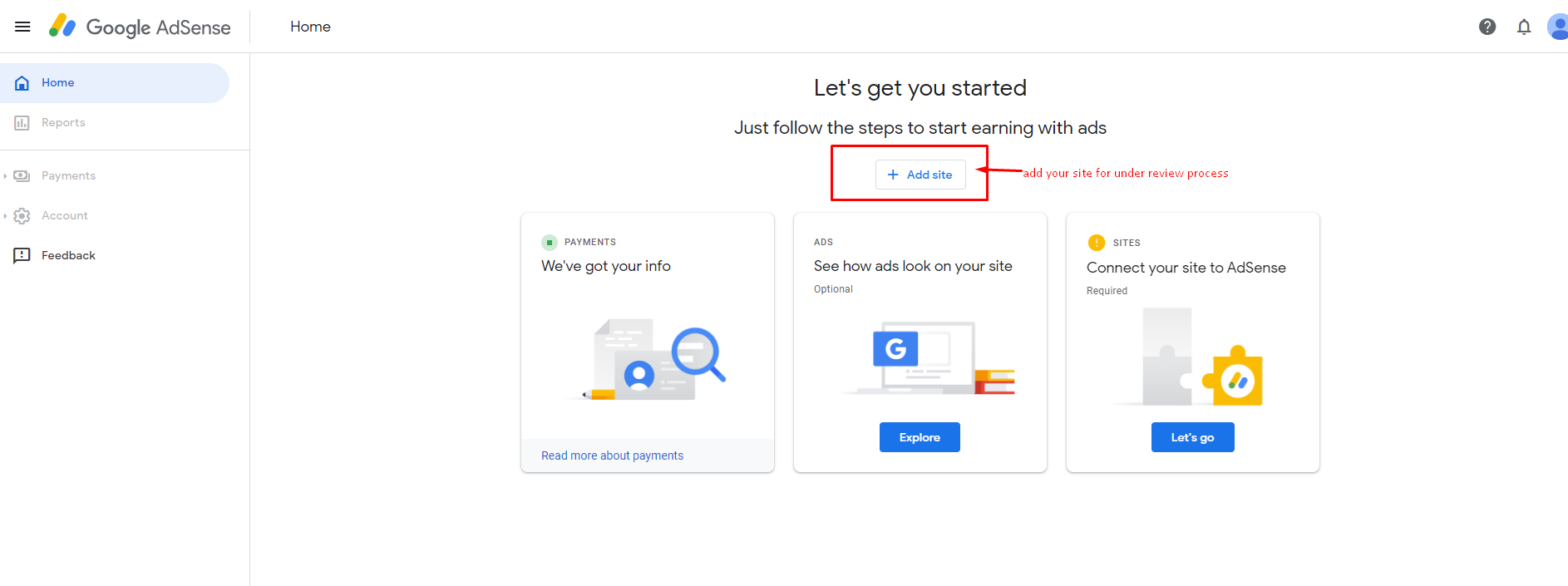
- Go to Google AdSense and sign in to your account
- Add your site as shown in the image
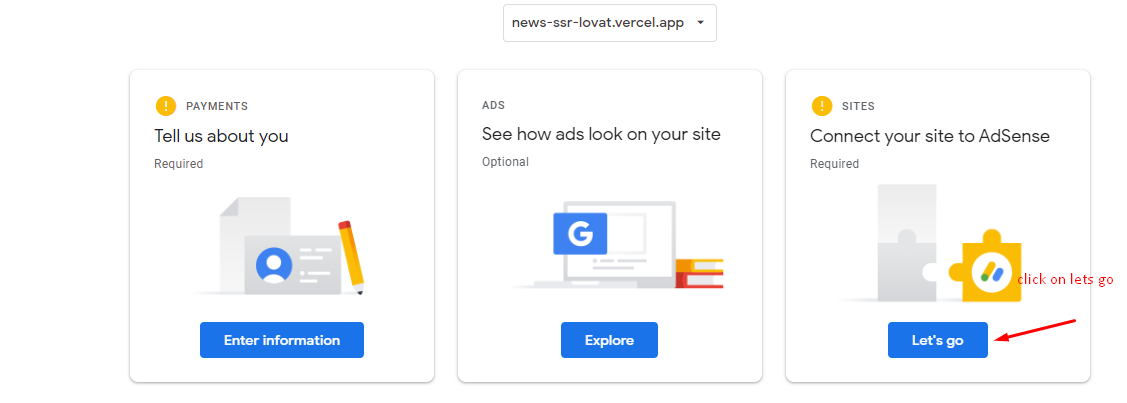
- Click on "Let's Go" button
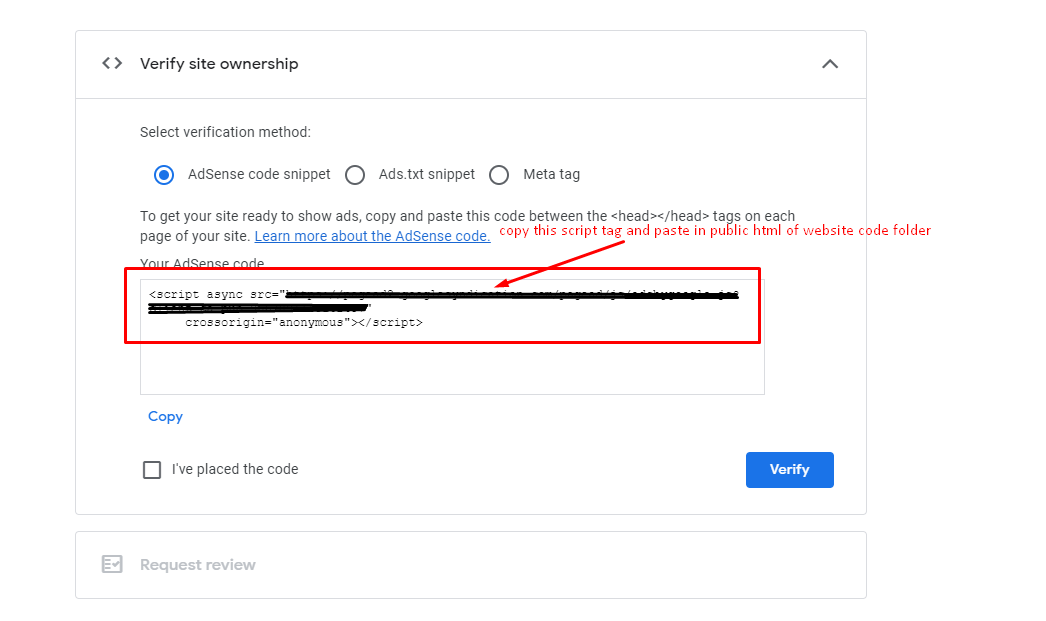
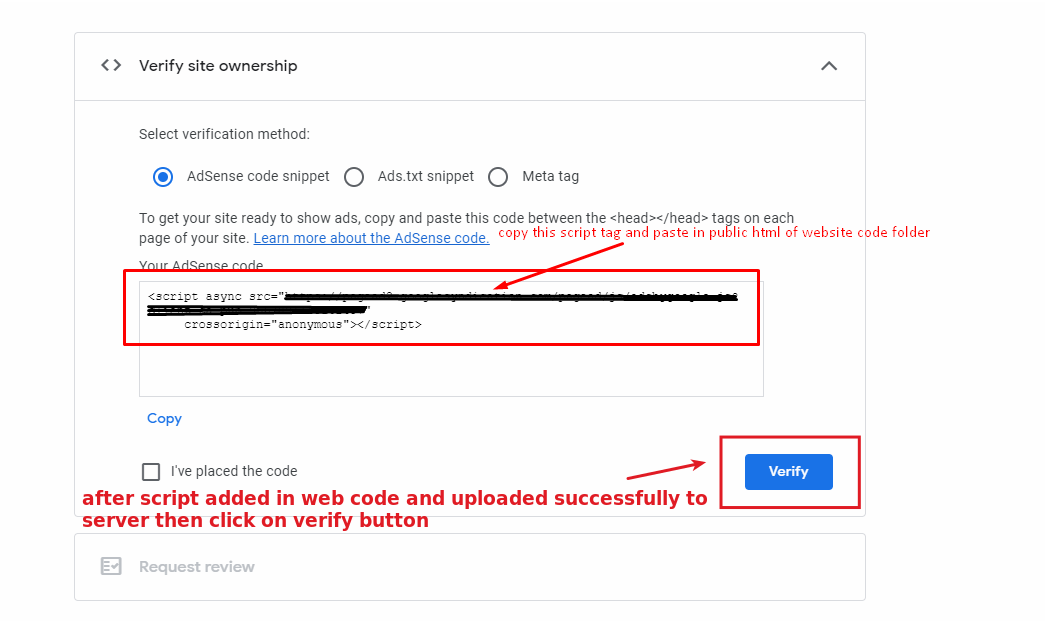
- Copy the last code of the screen and paste that in .env file's NEXT_PUBLIC_DATA_AD_CLIENT variable
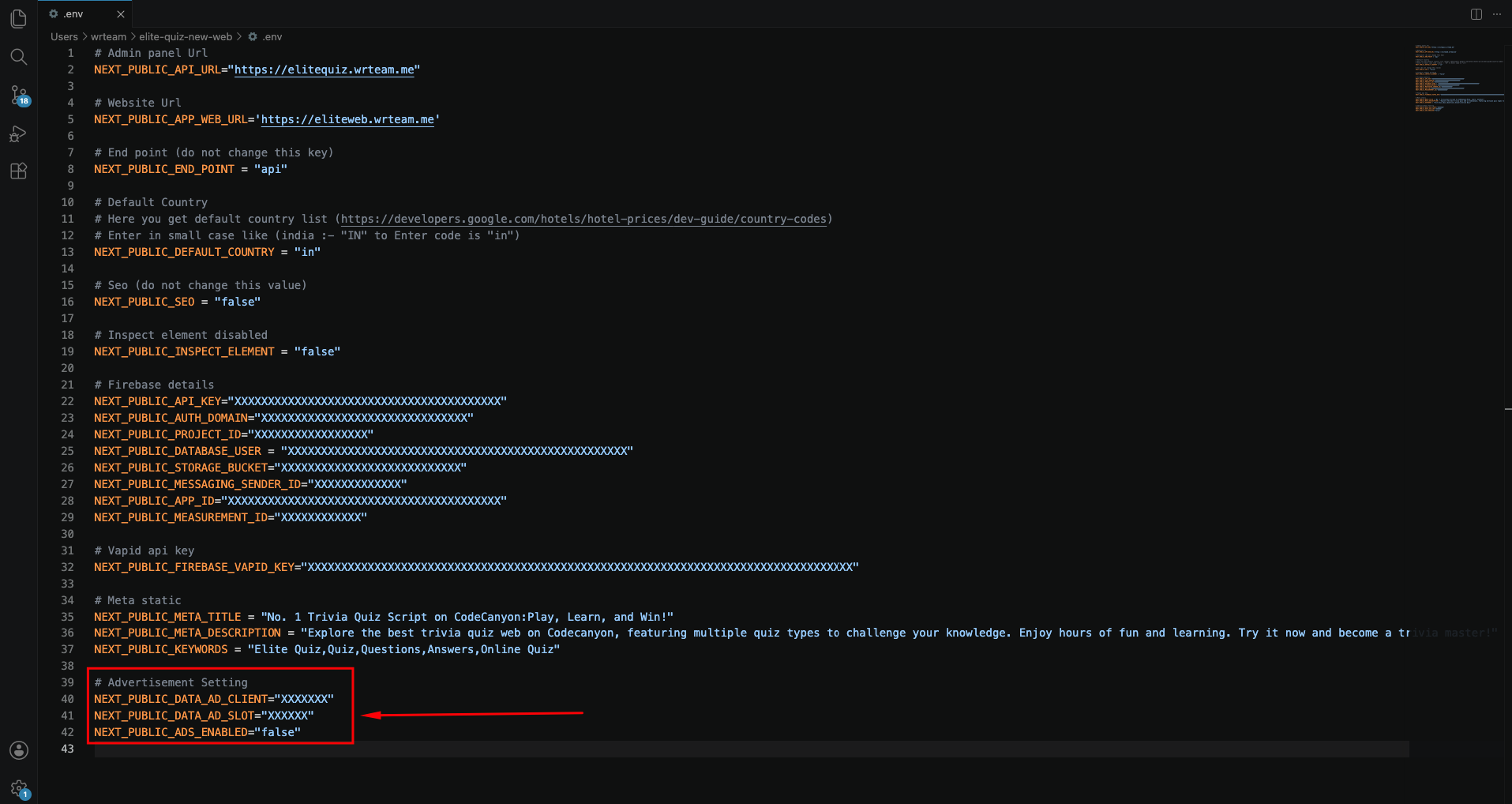
-
After adding the script, run the command for build folder:
- npm
- bun
npm run exportbun run export...and upload to your server
-
After uploading, click on verify button in Google AdSense
- If it says "Getting ready…," your account is still under review and your site will not display ads until it has been approved
