Settings
The Settings section in the Elite Quiz Admin Panel provides comprehensive control over the appearance, behavior, and functionality of your quiz application.
Content Management
This section explains how to manage various content sections in the Elite Quiz admin panel.
Privacy Policy
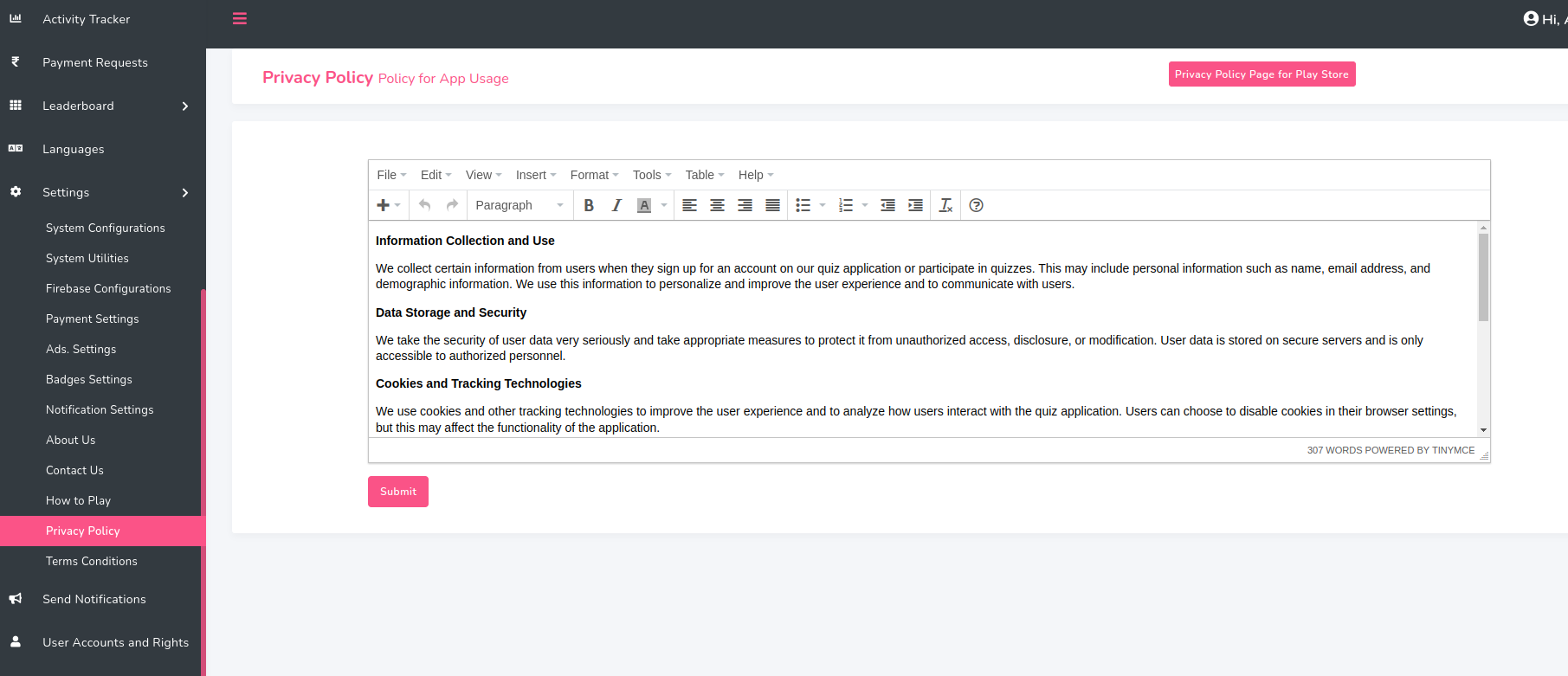
You can set Privacy Policy for your website and app:
Terms & Conditions
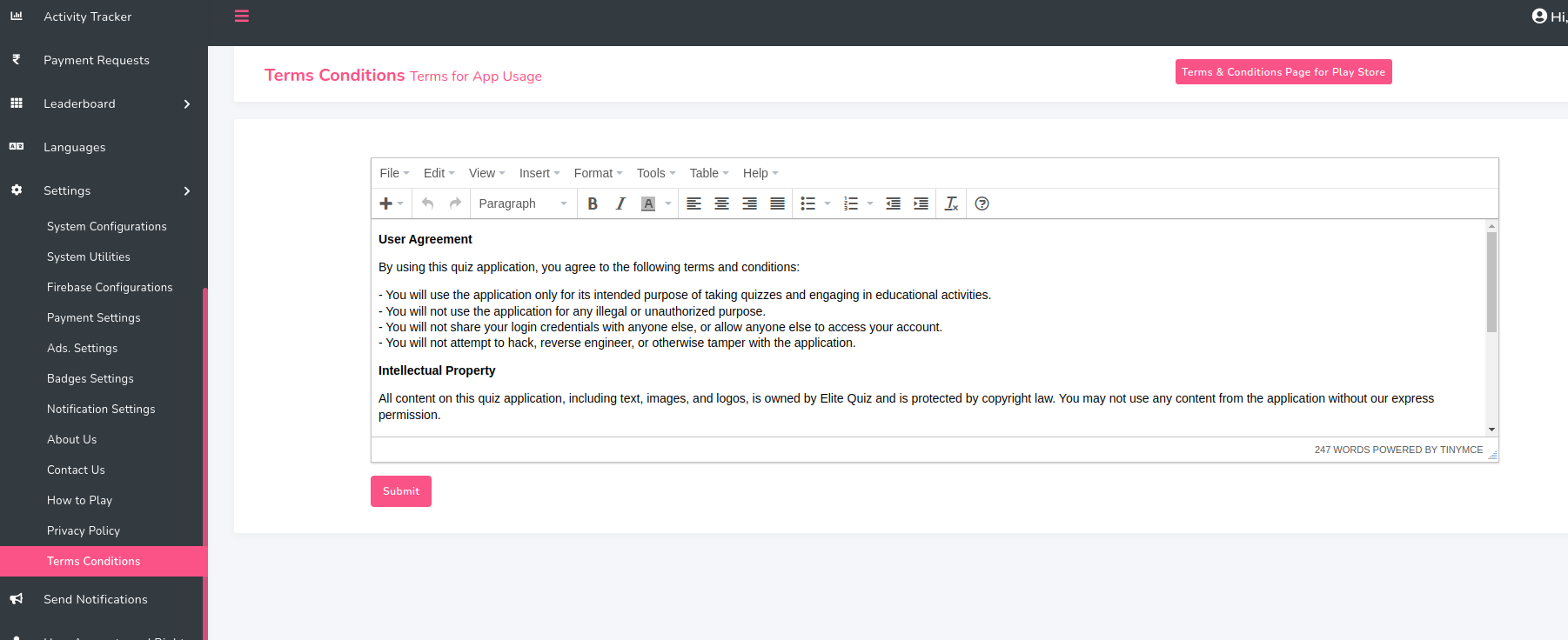
You can set Terms and Conditions for your website and app:
About Us Content
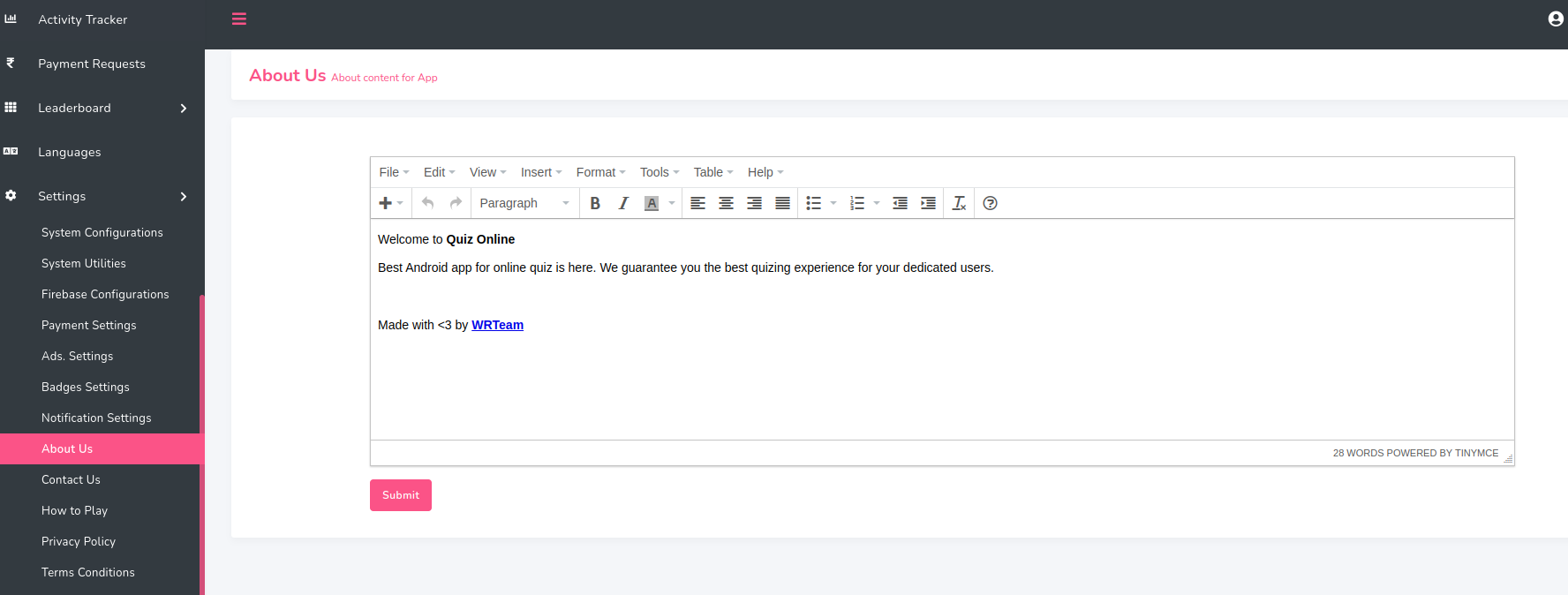
You can set and manage your About Us content for the app:
How to Play Content
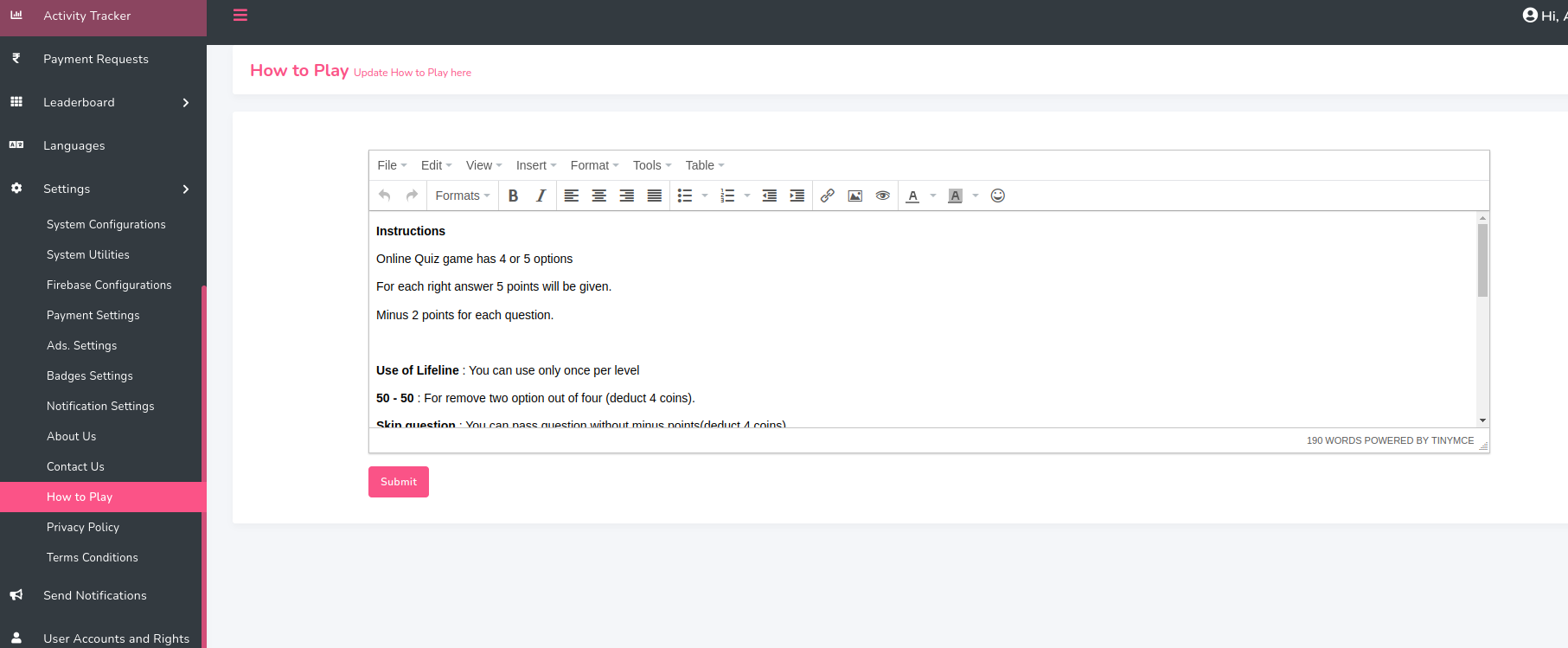
You can set and manage your How to Play (instructions) content for the app:
AI Settings for AI Question Bank
Use the AI Settings screen to connect your AI Question Bank to either Gemini or OpenAI. Entering the wrong model code or API key will break question generation, so double-check every field before you click Submit.
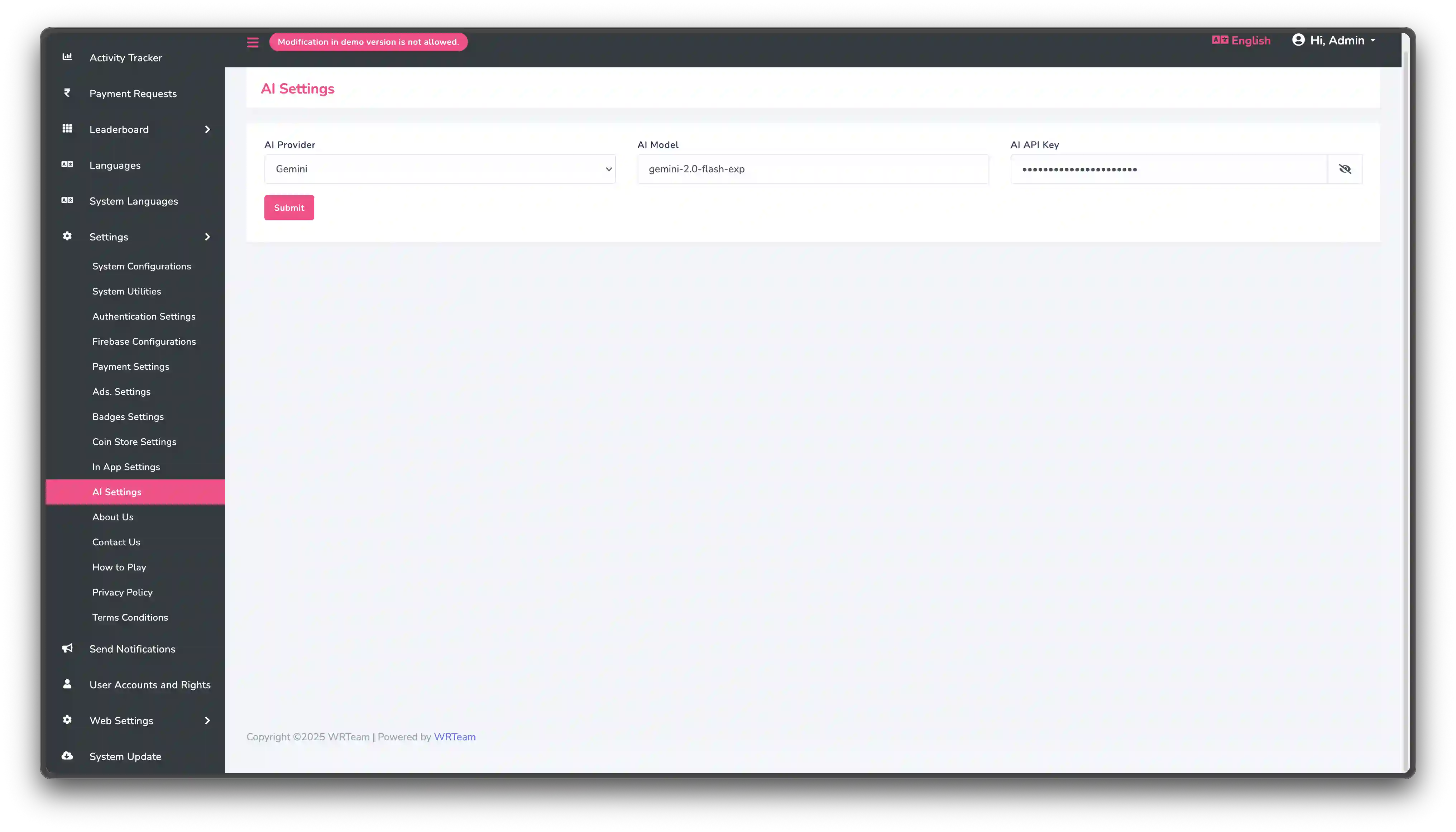
Step 1: Choose an AI Provider
- Select Gemini to use Google’s Gemini API.
- Select OpenAI to use GPT models from the OpenAI platform.
- Stick with one provider per environment so your model limits and billing are easy to manage.
Step 2: Enter a Valid Text Model Name
The AI Model field must contain a text-generation model code from the provider you selected. Copy the value exactly as documented—uppercase/lowercase and hyphens matter.
Gemini models
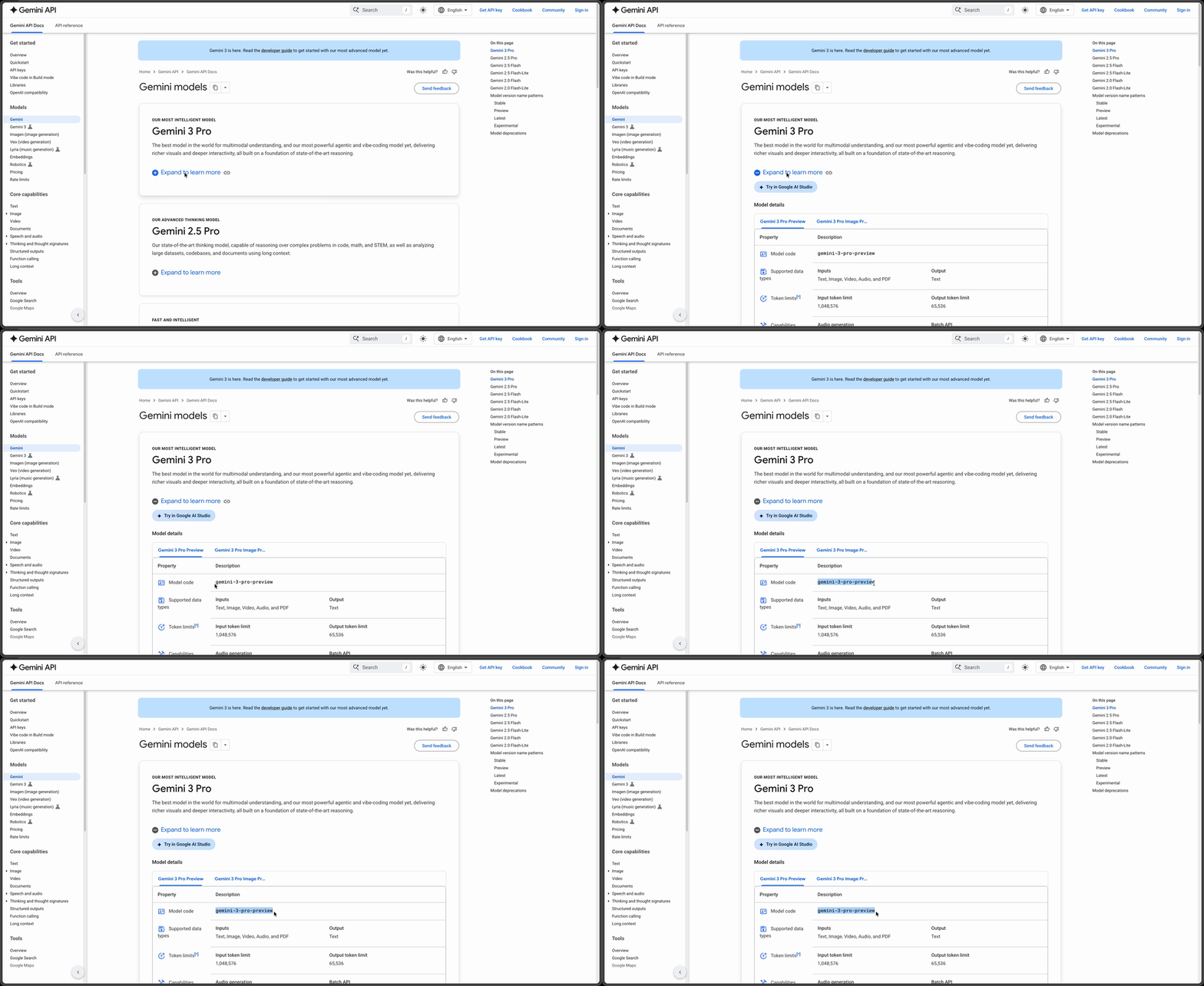
- Open the Gemini model catalog.
- Browse the text models (Gemini Pro, Gemini Flash, etc.). Avoid image-only or audio-only variants.
- Click Learn more on the model you want, then copy the Model code (for example,
gemini-2.0-flash-exp). Paste that code into the AI Model field.
OpenAI models
- Go to the OpenAI models list.
- Select a text model such as GPT-4.1 or GPT-4o variants. Do not copy image, audio, or embeddings models.
- Copy the model ID (for example,
gpt-4.1-mini) and paste it into the AI Model field.
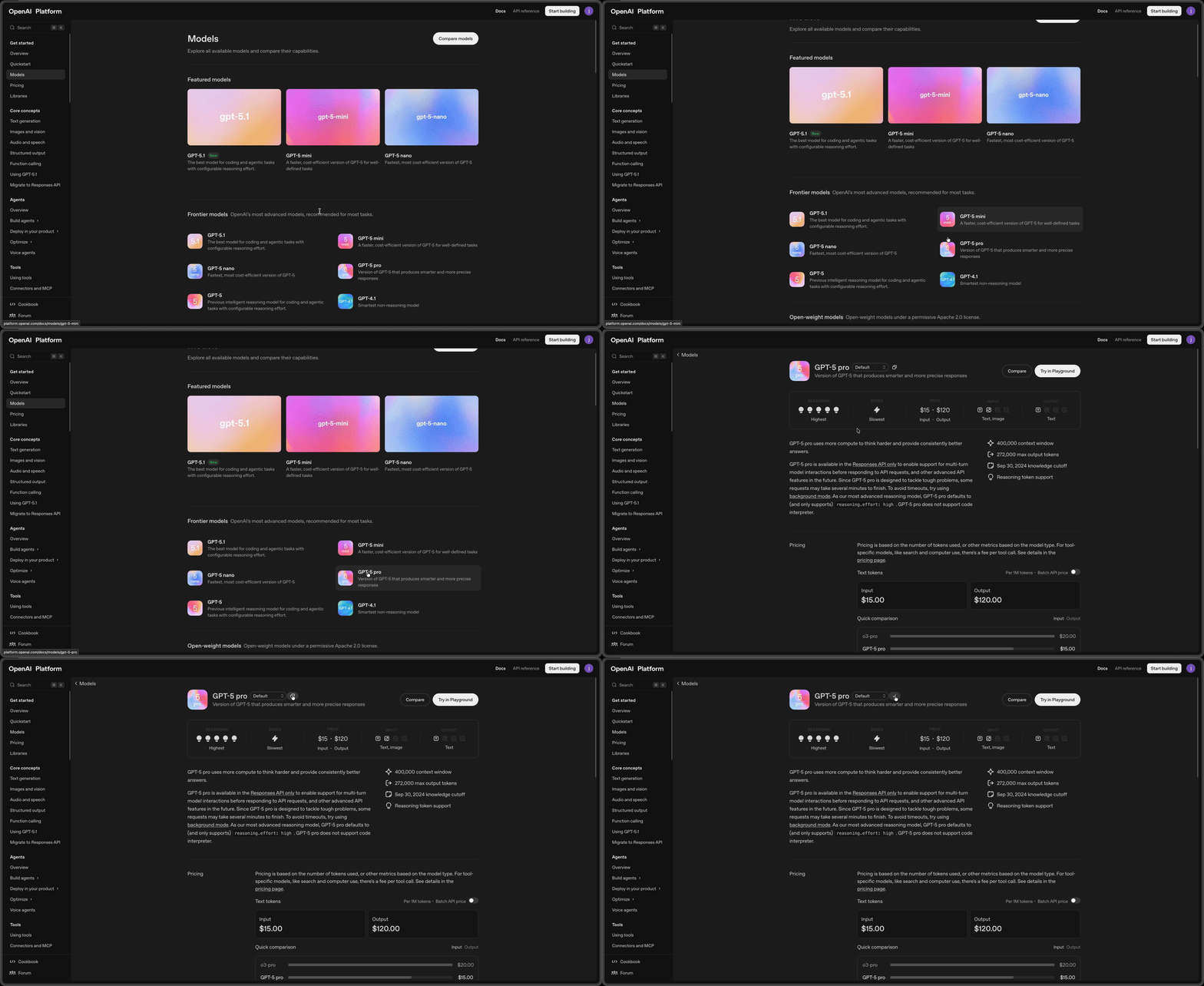
Image-generation or embeddings model IDs will not work with the AI Question Bank. Always choose a model whose description clearly says “text generation” or “chat.”
Step 3: Generate API Keys
Each provider needs its own API key. Keys are secret—store them in a secure password manager and rotate them if they are ever exposed.
Gemini API key (Google AI Studio)
- Sign in to Google AI Studio.
- Click Create API key (or Get API key if it’s your first time) and follow the prompts.
- Copy the generated key and paste it into the AI API Key box in the admin panel.
OpenAI API key
- Sign in to your OpenAI API Keys page.
- Click Create new secret key, give it a friendly name, and confirm.
- Copy the key once it appears (you will not see it again) and paste it into the AI API Key box.
After adding the provider, model code, and API key, click Submit. Run a quick test generation to confirm the connection before moving on.