Header Options
The admin panel global header includes the following features:
Sidebar
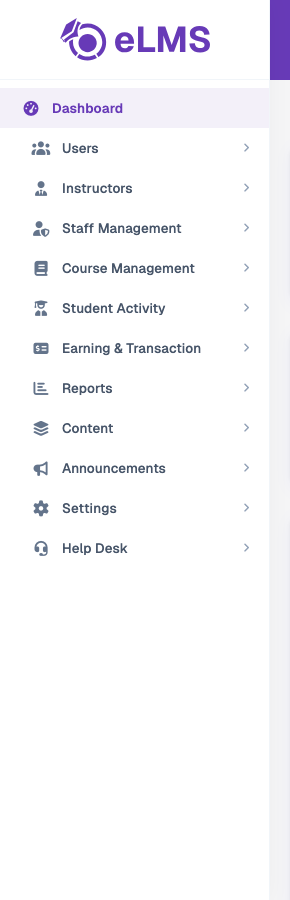
The sidebar includes group-wise feature pages that can be accessed easily, with an expand and collapse toggle for better navigation management.
Search Menu
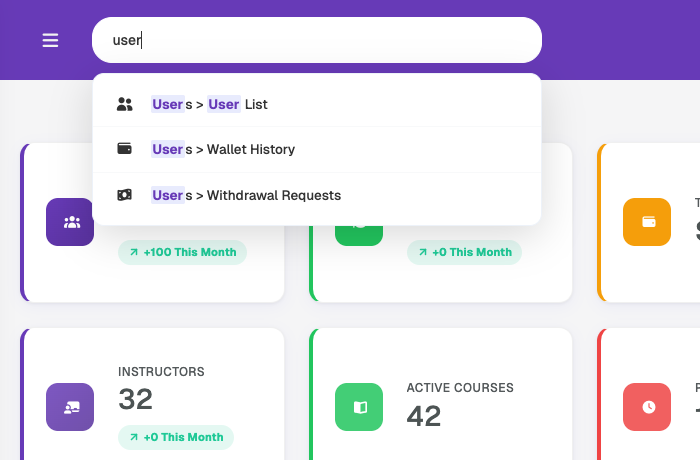
The menus and sub-menus can be quickly searched from this search bar to access them without having to locate them manually in the sidebar.
Language Change
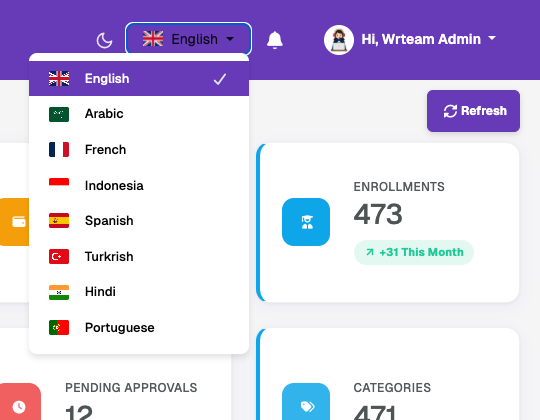
The language-change drop-down allows the admin user to change the language of labels to any of the available languages that have been added in the settings.
Dark Mode
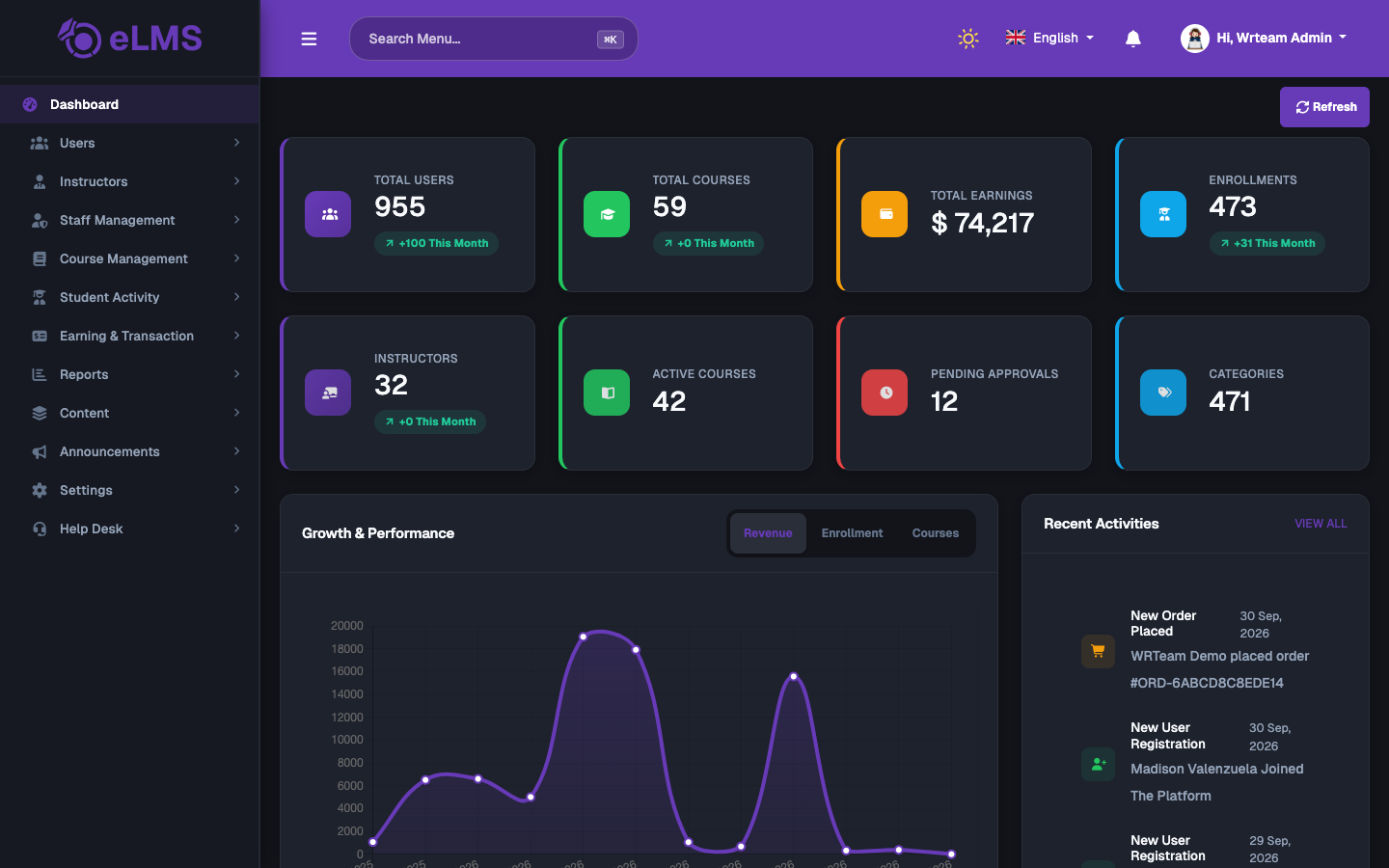
The moon icon in the header switches the admin panel between light and dark themes. Click the icon again (it becomes a sun) to return to the light theme.
Instructor Notifications
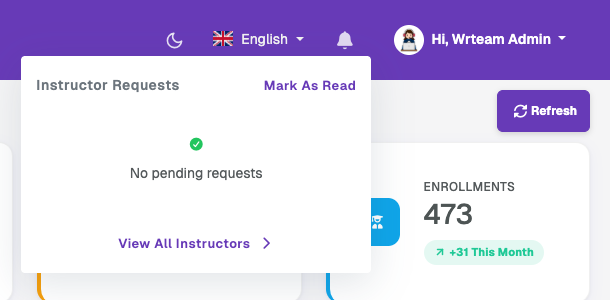
The bell icon shows pending instructor requests that need the admin's attention. Use Mark As Read to clear the notifications, or View All Instructors to open the Instructor List and review the requests. When there are none, "No pending requests" is shown.
Profile
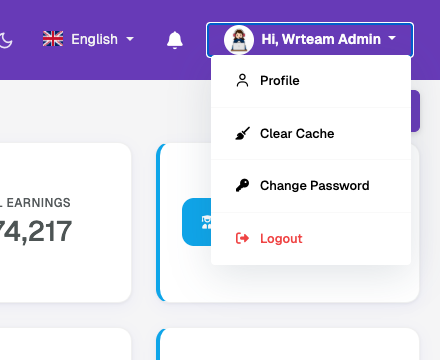
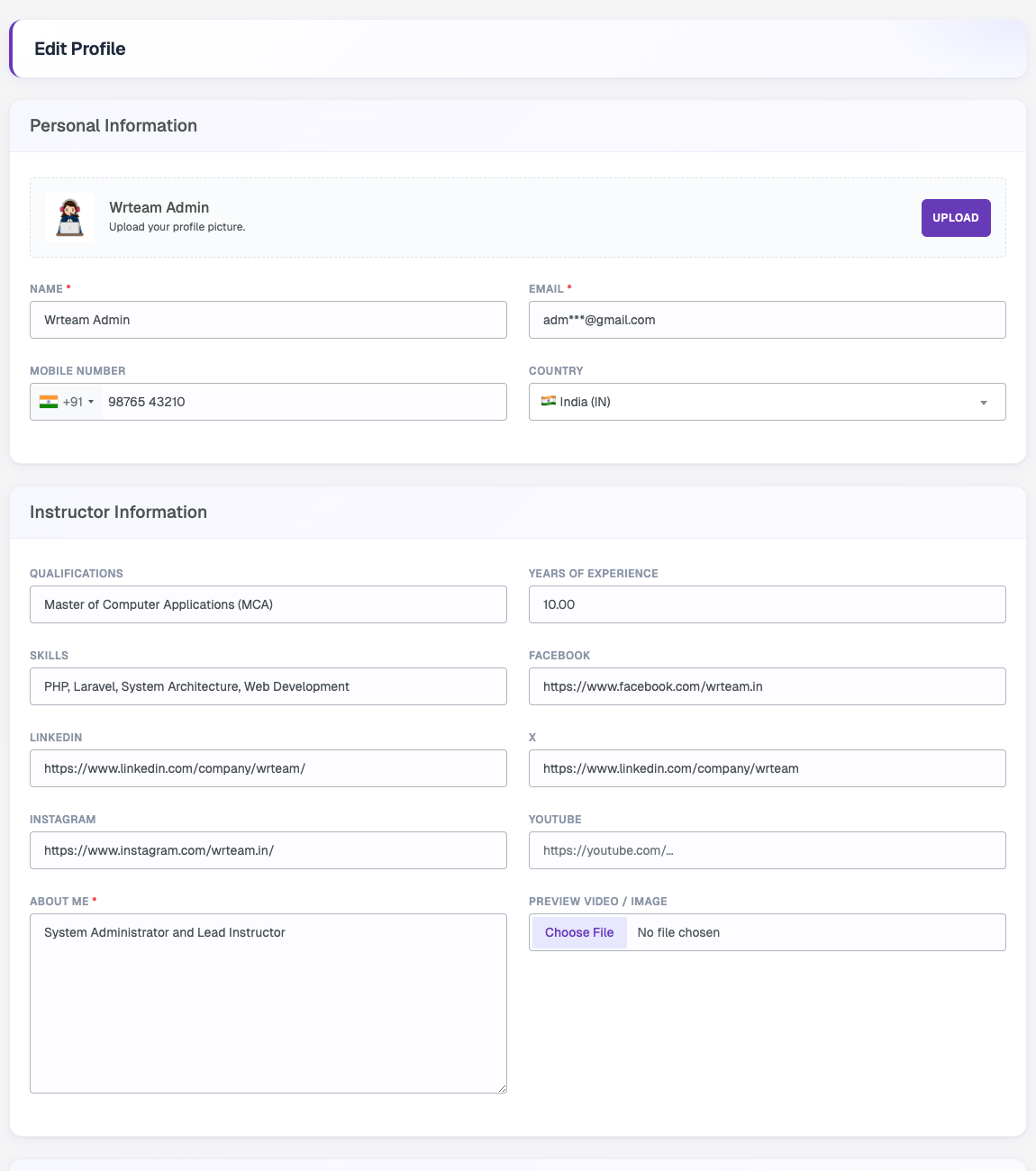
The profile drop-down in the top-right corner includes Profile, Clear Cache, Change Password, and Logout. Profile opens the Edit Profile page, where the admin user can update their personal and instructor information — including name, email, mobile number, country, profile image, qualifications, skills, and social links. Clear Cache clears the panel's cache, and Change Password updates the account password.
Change Password
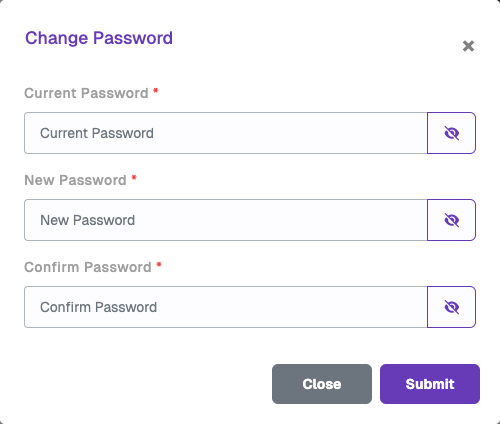
Choose Change Password from the profile drop-down to update the admin account password. Enter the Current Password, the New Password and Confirm Password, then click Submit. Use the eye icon in each field to show or hide the password.
Clear Cache
Choose Clear Cache from the profile drop-down to clear the panel's cached data and reload the latest settings. Use it after changing settings or updating the system if the panel still shows old data.