Connect Firebase with your Web
-
First you need to create a Web project inside your Firebase Project.
For that open your firebase project in console and click on this tiny web icon: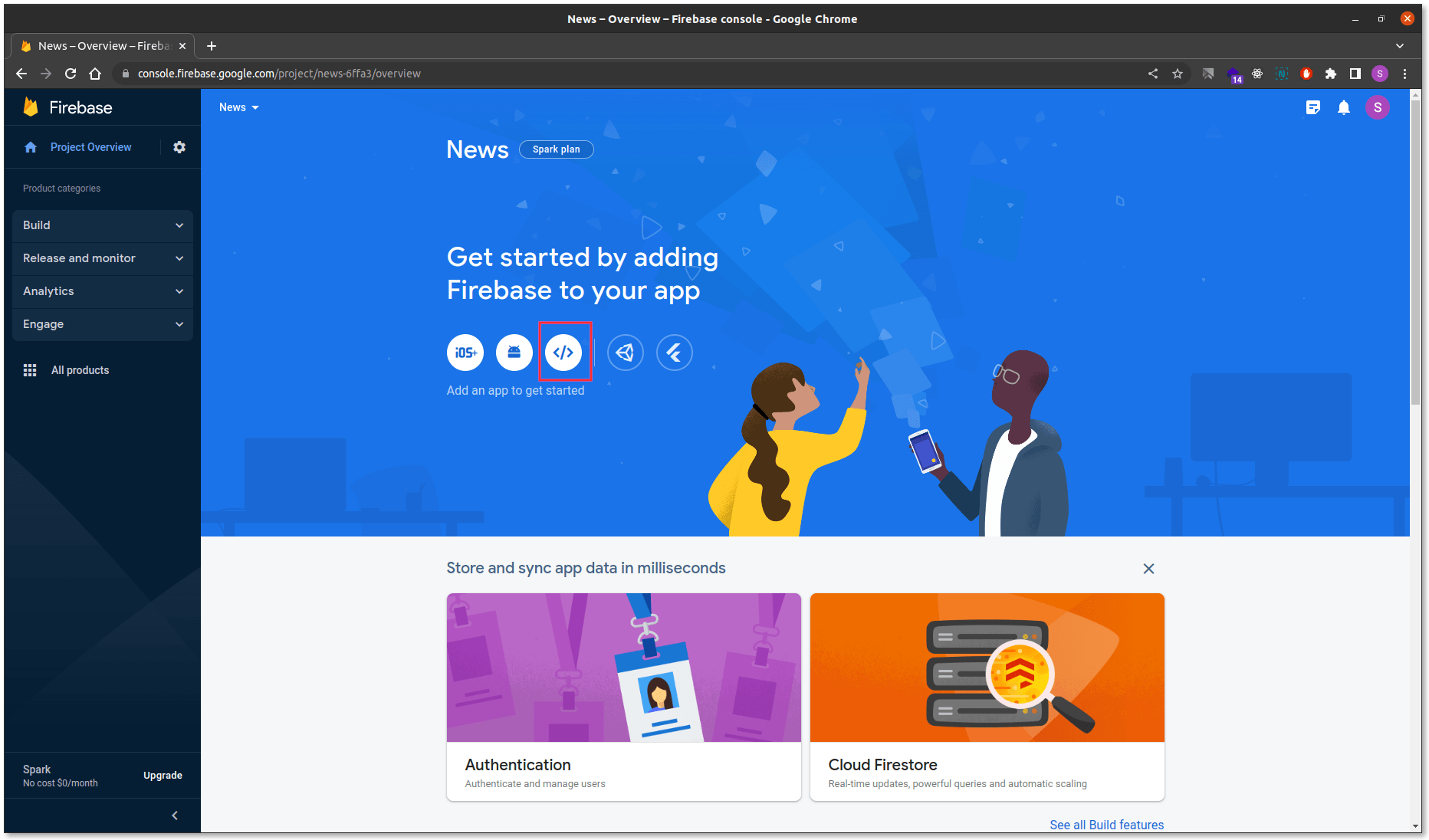
-
After clicking on Web app you will be able to see this Screen.
Add your web app name and also make sure you don't forget to check the checkbox.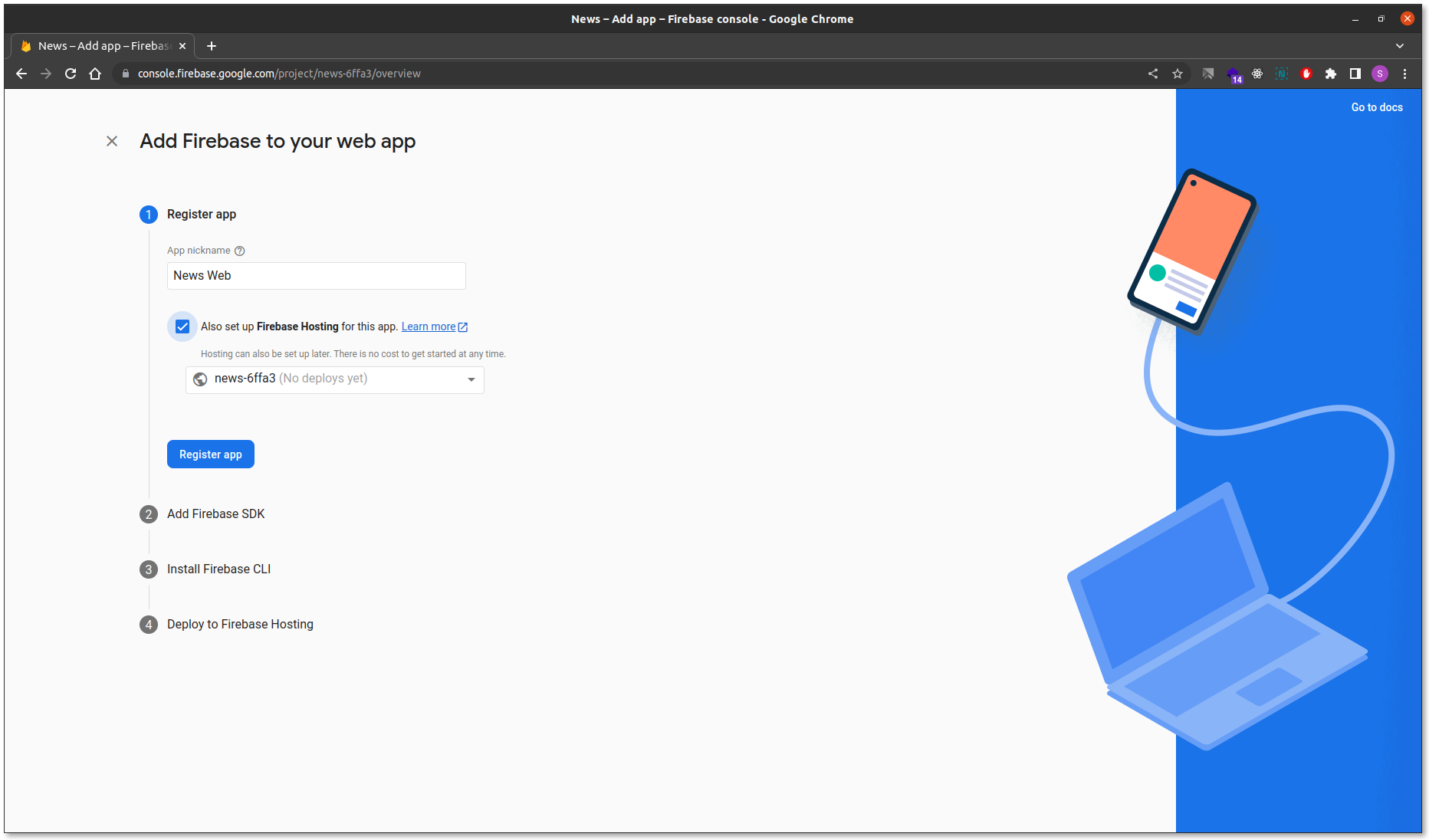
-
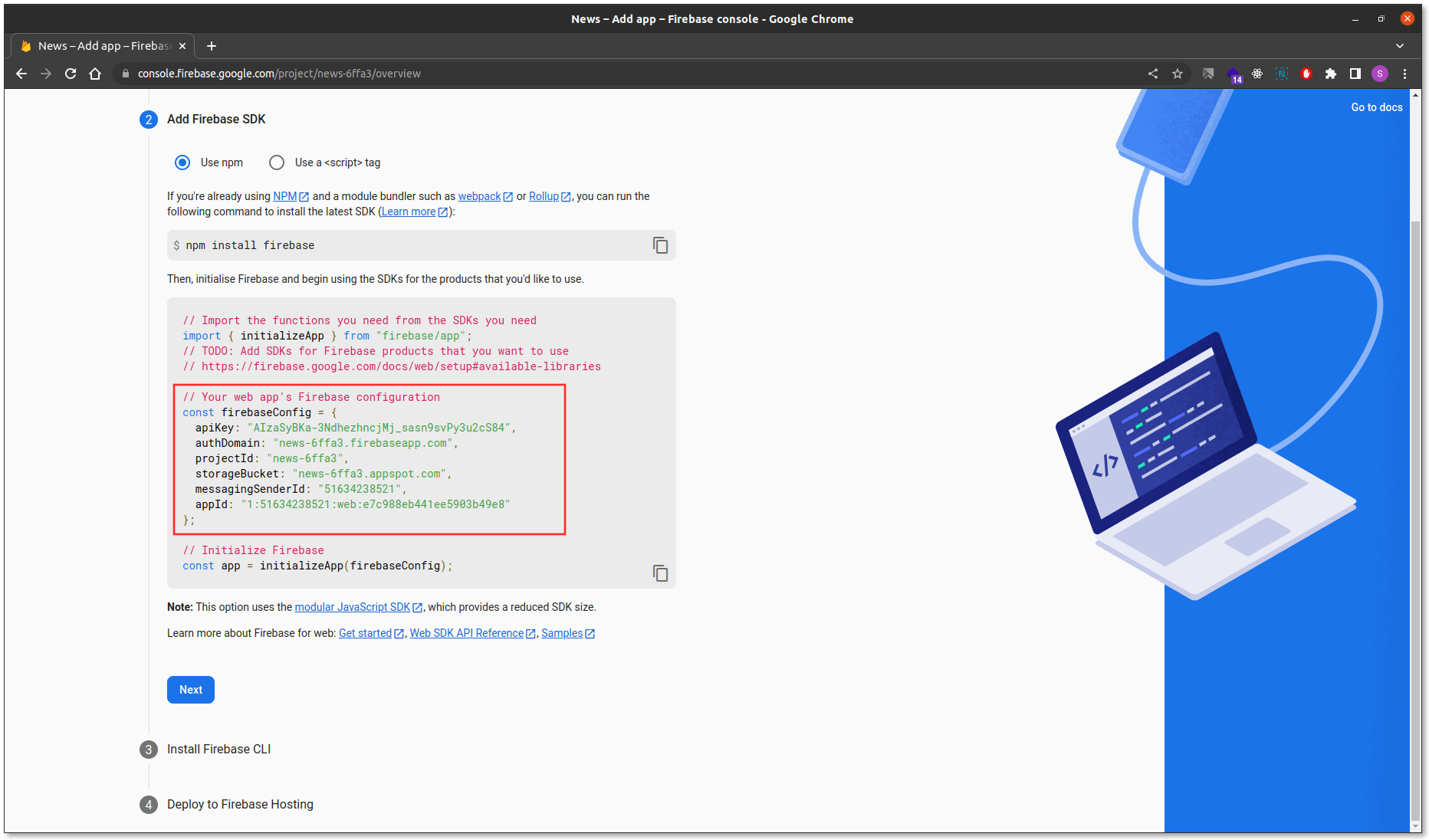
Now Copy this Firebase Credentials.
-
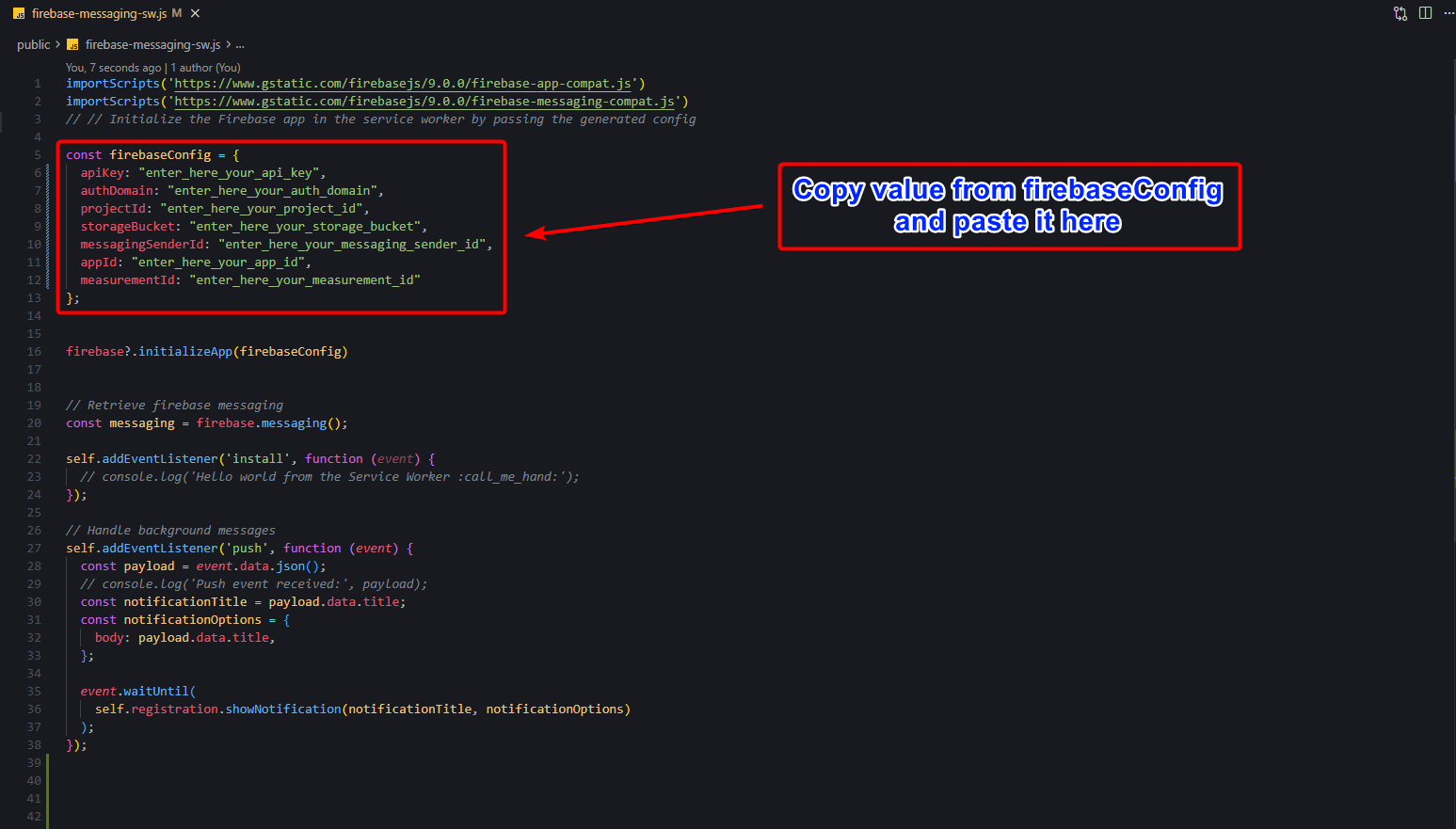
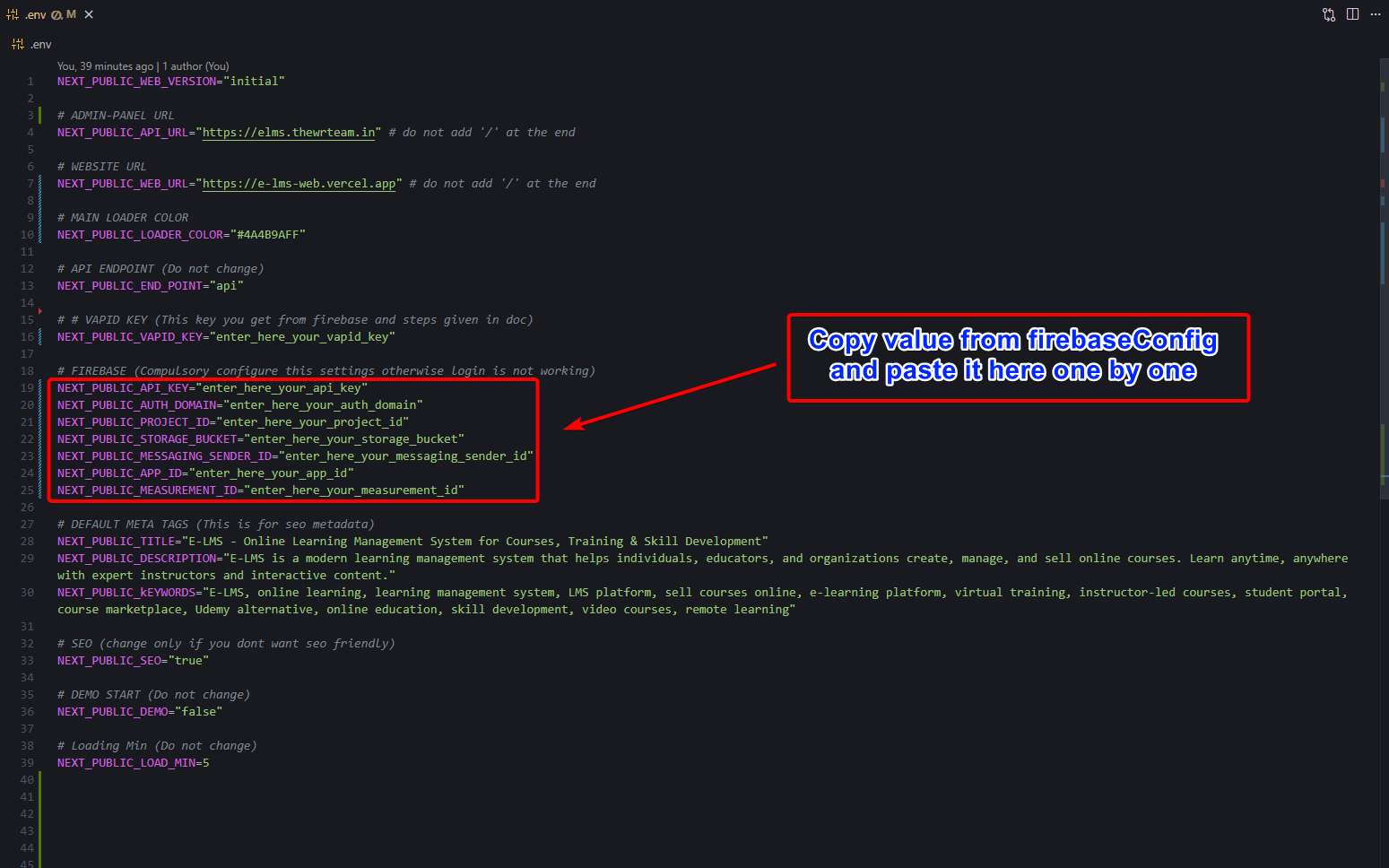
And paste this your Credentials in .env and public/firebase-messaging-sw.js File.
-
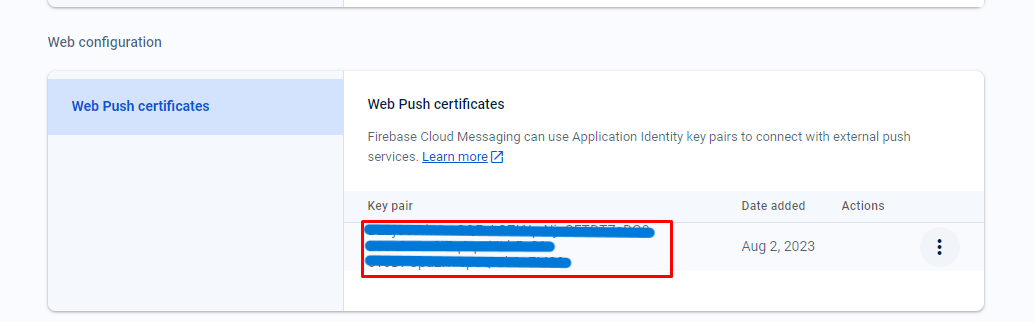
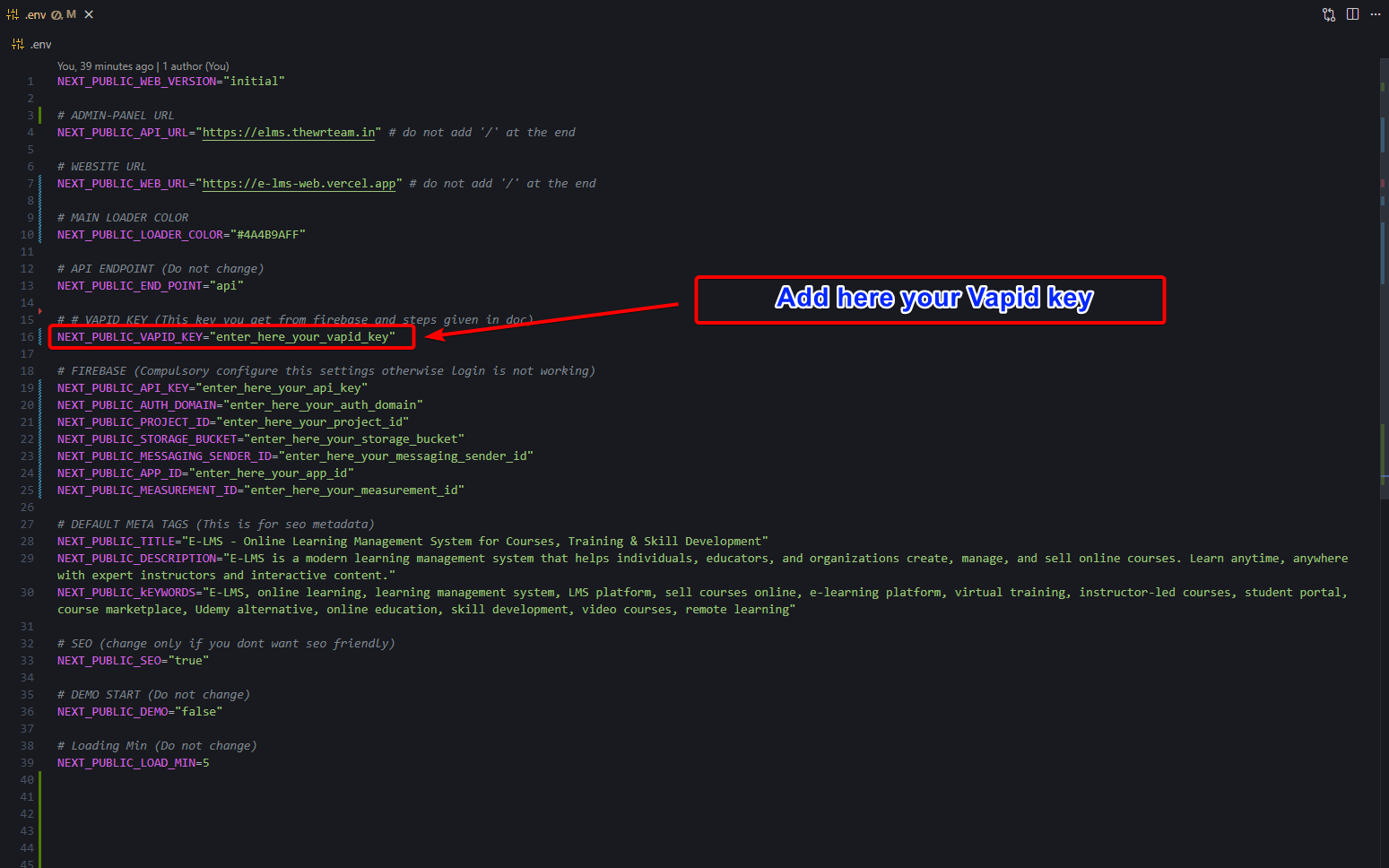
Open firebase account go to project settings -> cloud messaging -> Web configuration and select key and paste in .env file

-
Note: Skip this Step if you have already copy pasted the credentials
If you have forget to copy your firebase credentials then you can always find your credentials by following these steps: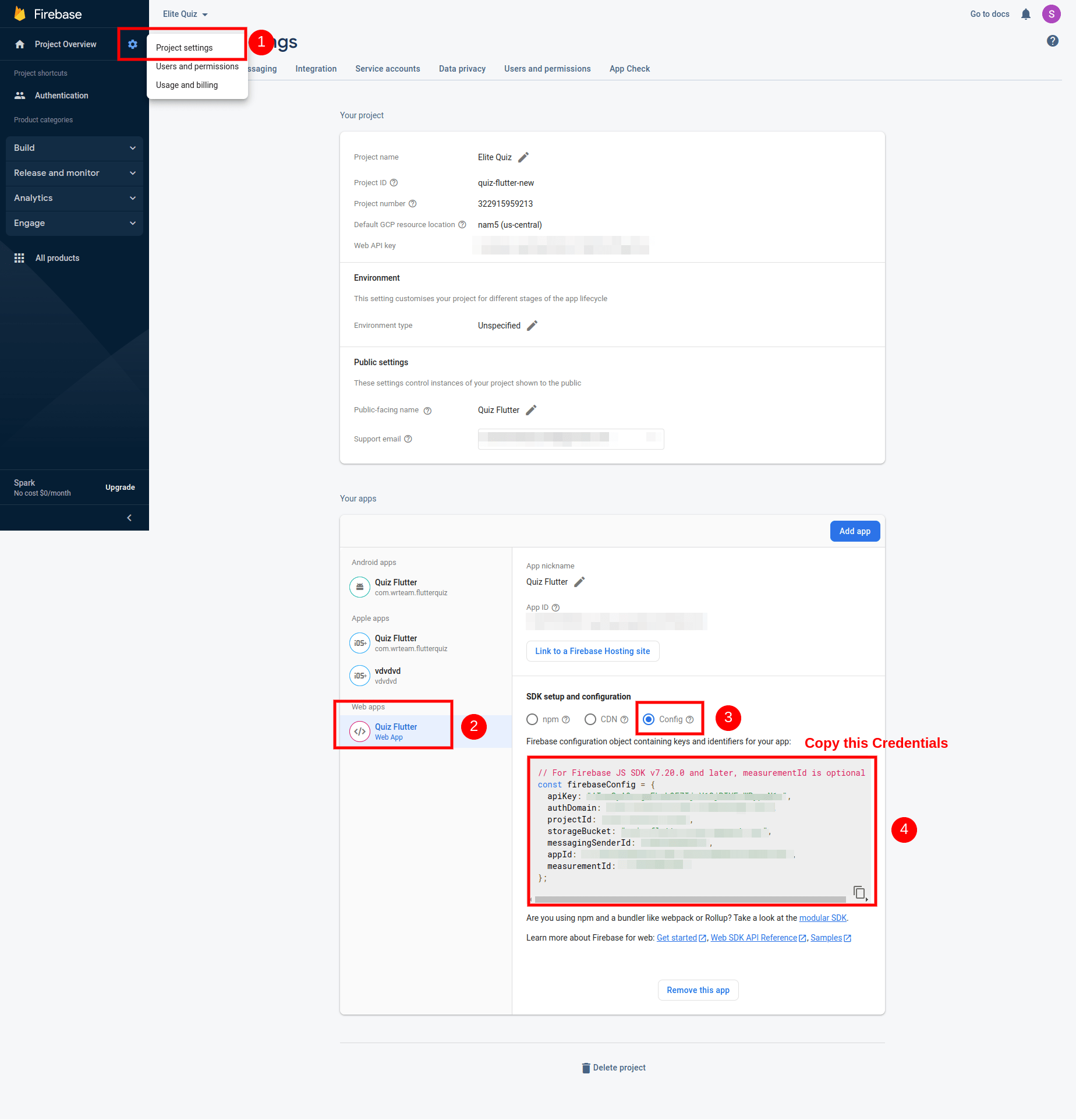
-
For Login Provider open authentication -> sign in method
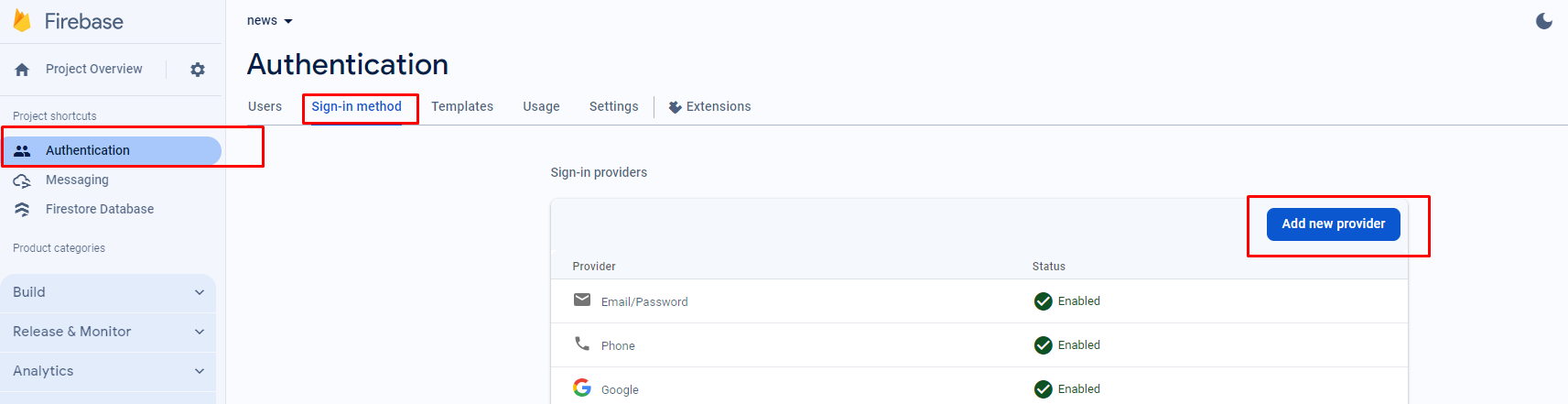
-
Now you have to add your Web domain to your Firebase Project
- Open your Firebase Project
- Go you Authentication/settings/Authorized Domain 3. Click on Add Domain 4. One Popup will open add your domain name without http/https in that popup and click submit.
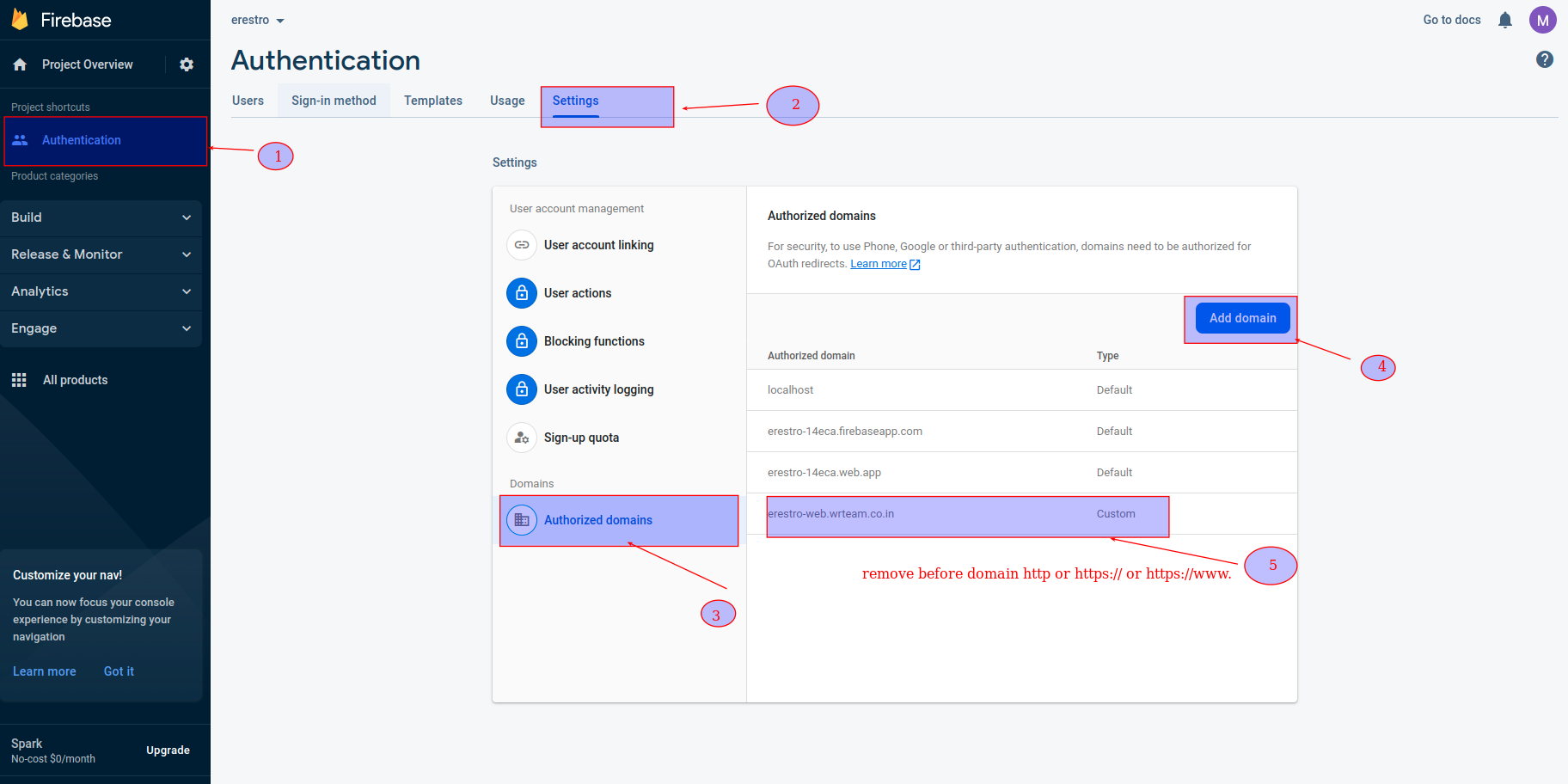
Congratulations. You have successfully connected your Web application to your firebase project. Now you are good to go ahead.
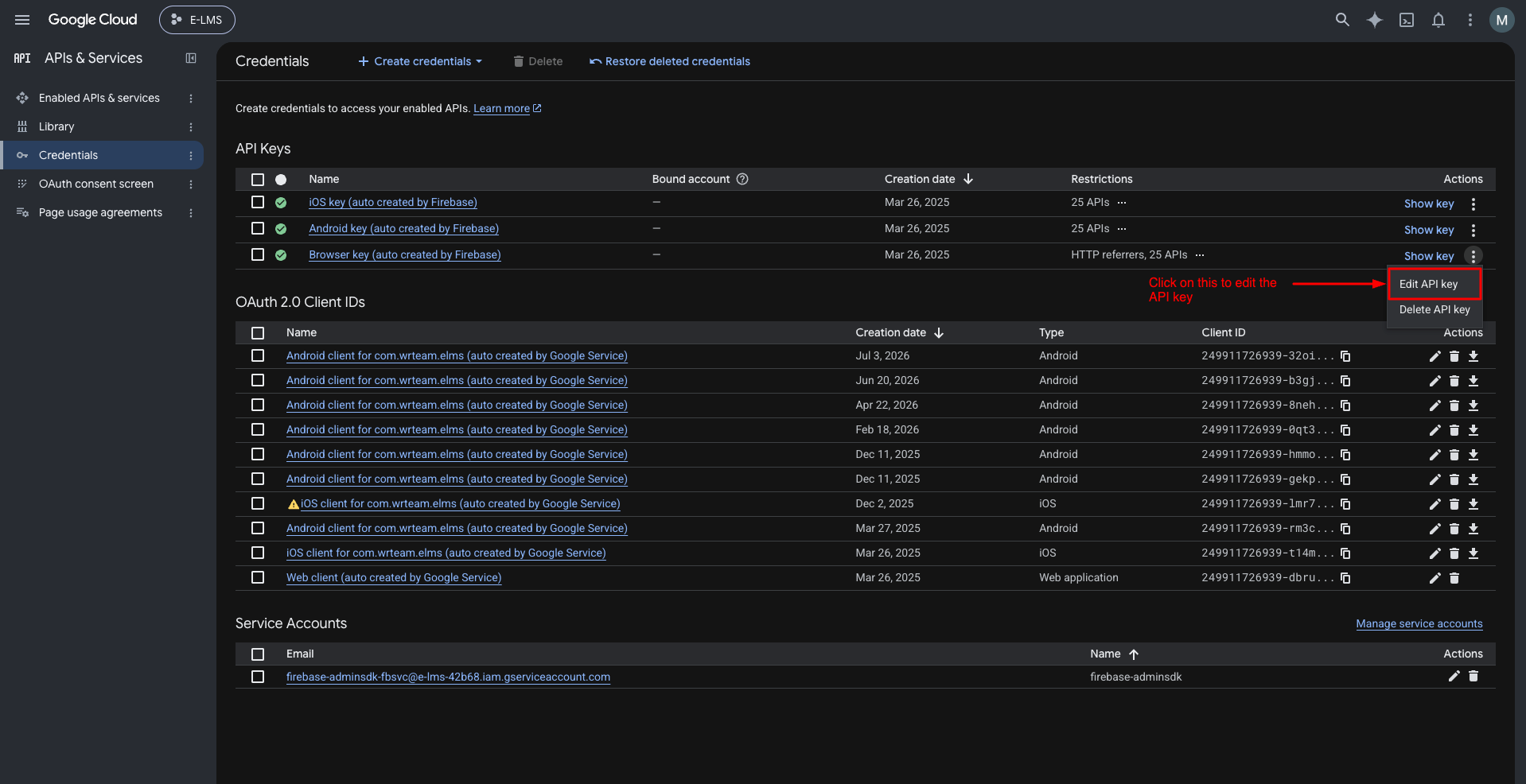
Edit Browser API Key (Google Cloud Console -> APIs & Services -> Credentials)
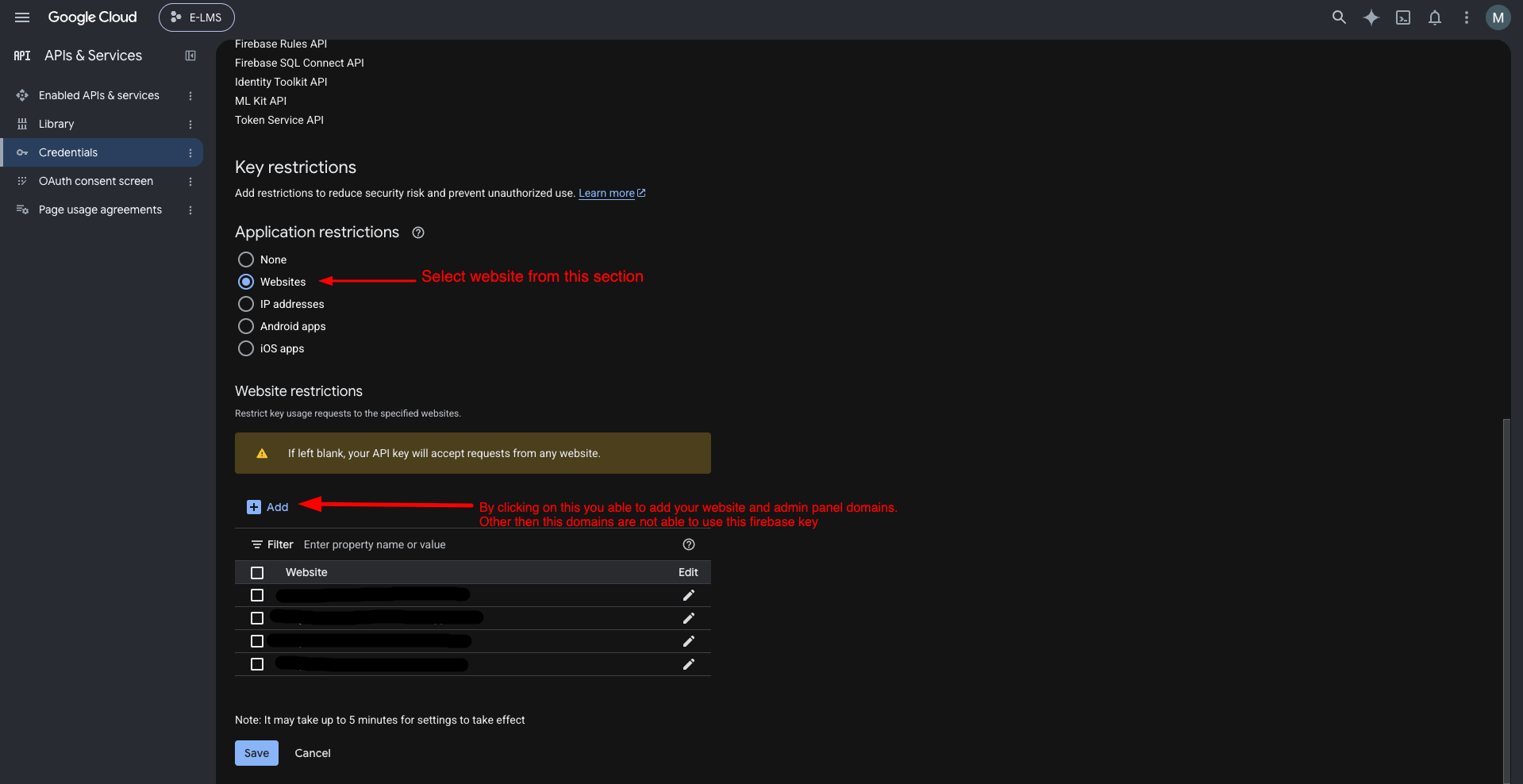
Restrict API Key to Your Website Domains
Your Firebase private key gives full access to your Firebase project. Never share it, post it publicly, or commit it to a public repository. If it is exposed, delete it from Firebase and generate a new one immediately.
Important Notes
- Keep your Firebase private key (service account JSON) safe. Generate it from Project Settings -> Service accounts -> Generate new private key, and never share it or commit it to a public repository. If it leaks, delete it and generate a new one immediately.
- Keep credentials secure
- Follow Firebase best practices
- Regular monitoring
- Stay updated with Firebase changes