System Configuration
Language Configuration
Get Your Language Codes → Get language codes
Add a New Language
Language management is now handled through the admin panel. Follow these simple steps:
Step 1: Access Language Settings
- Login to Admin Panel: Go to your admin panel dashboard
- Navigate to Languages: Click on System Settings > Language Settings
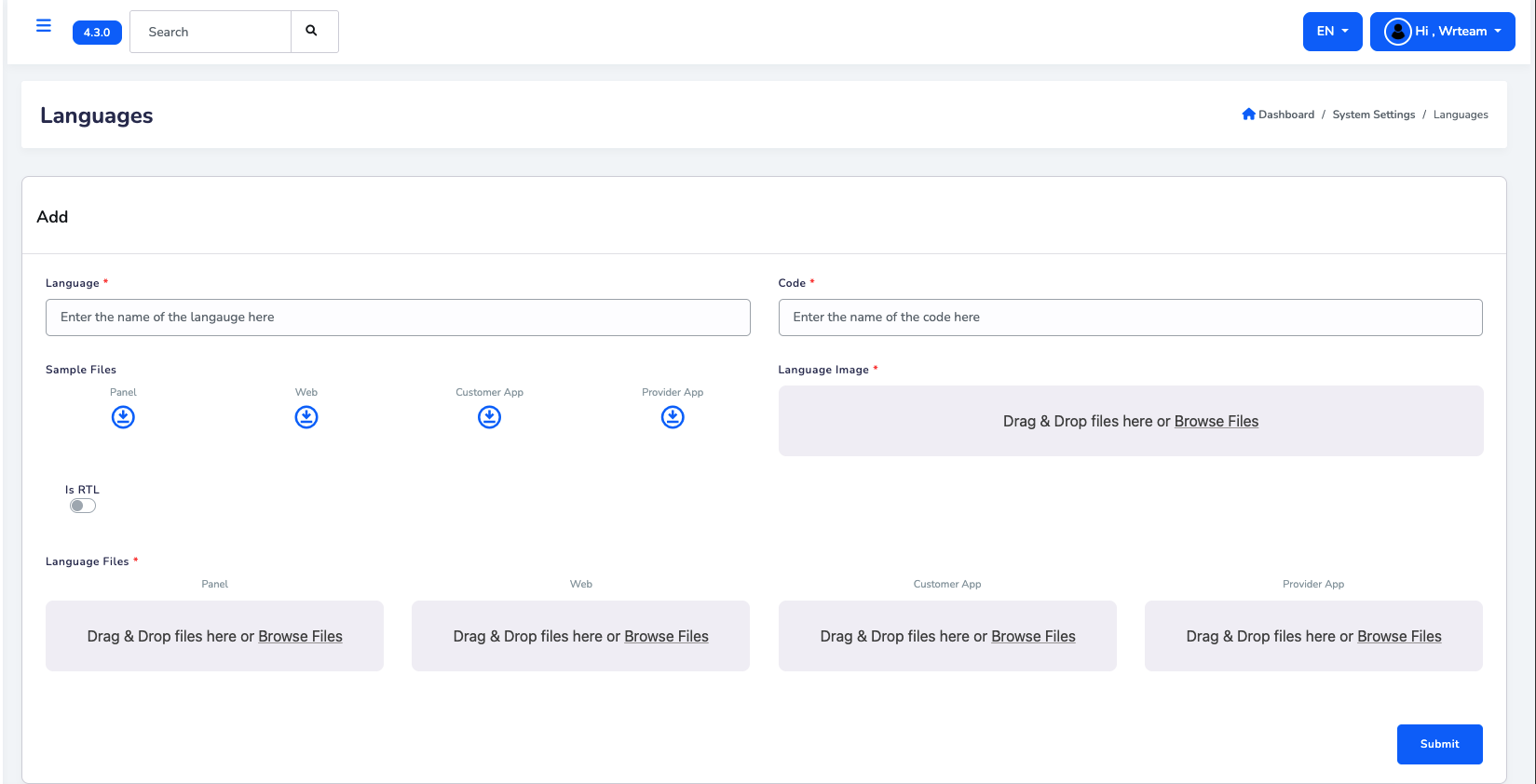
Step 2: Fill Language Details
In the "Add" section, complete the following fields:
- Language Name: Enter the full name (e.g., "Spanish", "French", "German")
- Language Code: Enter the 2-letter code (e.g., "es", "fr", "de")
- RTL Support: Toggle "Is RTL" if the language reads right-to-left (like Arabic, Hebrew)
- Language Flag: Upload a flag image for the language
Step 3: Upload Translation Files
Upload the translation files for each platform:
- Panel: Upload admin panel translation file
- Web: Upload website translation file
- Customer App: Upload customer app translation file
- Provider App: Upload provider app translation file
You can download sample files first to understand the format, then create your own translation files.
The web app's own default/fallback translation file lives in the codebase at src/dictionaries/en.json — useful as a reference for every key the site expects when preparing your Web translation file for upload.
Step 4: Submit
Click the Submit button to add the new language.
Step 5: Set as Default (Optional)
From the language list below, you can set any language as the default:
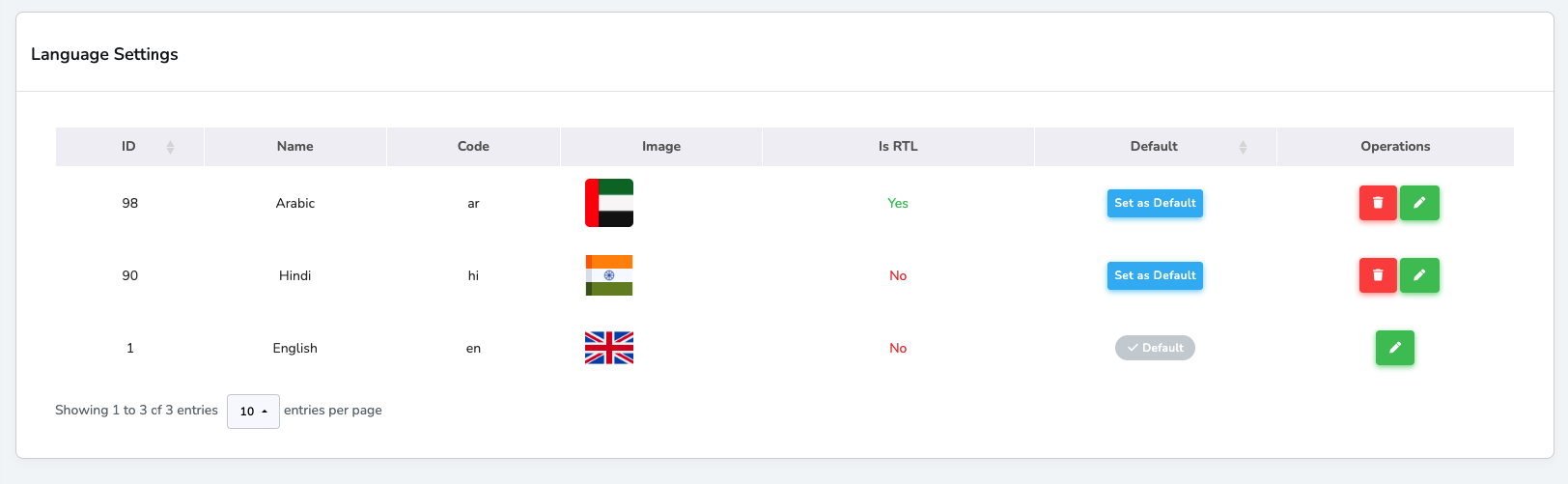
- Find your language in the table
- Click "Set as Default" button in the Default column
- The language will be marked with ✓ Default
When updating translations, only change the text on the right side (the value) and do not modify the text on the left side (the key).
✅ Correct way to update:
"all_providers": "All Providers"
❌ Incorrect way (Do NOT change the key):
"all_providers_updated": "All Providers" // ❌ Incorrect!
Change Theme Color
Theme colors are configured directly from the Admin Panel — no code changes required. This applies to both the web app and the panel itself.
Steps to Update Theme Colors
- Log in to the Admin Panel
- Navigate to System Settings > Theme Settings
- You'll see two cards:
- Primary Color and Neutral Color — brand color and text/background/border neutral, each shown with a full auto-generated shade scale
- Status Colors — four separate cards: Success, Error, Warning, Info
- Click a color swatch (or type a hex value directly) to pick a new color
- Use each card's own Reset to Default button to revert just that color
- Click Save on a card to apply its changes
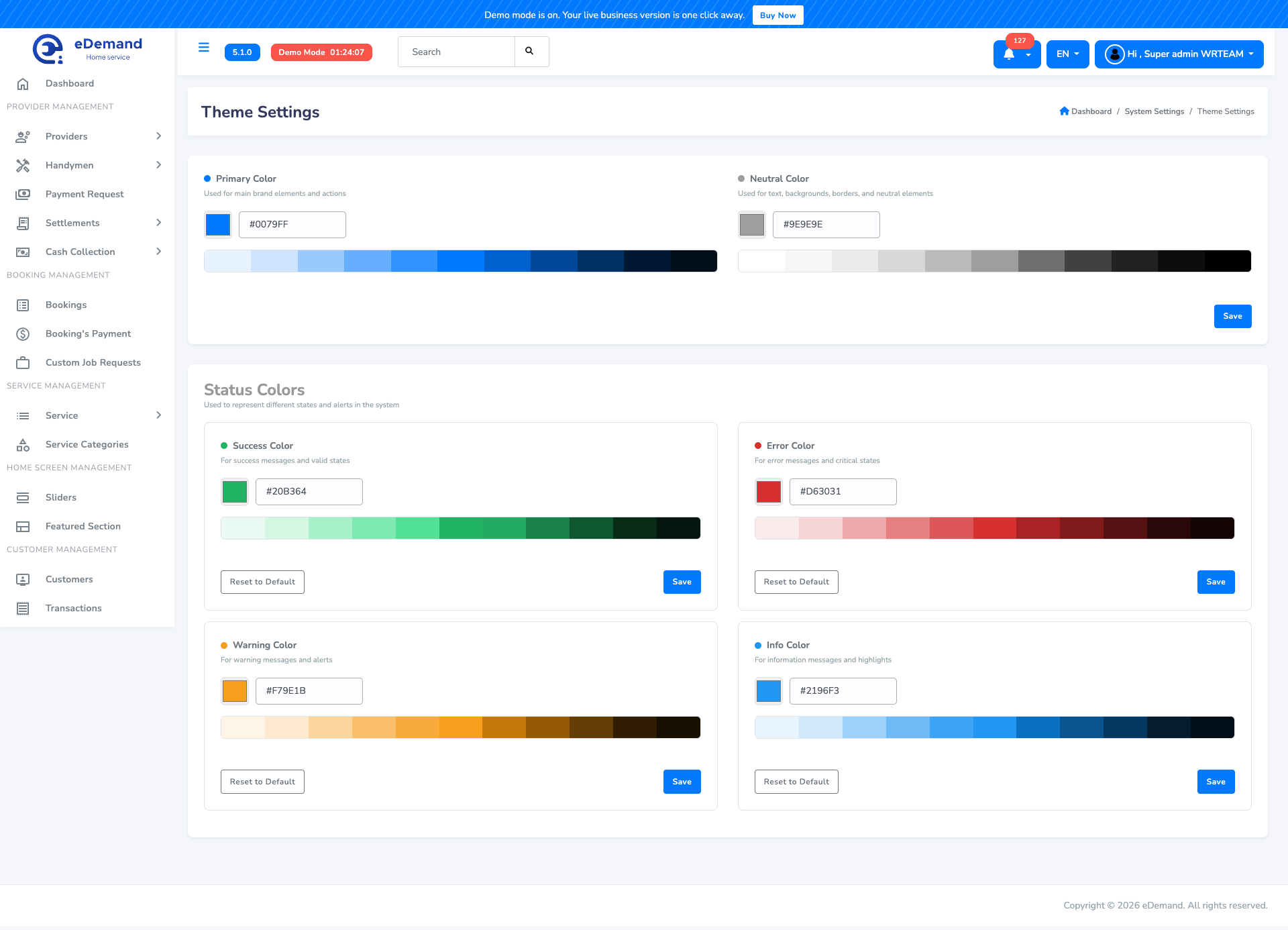
Each card saves independently — updating Primary/Neutral color doesn't require re-saving the Status Colors, and vice versa. Reload the website to see the updated theme colors applied.
Change Font style
The web app still uses the Pages Router — font setup lives across two files, not one. It's loaded as a plain Google Fonts <link> (not next/font) so the font variable is visible at true :root scope, reaching both the normal page tree and Radix's portal-rendered components (Dialog, DropdownMenu, etc.).
Step 1: Swap the Google Fonts link
Open pages/_document.tsx and find the font <link> in <Head>:
<link
  rel="stylesheet"
  href="https://fonts.googleapis.com/css2?family=Lexend:wght@400;500;600;700;800;900&display=swap"
/>
Replace Lexend with your chosen Google Font family name, keeping the weights you need (e.g. family=Inter:wght@400;500;600;700). The two preconnect links above it (fonts.googleapis.com, fonts.gstatic.com) don't need to change unless you're using a non-Google font provider.
Step 2: Update the CSS variable
Open src/styles/globals.css and find the :root block near the top:
:root {
  --font-lexend: "Lexend", sans-serif;
}
Update the font name to match (rename the variable too if you want, but then also update its two references just below in the @theme inline block):
@theme inline {
  --font-sans: var(--font-lexend);
  --font-heading: var(--font-lexend);
  ...
}
Don't try to switch this to next/font — it can't run inside pages/_document.tsx (a Pages Router restriction), which is why this app uses a static Google Fonts <link> instead.