Free Map Service (OpenStreetMap + GeoNames)
In addition to Google Maps, eBroker supports a completely free map service provider that combines OpenStreetMap and GeoNames. This option requires no billing account and no credit card — perfect if you want location features without Google Cloud costs.
How It Works
The free map service uses two services together:
| Service | What it provides |
|---|---|
| OpenStreetMap | Map display (map tiles shown in the app, admin panel, and web application) |
| GeoNames | Location search and geocoding (searching places, converting addresses to coordinates) |
- OpenStreetMap does not require any API key or account.
- GeoNames requires a free username — follow the steps below to create one.
Creating a GeoNames Account
- Open the GeoNames registration page and fill in the "create a new user account" form with your username, email address, and password
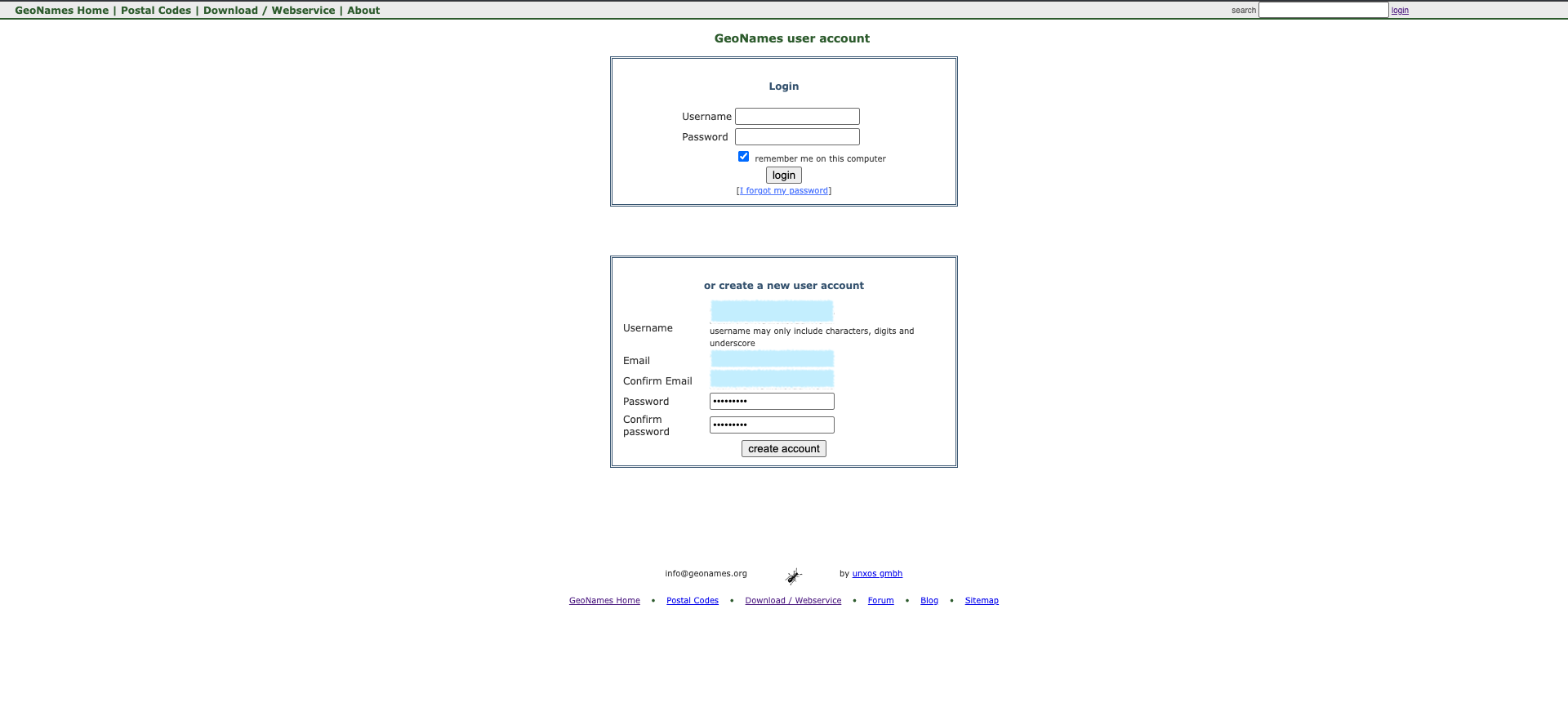
- Open the confirmation email sent by GeoNames and click the activation link to verify your account
Note: Remember the username you registered with — this is what you will enter in the admin panel (GeoNames uses a username instead of an API key).
Enabling Free Web Services
By default, a new GeoNames account cannot use the web services. You must enable them manually:
- Log in to your GeoNames account
- Go to your account management page
- Scroll to the bottom of the page and click the "Click here to enable" link under the Free Web Services section
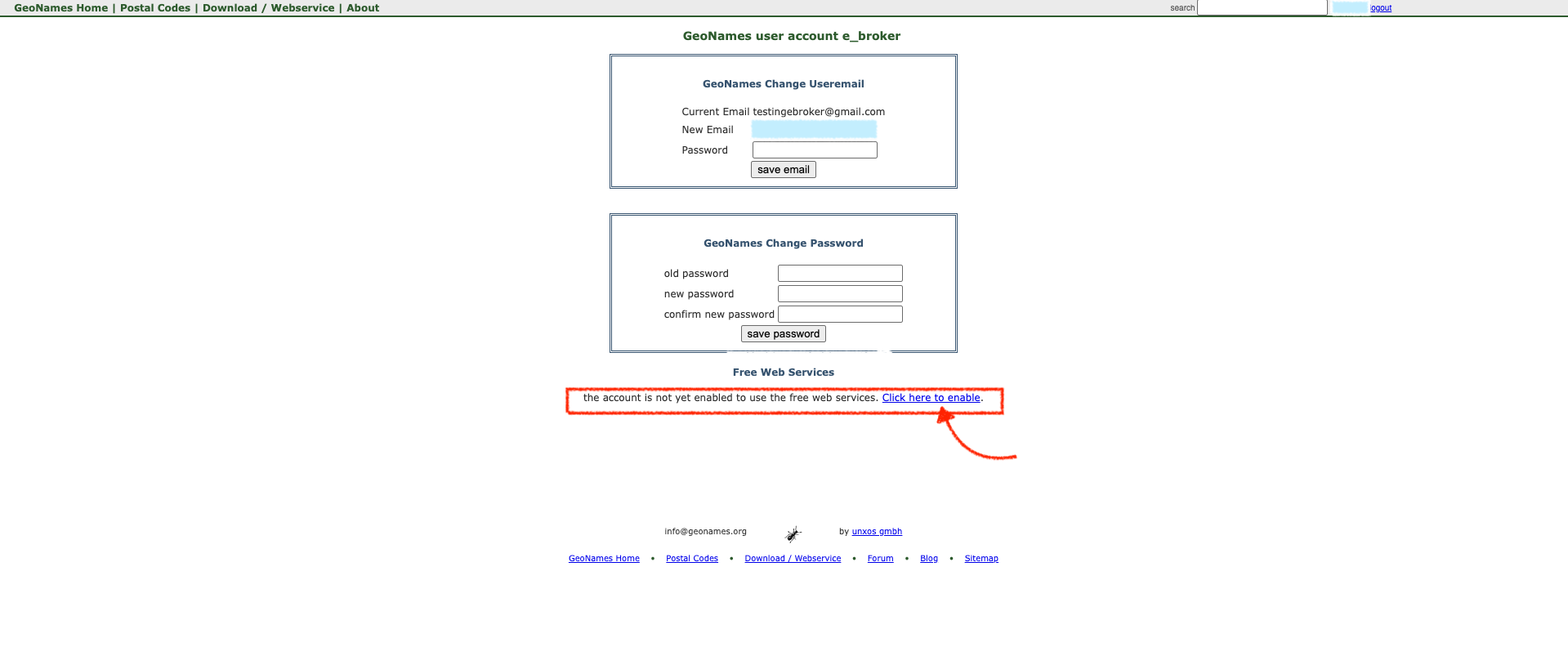
Important: If you skip this step, location search will not work and GeoNames will return an authorization error for your username.
Configuring the Admin Panel
- Open your admin panel and go to Settings > System Settings
- Scroll down to the Map Service Provider Settings section
- Set Map Service Provider to Open Street Maps (Free)
- Enter your GeoNames username in the Geonames Username field
- Click Save
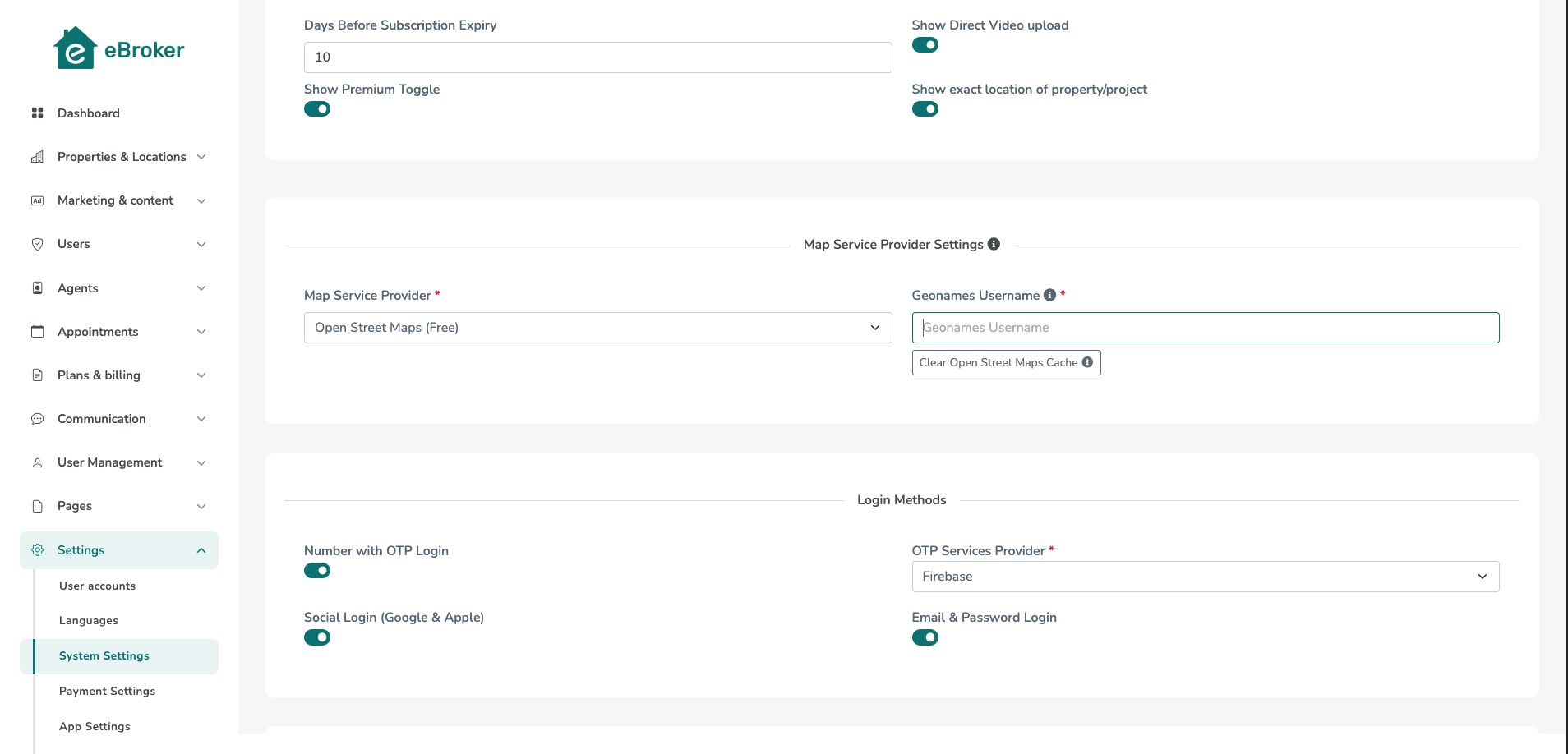
That's it — no API keys, key restrictions, or billing setup are required. Maps and location search will now work across the app, admin panel, and web application.
Tip: If location search results ever appear outdated or incorrect, use the Clear Open Street Maps Cache button below the username field to clear the cached map search data.
Usage Limits
The free GeoNames web services have fair-use limits per username:
- 10,000 credits per day
- 1,000 credits per hour
One credit roughly equals one location search request. These limits are sufficient for most small and medium-traffic websites. If your traffic grows beyond these limits, consider one of the GeoNames premium plans or switch to the Google Maps provider.
Note: OpenStreetMap tiles are also subject to a fair usage policy. Normal website and app usage is well within these limits.
Google Maps vs. Free Provider — Which Should You Choose?
| Google Maps | Open Street Maps (Free) | |
|---|---|---|
| Cost | Requires billing account (free monthly credit, then paid) | Completely free |
| Setup | API keys, restrictions, billing setup | Just a GeoNames username |
| Search accuracy | Excellent, very detailed place data | Good, but less detailed in some regions |
| Usage limits | Pay as you go | 10,000 requests/day, 1,000/hour |
| Best for | High-traffic or commercial sites needing the best accuracy | Getting started, low/medium traffic, avoiding billing setup |
You can switch between the two providers at any time from System Settings in the admin panel.
Troubleshooting
If location search is not working with the free provider, verify that:
- You have enabled free web services on your GeoNames account page (the most common issue)
- Your GeoNames username is entered correctly in the admin panel (it is case-sensitive)
- You confirmed your GeoNames account via the activation email
- You have not exceeded the daily (10,000) or hourly (1,000) request limits — if exceeded, the service resumes automatically after the limit window resets
- Search results still look wrong after fixing the above — try the Clear Open Street Maps Cache button in System Settings