Plugin Manager (Add-ons)
From v1.9.0, eBroker can be extended with licensed add-ons installed as a zip from the Admin Panel. No core edits, no composer, no SSH, so they work on shared hosting. The first add-on type is payment gateways (PayU India).
Plugin Manager is a top-level sidebar entry with two tabs:
- Installed Plugin: version, status, on/off switch and Settings.
- Available Plugin: add-ons published for this release, with Install Plugin.
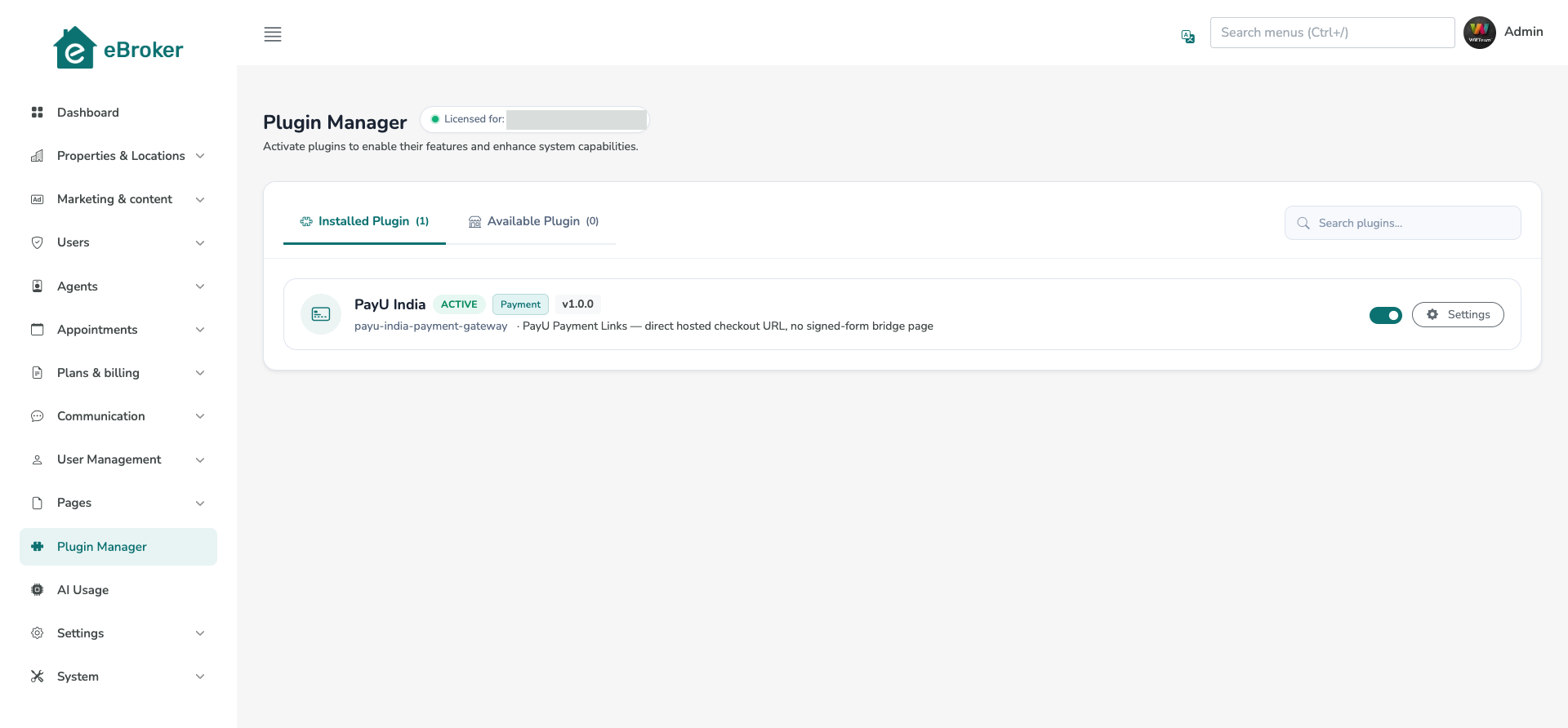
| Status | Meaning |
|---|---|
| Active | Licensed, enabled and working |
| Disabled | Installed and licensed, switched off |
| Needs Attention | Licence lapsed or files missing |
| No Licence | No valid licence; cannot be enabled |
Only the super admin can install. Other admins with the Plugin Manager permission can enable, disable and configure installed add-ons.
Install
You need the add-on's zip and its purchase code. Licences are bound to the domain in your APP_URL, so install on the licensed domain.
- Plugin Manager → Available Plugin → Install Plugin.
- Paste the Purchase Code (the slug is pre-filled and read-only).
- Upload the zip and click Install Plugin.
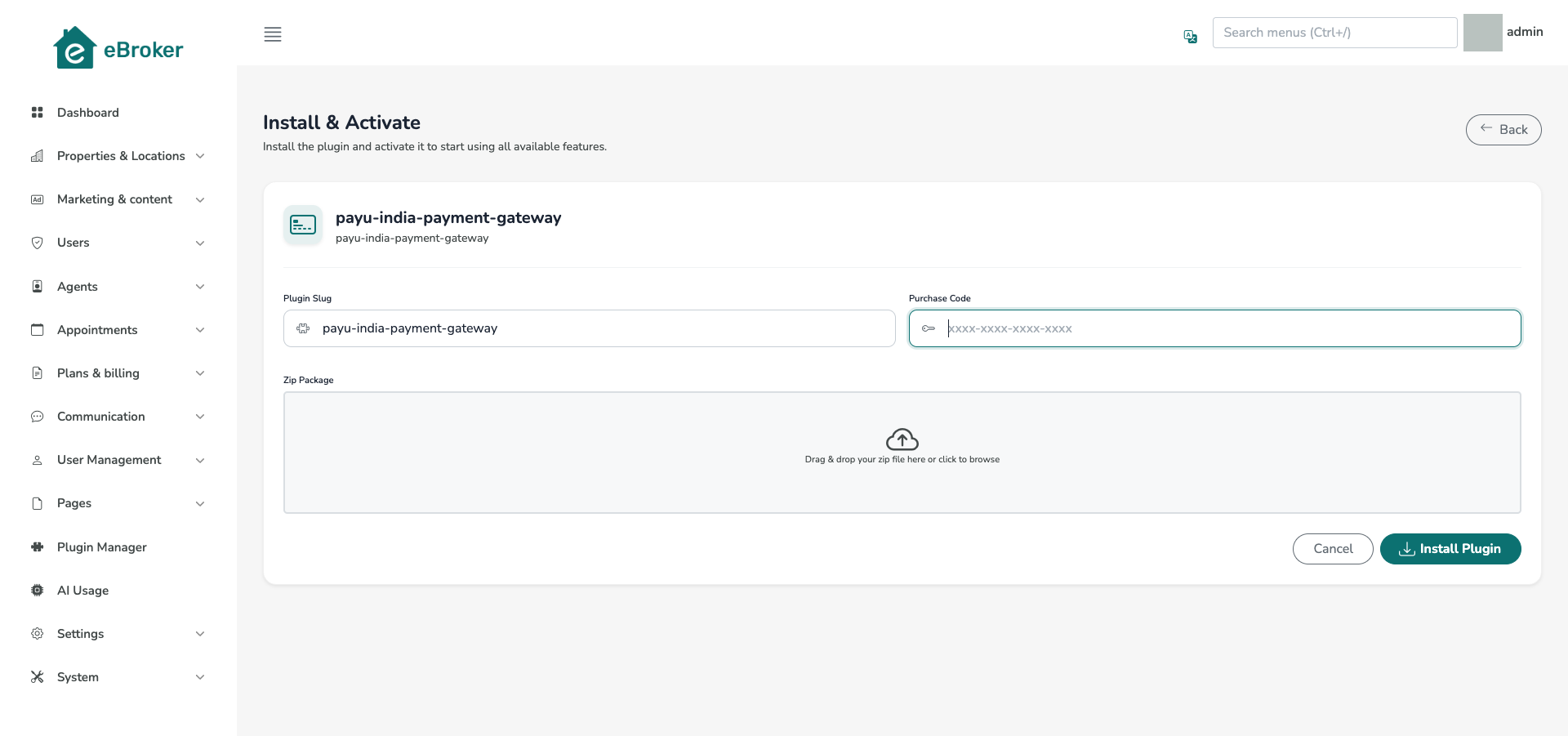
The package is checked, then the licence verified, then the files extracted, so a wrong file or bad purchase code leaves nothing behind. On success the add-on is installed and activated. Installing a newer zip of the same add-on upgrades it in place.
| Install error | Meaning |
|---|---|
| "Licence verification failed: …" | Wrong purchase code, or already used on another domain. Nothing installed. |
| Package / manifest error | Not a valid package, or not the add-on you clicked Install on. |
| "could not be extracted" | app/Modules is not writable. Fix permissions and retry. |
Manage
- The card switch enables/disables an add-on. Files and licence are untouched.
- Settings opens its configuration. A payment add-on opens
Settings→Payment Gateway Settings, where it appears as its own card (with a Plugin badge), with its fields, webhook URL if any, and enable switch.
A payment add-on is shown to buyers only while it is licensed, enabled and configured, so nobody can pick a gateway that would fail. The app and website pick up a new gateway automatically, with no app update.
Keep licences valid
Licences are re-checked daily by the Laravel scheduler, so the cron job must be set up. A lapsed licence shows Needs Attention and the add-on is withdrawn from the app and website until it is valid again.
Notes
- Add-ons install to
app/Modules/{slug}/. Don't edit those files; upgrades replace them. - Add-on settings live in the normal settings table and survive upgrades.