Analytics and Advertising Setup
This guide explains how to set up Microsoft Clarity and Google Analytics for your eDemand web application.
Microsoft Clarity Setup
Step 1: Get Your Clarity Project ID
-
Sign up for Microsoft Clarity:
- Visit: https://clarity.microsoft.com/
- Sign in with your Microsoft account (or create one)
-
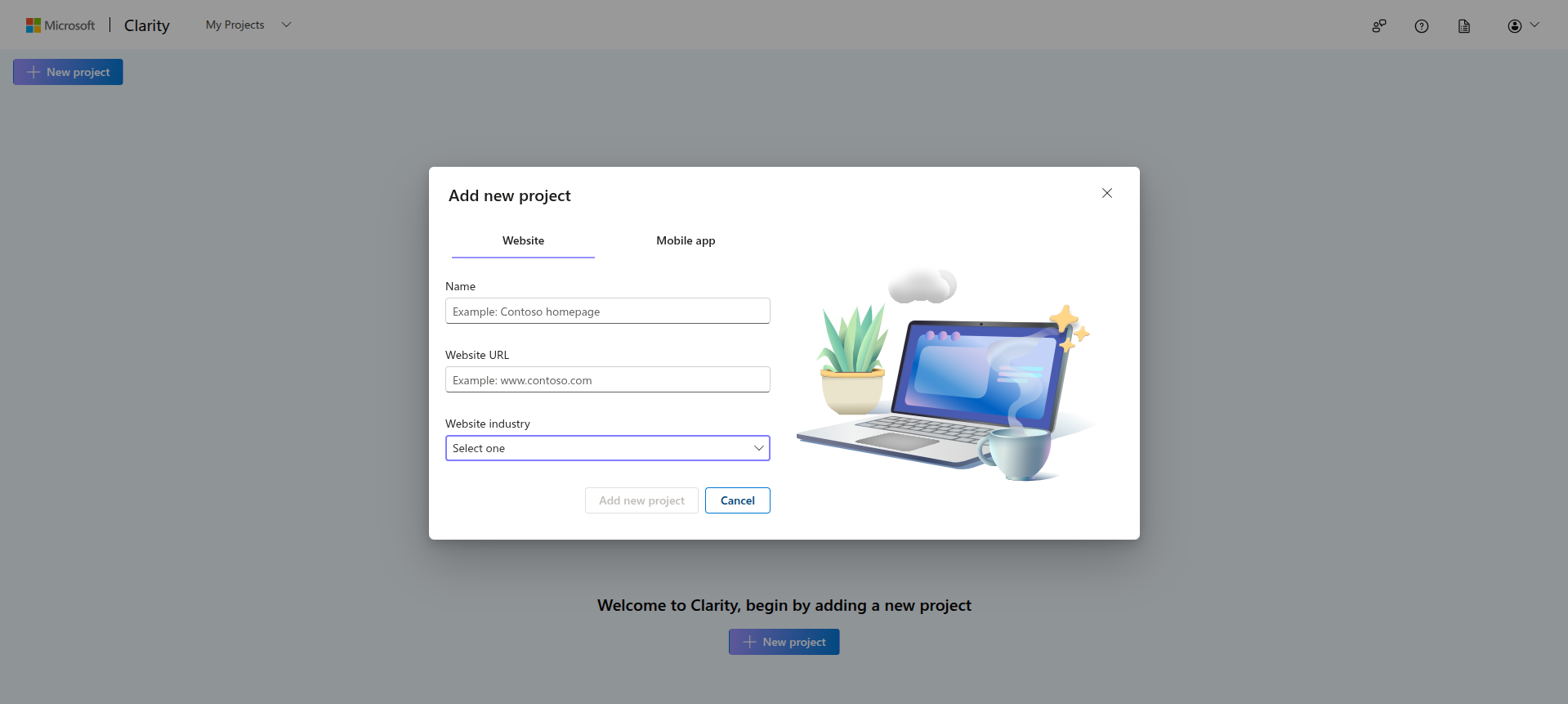
Create a new project:
- Click "Add New Project"
- Enter your website name
- Enter your website URL
- Select your country/region
- Click "Create"
-
Get your Project ID:
- After creating the project, you'll see a tracking code snippet
- Your Project ID is the string at the end of the script URL
- Example:
u5frguc1k8(fromhttps://www.clarity.ms/tag/u5frguc1k8)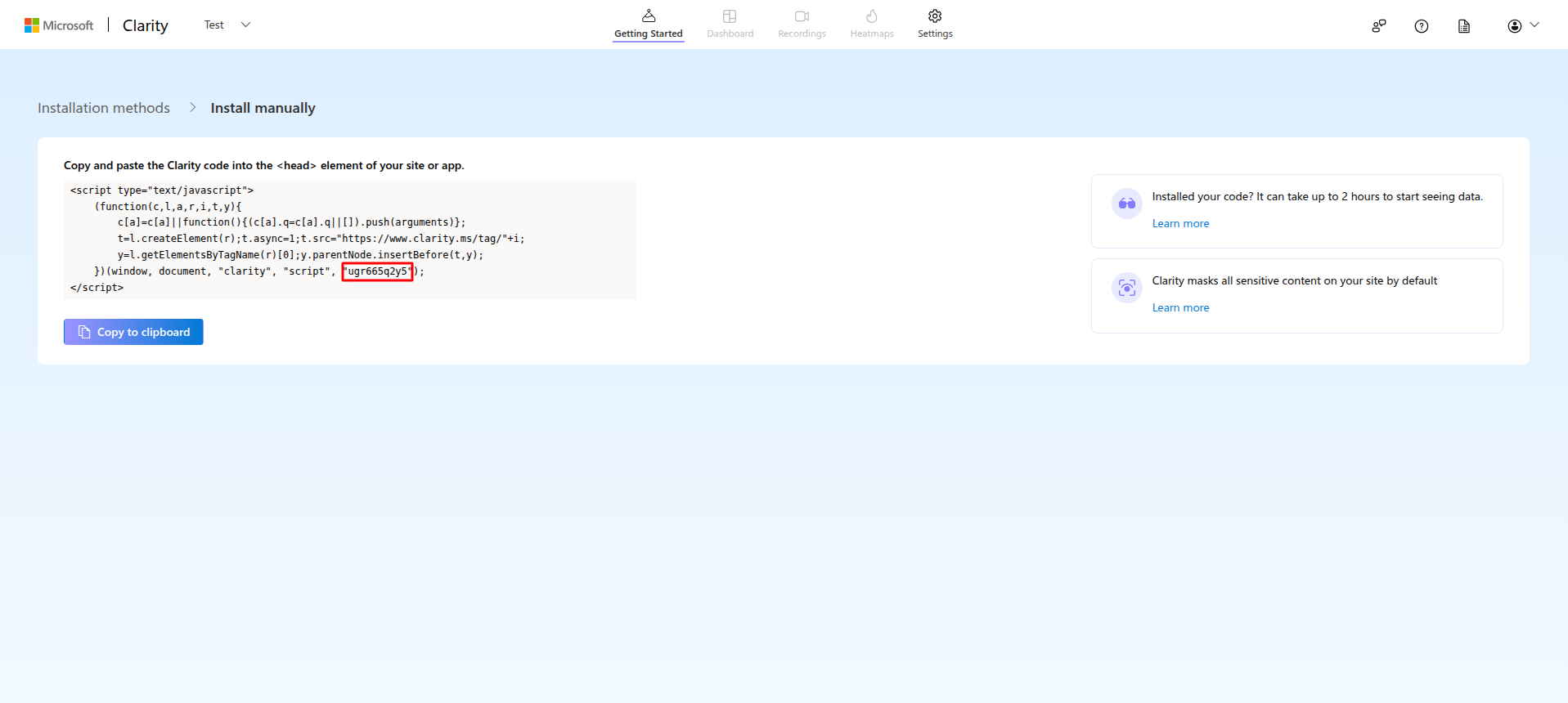
Step 2: Set Your Project ID
No code editing needed — just set the env var. Open .env.local (copy from .env.example if you haven't) and set:
NEXT_PUBLIC_CLARITY_PROJECT_ID=u5frguc1k8
The Clarity script only loads after the visitor grants analytics consent on the cookie banner — see src/components/layout/consent-scripts.tsx. It won't fire on page load even with a valid ID set.
Google Analytics Setup
Step 1: Get Your Google Analytics Tracking ID
-
Sign up for Google Analytics:
- Visit: https://analytics.google.com/
- Sign in with your Google account
-
Create a new property:
- Click "Admin" (gear icon)
- Under "Property", click "Create Property"
- Enter property name (e.g., "eDemand Website")
- Select timezone and currency
- Click "Next"
-
Set up data stream:
- Select "Web" platform
- Enter your website URL
- Enter a stream name
- Click "Create stream"
-
Get your Measurement ID:
- After creating the stream, you'll see your Measurement ID
- Format:
G-XXXXXXXXXX(e.g.,G-J4RWHNVBG0) - Copy this ID
Step 2: Set Your Measurement ID
No code editing needed — just set the env var. Open .env.local and set:
NEXT_PUBLIC_GA_MEASUREMENT_ID=G-J4RWHNVBG0
Same as Clarity above — the GA script only loads after the visitor grants analytics consent (src/components/layout/consent-scripts.tsx). A Consent Mode v2 denied-default stub (pages/_document.tsx) also runs before this, so Google collects nothing until consent is actually granted.