Self Pickup Settings
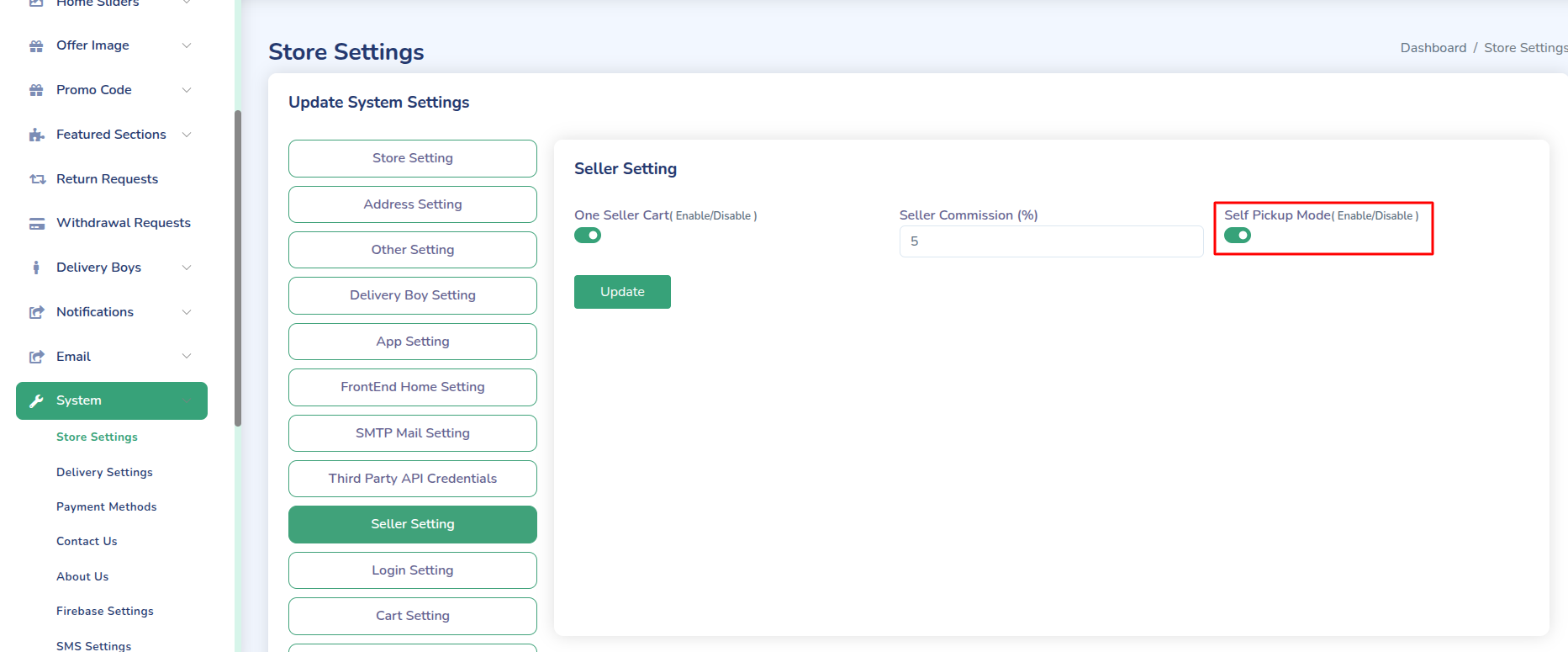
The admin can enable or disable the self pickup feature globally for all sellers. When enabled, individual sellers can then configure their own self pickup settings.
Overview
Self pickup allows customers to collect their orders directly from your physical store location. This feature is particularly useful for local businesses and can help reduce delivery costs while providing customers with more flexibility.
Seller Individual Settings
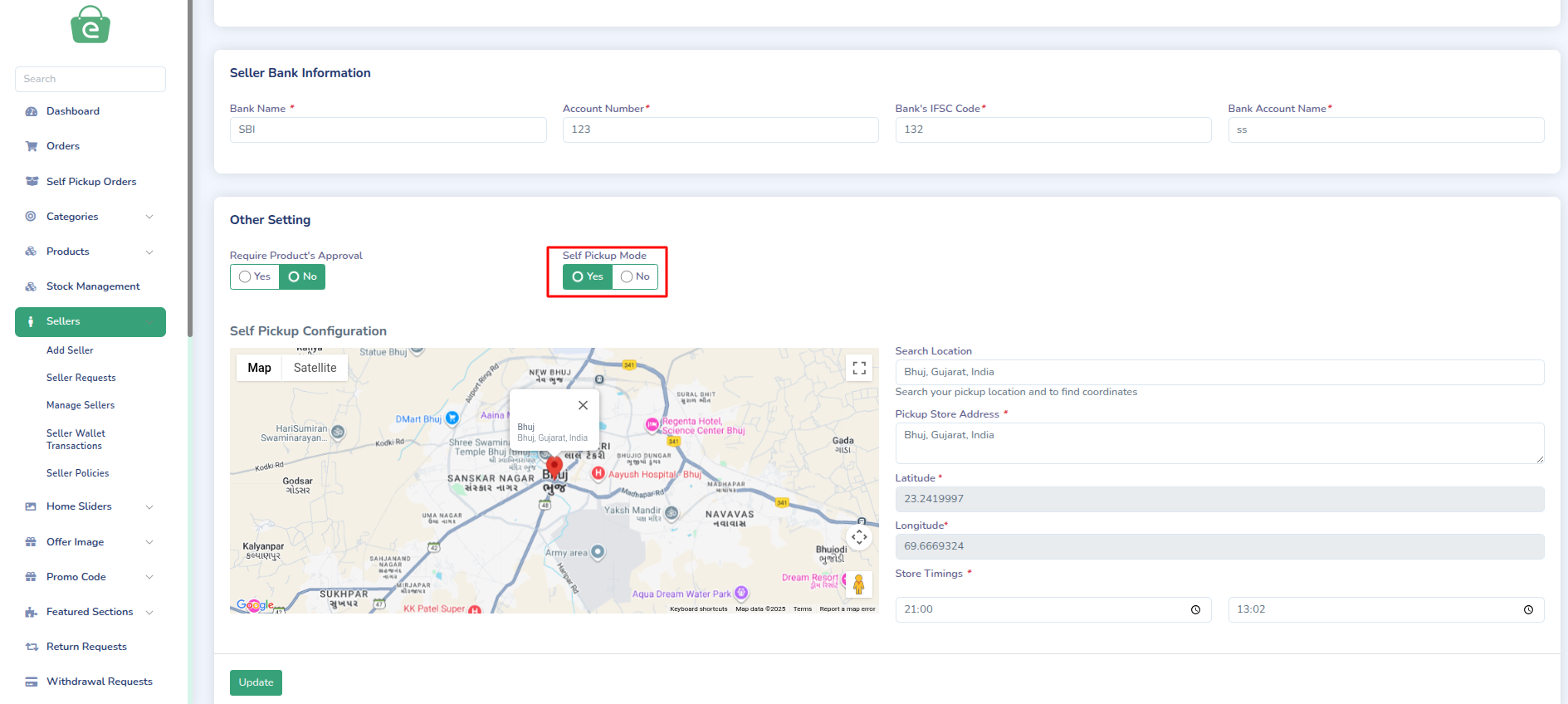
Once the admin enables the self pickup feature, individual sellers can configure their own self pickup options including:
- Store Location: Set pickup address and location details
- Store Timings: Set timings for pickup
Configuration Steps
For Admin (Global Settings)
-
Access Admin Panel Settings
- Log in to your admin panel
- Navigate to Settings → Store Settings
- Look for "Seller settings" section
-
Enable Global Self Pickup
- Toggle the "Enable Self Pickup" option
- This enables the feature for all sellers
- Sellers can now configure individual settings
For Sellers (Individual Settings)
-
Access Seller Dashboard
- Log in to seller panel
- Navigate to My profile
- Look for "Self Pickup Mode" section (only visible if admin enabled it)
-
Configure Seller Self Pickup
- Set store location
- Enter store address
- Set operating hours for pickup
Customer Experience
Order Placement
- Customer selects "Self Pickup" during checkout
- Chooses preferred time slot
- Receives confirmation with pickup details
- Gets notification when order is ready
Pickup Process
- Customer arrives at store
- Shows order confirmation
- Staff verifies order details
- Customer collects order
Support
For assistance with self pickup settings, contact our support team:
- Email: support@wrteam.in
- Website: https://wrteam.in
- Support Hours: Monday to Friday, 9:00 AM to 6:00 PM IST (GMT +5:30)