Authenticate with Firebase Using Facebook Login
To enable Facebook Login in your News App:
Create a Facebook App
- First create project for your android application, go to Facebook for Developers
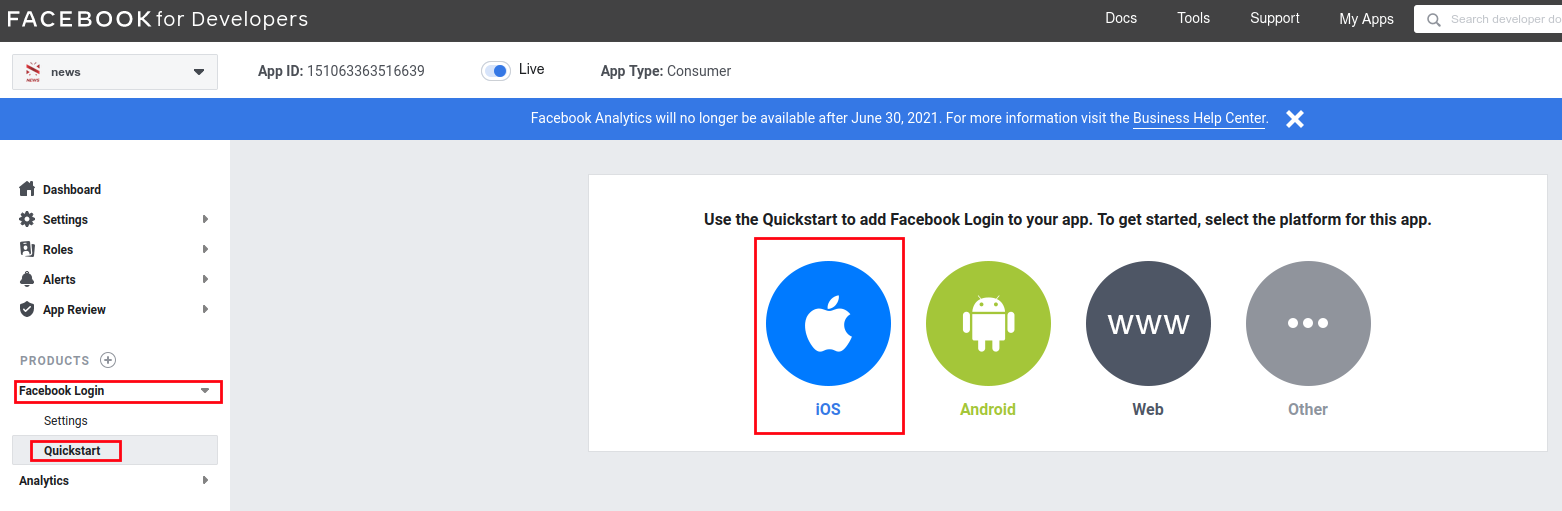
- Go to Facebook Quick Start Integrate the Facebook SDK
- On the Facebook for Developers site, get the App ID and an App Secret for your app
Configure Firebase
- In the Firebase console, open the Auth section
- Enable Facebook Login
- On the Sign in method tab, enable the Facebook sign-in method and specify the App ID and App Secret you got from Facebook
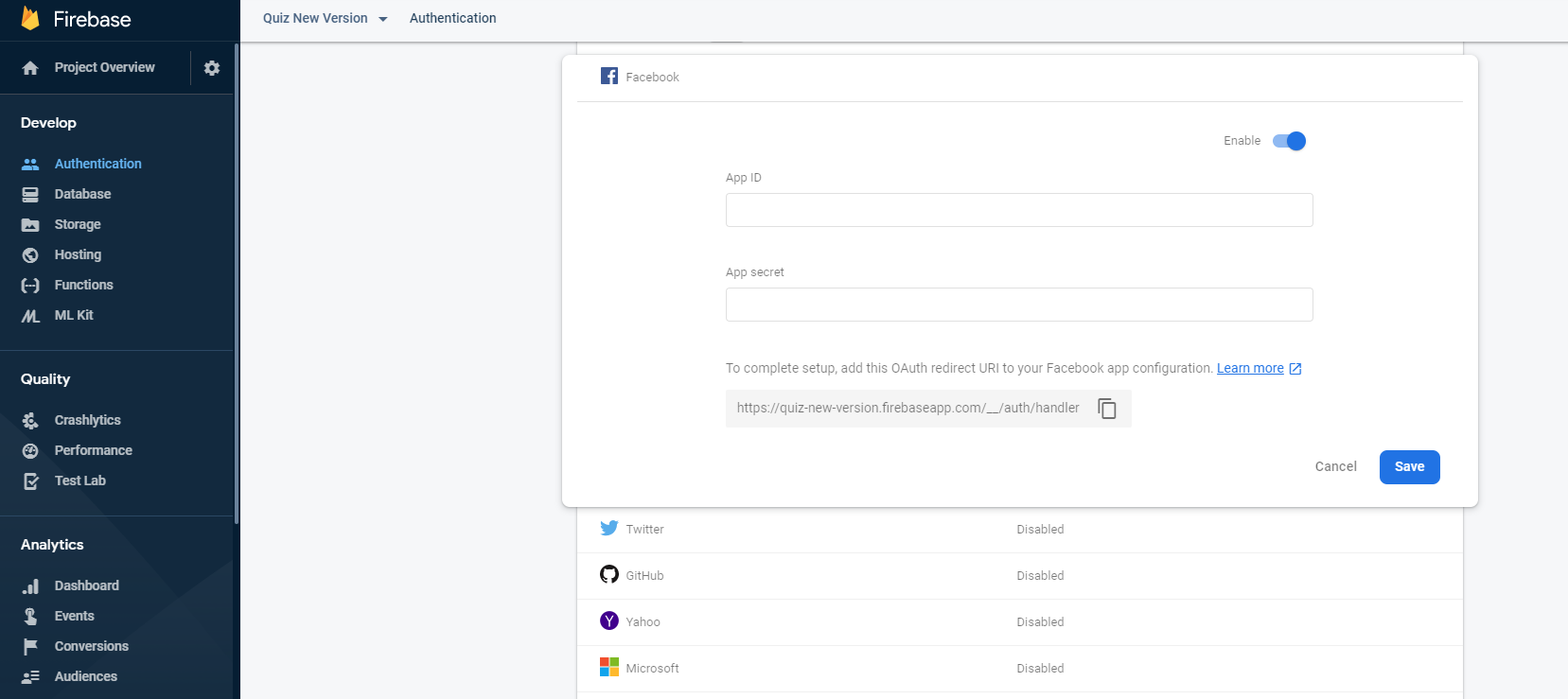
- Make sure your OAuth redirect URI (e.g. my-app-12345.firebaseapp.com/__/auth/handler) is listed as one of your OAuth redirect URIs in your Facebook app's settings page on the Facebook for Developers site in the Product Setting > Facebook Login config
Configure Android App
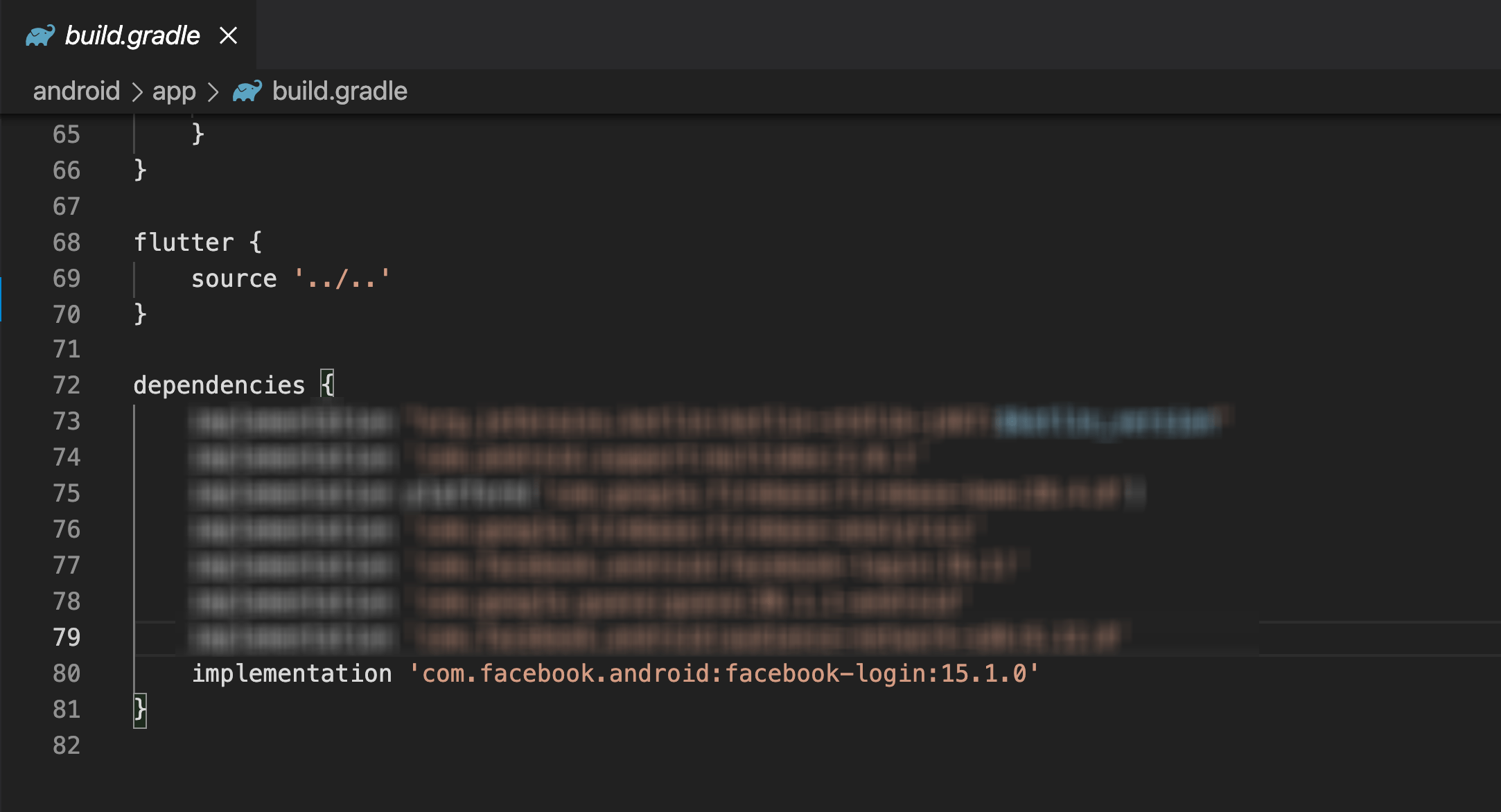
- Add the dependencies for Firebase Authentication and Facebook Login SDK to your app-level build.gradle file:
- Create strings for your Facebook app ID and for those needed to enable Chrome Custom Tabs
- Open
android > app > src > main > res > values > strings.xmlfile:
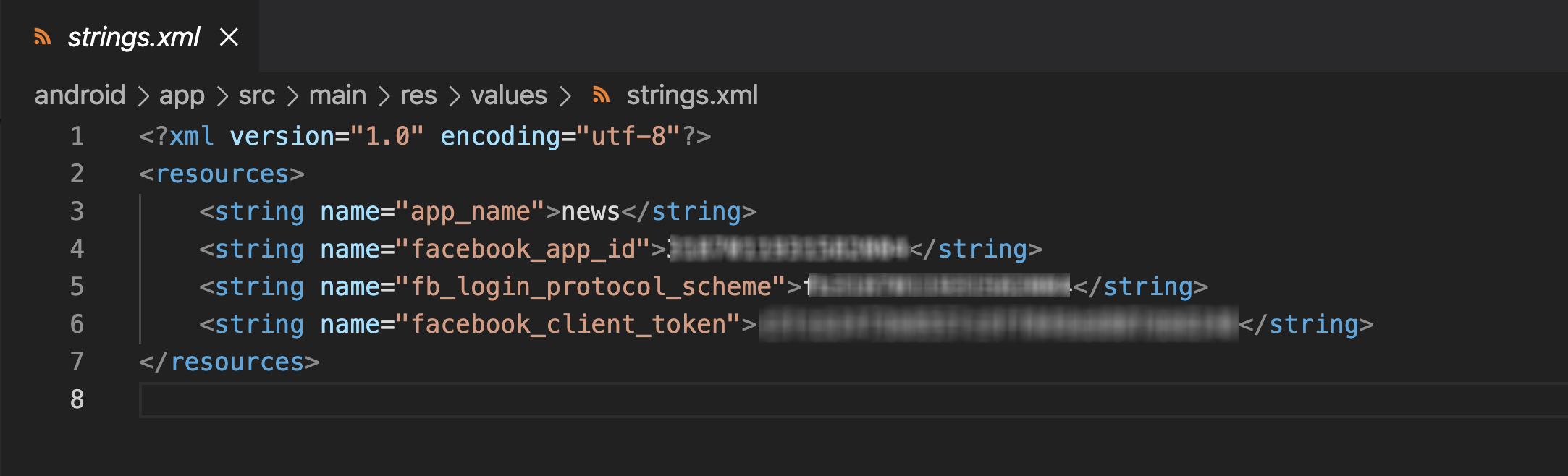
- Open
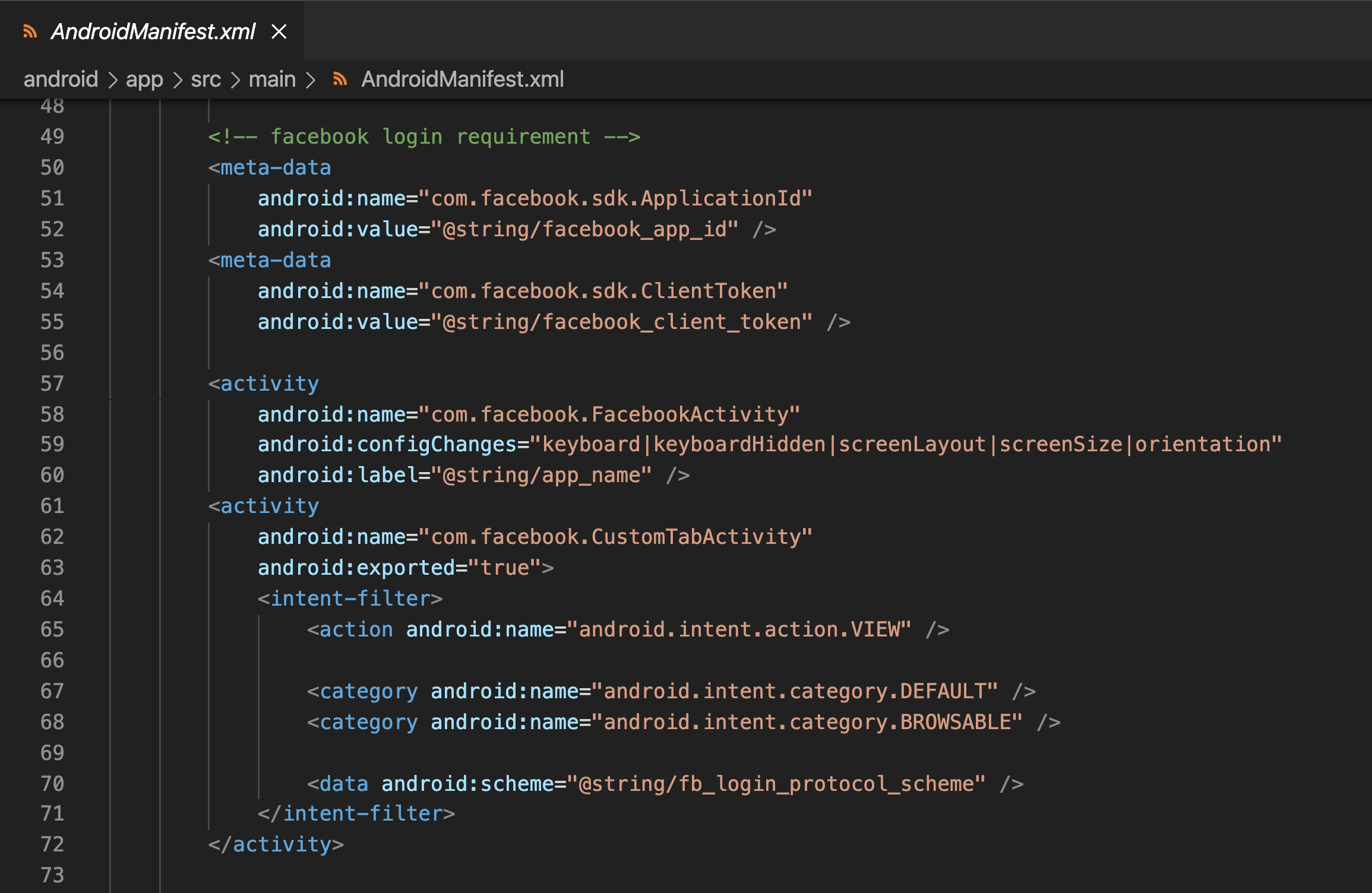
android > app > src > main > AndroidManifest.xmlFile - Add the following meta-data element and activity for Facebook:
Generate Key Hash
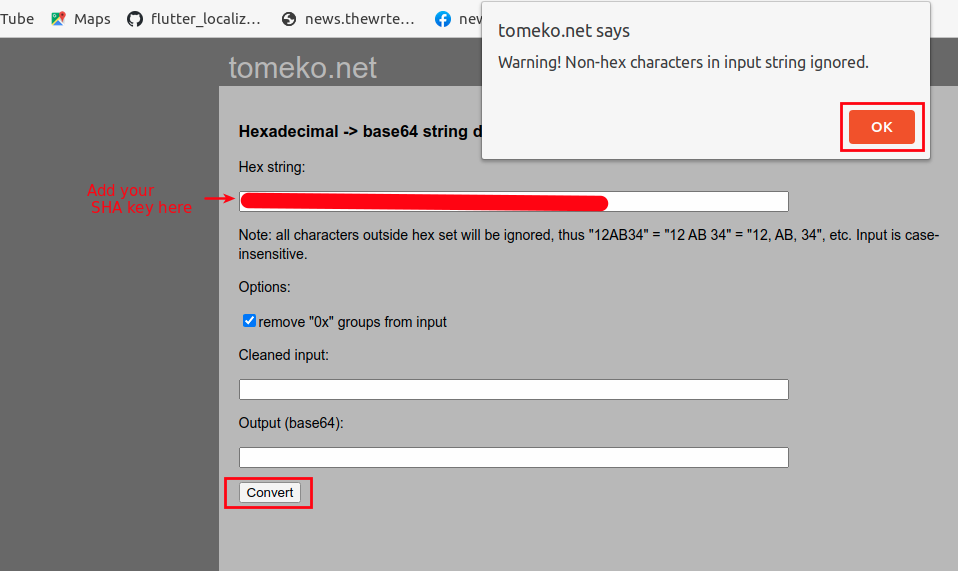
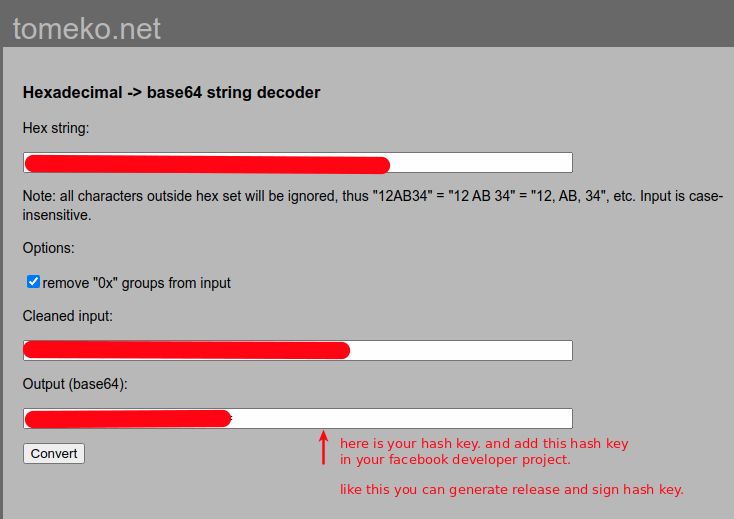
- We will use SHA-1 key to generate hashkey for Facebook login
- You can generate hash online using Key hash Generator
Configure iOS App
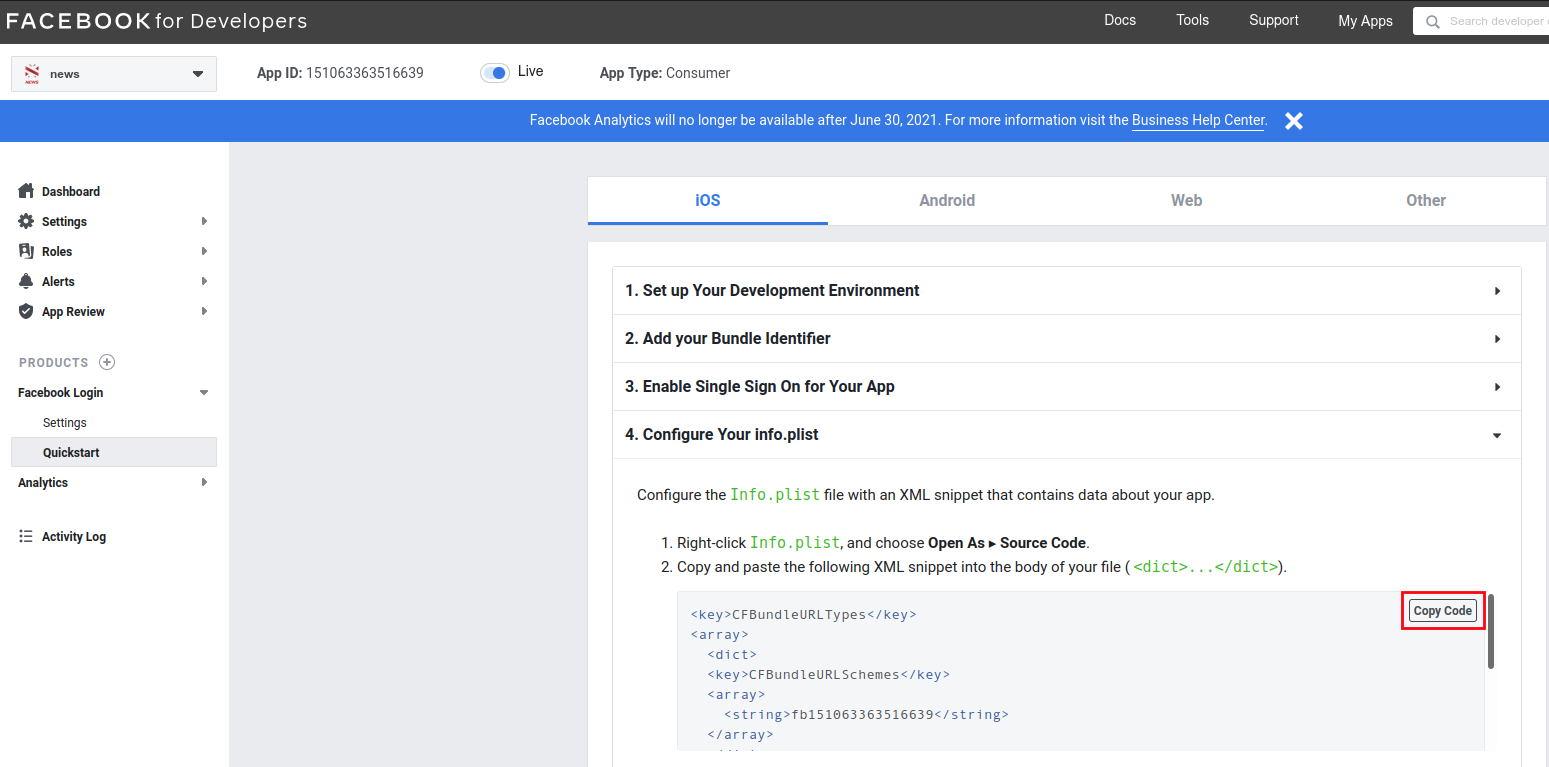
- Create iOS application in Facebook Developer console:
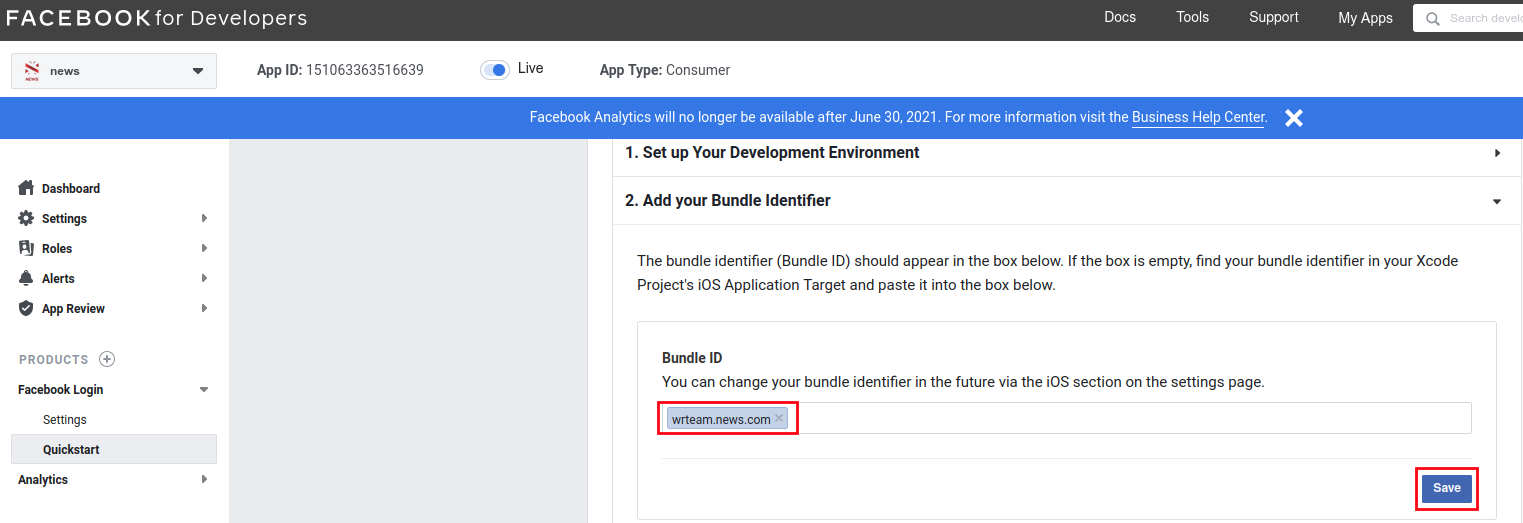
- Add your iOS Bundle ID:
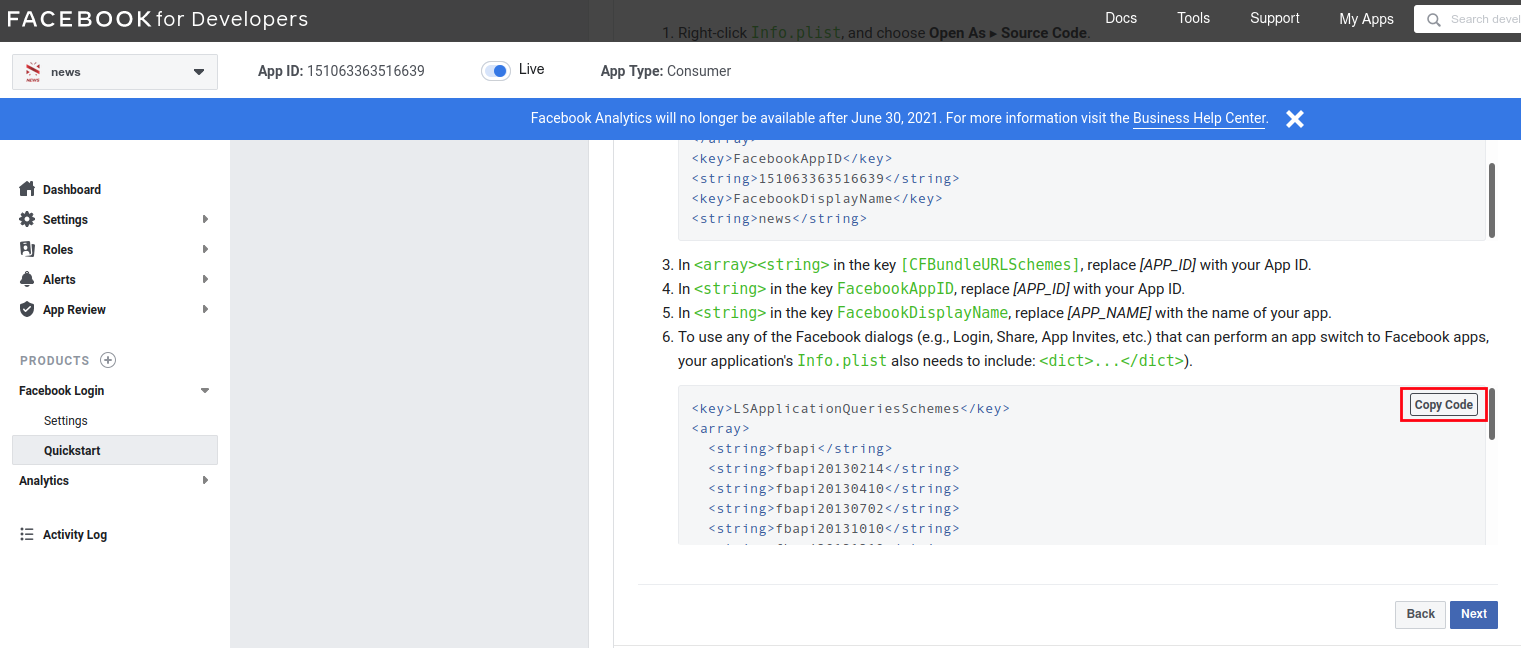
- Copy code shown and paste into Info.plist file: