Admin Panel Configuration
After installing the Elite Quiz Admin Panel, you'll need to configure it to match your requirements. This guide covers the essential configuration steps.
Basic Configuration
General Settings
- Log in to your Admin Panel
- Configure the following settings: from Admin Panel -> settings -> Web & Brand Settings
- Application Name
- Logo, color
- Robot Image
- Admin Panel Login Background Image
- Click Save Changes to apply your settings
Firebase Configuration
Setting Up Firebase Integration
-
Create Firebase Database:
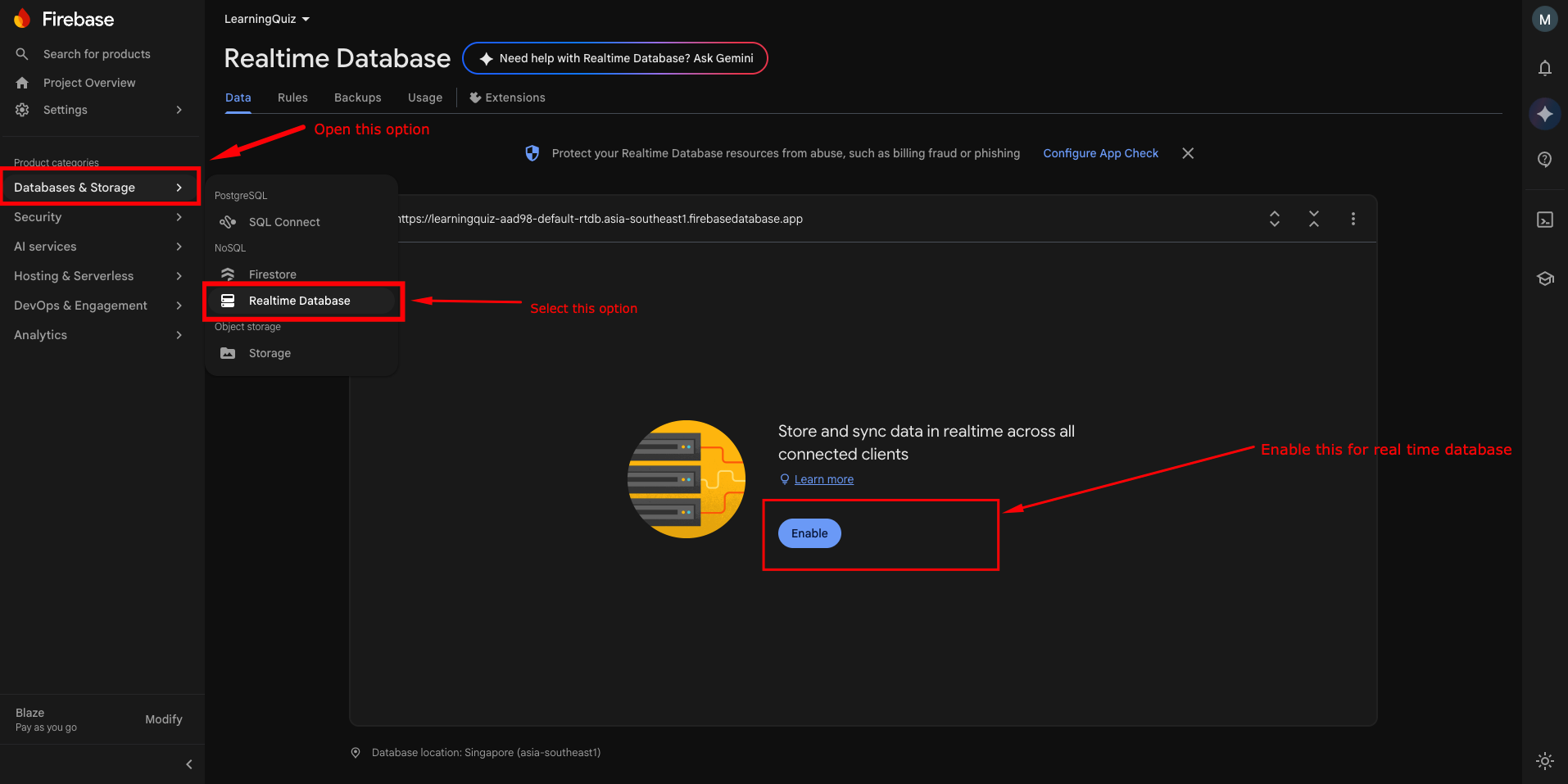
-
Select Database Location:
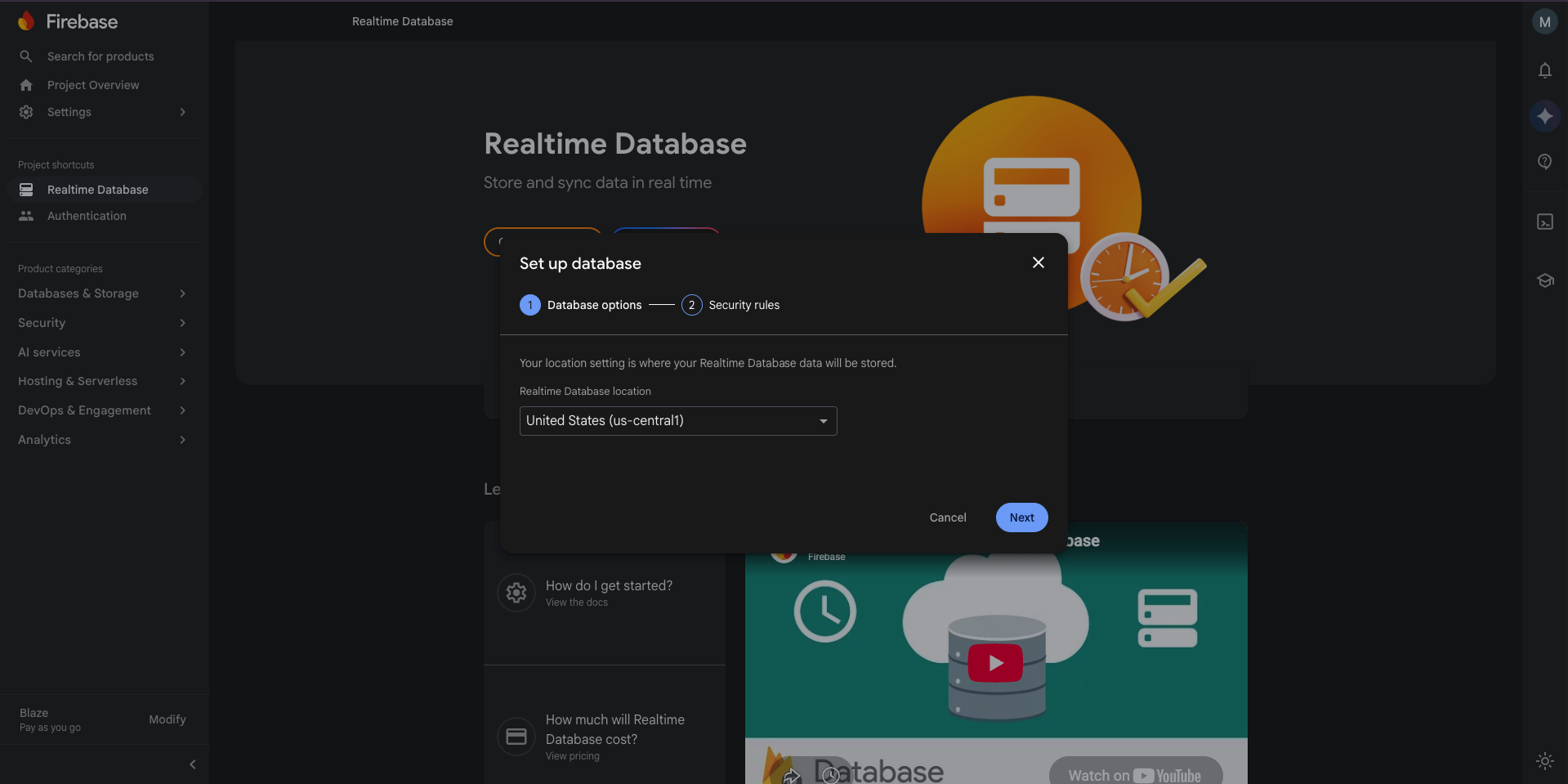
-
Set Up Battle Rules:
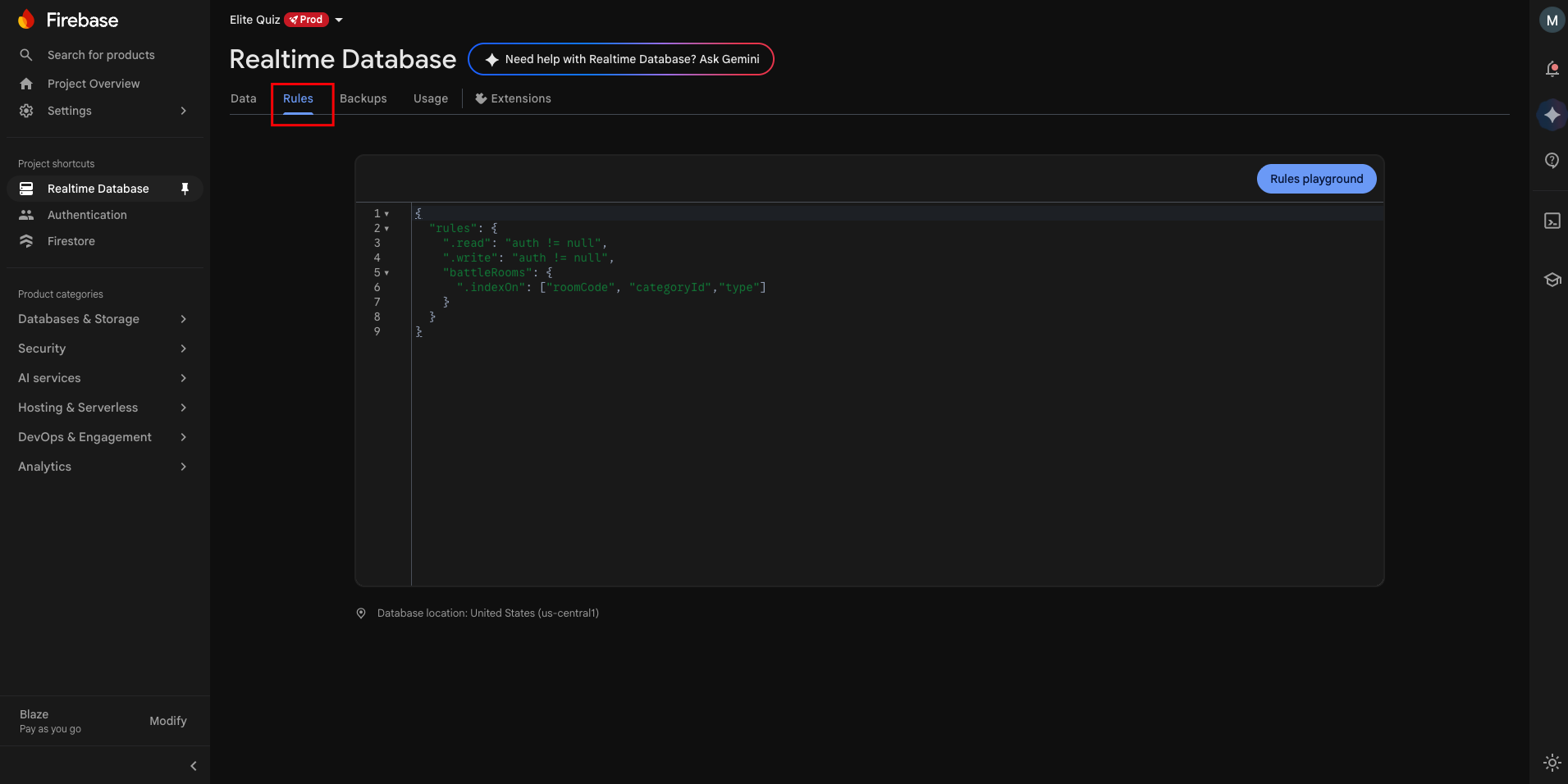
-
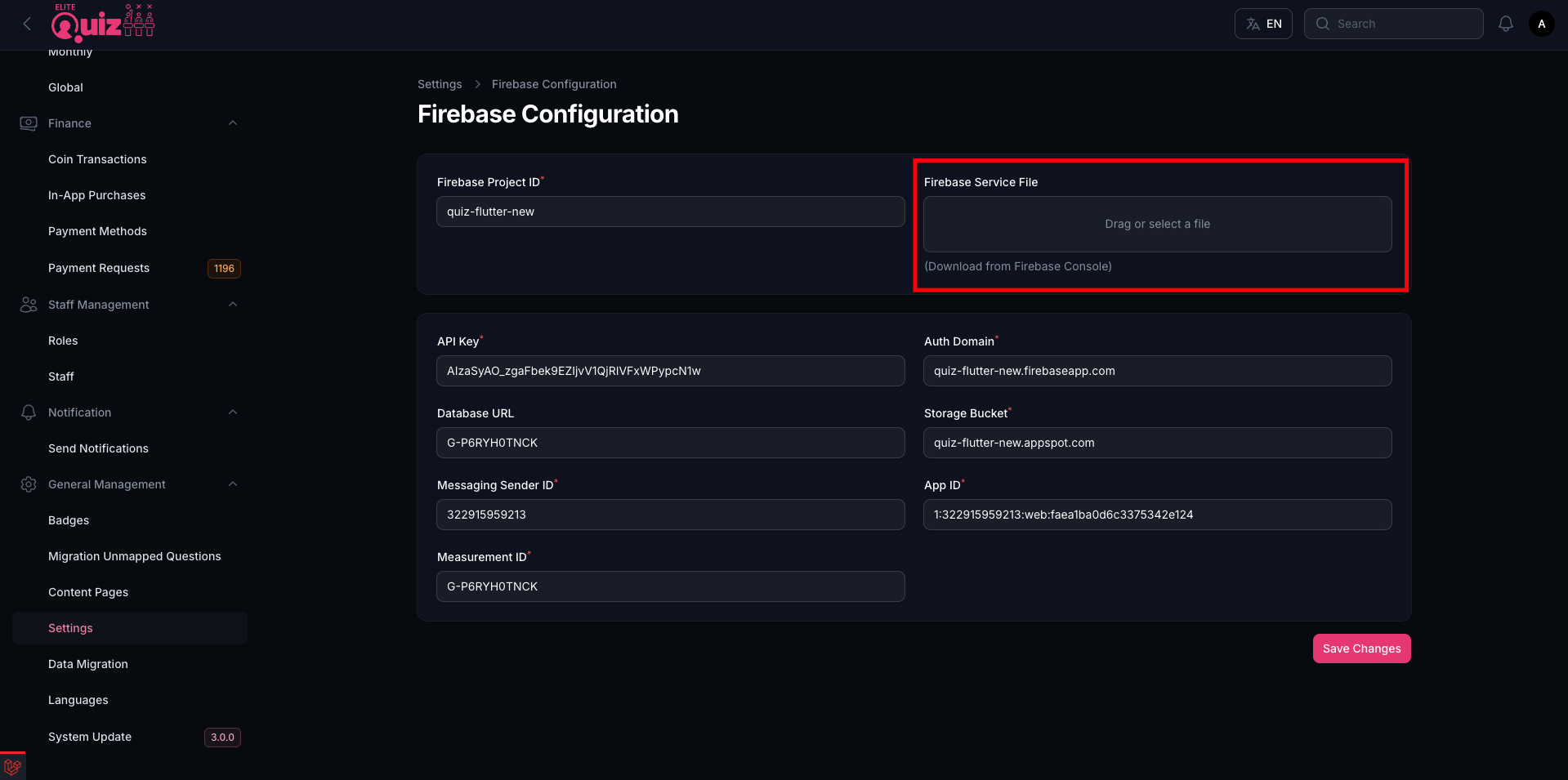
Download Services JSON:
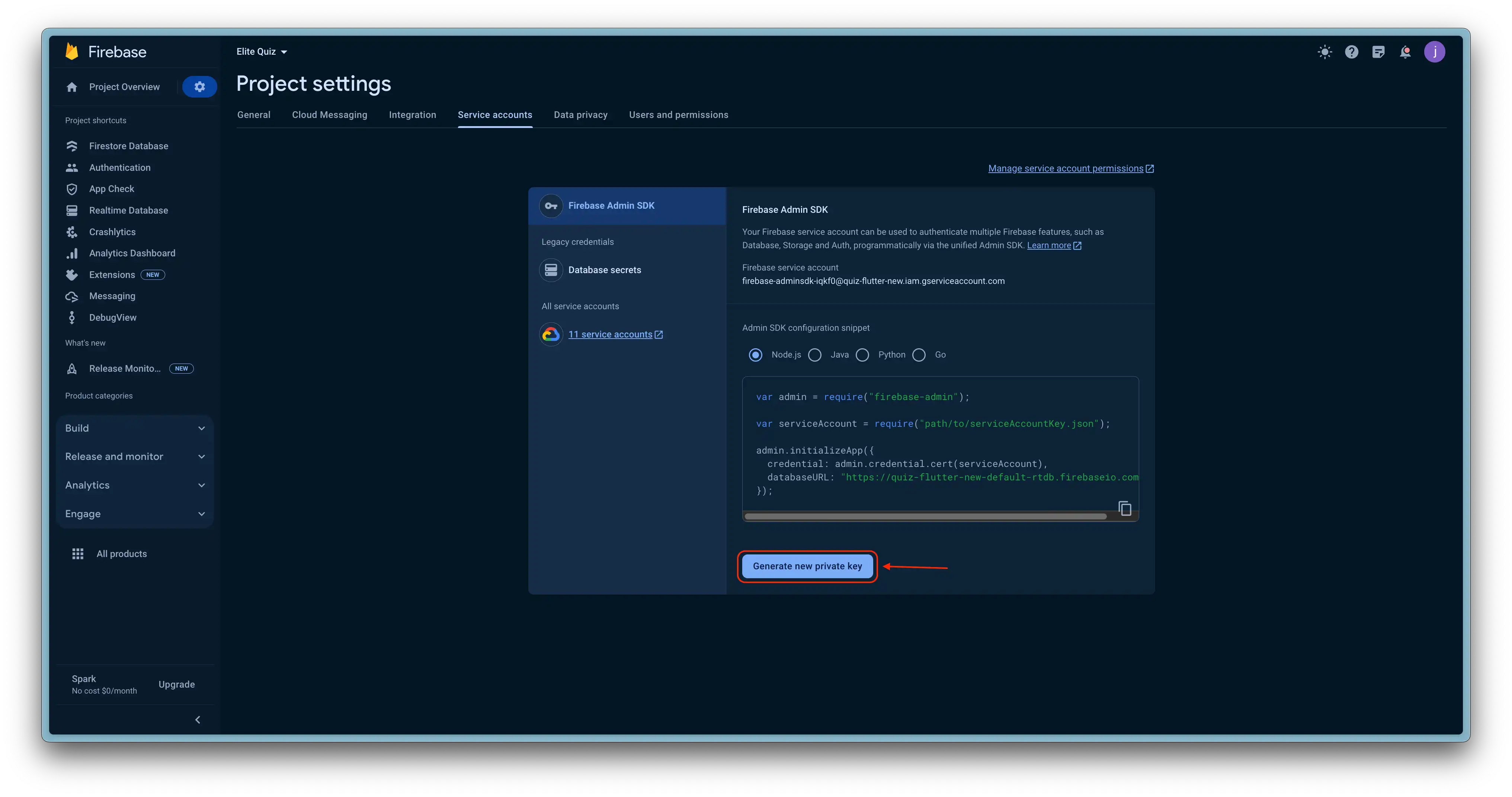
-
Upload Services JSON:
-
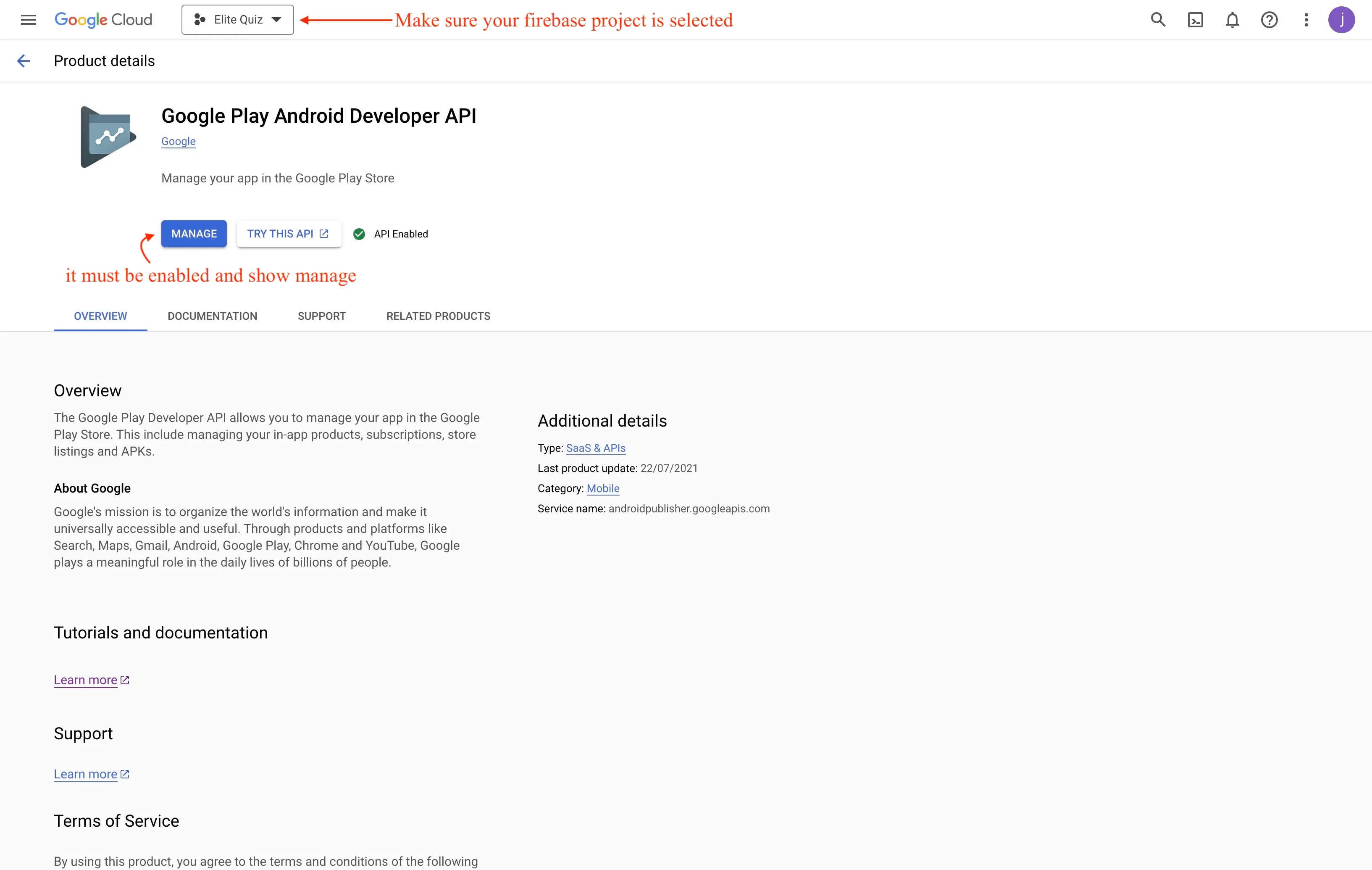
Verify Google Play Android Developer API is Enabled:
Authentication Settings
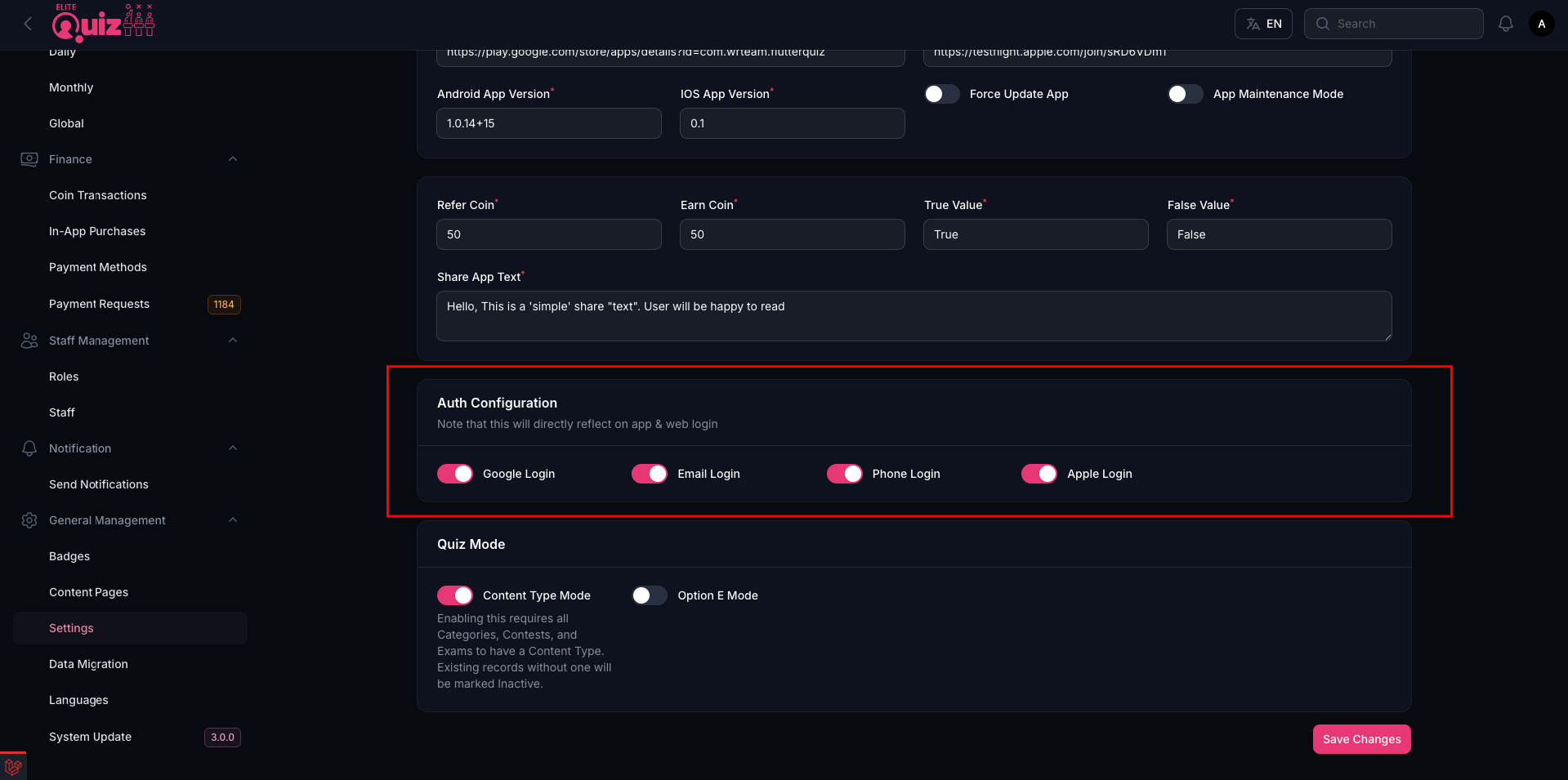
Configure authentication methods for your application:
- Login Types: Toggle which sign-in methods — Google, Email, Phone, and Apple — are enabled for users in the app.
System Configurations
This section explains how to configure the Elite Quiz system settings for optimal performance.
Profile Settings
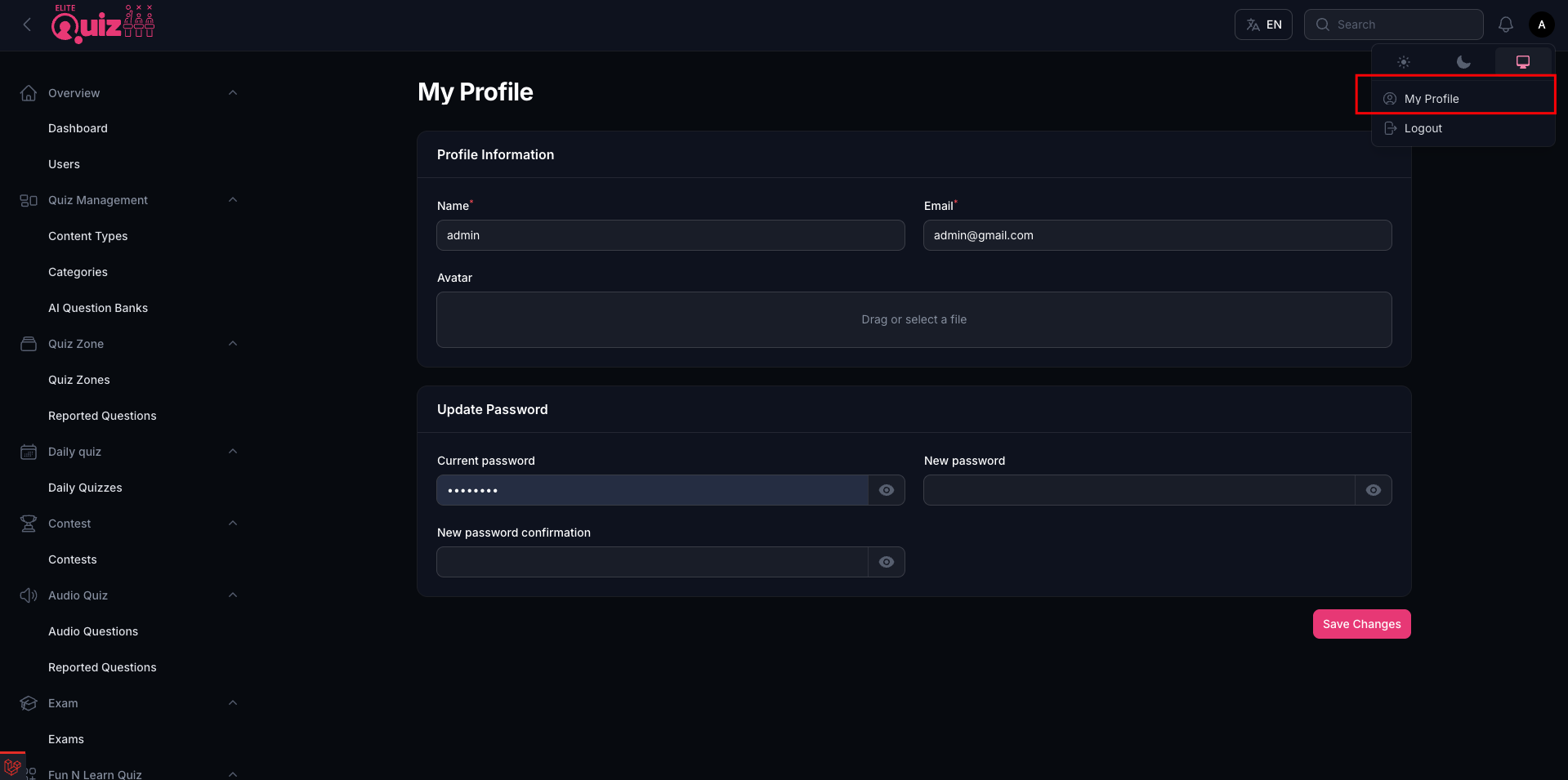
Change the User Name, Email, avatar and credentails in the Profile menu:
System Settings
From the System Configurations screen, you can set:
- System & App Timezone
- App Play store or market place Links
- Content Mode (previously: Language Mode)
- Option E Mode
- Force Update App
- In App Purchase
- App Version
- Shareapp Text
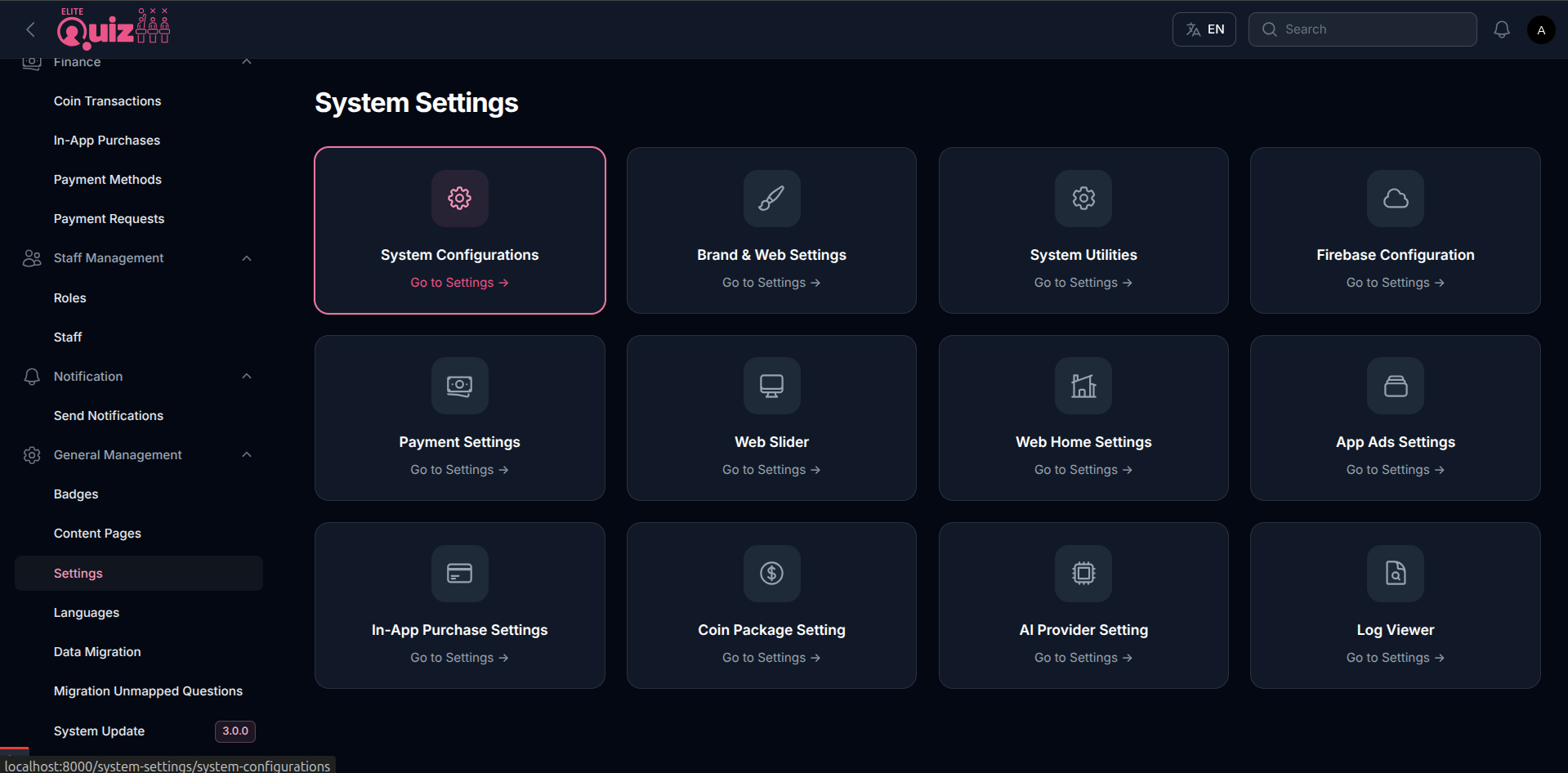
Configuration Settings Explained
-
System Timezone: This option sets the time zone of the admin panel.
-
App Links: You can set your apps play store/app store links in here, when user refers the app these links will be used.
-
Refer Coins: Amount of coins your referral gets for using your referral code.
-
Earn Coins: Amount of coins user gets for referring.
-
Force Update: If you want to require users to update the app to latest version. you can enable force update and add the Android/IOS App Version if app has given version it will show force update dialog to those users.
-
Share App Text: sharing the app will share this text.
-
App Maintenance: When you are working on the admin panel or apps Maintenance, you can enable this option so it will show users that app is in Maintenance Mode.
-
Content Mode (Previously: Language Mode): If you want to only use one language in the app you can disable this option. if you want to add multiple languages enable this feature.
-
Option E: If you want 5 options for the answer you can enable this option. otherwise there will be 4 options to select from for answer.
Quiz-Specific Settings
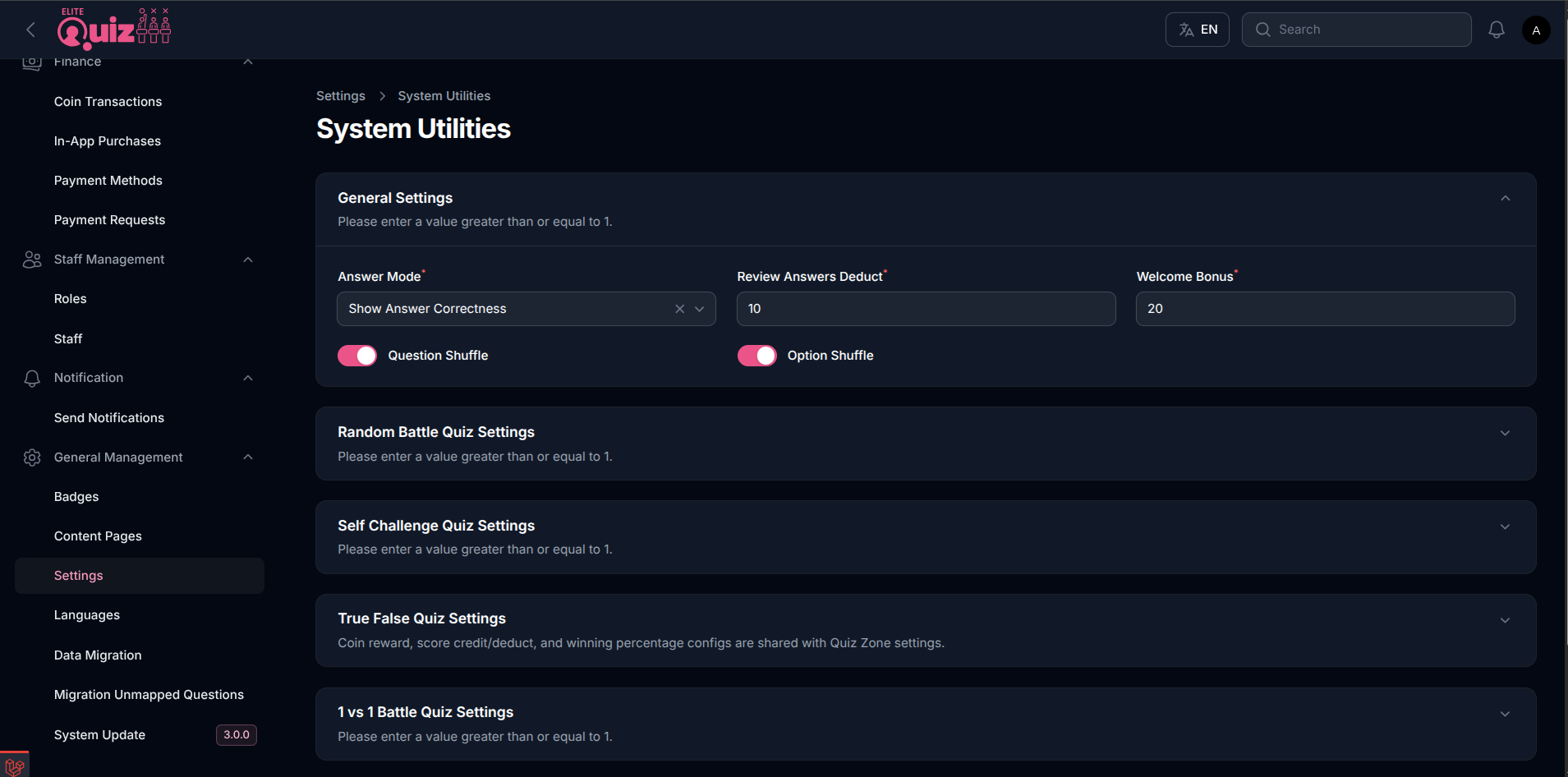
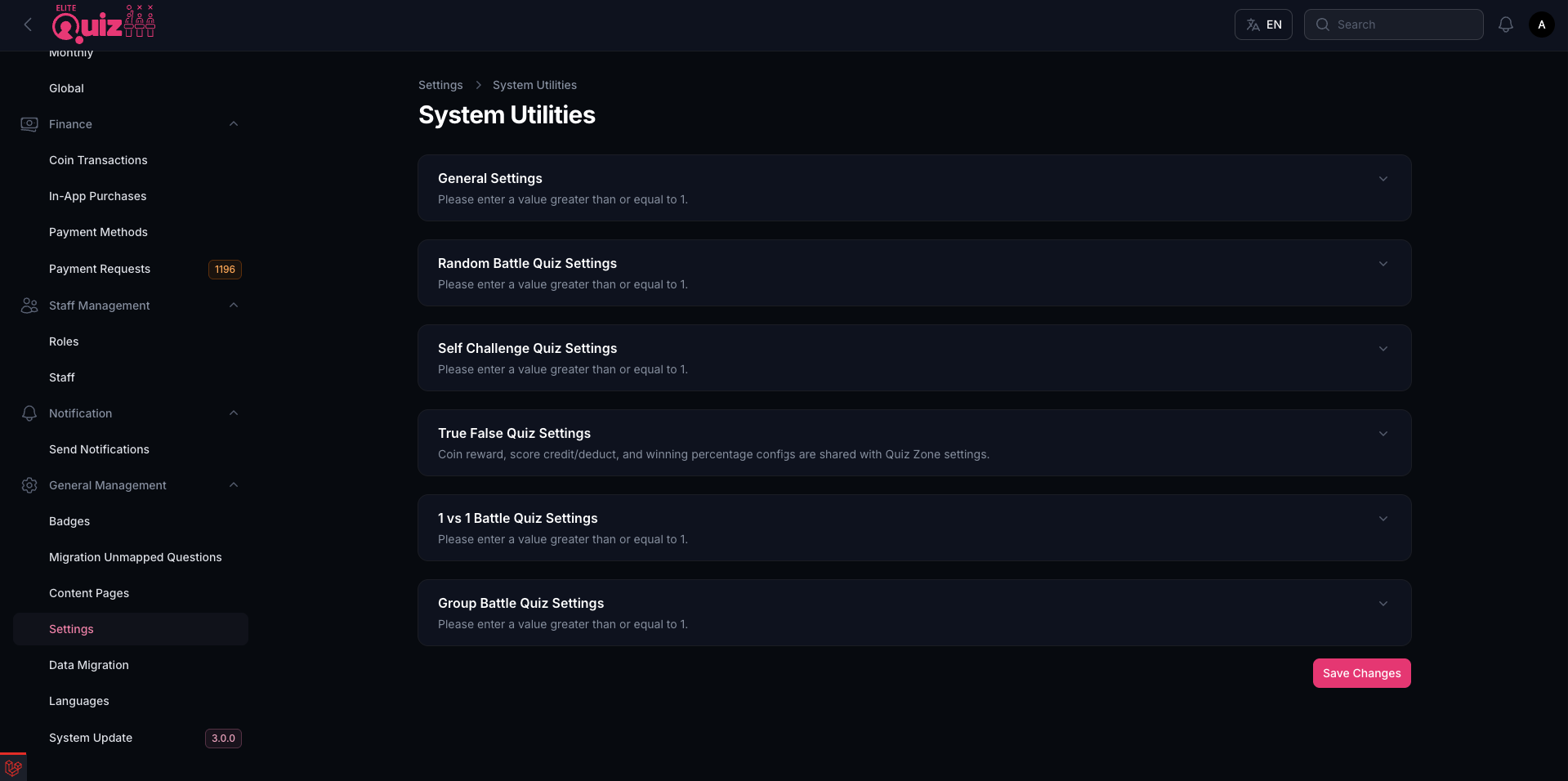
Additionally, you can change quiz specific settings from System Utilities. This section includes settings for General Configs, Battle modules, Self Challenge, and True/False Quiz. You'll find the Quiz-Specific Settings menu available below the Quiz menu in the admin panel sidebar:
-
Enable/Disable Answer Display: Controls whether players see answer feedback after answering:
- Show Answer Correctness — marks correct/incorrect only
- Don't Show Answer Correctness — no feedback shown
- Show Answer Correctness and Correct Answer — marks correct/incorrect and reveals the correct answer
-
Visible Mode: Controls visibility of the feature. if you want to disable any particular quiz you can disable this option for that quiz.
-
Category Mode: This mode that lets users select and play a battle by choosing their preferred category, instead of random questions.
-
Fix Questions: if disabled all the questions of category/subcategory or level will be fetched for user to play. otherwise you can limit the no of question randomly fetched from many.
-
Duration: Adjust Quiz Duration for quiz
-
Correct Answer Credit Score: For each correct answer this amount of score is given
-
Wrong Answer Deduct Score: for each wrong answer this amount of score is deducted.
-
Extra Scores: Award bonus points in battles for fast correct answers, configured using four fields:
- Answer within (seconds) to earn the quickest bonus
- Extra score for quickest correct answer
- Answer within (seconds) to earn the second quickest bonus
- Extra score for second quickest correct answer
For example, if the time thresholds are set to 2 and 4 seconds respectively, a user who answers correctly within 2 seconds earns the "quickest correct answer" bonus score, and a user who answers correctly within 4 seconds earns the "second quickest correct answer" bonus score.
-
Opponent Search Duration: For Random Battle, it will search for opponent for this duration.