System Languages
Managing System Languages
The Elite Quiz admin panel provides a powerful multi-language system where you can manage system-wide translations.
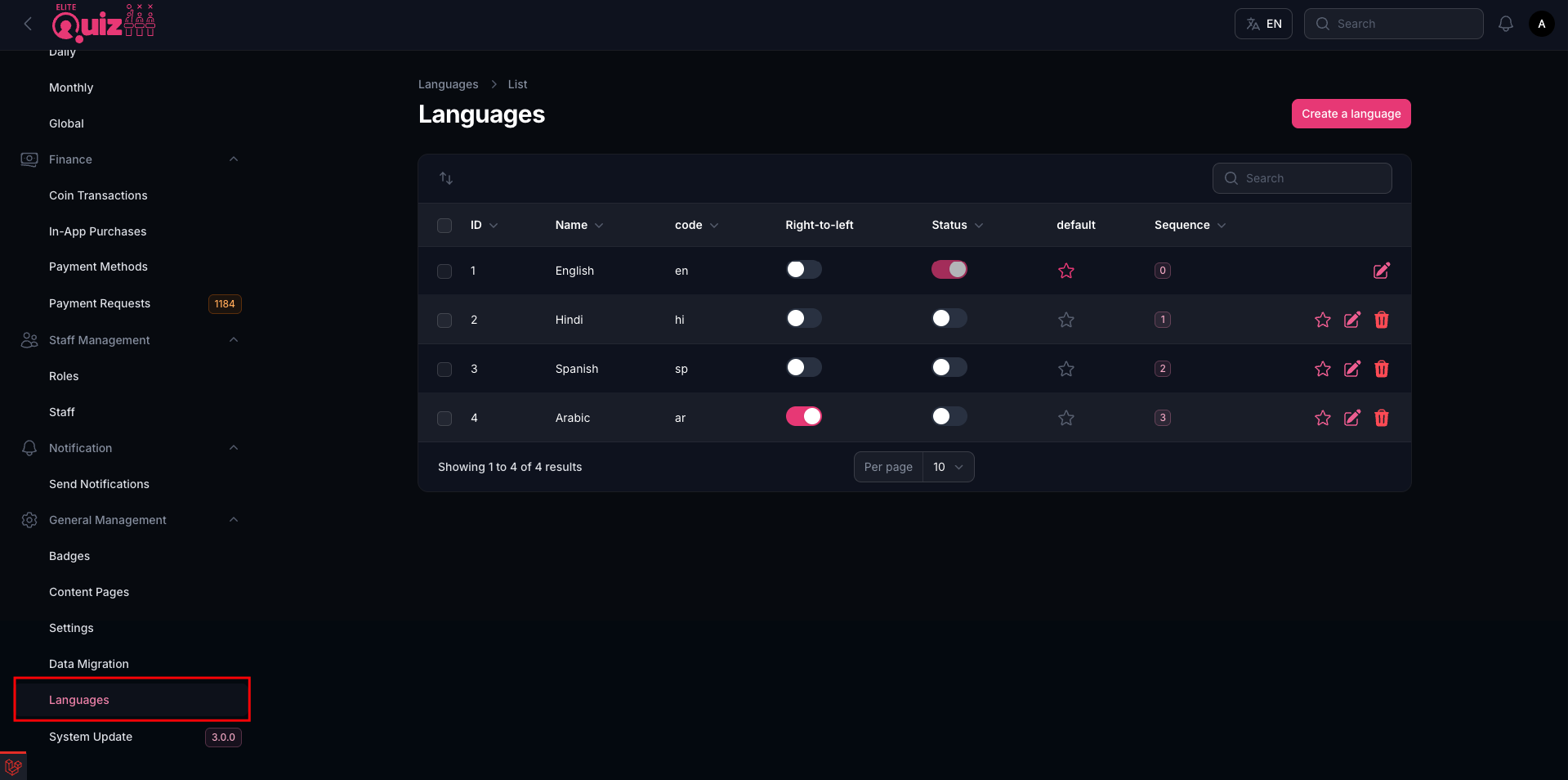
Editing System Languages
You can edit each system language to provide accurate translations for all UI elements.
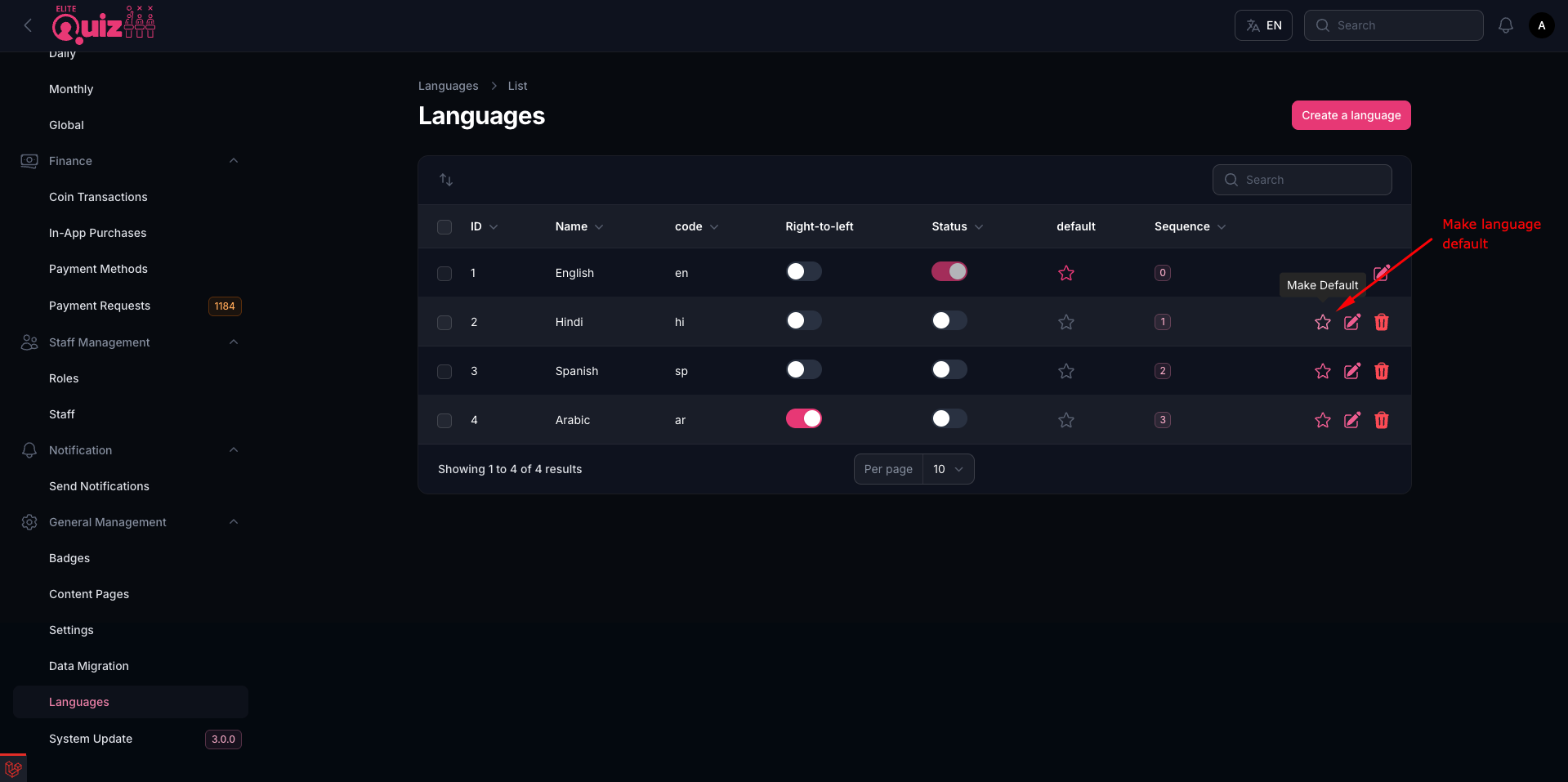
- Full Name: The display name of the language shown to users (e.g.,
English). - Language Code: The ISO 639-1 two-letter code for the language (e.g.,
enfor English,arfor Arabic). - Right-to-Left (RTL): Enable this for RTL languages like Arabic or Hebrew so the UI renders right-to-left.
- Status: Enable or disable this language for use in the app.
- Default: Set this language as the default language for the application. Only one language can be set as default at a time, and it must have Status enabled.
- Web Translation File: Upload the translation JSON file for the Web app (max 1MB) — download the sample file first to see the required format.
- Application Translation File: Upload the translation JSON file for the Mobile app (max 1MB) — download the sample file first to see the required format.
- Admin Translation File: Upload the translation JSON file for the Admin Panel (max 1MB) — download the sample file first to see the required format.
These translations will be applied across the entire application, ensuring a consistent experience for users in their preferred language.