Legacy Data Migration
If you're upgrading from the old Elite Quiz Admin Panel (CodeIgniter 3) to the new Laravel Admin Panel, this tool moves your existing data — users, quizzes, coins, leaderboards, and more — into the new system for you automatically.
Already have a live Elite Quiz app with real users and data on the old CodeIgniter 3 panel (version 2.3.9)? This page is for you.
Setting up Elite Quiz for the first time with no old data to bring over? Skip this page and use Fresh Install instead — see Fresh Install below.
It's a one-time, Super Admin-only action, found at General Management → Data Migration.
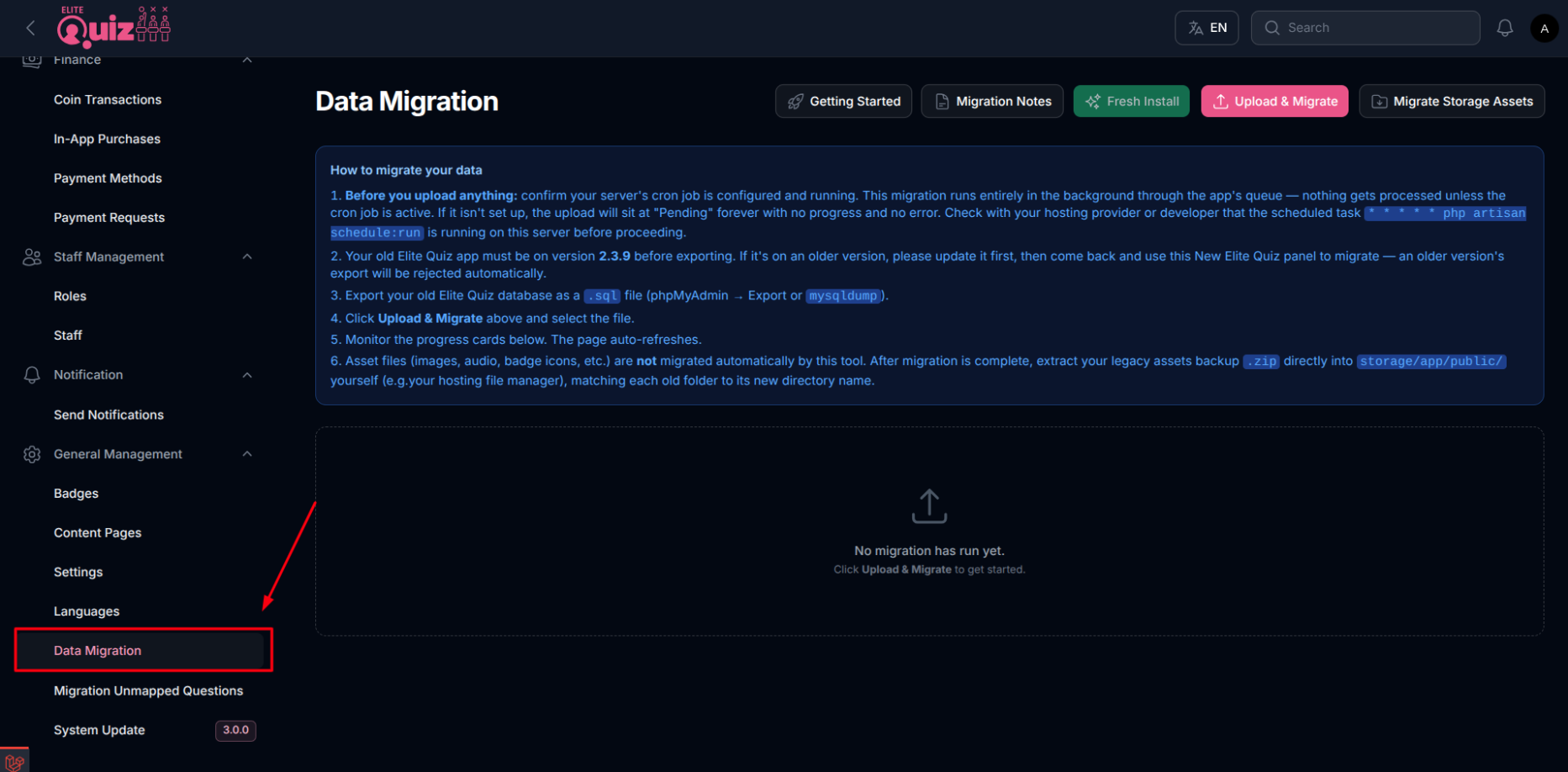
Before You Begin
-
Read the Legacy Migration Notes first, as a precaution. It explains every case where old data can't be carried over exactly as-is, so you know what to expect before you start.
-
Set up your cron job first. Every step of the migration runs in the background through your server's task queue, so your cron job must already be running. If it isn't, an uploaded file will just sit at "Pending" indefinitely with no error shown — so make sure this is working before you upload anything.
-
Your old database must be on version 2.3.9. The migration tool checks your uploaded file and only accepts a database from that exact version of the old admin panel. If your file is from an older or newer version, the upload will be rejected with an error message.
-
Don't use the old admin panel's System Updater for version 3.0.0 and above. Version 3.0.0 is the new Laravel-based admin panel, not a regular CodeIgniter update — the old panel's built-in System Updater can't perform this switch. Use this Legacy Data Migration tool instead.
-
Export your old database as a
.sqlfile using a tool like phpMyAdmin. The uploaded file can be up to 200MB.Don't use Backup Data for assetsThe Backup Data menu can also export your asset files (images, audio, badge icons, etc.) — but avoid using it for that.
- Why: If your assets folder is large (1.5GB or more), exporting it this way can hit your server's PHP memory limit and fail.
- Instead: Manually zip your assets folder — you'll upload and extract it in step 2 below.
How to Migrate Your Data
Watch the video walkthrough:
-
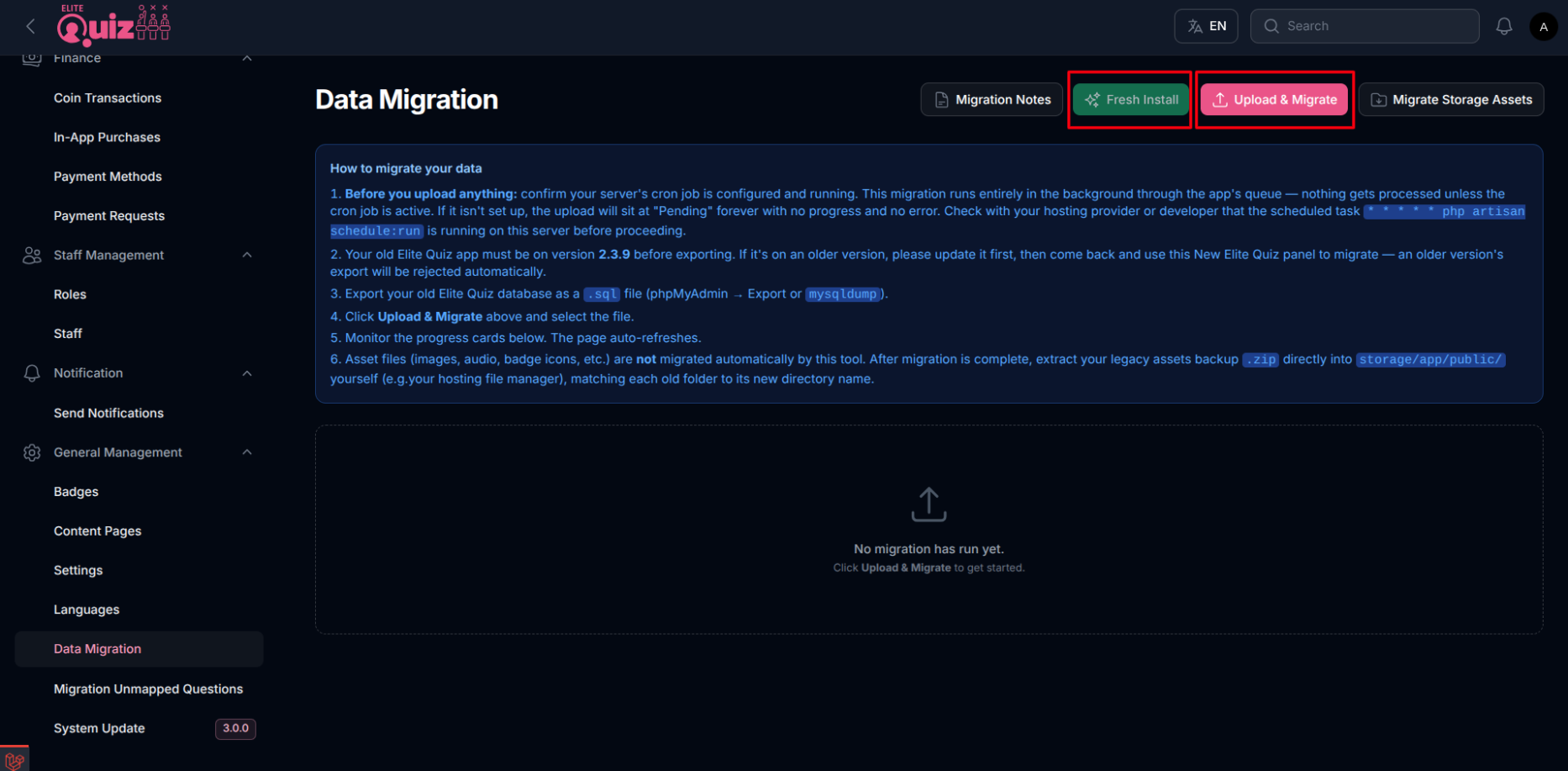
Export your old (CodeIgniter 3) database as a
.sqlfile, go to General Management → Data Migration in the new admin panel, click Upload & Migrate, and select your exported file. -
Upload the
.zipfile containing only the images folders from your legacy assets to the server, and extract it into thestorage/app/publicfolder of the new Admin Panel.Note: This step is independent of the database migration. You do not need to wait for the database migration to complete before uploading and extracting the images.
-
The database migration runs automatically in the background — you don't need to do anything else while it processes. Behind the scenes, your data is transferred in a carefully ordered sequence (for example, languages and categories are migrated before the questions that belong to them) so that nothing gets linked incorrectly.
-
Track progress on the page itself — status cards refresh automatically every few seconds so you can watch the migration move through each stage.
As with any database operation, we recommend keeping a backup of your new Laravel database before starting a migration.
If Something Goes Wrong
If any step of the migration fails, the process stops immediately rather than continuing on with incomplete data — so you'll never end up with a half-migrated app. You can safely fix the underlying issue and re-run the migration afterward: it's designed to pick up safely without creating duplicates or re-migrating data that already succeeded.
What Gets Migrated
- Users & Profiles — user accounts, badges earned, bookmarks
- App Content — languages, general/site settings, homepage sliders, categories, level numbering, badges
- Quiz Questions — every question type: Quiz Zone, Audio, Math, Guess the Word, Multi Match, Fun 'n' Learn, AI-generated, Exam, and Contest questions
- Quiz Activity — daily quizzes and play history, contests (with prizes and leaderboard), exam modules and results
- Rewards & Purchases — coin packages, coin transactions, in-app purchases, payment requests
- Leaderboards & Stats — leaderboard scores, battle and quiz statistics
- Other — notifications, question reports, etc
After Migration: Manual Steps
Once the migration finishes, you'll see a completion screen with a short checklist of steps you still need to complete yourself:
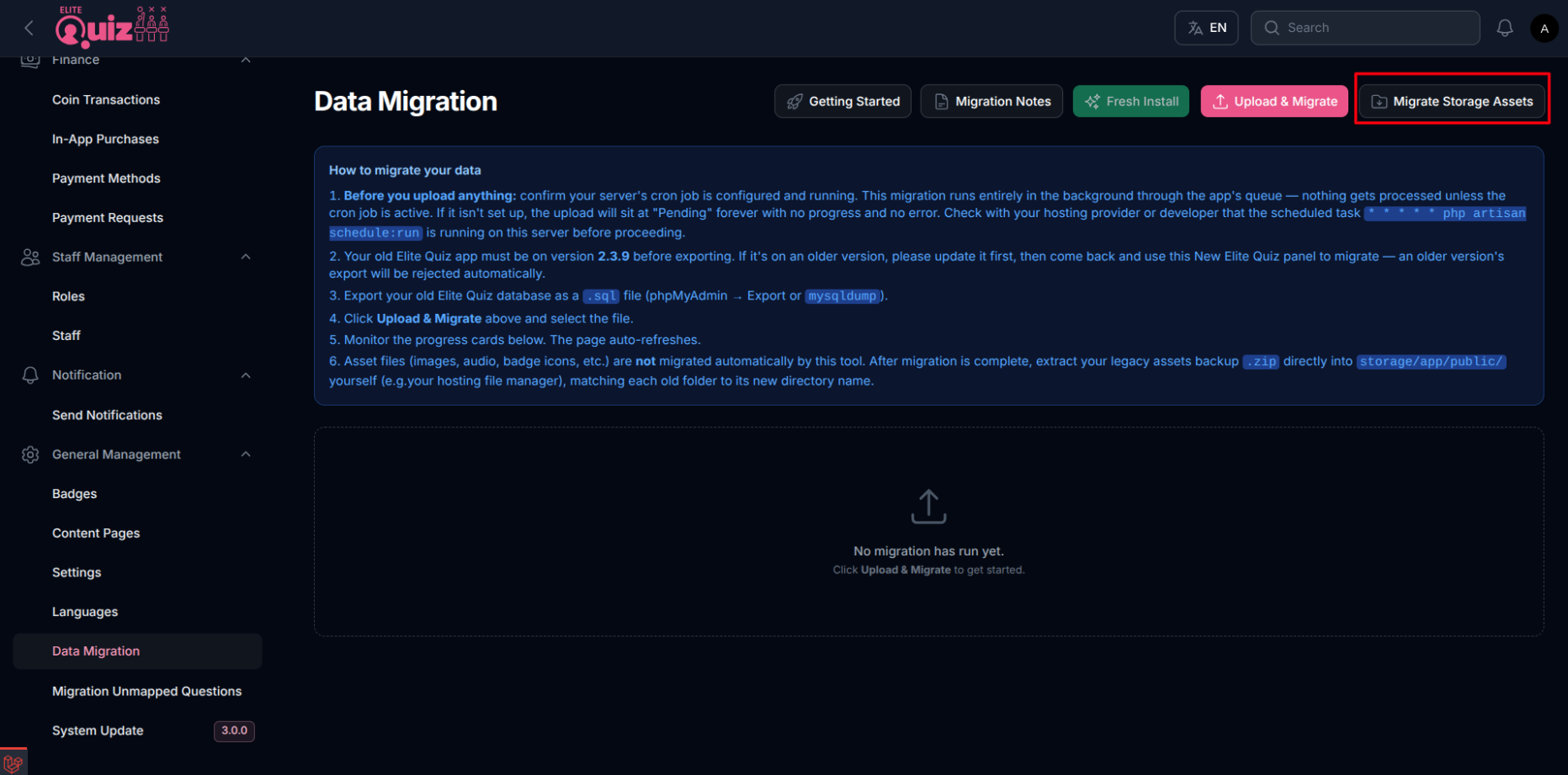
-
Click "Migrate Storage Assets." This is a separate, one-time action (also on the Data Migration page) that reorganizes your legacy file layout to match the new app's structure:
- Merges subcategory assets into the
categorydirectory - Renames the
websettingsfolder tosettings - Moves the background image and bot image into the
settingsfolder
Before running this, make sure you've already extracted your legacy assets
.zipintostorage/app/public(see step 2 above) and that your storage is linked (php artisan storage:link). - Merges subcategory assets into the
-
Reconfigure Firebase manually. Your old Firebase configuration file can't be carried over automatically and will need to be set up again — see Common Firebase Configuration.
-
Re-upload your branding assets (logo, etc.) via Web Settings from Admin Panel -> Settings -> Brand & Web Settings.
-
Review the "Legacy Payment Method." Every payment request migrated from your old data is automatically attached to a placeholder payment method with this name — review and update it as needed.
Safety Guardrails
- Runs only once. Once a migration completes successfully, the option is permanently locked so it can't accidentally be run again and overwrite your live data.
- No uploads mid-migration. While a migration is queued or processing, uploading another file is disabled.
- Stuck-migration detection. If an uploaded file sits unprocessed for more than 3 minutes, the page shows a warning banner — this almost always means your cron job isn't running.
- Detailed logs. If any records are skipped during migration, a detailed report explains exactly why — not just how many were skipped.
Fresh Install (For New Installs)
If you're setting up Elite Quiz for the first time and have no old data to bring over, use Fresh Install instead (also on the Data Migration page). It sets up default badges, pages, and homepage sections for you, without needing an old database. Like the migration tool, this is a one-time action.
Migration Notes
For a plain-language explanation of specific decisions made during migration — such as fields that were dropped, default values that were applied, or settings that were renamed — see Legacy Migration Notes, also linked directly from the Data Migration screen in your admin panel.