Change App Font
Swap the default font for one of your choice across the entire app.
Step 1 — Drop the Font File
Place your font files (.ttf or .otf) inside the assets/fonts/ directory of the project.
Step 2 — Register the Font in pubspec.yaml
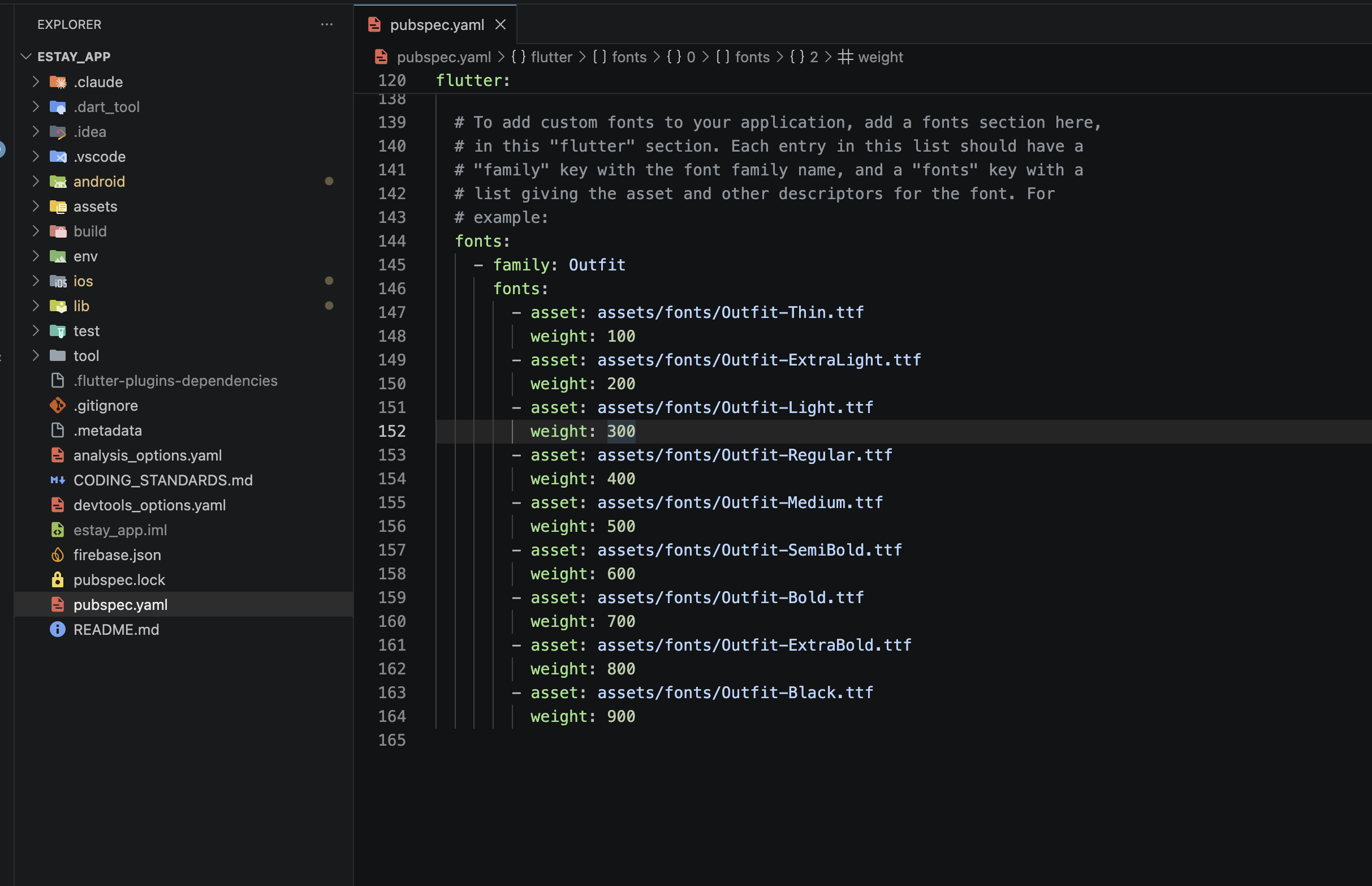
Open pubspec.yaml and update the fonts: block under the flutter: section to point to your file:
flutter:
  fonts:
    - family: CustomFont
      fonts:
        - asset: assets/fonts/MyCustomFont.ttf
family— name you'll reference from Dart code (case-sensitive).asset— path to the file you added in Step 1.
For multi-weight fonts, list each file with its weight (e.g. 400 for regular, 700 for bold).
Step 3 — Apply the Font in the App Theme
Open the theme file at lib/core/theme/app_text_styles.dart and change the new font in primaryFont:
class AppTextStyles {

  static const String primaryFont = 'CustomFont';

}
The string must match the family: value from pubspec.yaml exactly.
Step 4 — Rebuild
flutter pub get
flutter clean && flutter run
The new font should now be applied across all screens.
Register every weight your UI uses (regular, medium, bold, etc.) in the pubspec.yaml fonts block. Otherwise Flutter synthesizes missing weights, which can look thin or jagged on some devices.