How to Get Map & Place API Key
eStay uses two Google APIs:
| API | Purpose |
|---|---|
| Maps JavaScript API | Display property locations on map |
| Places API | Location search and autocomplete |
Both are enabled under the same Google Cloud project and the key is added to .env.
Step 1 — Open Google Cloud Console
Go to https://console.cloud.google.com and select or create your project.
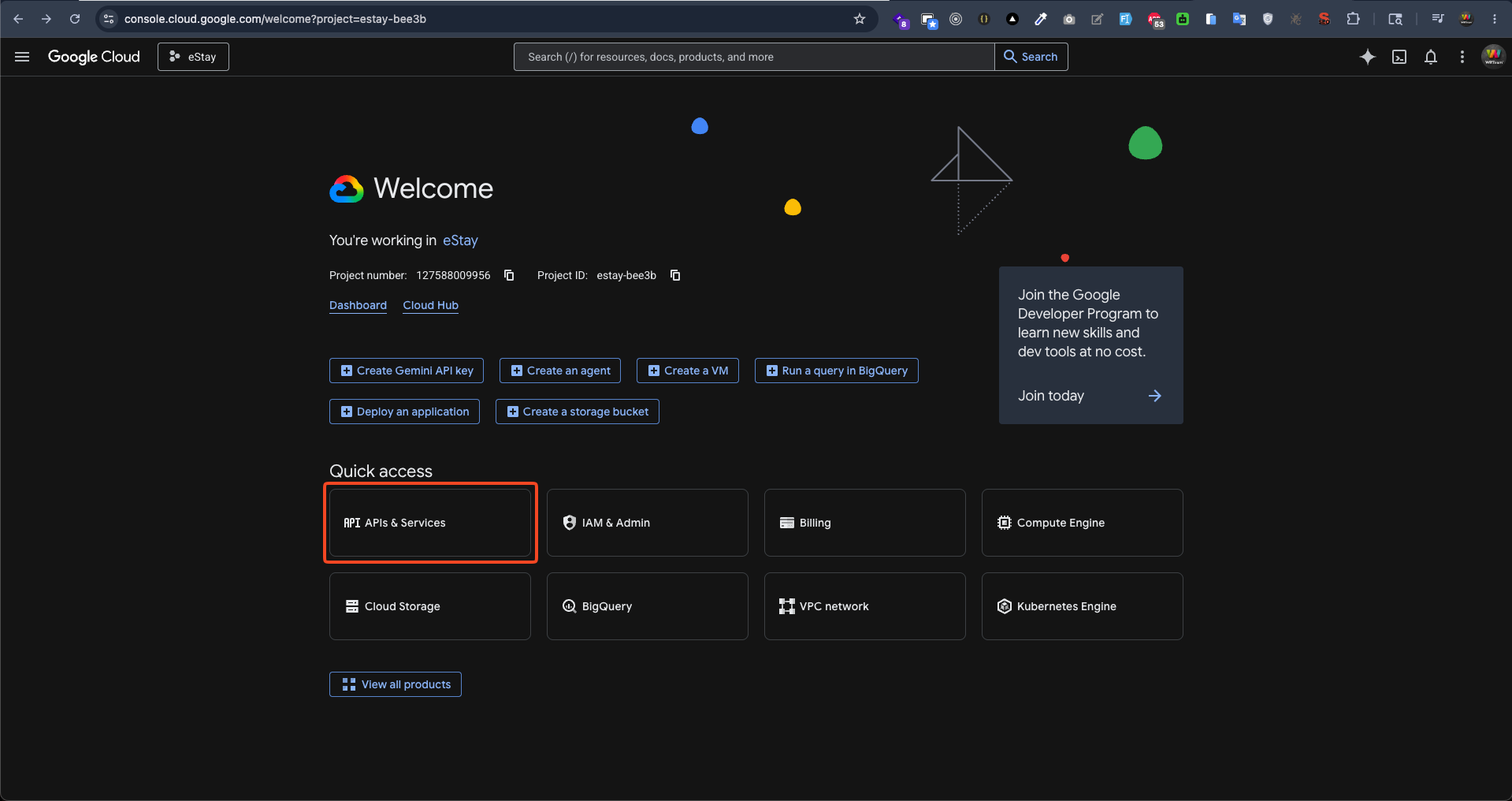
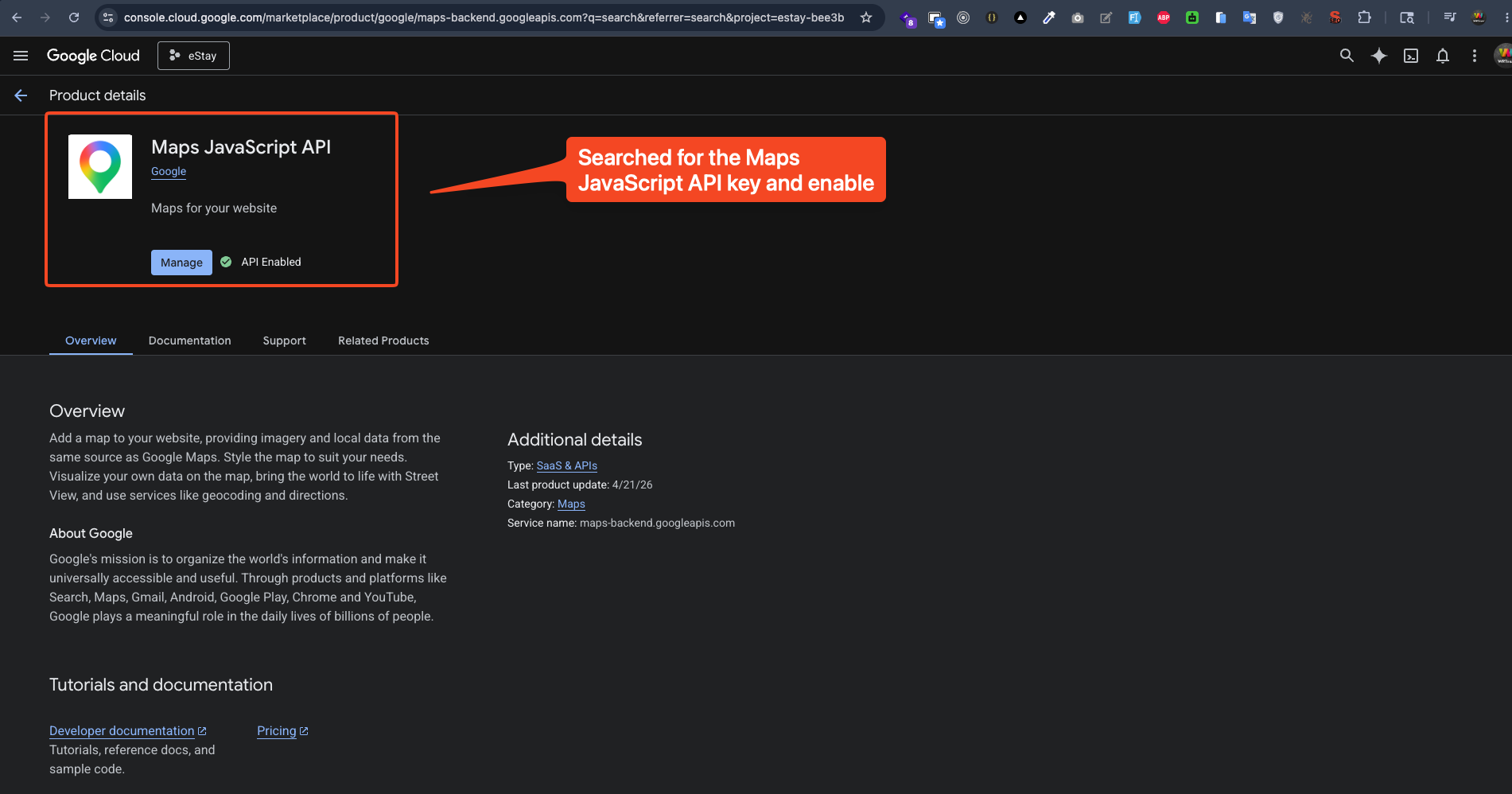
Step 2 — Enable Maps JavaScript API
- Go to APIs & Services → Library
- Search Maps JavaScript API
- Click it → press Enable
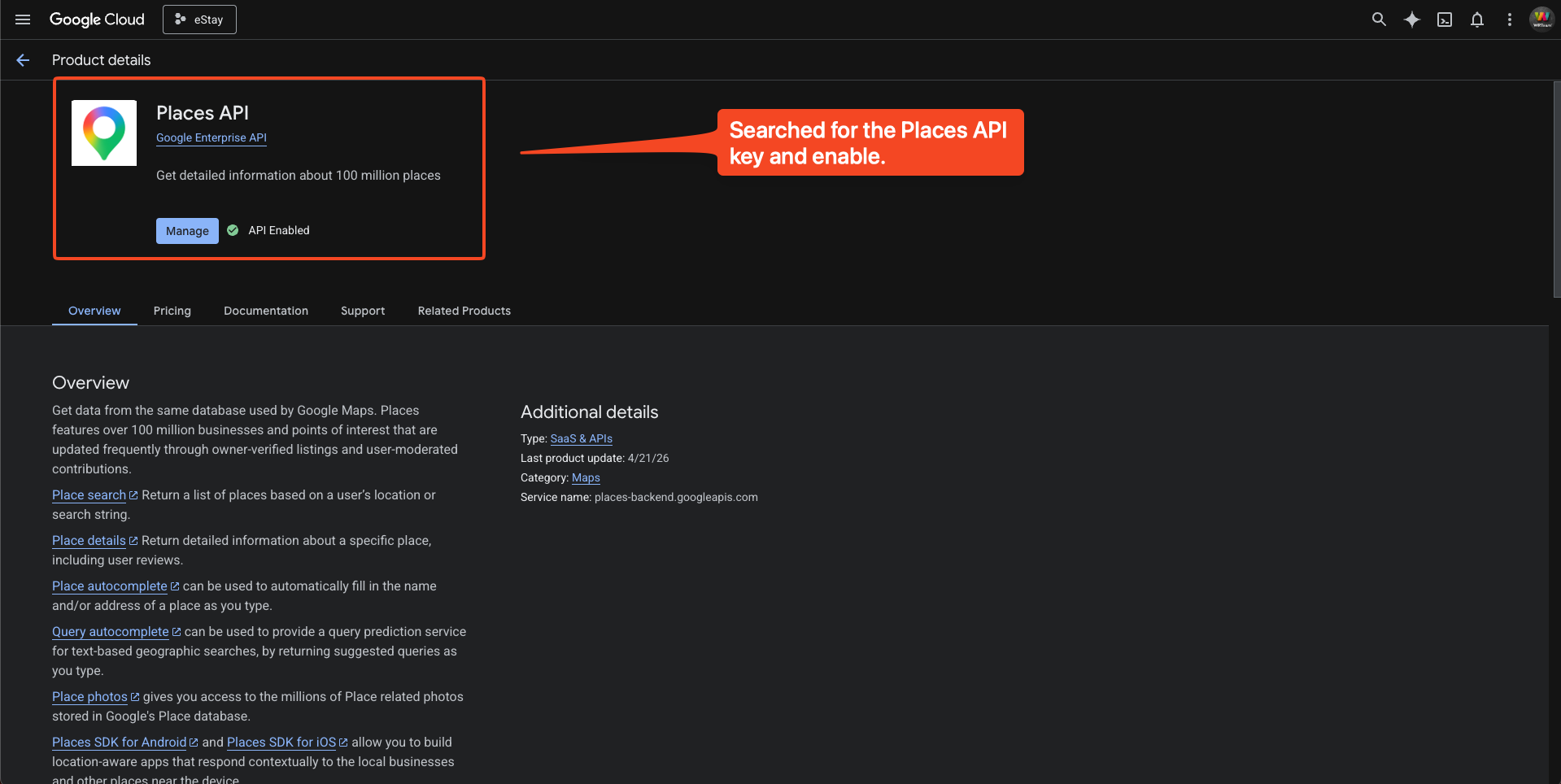
Step 3 — Enable Places API
- Stay in APIs & Services → Library
- Search Places API
- Click it → press Enable
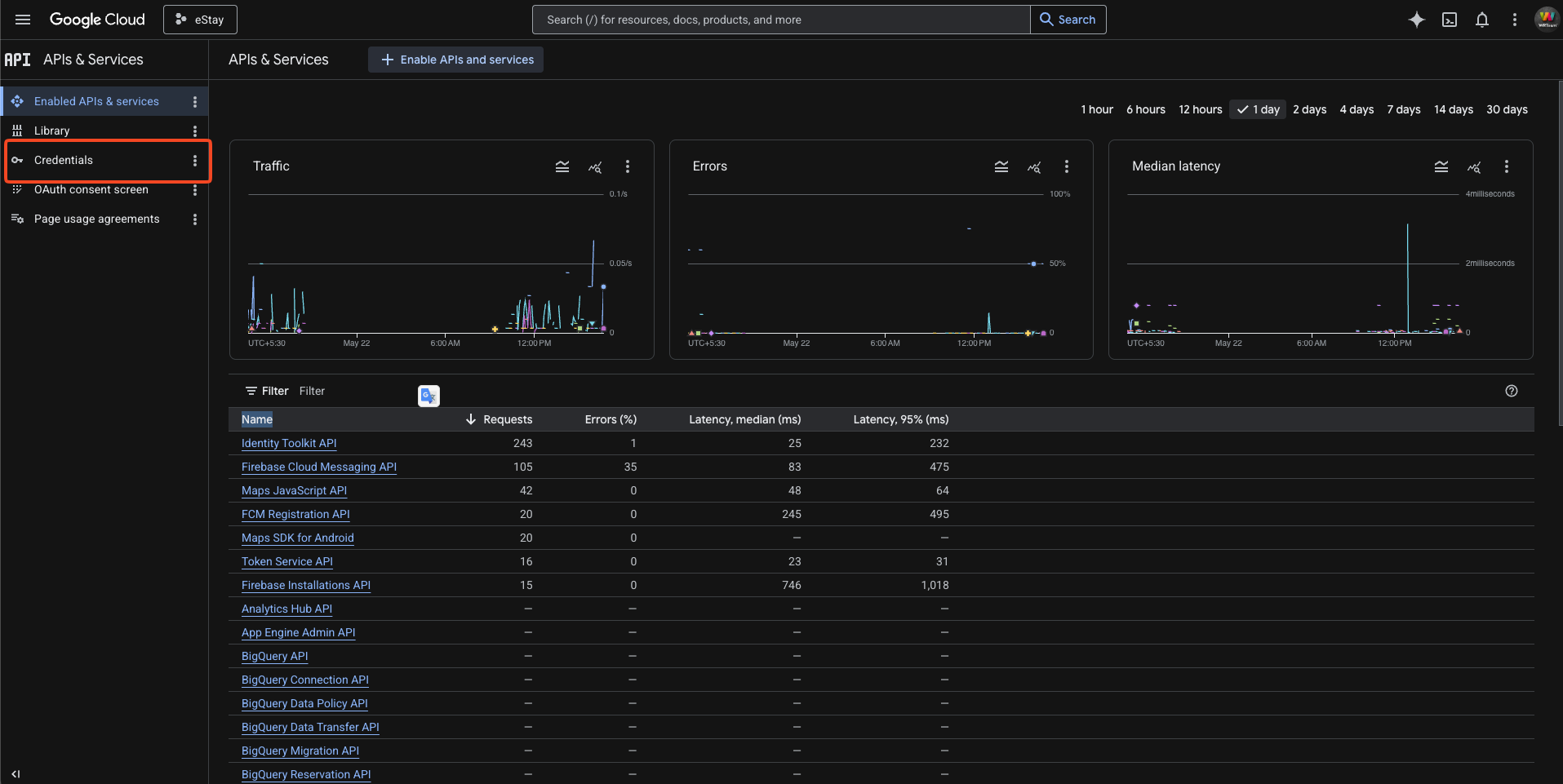
Step 4 — Open Credentials Page
Go to APIs & Services → Credentials.
Step 5 — Create Map API Key
- Click + Create Credentials → API Key
- Key is generated
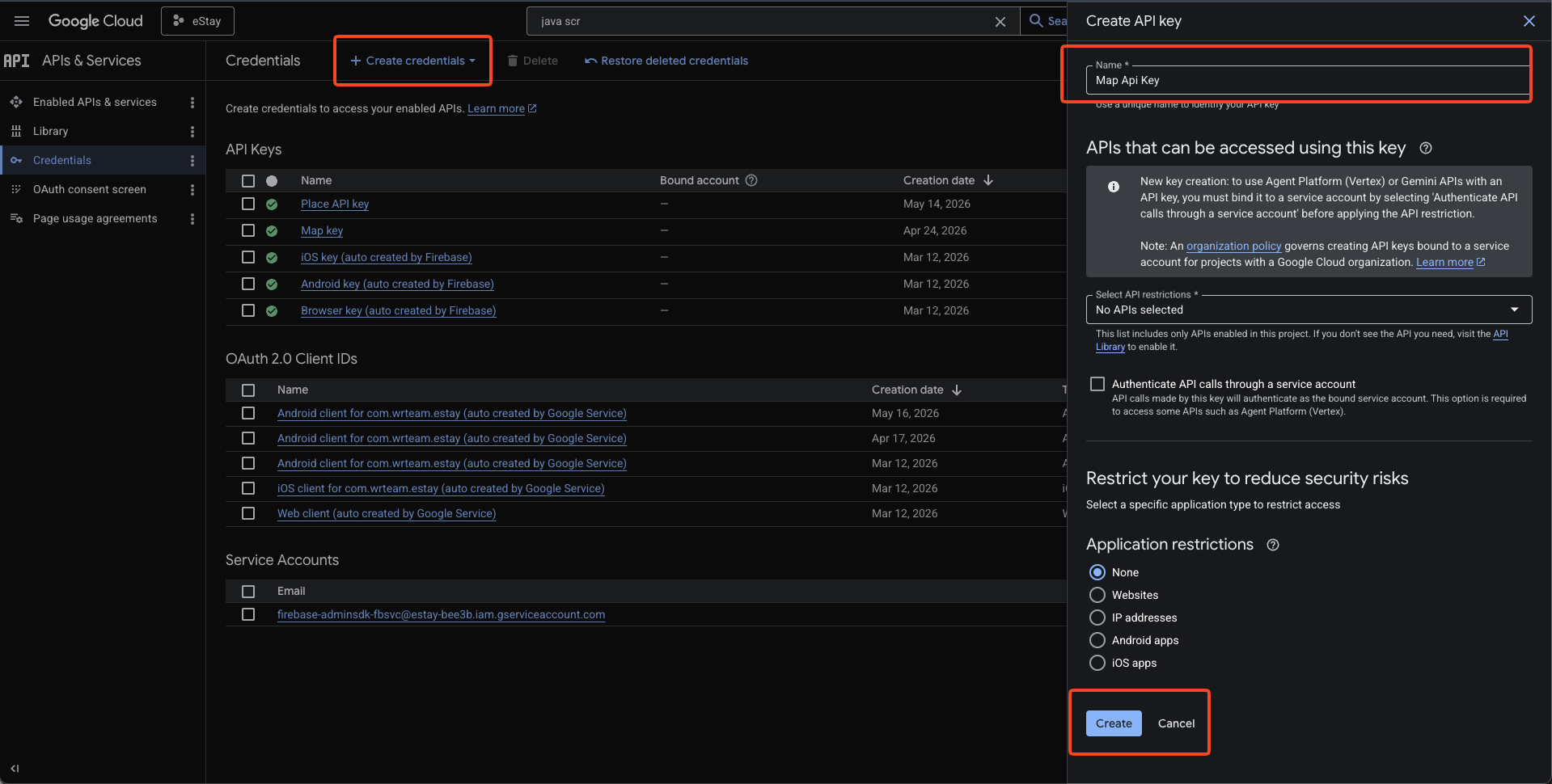
- Copy the key
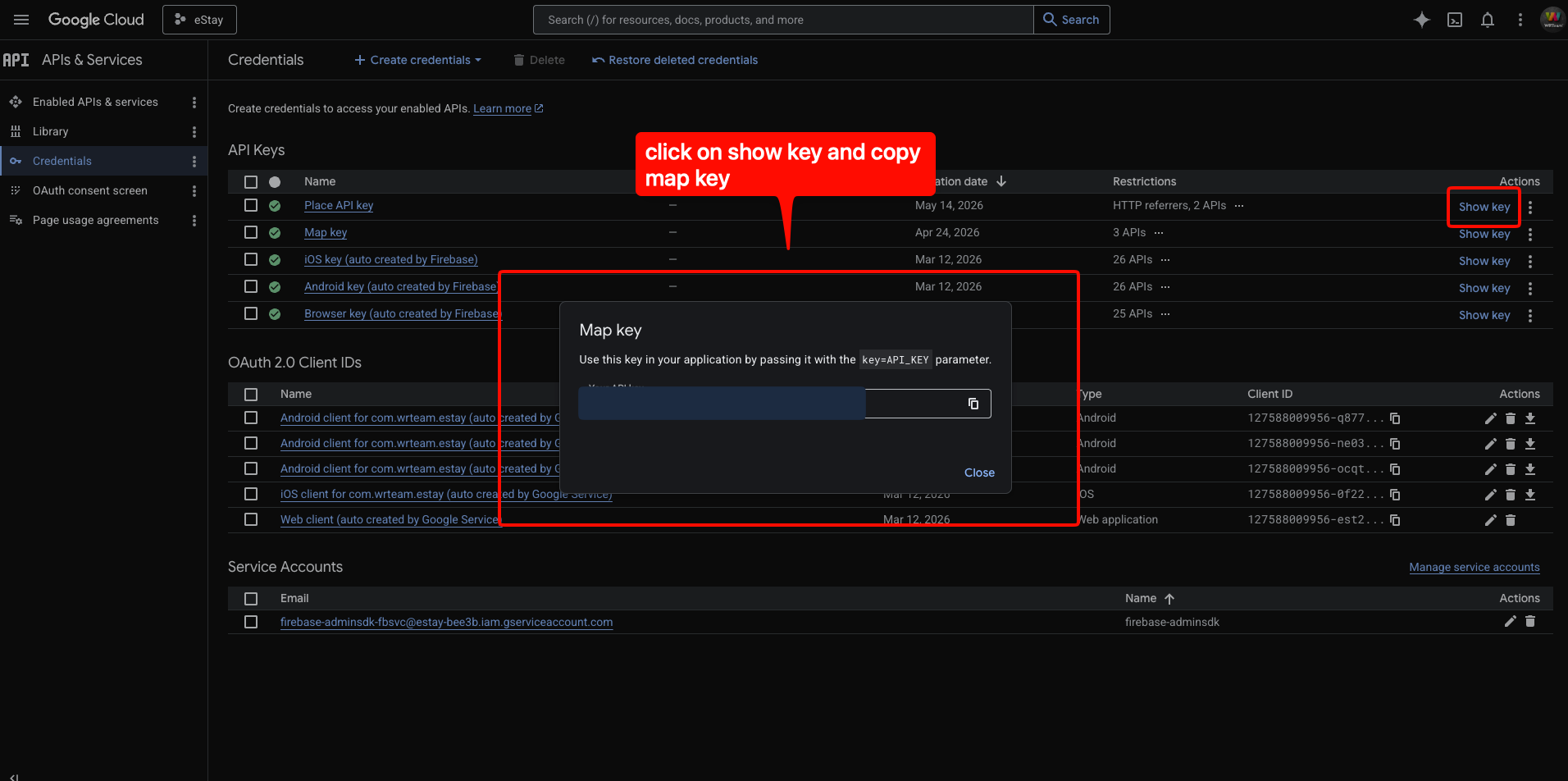
Step 6 — Create Place API Key
- Click + Create Credentials → API Key again
- Key is generated
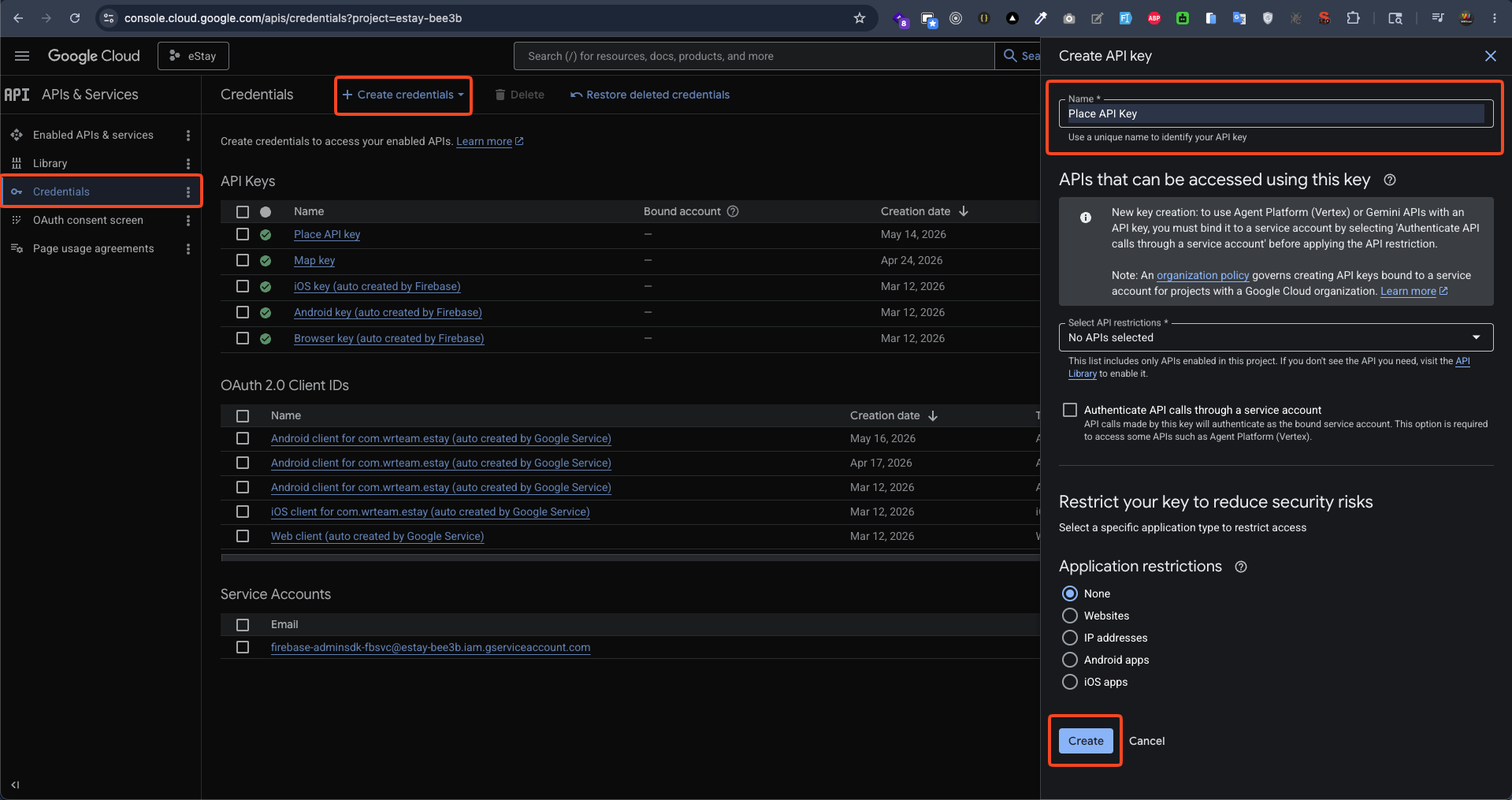
- Copy the key
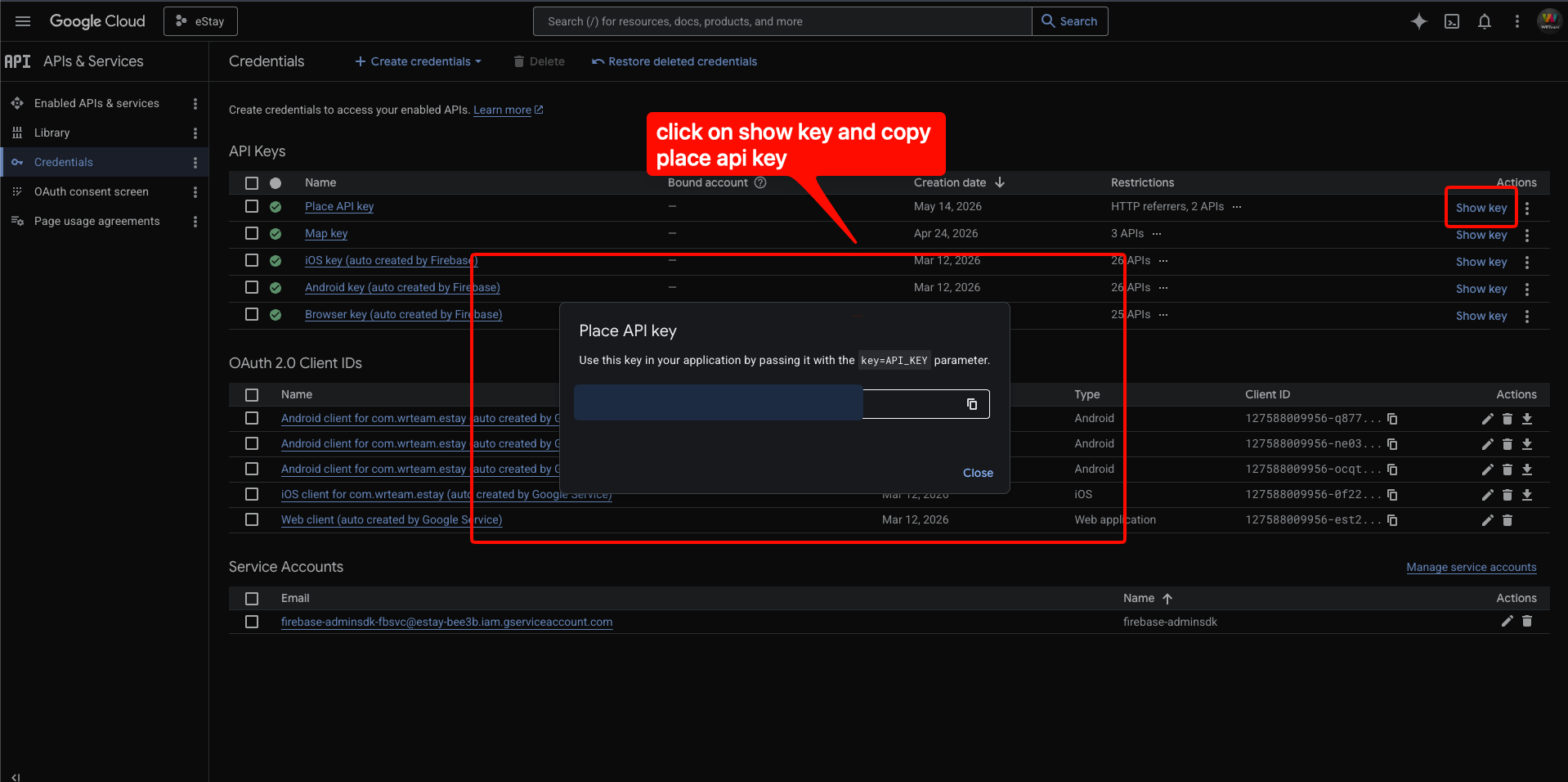
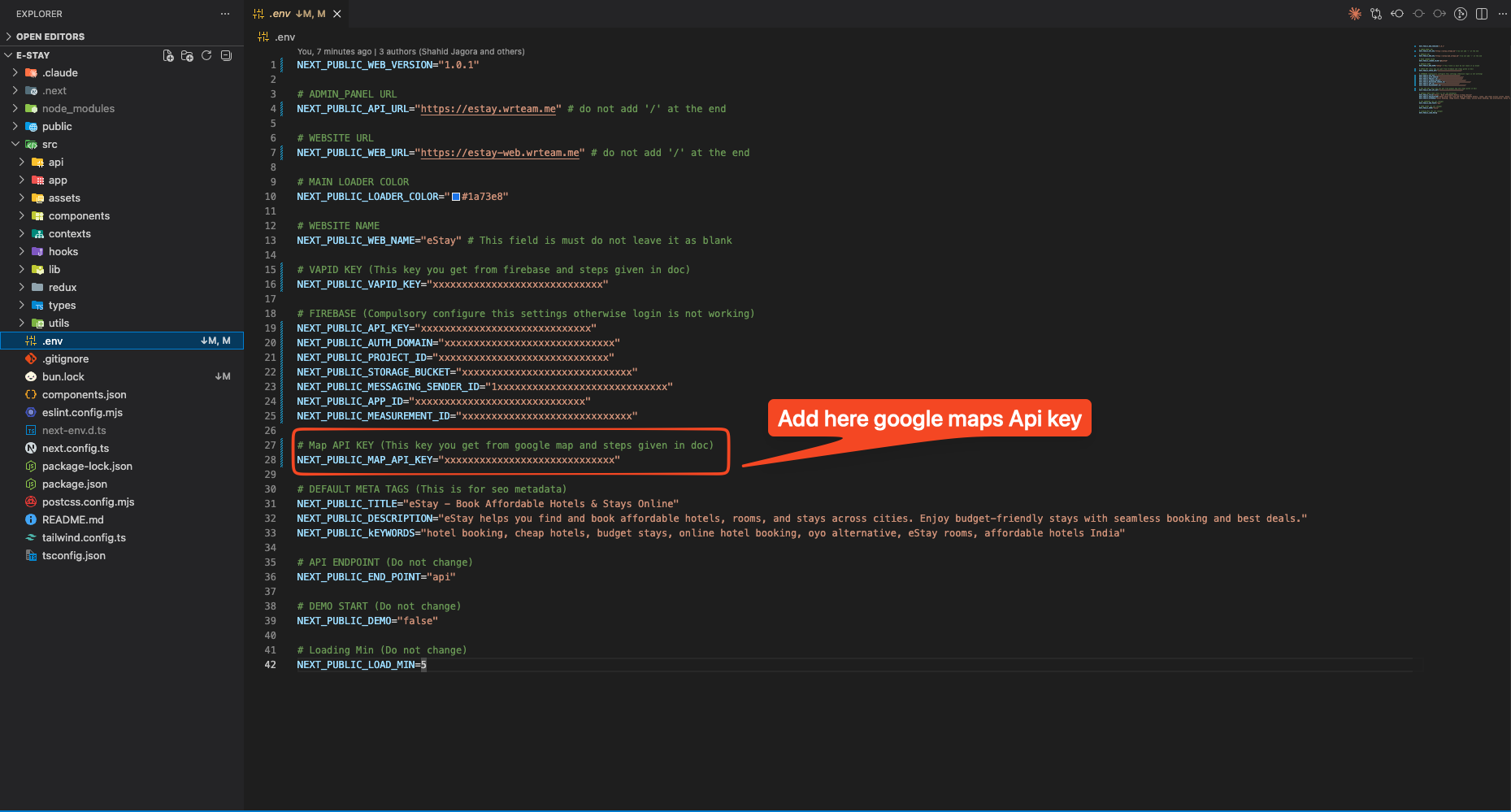
Step 7 — Add Map Key to .env
Open .env in the project root and paste the Maps JavaScript API key:
NEXT_PUBLIC_MAP_API_KEY=your-maps-javascript-api-key
Step 8 — Add Place Key to Admin Panel
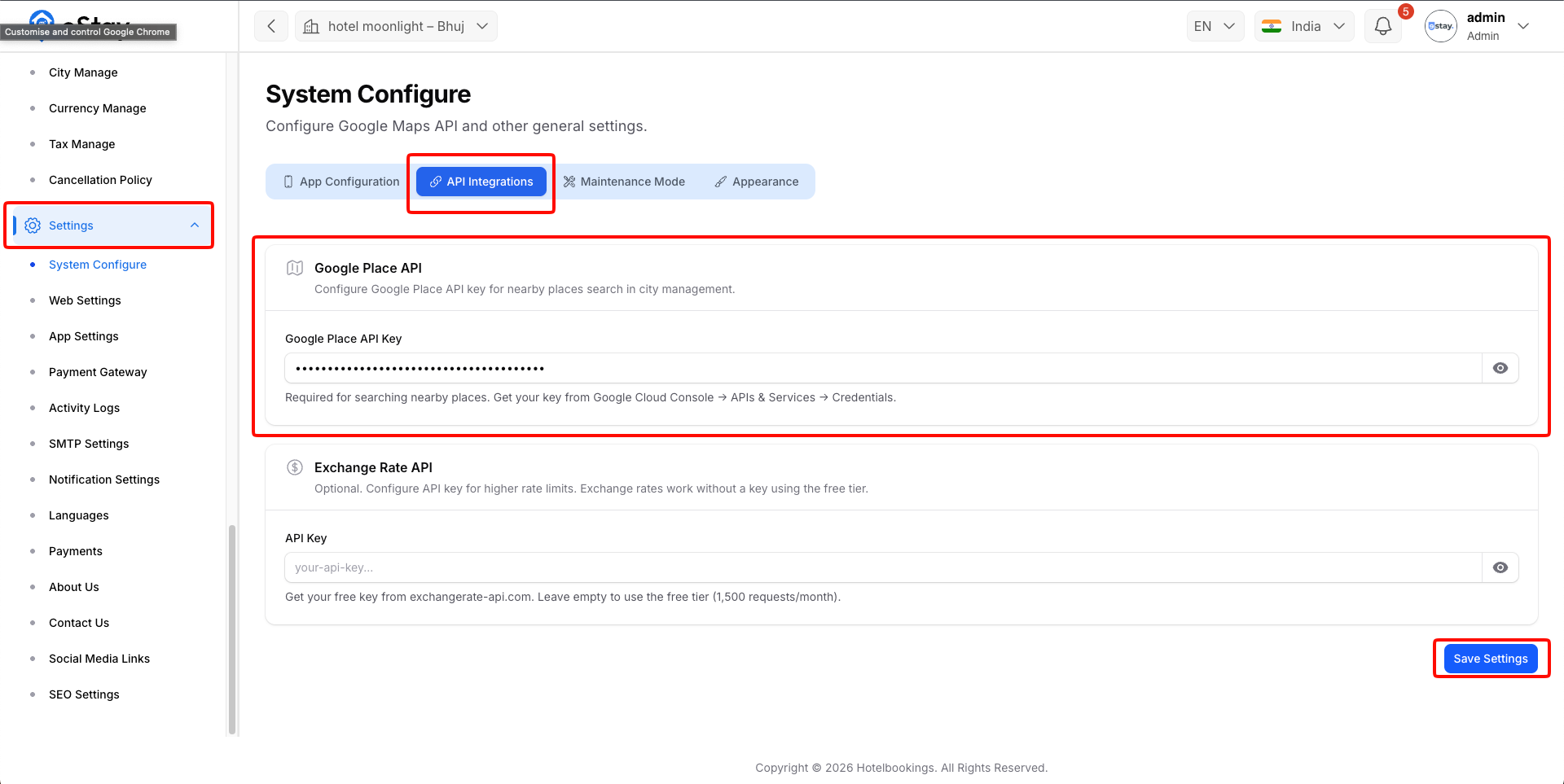
Place API key goes into the admin panel, not .env.
- Open your admin panel
- Go to Settings → System Configure → API Integrations
- Find Google Place API
- Paste your Place API key into Google Place API Key field
- Click Save Settings
warning
Restrict both keys to your domain in Google Cloud Console → Credentials → Edit Key → Website restrictions. Unrestricted keys are a billing risk.