How to Set Logo, Theme Color & Loader Color
Control your brand's visual identity — logo, favicon, placeholder images, primary color, and loading spinner color — all from the admin panel.
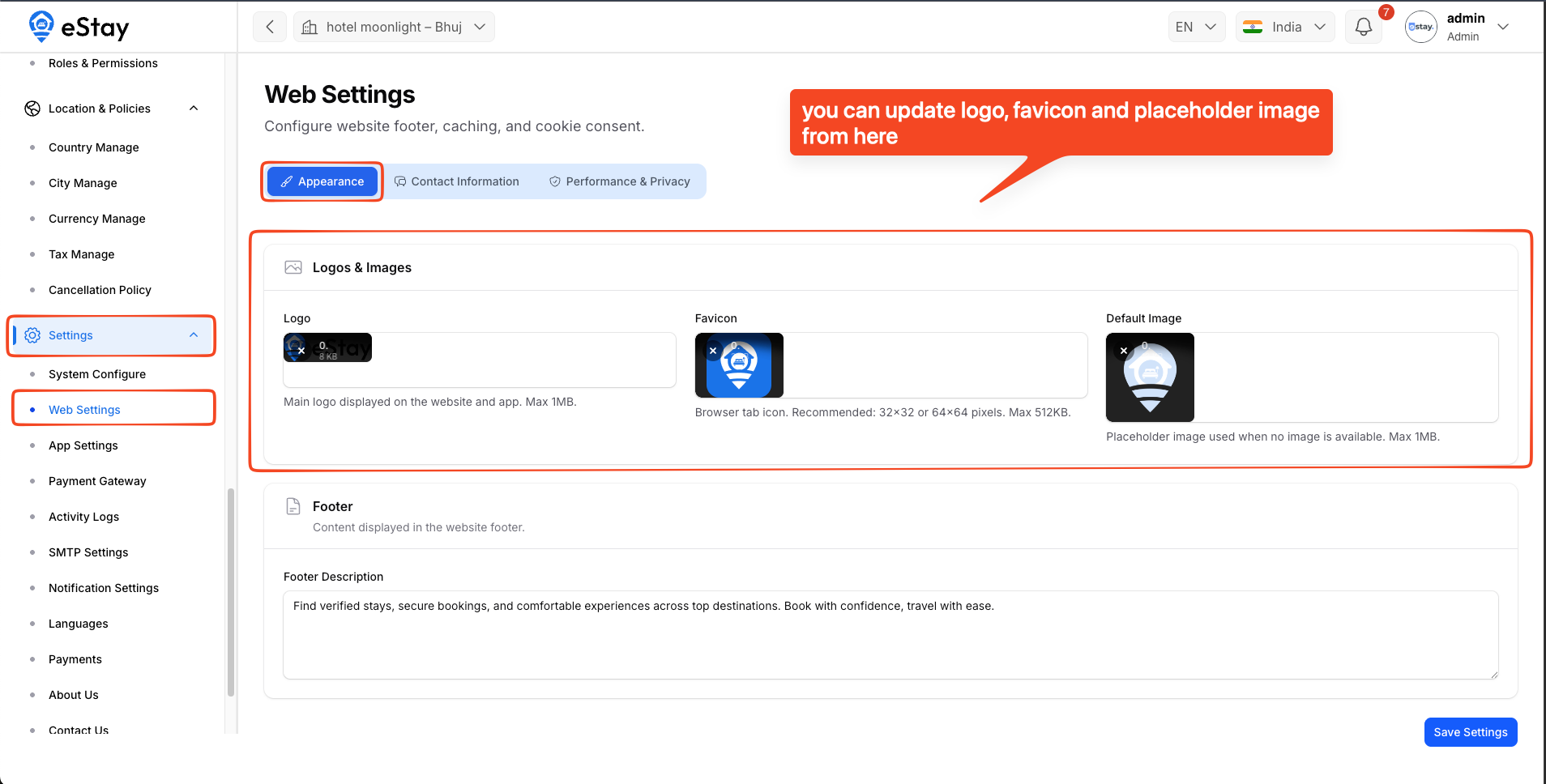
Logo, Favicon & Placeholder Images
Logo and images are managed from the admin panel — no file changes needed.
Step 1 — Open Admin Panel
Go to:
Settings → Web Settings → Appearance
Step 2 — Update Logos & Images
Under Logos & Images, you can update:
- Logo — main site logo
- Favicon — browser tab icon
- Placeholder — default image shown when no property image is available
Upload your files and click Save.
Theme Color
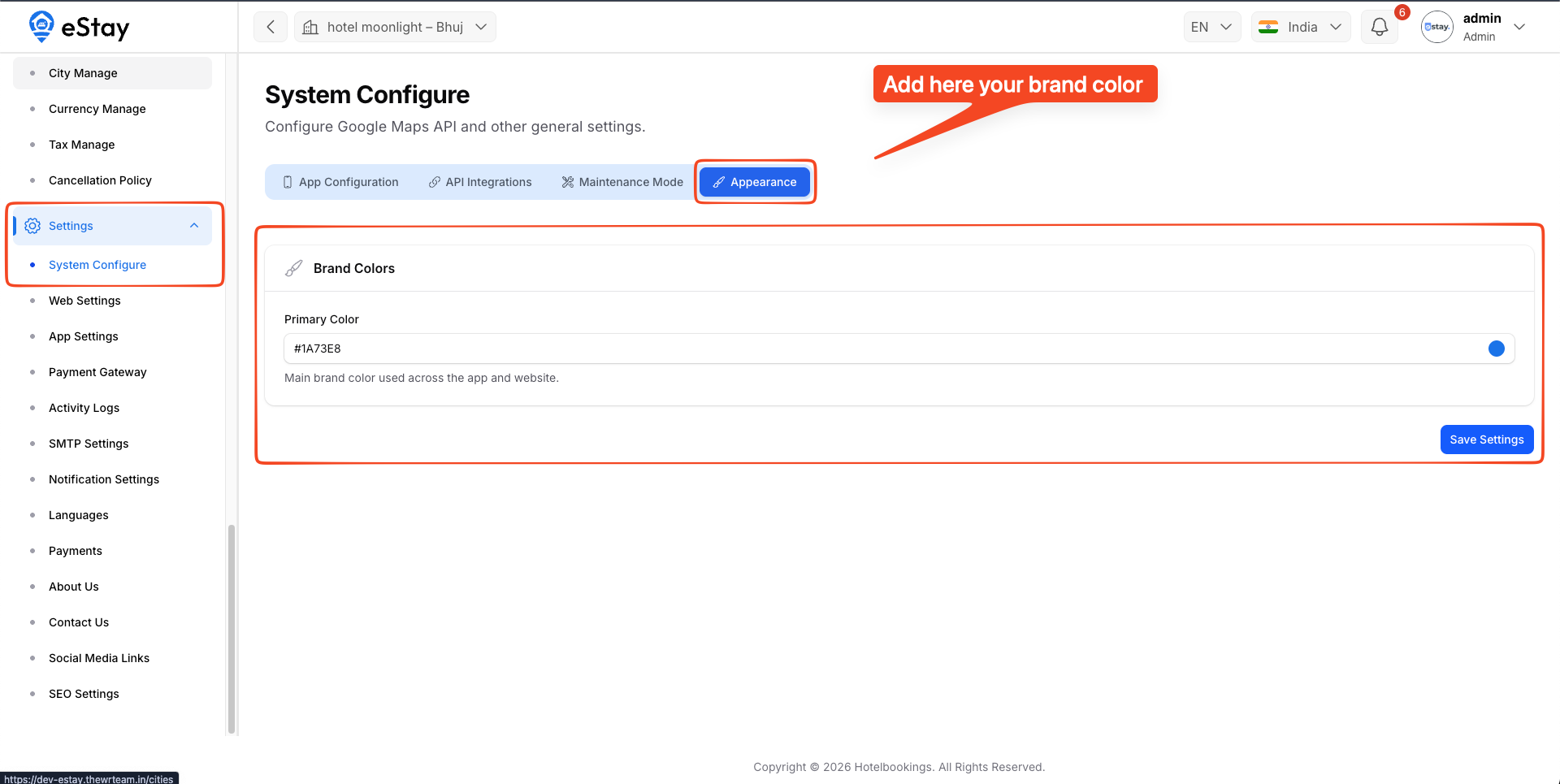
Theme color is controlled from the admin panel — no code changes needed.
Step 1 — Open Admin Panel
Log in to your admin panel and go to:
Settings → System Configure → Appearance
Step 2 — Set Primary Color
Under Brand Colors, find Primary Color and enter your hex color code.
Step 3 — Save and Reload
Click Save. Then reload your web app — the new primary color will apply immediately.
Loader Color
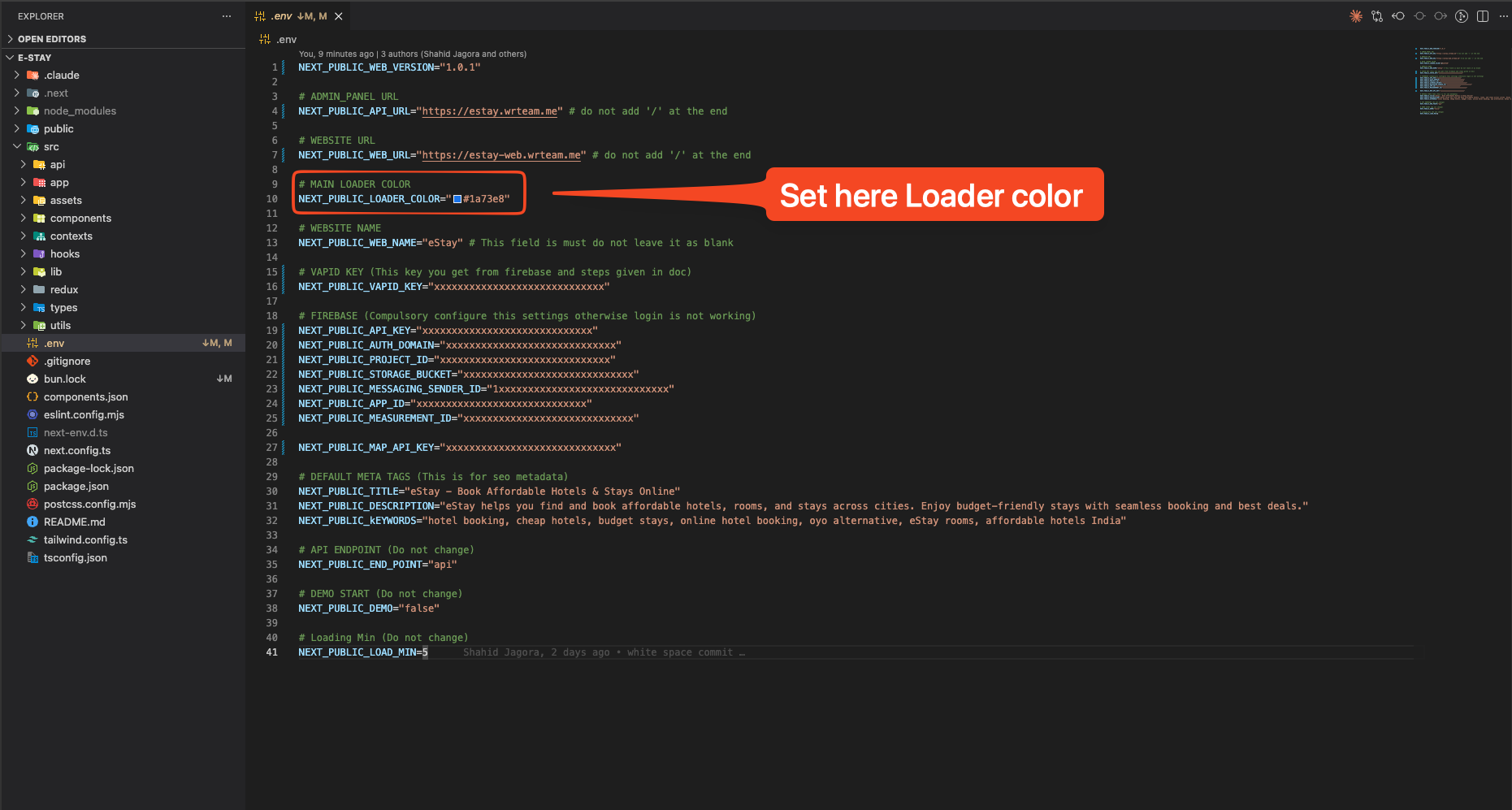
Loader color is set in the .env file in the project root.
Step 1 — Open .env
.env
Step 2 — Set Loader Color
NEXT_PUBLIC_LOADER_COLOR=#1a73e8
If loader color does not update, hard reload the browser with Ctrl+Shift+R (or Cmd+Shift+R on Mac).