Authentication Settings
Use this page to control how users log in to both the app and the web, and to enforce password strength rules.
For different login types (for example phone login vs email login), the system shall create and manage separate user records.
What you can configure on this page
- Login behaviour – decide which login methods are available, for example:
- Phone + OTP – OTP is delivered via your configured SMS gateway or Firebase.
- Phone + password – users log in directly with phone and password (OTP not required every time).
- Email + OTP – OTP is delivered using your SMTP (Email) settings.
- Email + password – users log in directly with email and password.
- Password rules – set how strong user passwords must be (length, numbers, symbols, etc.).
Once you save, the new rules apply immediately to all new logins.
Step 1: Open Authentication Settings
-
Log in to the admin panel with your admin account.
-
Go to
Settings -> Authentication Settings. -
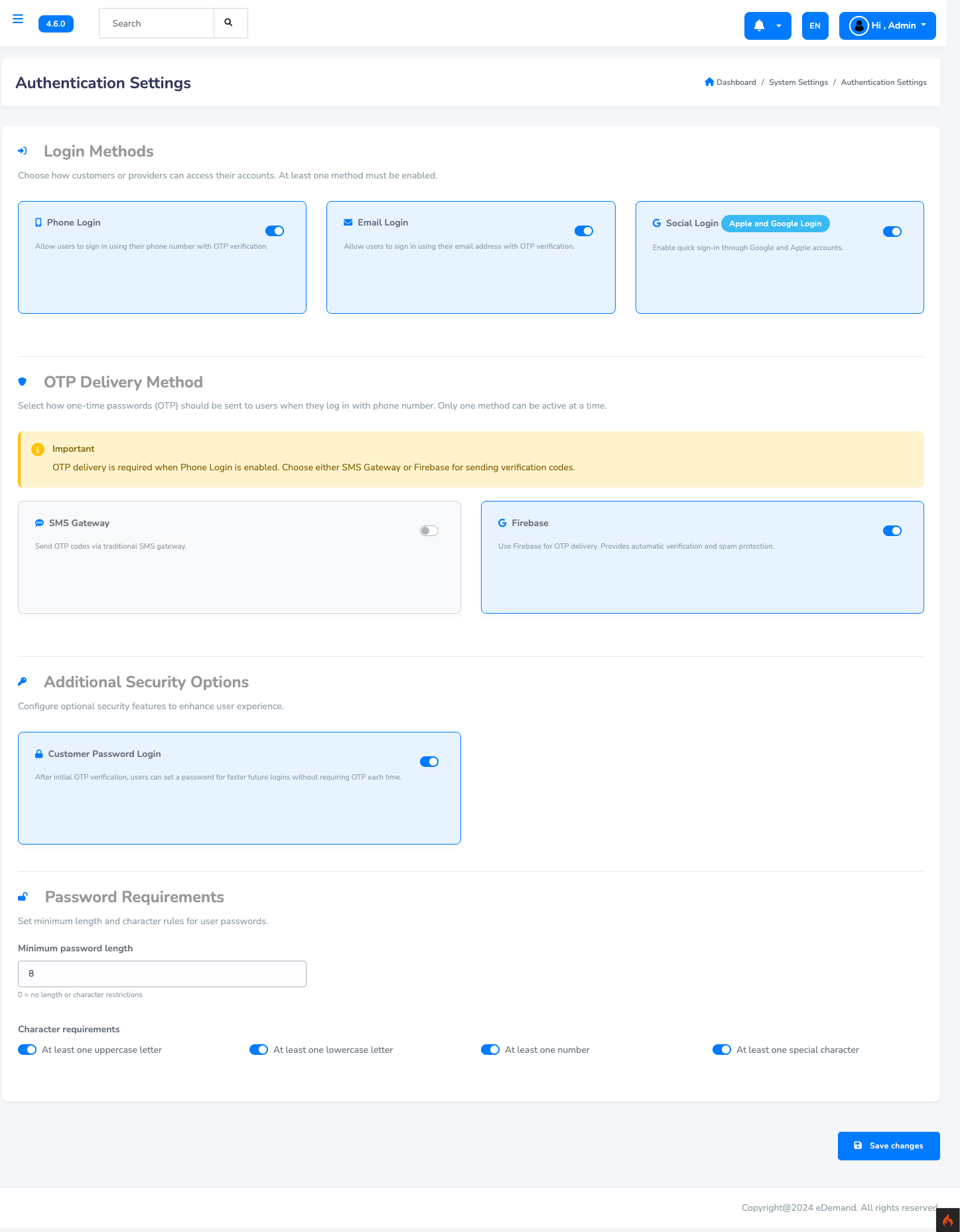
You will see a screen similar to the one below:
Step 2: Configure Login Behaviour
From the Authentication Settings page you can control how users log in to the system.
- You can allow users to sign in using phone and password to bypass OTP verification on future logins.
- This makes repeat logins faster for trusted users while still keeping security in place.
When OTP is still required
Even if you allow login using only phone and password, users must still verify themselves with OTP when:
- Registering or setting a password for the first time.
- Changing their existing password.
After you configure these options, click Save.
The new login rules will immediately apply to both the app and the web.
Step 3: Configure Password Rules
On the same Authentication Settings page you can also control password validation rules. These rules let you enforce stronger or weaker passwords, depending on your security needs.
Available options
Typical options you can manage here:
- Minimum password length – for example 6, 8, or 10 characters.
- Require numbers – force at least one digit in the password.
- Require uppercase letters – force at least one capital letter.
- Require lowercase letters – force at least one small letter.
- Require special characters – for example
@ # $ % &etc.
You can change these values at any time. After you save the settings, new passwords (for registration, password reset, and change password) must follow the rules you configured.
Example setups
| Scenario | Suggested rules |
|---|---|
| Demo / low-security setup | Length 6+, at least numbers |
| Typical production system | Length 8+, require numbers + lowercase + uppercase |
| High-security environment | Length 10+, require numbers + lowercase + uppercase + special characters |
Pick the level that matches your security requirements and click Save to apply.