Firebase Settings
These settings will be used by your Flutter APP / Next JS web.
Go to Settings → Firebase. Enter your Project ID and upload the Firebase Service Account JSON File. When a file has already been uploaded, a green File Exists badge is shown. Click Submit to save.
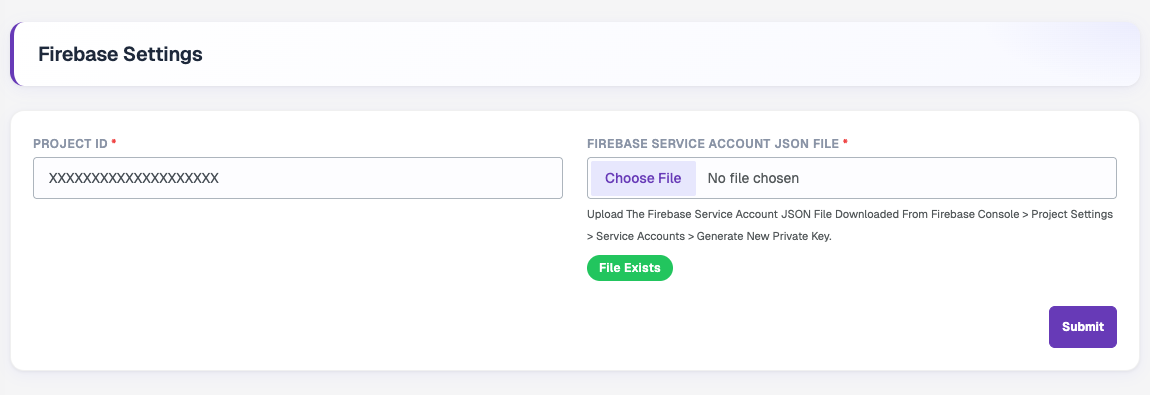
Firebase Project Id
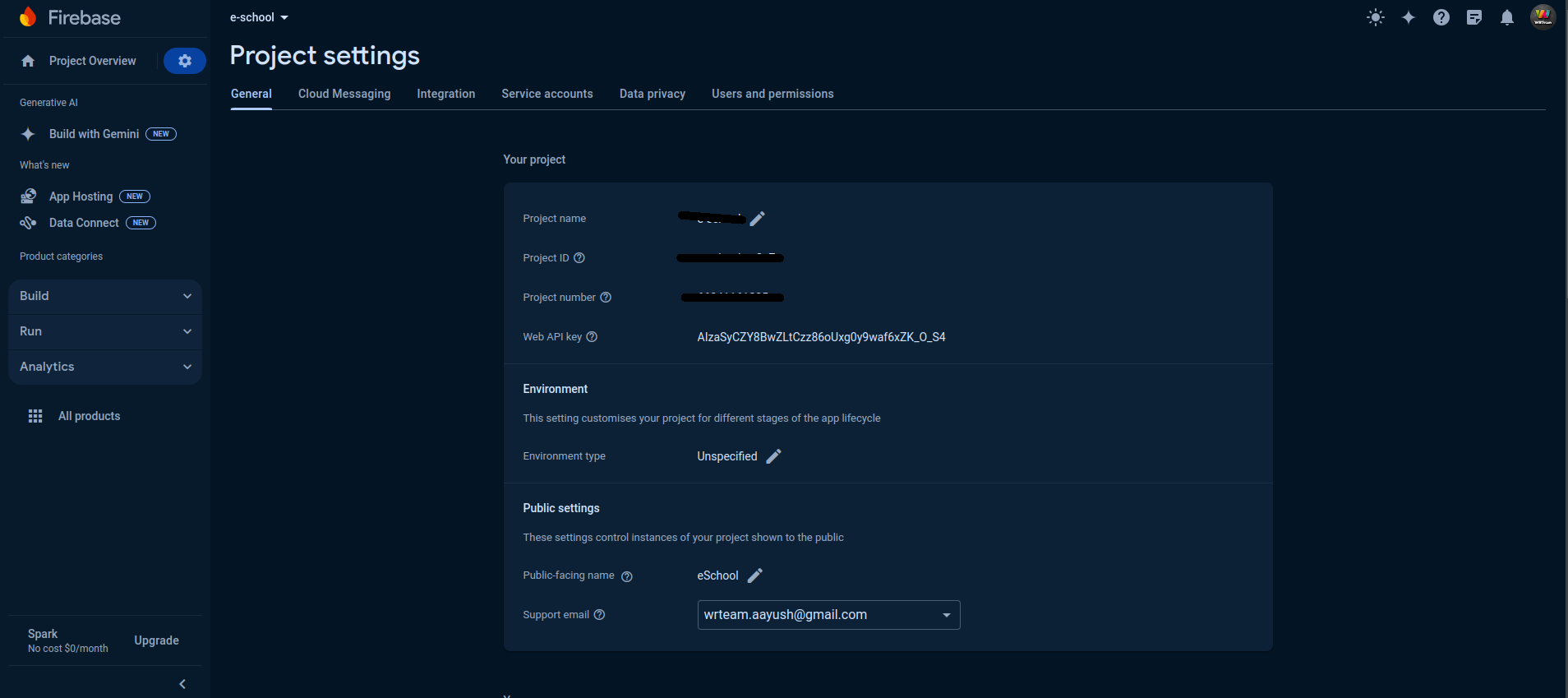
- In the Firebase console, go to Project Settings
- Go to > General where Project Id is given add that to Admin Panel in Settings > Firebase Setting.
Service Json File
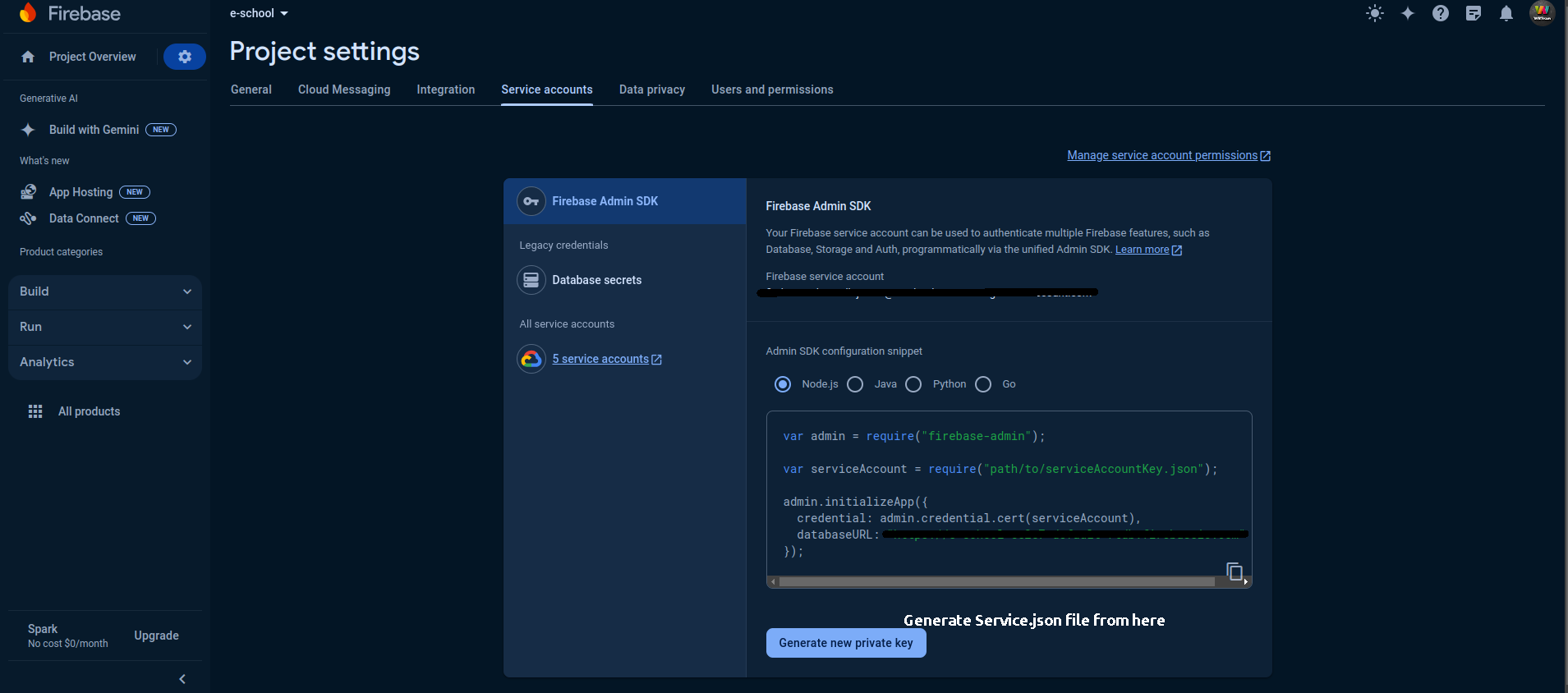
- In the Firebase console, open Settings > Service Accounts.
- Click Generate New Private Key, then confirm by clicking Generate Key.
- Securely store the JSON file containing the key and upload in Admin Panel in Settings > Firebase Setting.