Store Credit Payment Settings
Go to Settings → Store Credit Payment. These settings connect your iOS app's In-App Purchases (used for store credit) to Apple, so purchases can be verified on your server.
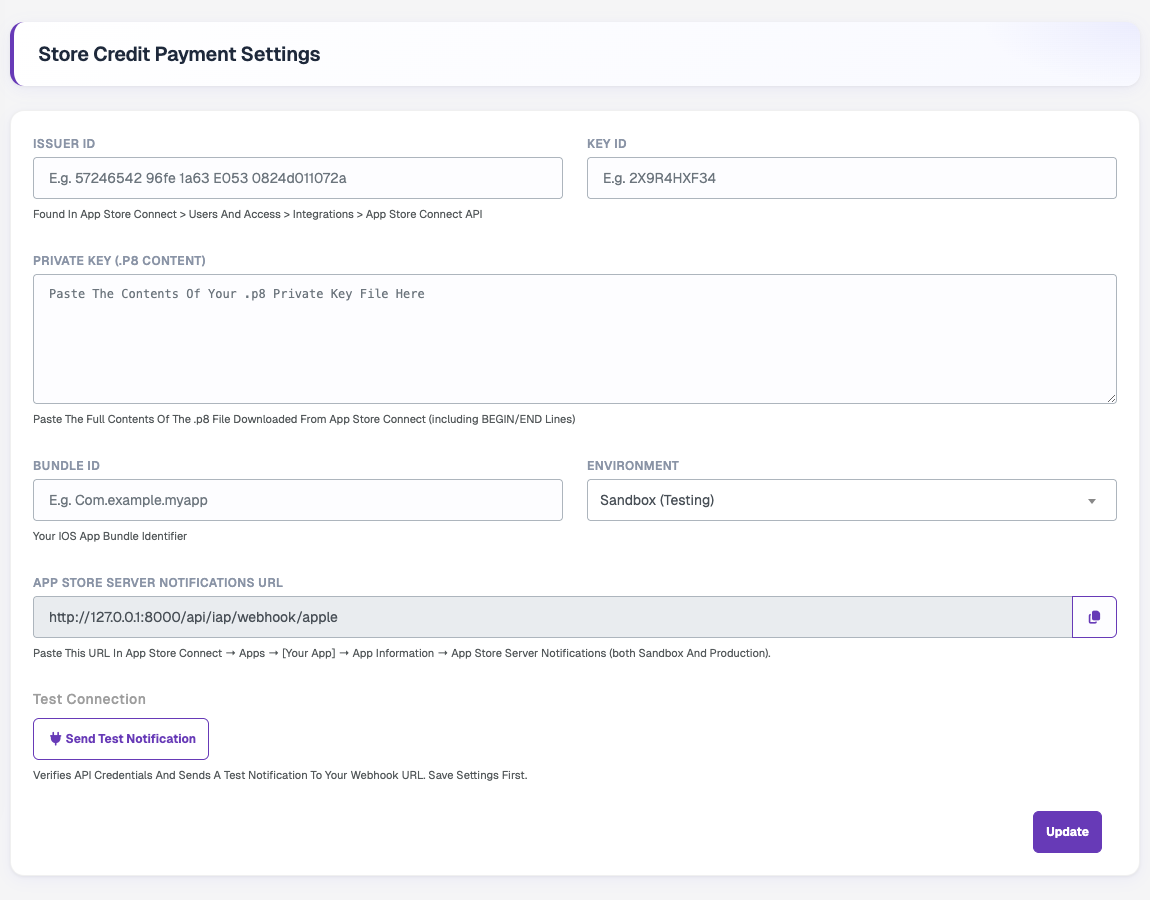
| Field | Description |
|---|---|
| Issuer ID | Found in App Store Connect → Users and Access → Integrations → App Store Connect API. |
| Key ID | ID of the In-App Purchase key you generated. |
| Private Key (.p8 content) | Full contents of the downloaded .p8 file, including the BEGIN/END lines. |
| Bundle ID | Your iOS app's bundle identifier. |
| Environment | Sandbox (Testing) while developing, Production once the app is live. |
| App Store Server Notifications URL | Webhook URL to paste in App Store Connect (read-only, use the copy button). |
Use Send Test Notification to verify the credentials and send a test notification to your webhook. Save the settings first. Click Update to save.
How to get the Apple credentials
1. Issuer ID, Key ID, and Private Key (.p8)
Where: App Store Connect → Users and Access → Integrations → App Store Connect API
Link: App Store Connect API
Steps:
- Log in to App Store Connect with an Admin or Account Holder role.
- Go to Users and Access → Integrations → App Store Connect API.
- Click the Keys tab (In-App Purchase keys, not Team keys).
- Click "+" to generate a new key.
- Give it a name (e.g., "IAP Server Key") and select the In-App Purchase key type.
- Click Generate.
- Copy the Key ID shown in the table.
- Download the .p8 file — you can only download it once, so save it securely.
- The Issuer ID is shown at the top of the page.
Open the .p8 file in a text editor and paste the full contents (including -----BEGIN PRIVATE KEY----- and -----END PRIVATE KEY----- lines) into the Private Key field.
2. Bundle ID
Where: App Store Connect → Apps → [Your App] → General → App Information
Links:
It's your iOS app's bundle identifier, e.g., com.demo.customer.
3. Environment
- Sandbox (Testing): Use this during development/testing.
- Production: Switch to this when your app is live on the App Store.
4. App Store Server Notifications URL
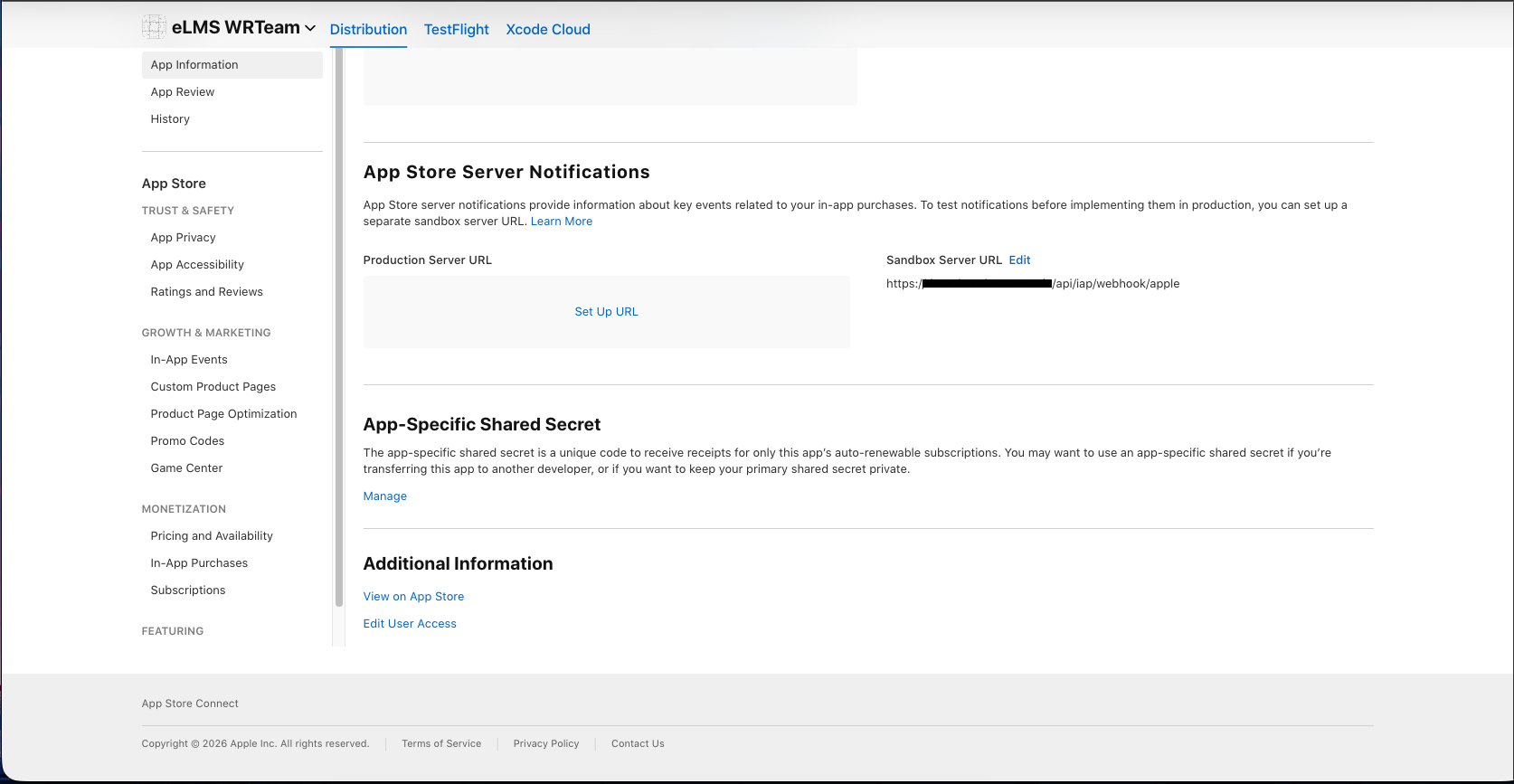
Where: App Store Connect → Apps → [Your App] → App Information → App Store Server Notifications
Link: App Store Connect → select your app → App Information (left sidebar) → scroll to App Store Server Notifications.
Steps:
- Set the Production Server URL and Sandbox Server URL to the webhook URL shown in your settings panel (replace
127.0.0.1:8000with your actual production domain). - Select Version 2 for notifications (recommended).
Important Notes:
- You need an Apple Developer Program membership ($99/year): Apple Developer Programs
- The API key must be of type In-App Purchase (not App Store Connect team keys).
- For production, your webhook URL must be HTTPS on a public domain —
127.0.0.1won't work.