Payment Gateway Settings
Go to Settings → Payment Gateway. Each payment option has its own tab: Currency, Razorpay, Stripe, Flutterwave and PayPal. Each tab has its own Submit button, and a gateway only appears to users when its Enable toggle is on.
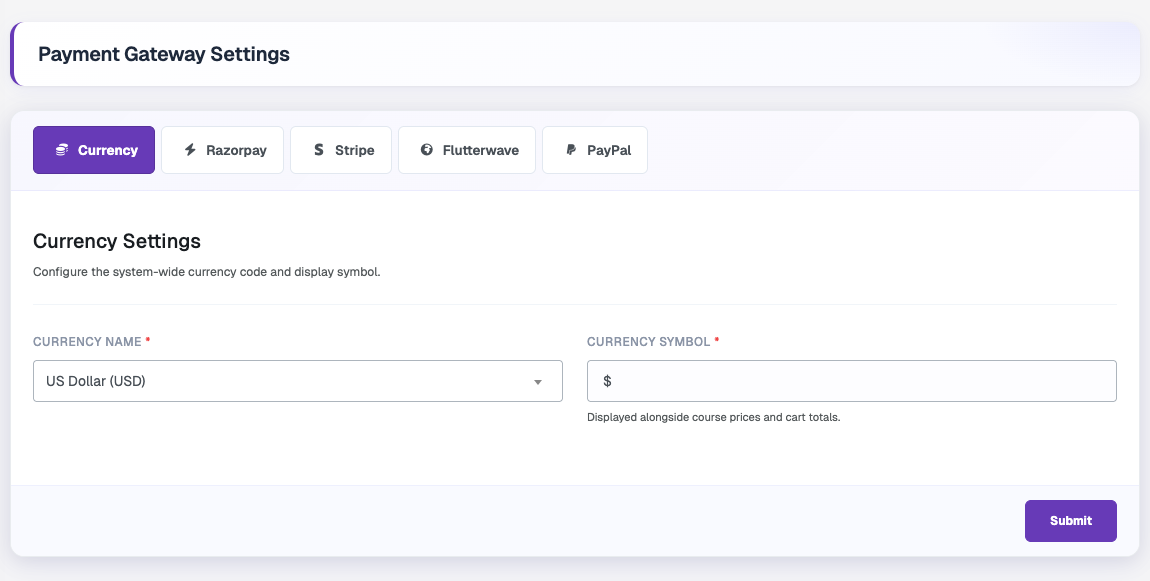
Currency
Set the system-wide currency code and display symbol used across the platform.
Stripe
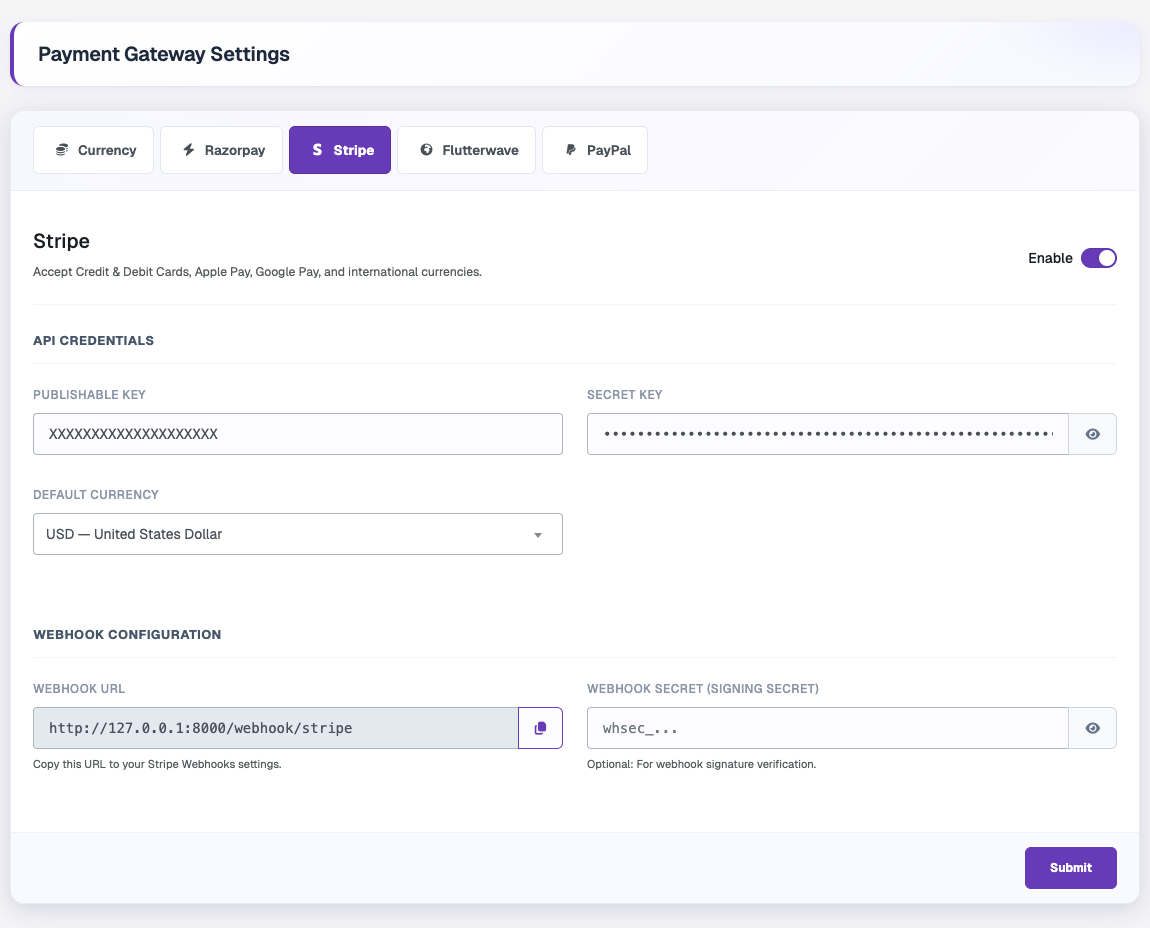
Enter the Publishable Key, Secret Key and Default Currency. Copy the Webhook URL into your Stripe Webhooks settings and paste the signing secret (whsec_...) into Webhook Secret. The webhook secret is optional but recommended for signature verification.
How to get the keys:
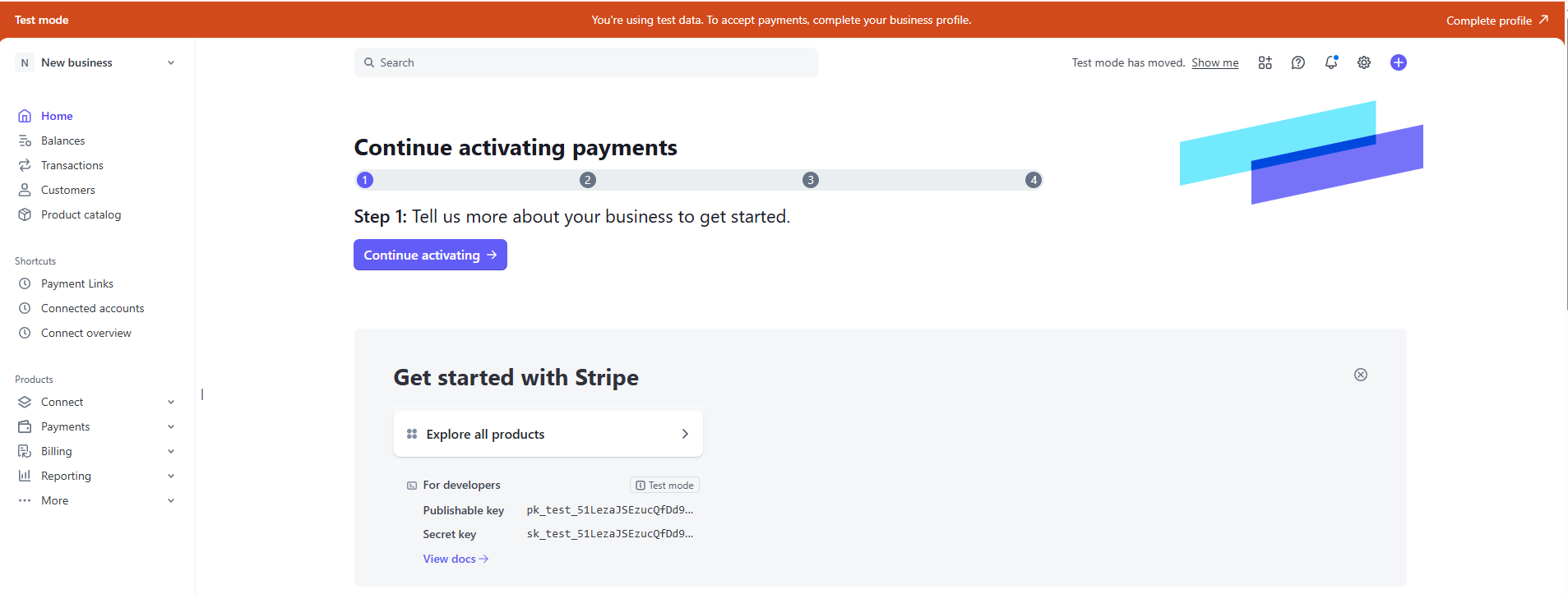
- Log in to the Stripe dashboard — https://dashboard.stripe.com/
- You will find your Publishable key and Secret key in the dashboard.
 3. Docs - https://docs.stripe.com/payments?payments=popular
Razorpay
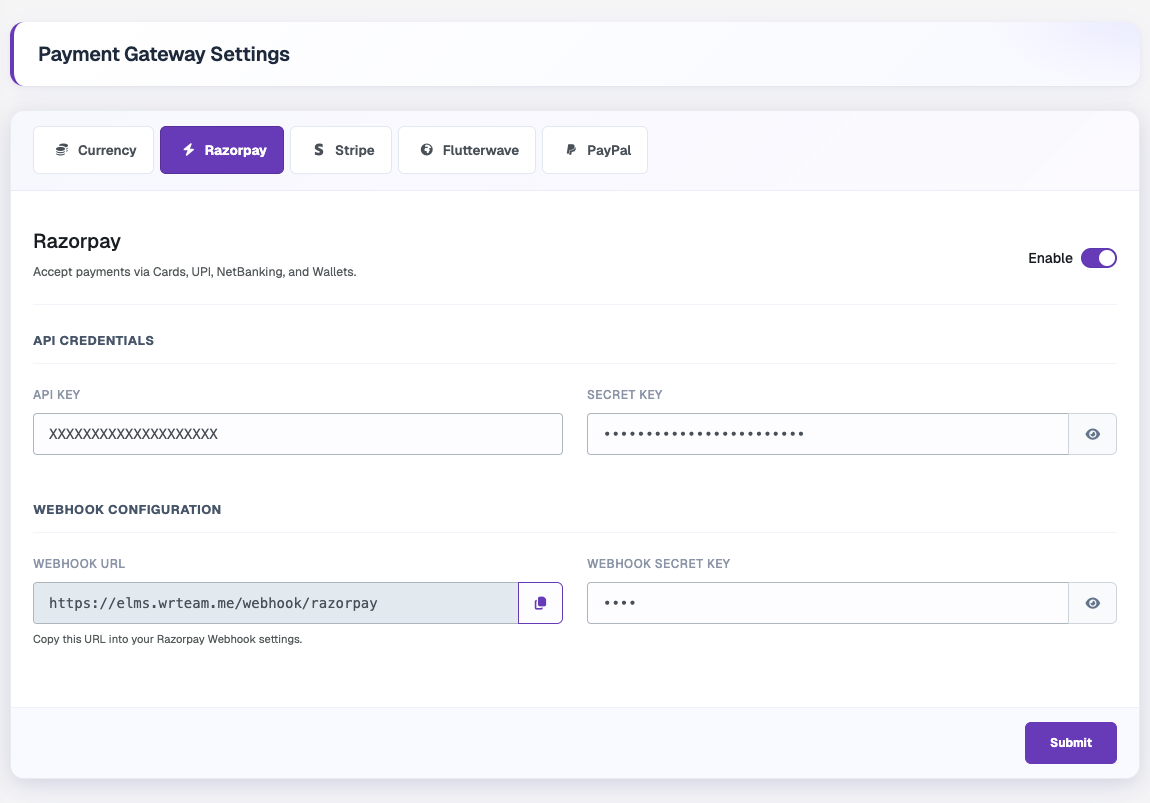
Enter the API Key and Secret Key. Copy the Webhook URL into your Razorpay webhook settings and add the same Webhook Secret Key on both sides.
How to get the keys:
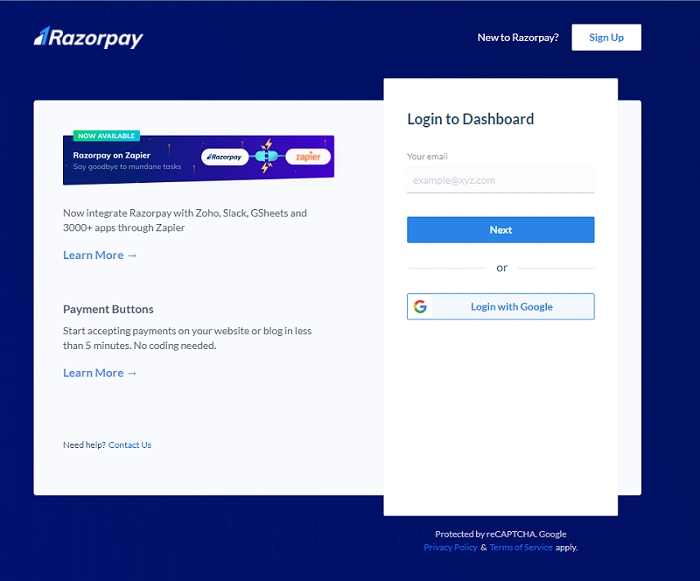
- Go to https://dashboard.razorpay.com/ and sign in with your Razorpay account
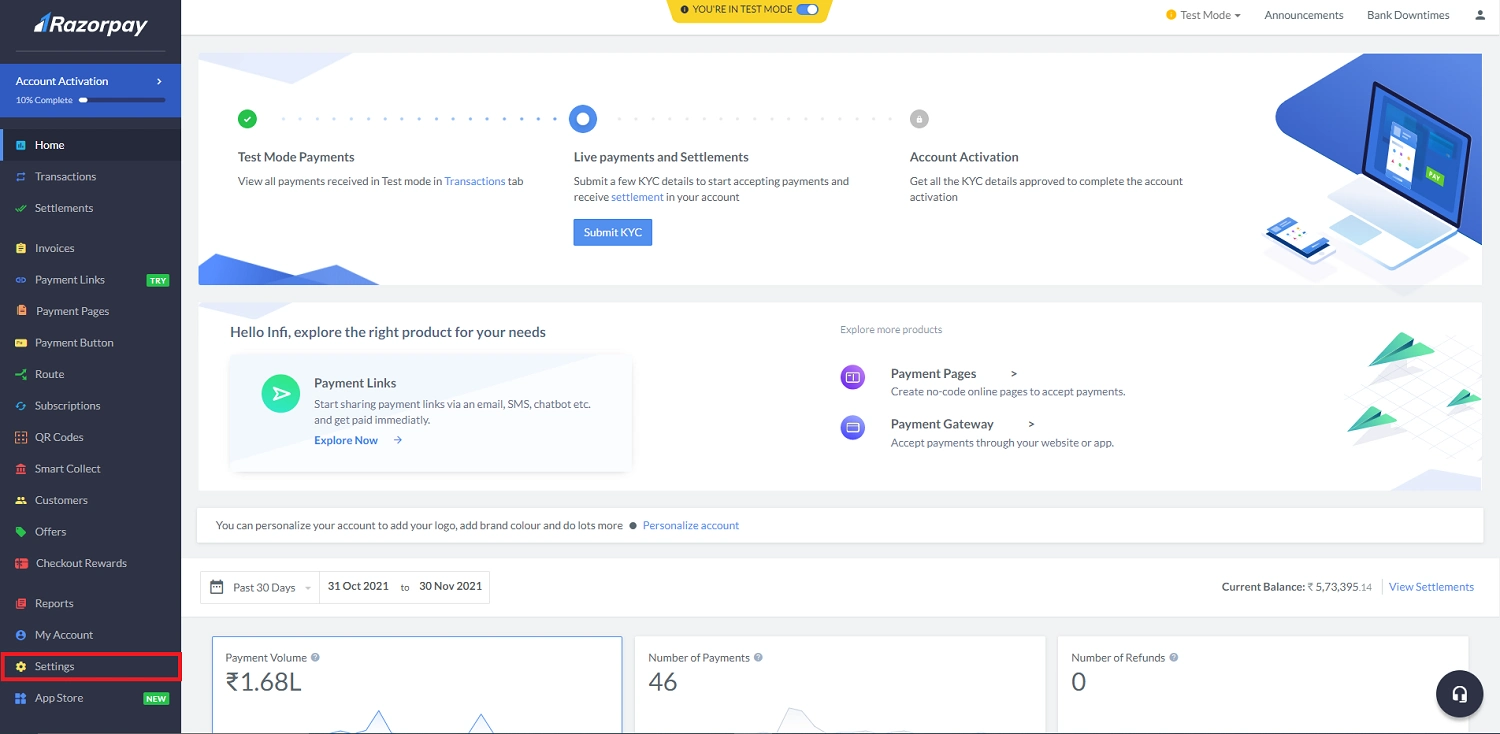
- Click Settings
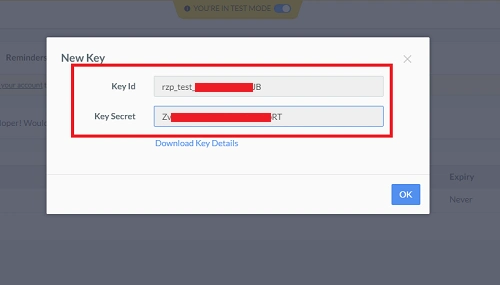
- Click Api keys

- Genetare new key or regenerate key and copy it.
Flutterwave
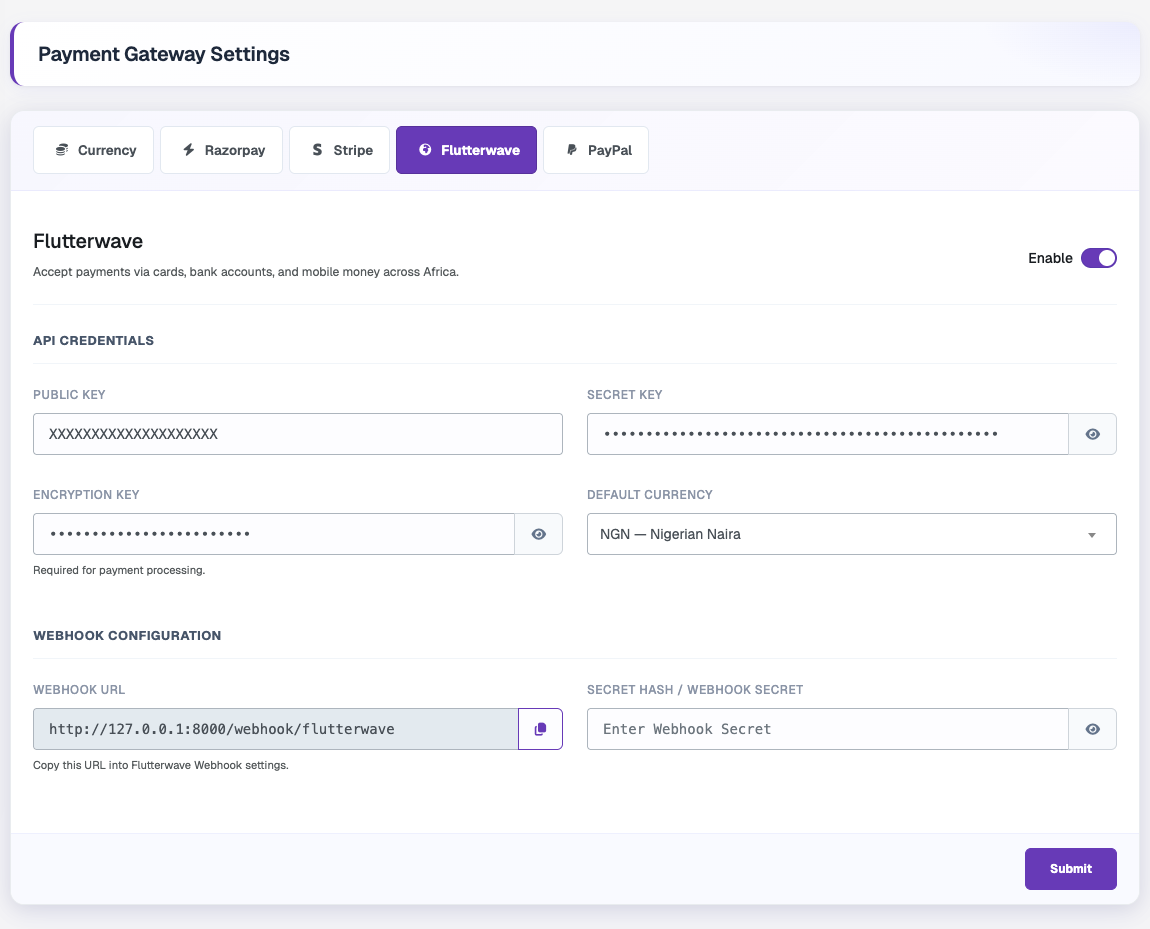
Enter the Public Key, Secret Key, Encryption Key and Default Currency. Copy the Webhook URL into your Flutterwave webhook settings and use the same value as Secret Hash / Webhook Secret.
How to get the keys:
- Log in to the Flutterwave dashboard — https://app.flutterwave.com/login
- In Settings → Developers → API Keys, you can find your keys.
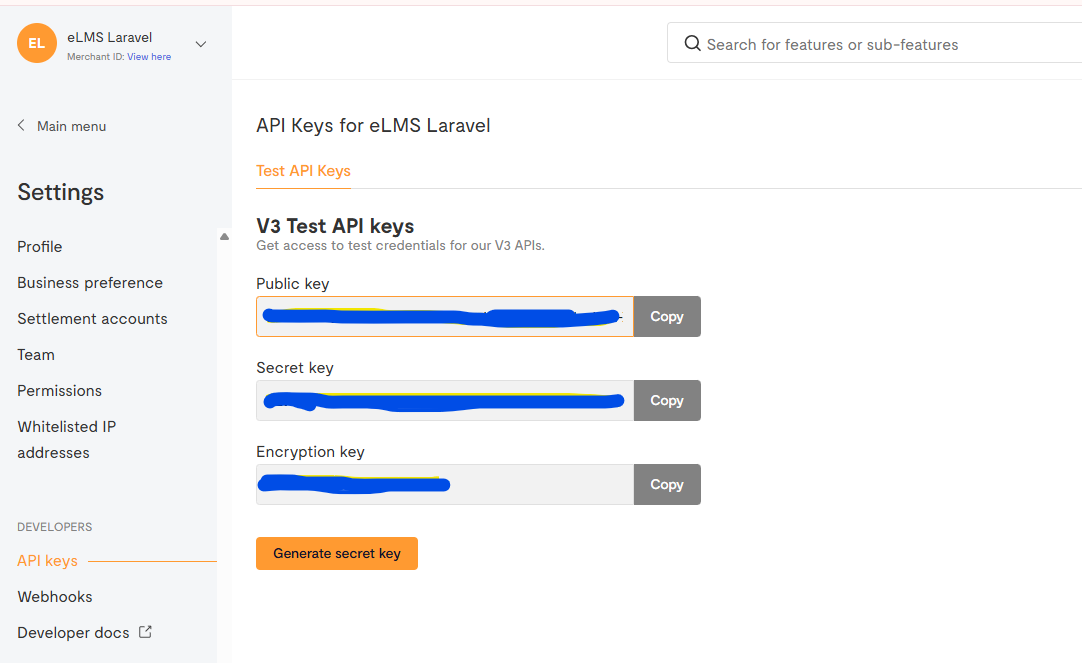
- Docs - https://developer.flutterwave.com/docs/getting-started?_gl=1*1xkvvzx*_gcl_au*MTQxNjg3NzkzOC4xNzY0MjU2Nzg1*_ga*MTg3MTEwMDMzNy4xNzY0MjMwNzI5*_ga_KQ9NSEMFCF*czE3NjQyNTY3NDgkbzEkZzEkdDE3NjQyNTY3ODUkajIzJGwwJGgw
PayPal
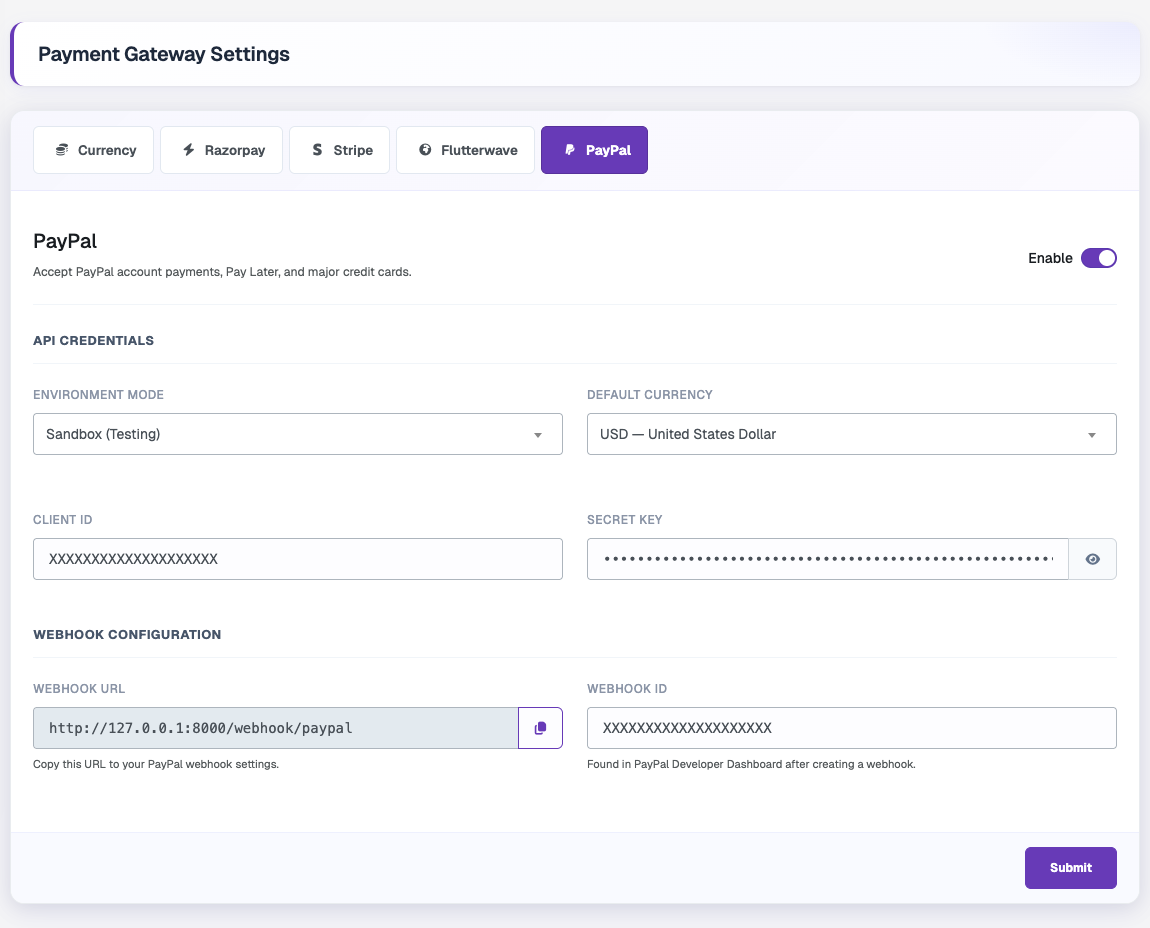
- Log in to the PayPal Developer Dashboard — https://developer.paypal.com/dashboard/
- Go to Apps & Credentials, choose Sandbox (testing) or Live, and create or open an app.
- Copy the Client ID and Secret Key into the PayPal tab, and set Environment Mode to match (Sandbox or Live).
- Create a webhook in the dashboard using the Webhook URL shown in the panel, then paste the generated Webhook ID.
- Choose the Default Currency and click Submit.