Color Customization
Customizing the color scheme of your eBroker web application helps align it with your brand identity and creates a consistent user experience.
Setting System Colors via Admin Panel
The quickest way to change colors is through the admin panel — no code changes required.
- Log in to your admin panel
- Navigate to Settings → System Settings → More Settings → System Color
- Select your preferred colors for the various UI elements
- Save your changes
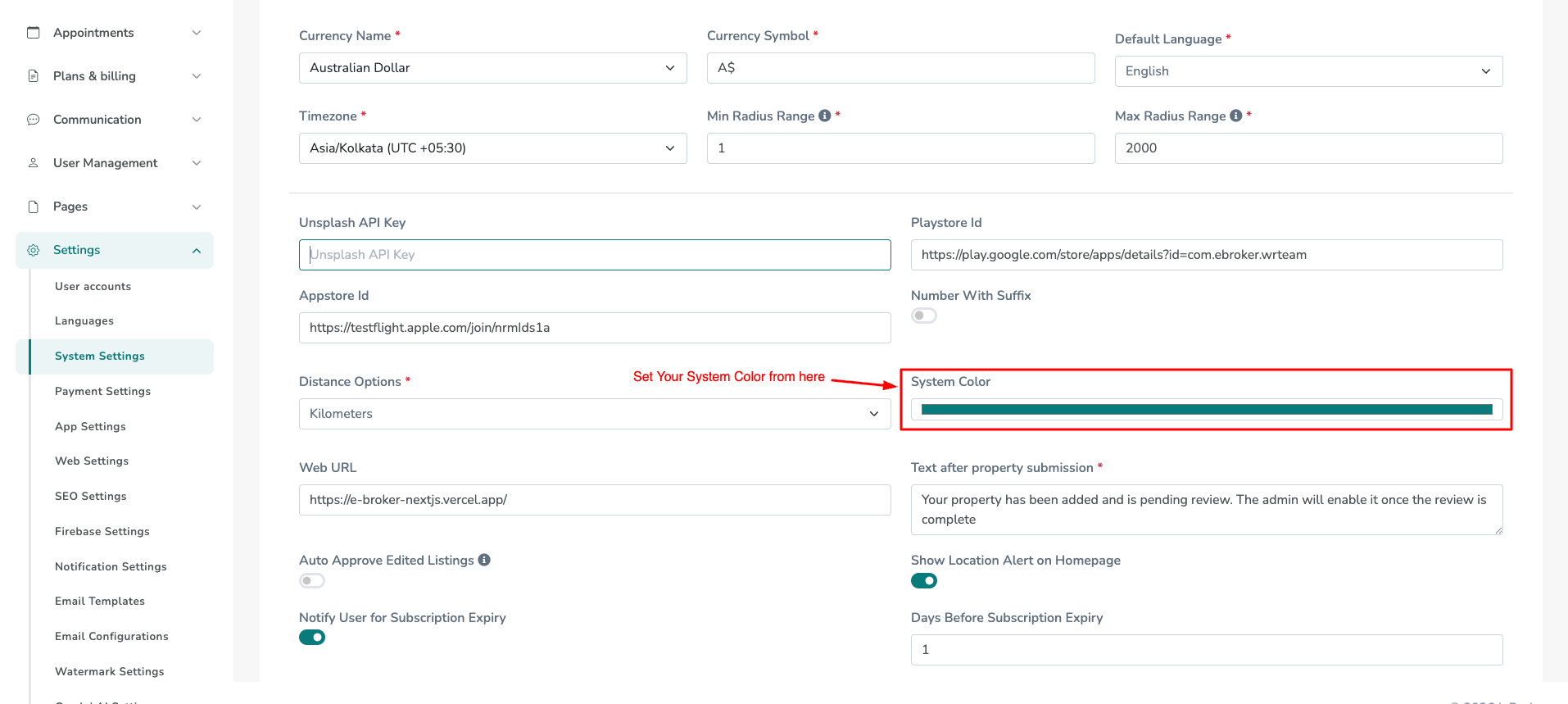
Best Practice: Hardcoding Colors in Source Code
For a more reliable and permanent color setup — especially in production deployments — it is recommended to set your brand colors directly in the source code inside src/styles/globals.css. This ensures that your colors are always applied consistently, regardless of admin panel settings or caching issues.
Where to Edit
Open the file src/styles/globals.css in your project. Locate the :root block at the top of the file. This is where all global CSS color variables are defined.
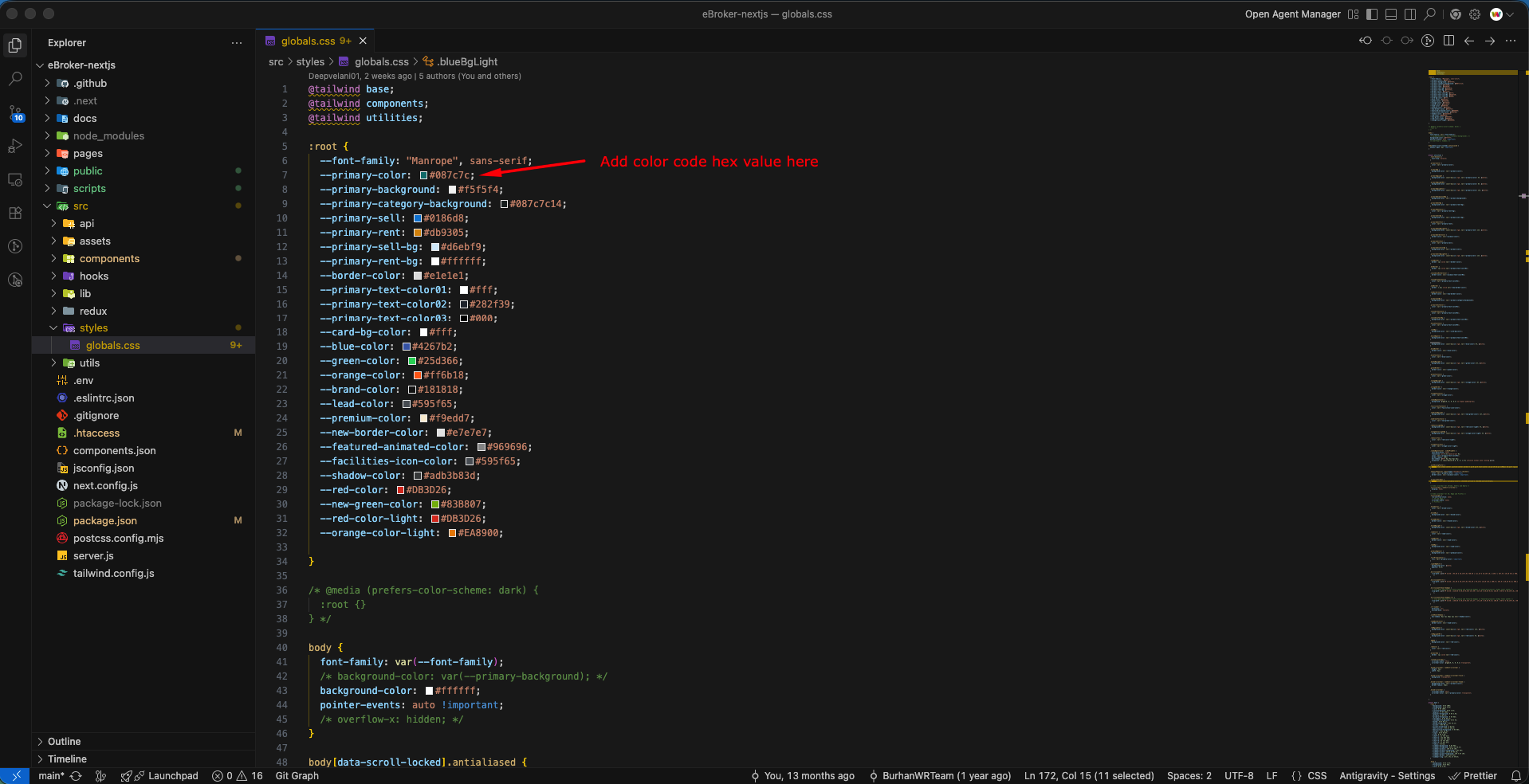
As shown in the screenshot above, update --primary-color (and any other relevant variables) with your desired hex color code.
Step-by-Step Instructions
- Open
src/styles/globals.cssin your code editor. - Locate the
:root { ... }block (lines 5–34, as shown in the screenshot). - Find
--primary-colorand replace its value with your brand's primary hex code:--primary-color: #YOUR_HEX_CODE; - Update any other color variables to match your brand palette.
- Save the file.
- Restart the development server (
npm run dev) or rebuild the production bundle (npm run build) to see the changes take effect.
Key Color Elements
The eBroker web application allows you to customize several color elements:
- Primary Color: Used for main UI elements, buttons, and highlights
- Secondary Color: Used for accents and secondary UI elements
- Text Colors: For various text elements throughout the application
- Background Colors: For different sections and components
Color Selection Tips
When selecting colors for your web application:
- Use colors that match your brand identity
- Limit your color palette to 2–3 main colors for a clean look
- Consider color psychology (e.g., blue for trust, green for growth)
- Test your color choices on different devices and screen sizes
Applying Color Changes
After setting your custom colors:
- Via Admin Panel: Save your changes — the web application will update automatically. You may need to clear your browser cache to see the updated colors.
- Via Source Code (
globals.css): Save the file and restart or rebuild the application. Changes are applied globally and take effect immediately on the next page load.