Language and Country URLs
Your website shows the language and country of the page in its address. This helps visitors share the right version of a page, and helps search engines like Google show the right version to the right people.
What the addresses look like
| Page | Address |
|---|---|
| Properties, default language, all countries | yourdomain.com/properties |
| Properties in Arabic, all countries | yourdomain.com/ar/properties |
| Properties in India, default language | yourdomain.com/india/properties |
| Properties in India, in Arabic | yourdomain.com/ar/india/properties |
The default language and the "All" countries option are left out of the address to keep it short. yourdomain.com/properties and yourdomain.com/en/all/properties show the same page, and the short one is the address visitors see.
Do I need to set anything up?
The addresses work on their own. What you do depends on how you host the website:
- With SEO on (VPS): the server settings are created for you by the VPS deployment script. New languages and countries appear without a rebuild, as described below.
- Without SEO (static hosting): upload the
.htaccessfile that comes in theoutfolder after the build. It already includes the rules for these addresses. See Deployment Without SEO.
Keeping languages and countries up to date (SEO mode)
When you add a language or country in the admin panel, your website should know about it without you rebuilding anything. This works like a short-term memory:
- The website asks the admin panel for the list of languages and countries, then remembers it for a while (30 minutes by default). This keeps pages fast.
- When you change languages or countries in the admin panel, it tells the website right away, so the memory is refreshed instead of waiting for the 30 minutes to pass.
- If the admin panel can't be reached for a moment, the website keeps using the last list it knew, so visitors never see an error.
This is on by default. It only comes into play when SEO is turned on, so turning SEO on is all you need to do. Just make sure the Web URL is set, so the admin panel knows where to send the update:
- In the admin panel, go to Settings → System Settings.
- Check that Web URL is your website's address.
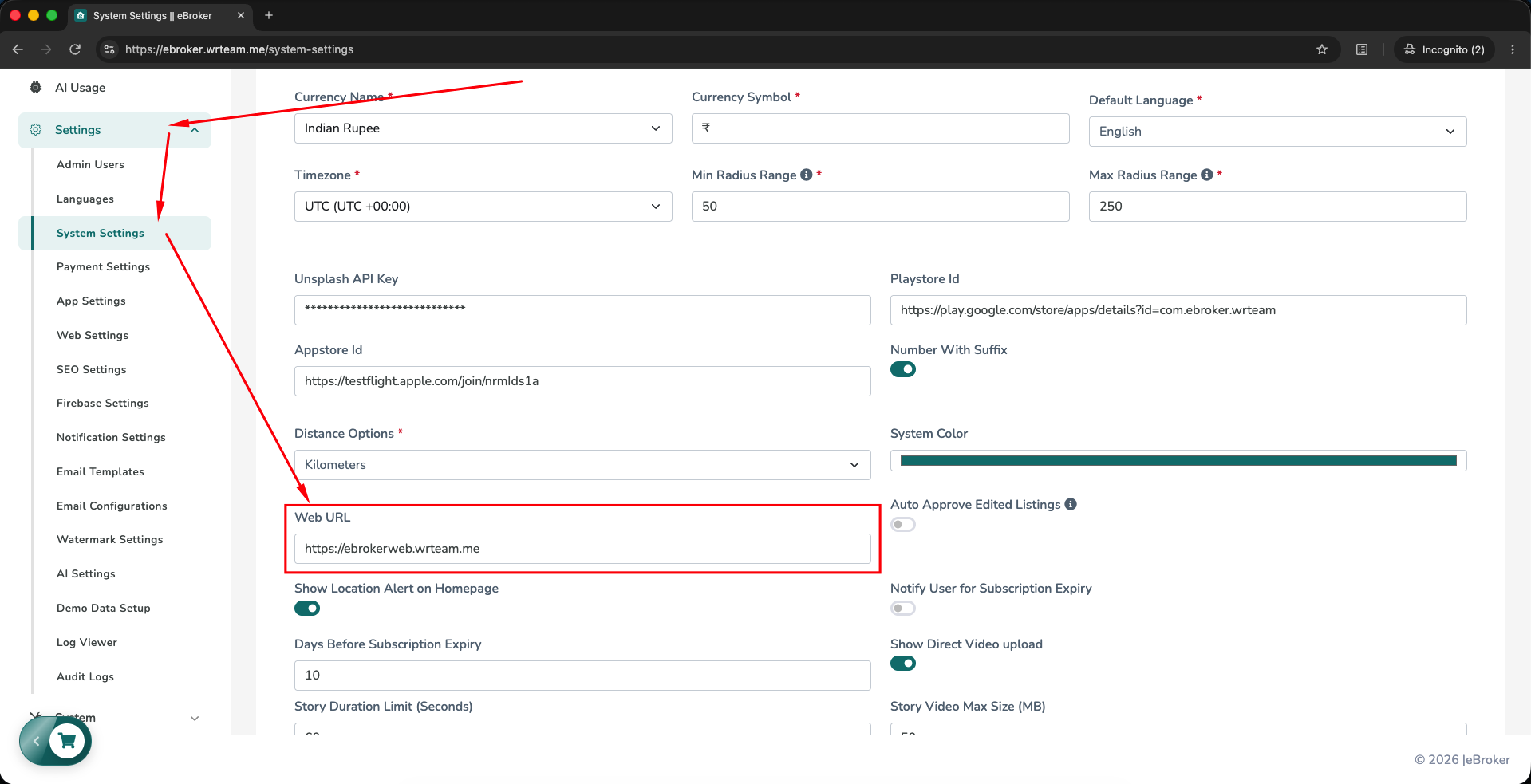
To change how long the website remembers the list, set CACHE_TTL_MINUTES in your .env file (the default is 30), then rebuild and restart the app. The same setting also controls how long the website remembers language texts and website settings from the admin panel.
Live updates are only for a VPS server with SEO on. Static hosting doesn't use them, because the list is fixed at build time, so rebuild after adding a country or changing the default language. On serverless platforms such as Vercel, set LOCALE_MANIFEST_MODE="frozen" in your .env, since they can't keep the list in memory between requests, and rebuild in the same way.
When to rebuild
- Static hosting: run the build again and upload the new
.htaccesswhen you change the default language or add or remove a country. New languages don't need a rebuild. - VPS with SEO: no rebuild is needed for language or country changes, because live updates are on by default (see above).
If an address shows a "404" or a blank page, the most common reason is that the .htaccess file is missing or is not the one from the latest build. Upload it again from the out folder.