Setting Favicon Icon
The favicon is the small icon that appears in browser tabs, bookmarks, and other areas. Customizing it helps with brand recognition and gives your web application a professional look.
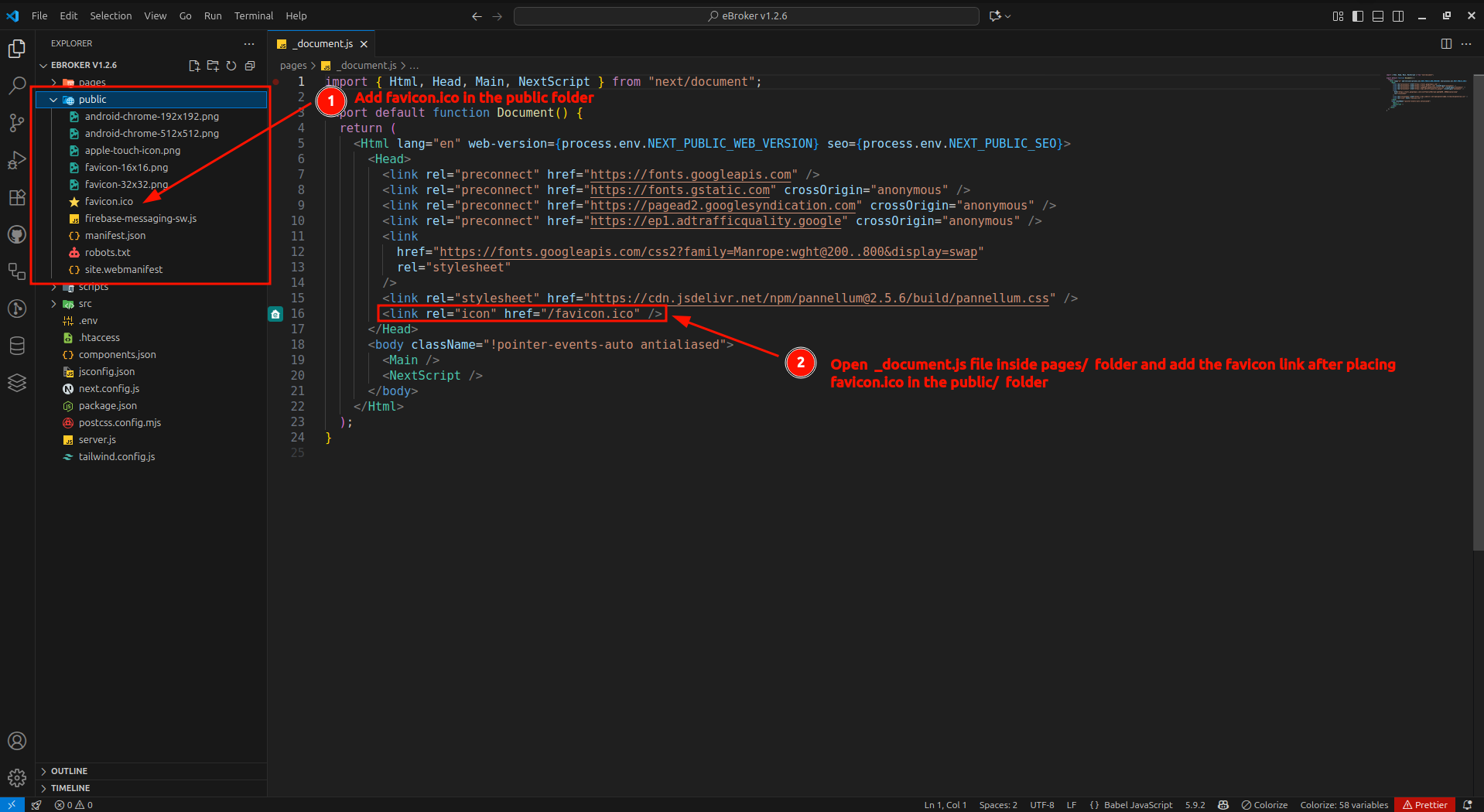
Changing the Favicon
- Navigate to the
pagesfolder in your project - Open the
_document.jsfile - Locate the favicon link tag in the file
- Update the path to your custom favicon
Generating Favicon Files
Use favicon.io — Favicon Converter to generate all the necessary favicon files from a single image.
Steps to Generate
- Visit https://favicon.io/favicon-converter/
- Click "Upload Image" and select your logo or brand image (PNG recommended, ideally 512×512 px or larger)
- Click "Download" — a
.zipfile will be downloaded containing all favicon assets
Files Included in the Download
The downloaded .zip will contain the following files:
| File | Purpose |
|---|---|
favicon.ico | Classic ICO file for browser tabs |
favicon-16x16.png | 16×16 PNG favicon |
favicon-32x32.png | 32×32 PNG favicon |
apple-touch-icon.png | 180×180 icon for iOS home screen |
android-chrome-192x192.png | 192×192 icon for Android |
android-chrome-512x512.png | 512×512 icon for Android |
site.webmanifest | Web app manifest referencing the icons |
Placing Files in public/
- Extract the downloaded
.zipfile - Copy all extracted files into your project's
public/folder:
eBroker-Web-v1.4.0/
└── public/
    ├── favicon.ico
    ├── favicon-16x16.png
    ├── favicon-32x32.png
    ├── apple-touch-icon.png
    ├── android-chrome-192x192.png
    ├── android-chrome-512x512.png
    └── site.webmanifest
tip
Files placed in the public/ folder are served at the root path (/). So public/favicon.ico is accessible at /favicon.ico.
Multiple Favicon Sizes
After placing the files, ensure the following tags are present in your _document.js to reference all the generated sizes:
<link rel="icon" type="image/x-icon" href="/favicon.ico" />
<link rel="icon" type="image/png" sizes="16x16" href="/favicon-16x16.png" />
<link rel="icon" type="image/png" sizes="32x32" href="/favicon-32x32.png" />
<link rel="apple-touch-icon" sizes="180x180" href="/apple-touch-icon.png" />
<link rel="manifest" href="/site.webmanifest" />
Testing Your Favicon
After updating the favicon:
- Save all changes
- Restart your development server
- Open your application in a browser
- Check if the new favicon appears in the browser tab
- Clear your browser cache if the old favicon still appears