Firebase Authentication
Firebase Authentication provides a secure and easy way to manage user authentication in your eBroker web application. This guide will help you set up different authentication methods.
Enable Authentication Methods
- Go to your Firebase project in the Firebase Console
- Navigate to Authentication > Sign-in method
- Enable the authentication methods you want to use in your application
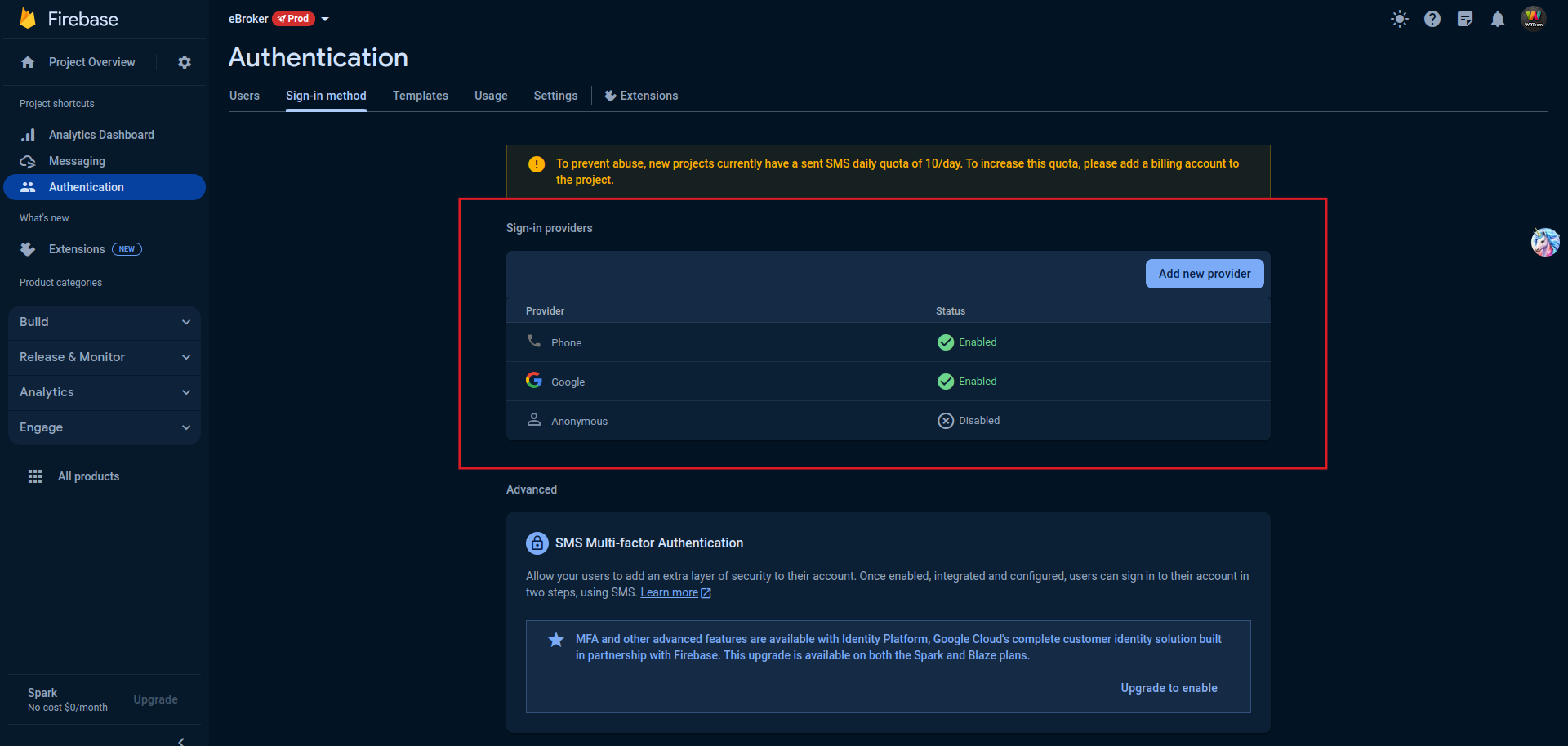
Supported Authentication Methods
For the eBroker web application, we recommend enabling the following authentication methods:
- Email/Password: Traditional email and password login
- Phone: Authentication via SMS verification code
- Google: Sign in with Google account
Setting Up Phone Authentication
Phone authentication requires additional setup:
- Make sure you've added your domain to the authorized domains list
- Enable Phone authentication in the Sign-in method tab
- Configure SMS verification message (optional)
Setting Up Social Authentication
For social login methods like Google and Facebook:
- Enable the authentication method in Firebase
- Configure the OAuth redirect URLs to include your domain
Testing Authentication
After enabling authentication methods:
- Implement the authentication flow in your application
- Test each authentication method to ensure it works correctly
- Check the Firebase Authentication dashboard to see registered users
Troubleshooting
If you encounter issues with authentication:
- Verify that your Firebase configuration is correct in your application
- Check that your domain is correctly added to authorized domains
- For social logins, ensure all OAuth settings are properly configured
- Check the browser console for any Firebase authentication errors