Google One Tap Sign-In Setup
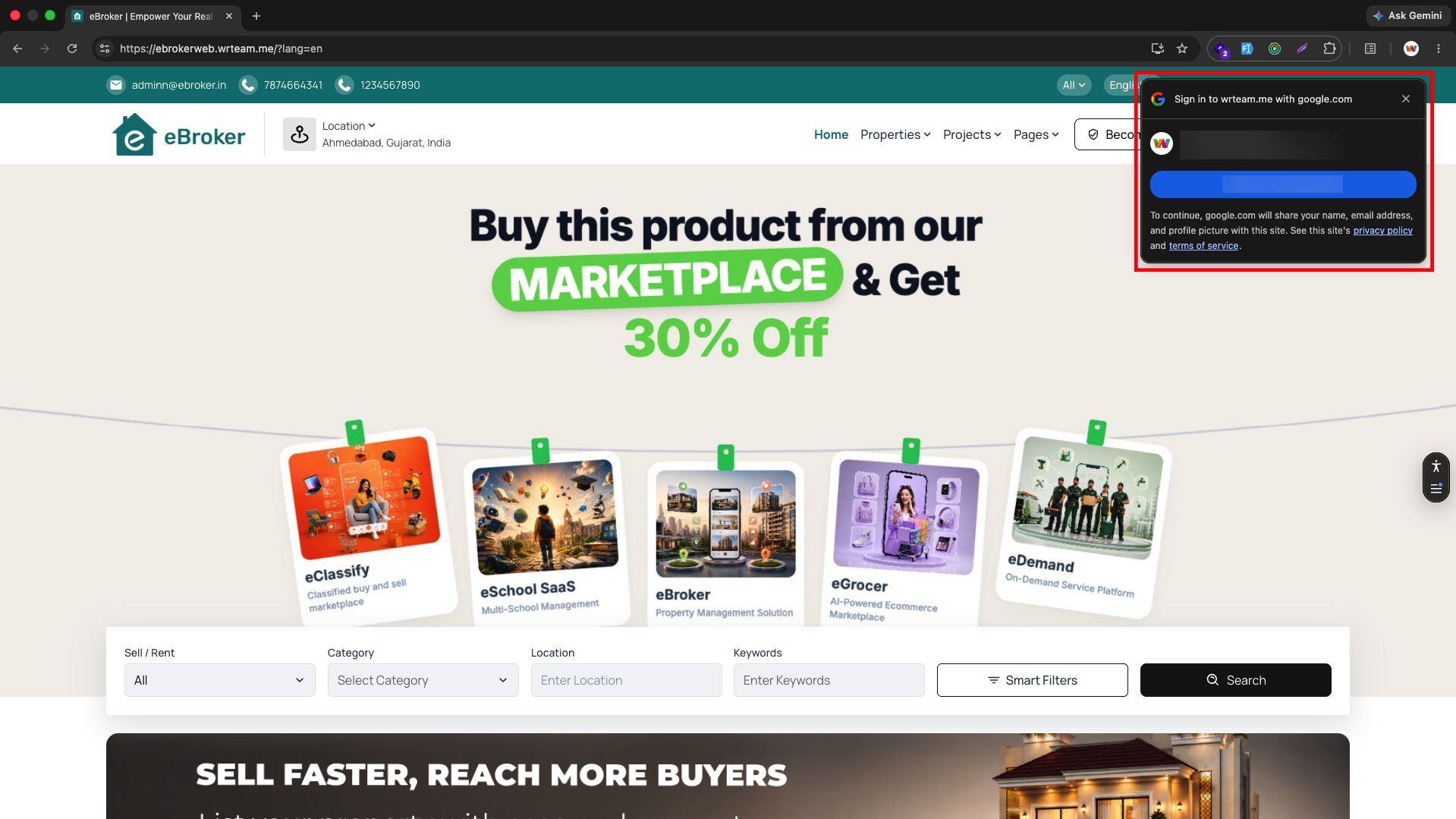
Besides the Continue with Google button in the login modal, eBroker Web also supports Google One Tap — the small prompt that automatically appears in the corner of the homepage offering to sign the visitor in with their Google account, without any click needed to open it.
One Tap is powered by Google Identity Services (GSI) and uses the same OAuth Web Client ID that's already configured for Firebase's Google sign-in provider — you don't need to create a new OAuth client, you only need to copy an existing ID into your .env file.
How It Works
- One Tap is rendered by
GoogleOneTap.jsx, mounted only on the homepage - It loads Google's
gsi/clientscript and callswindow.google.accounts.id.initialize()with yourNEXT_PUBLIC_GOOGLE_CLIENT_ID - It only shows up when a visitor is not already logged in and Social Login is enabled in your admin panel settings
- On credential response, it signs the user into Firebase using
signInWithCredential, then completes the same signup flow as the regular Google button
Step 1: Enable Google Sign-In in Firebase
- Go to the Firebase Console
- Select your project, then open Authentication > Sign-in method
- Click the edit (pencil) icon next to the Google provider
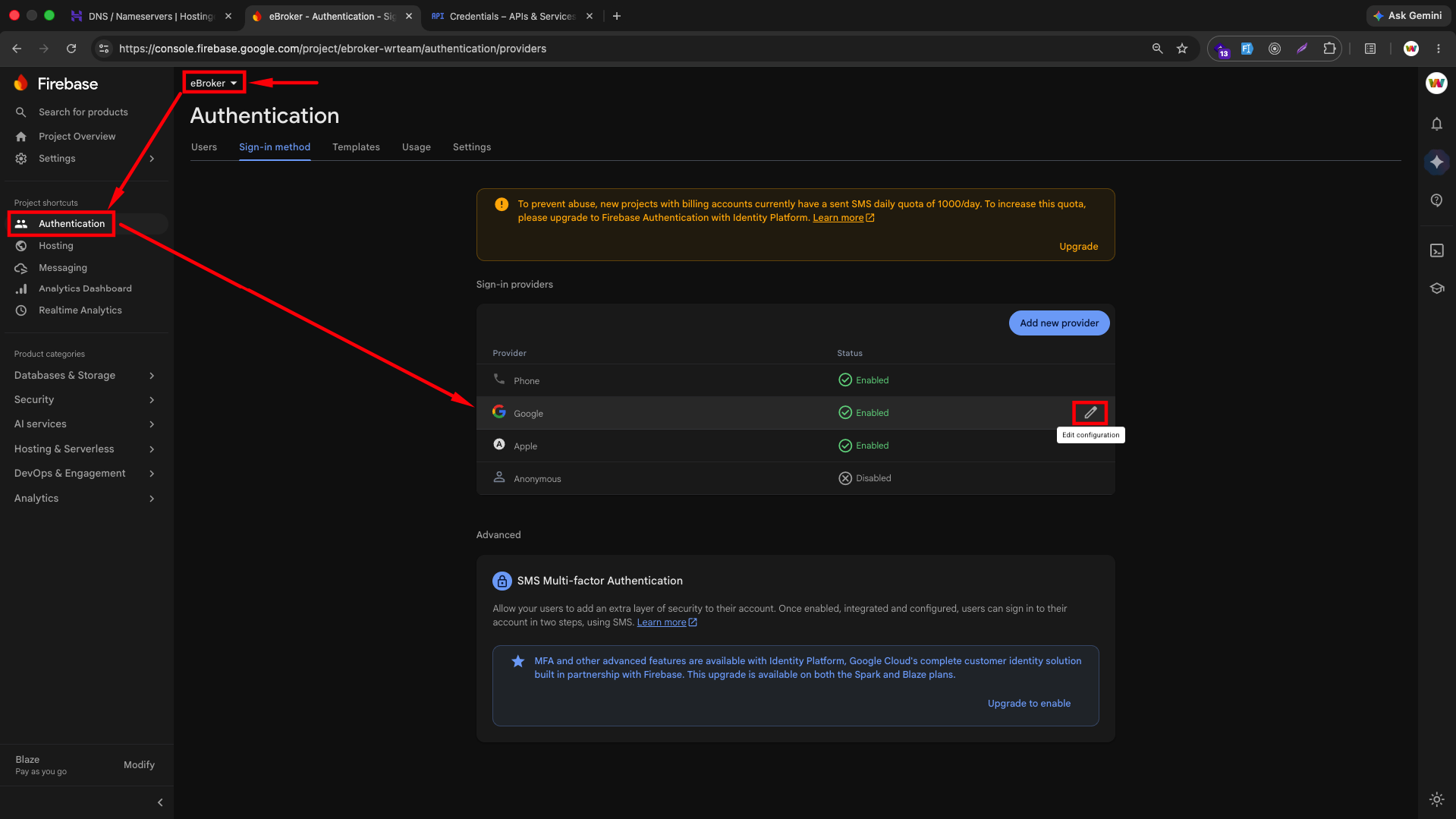
Step 2: Copy the Web Client ID
Expand Web SDK configuration and copy the value shown in Web client ID.
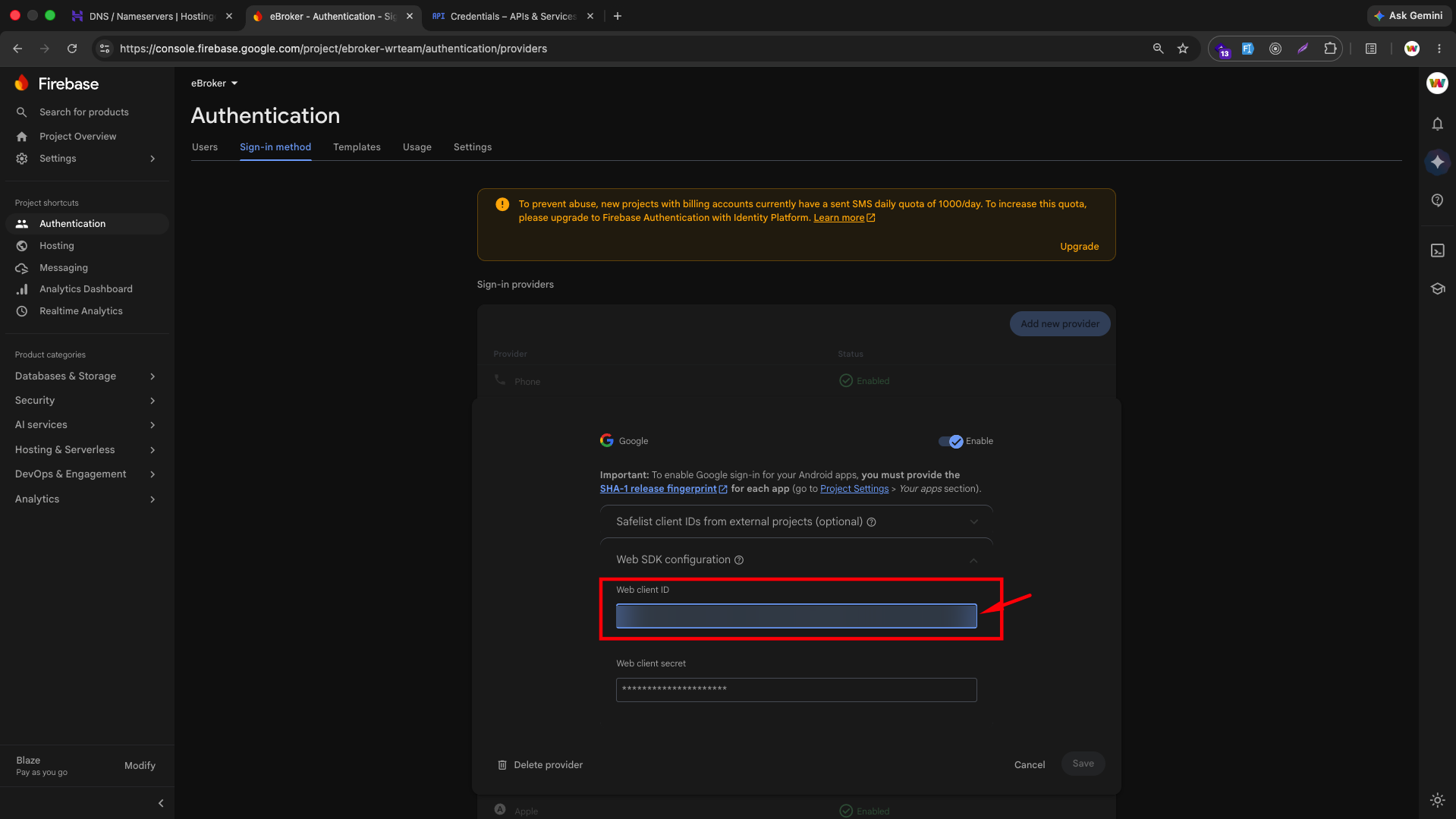
This is the same OAuth 2.0 Web application client used for the popup/redirect Google sign-in — see Fix Google Sign-In Popup Blocked on Production for how it's configured in Google Cloud Console (Authorized JavaScript origins, redirect URIs, etc).
Step 3: Add the Client ID to Your .env File
In your eBroker Web project, open the .env file and paste the Web client ID into NEXT_PUBLIC_GOOGLE_CLIENT_ID.
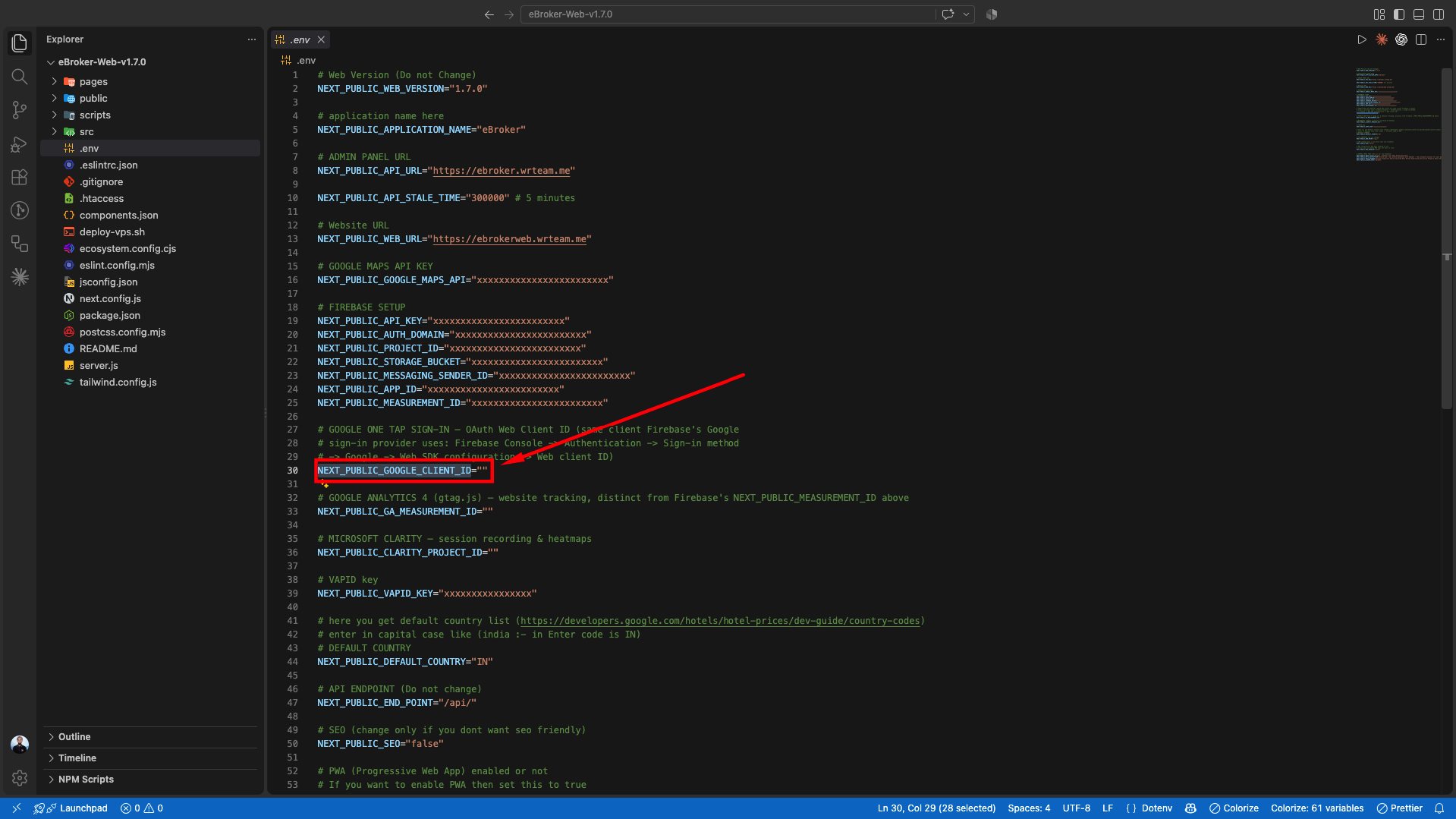
NEXT_PUBLIC_GOOGLE_CLIENT_ID="your-client-id.apps.googleusercontent.com"
Step 4: Enable Social Login in the Admin Panel
One Tap only renders when Social Login is turned on for your website. In your eBroker admin panel, go to Settings and enable the Social Login option for the web app.
Step 5: Rebuild and Redeploy
Rebuild your Next.js app so the new environment variable is picked up, then redeploy it to your production server.
Result
Visitors who aren't logged in and already have an active Google session in their browser will see the One Tap prompt appear automatically on the homepage. Signing in through it goes through the same Firebase + backend signup flow as the regular Google button.
Troubleshooting
- One Tap never appears: confirm
NEXT_PUBLIC_GOOGLE_CLIENT_IDis set and the app was rebuilt, that Social Login is enabled in the admin panel, and that you aren't already logged in (One Tap is skipped whenuserDataexists). - Prompt appears but sign-in fails: make sure your production domain is listed under the OAuth client's Authorized JavaScript origins in Google Cloud Console — see Fix Google Sign-In Popup Blocked on Production.
- Prompt flashes and disappears immediately: this happens if
cancel_on_tap_outsidefires due to an unrelated click, or if the credential callback throws — check the browser console for Firebase auth errors.