How to Add Map API key for Address
How to Add Map API key for Address
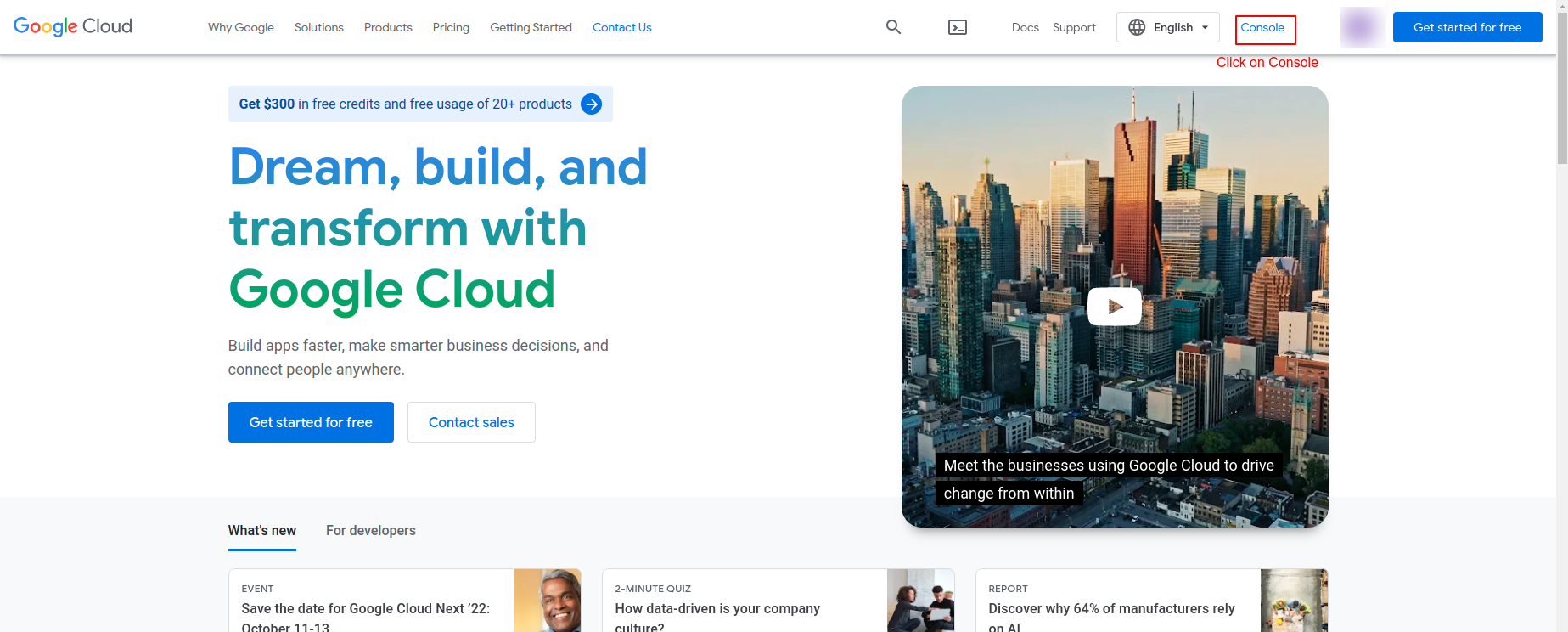
1. Go to Google Cloud Platform. Click here
- Click on console.
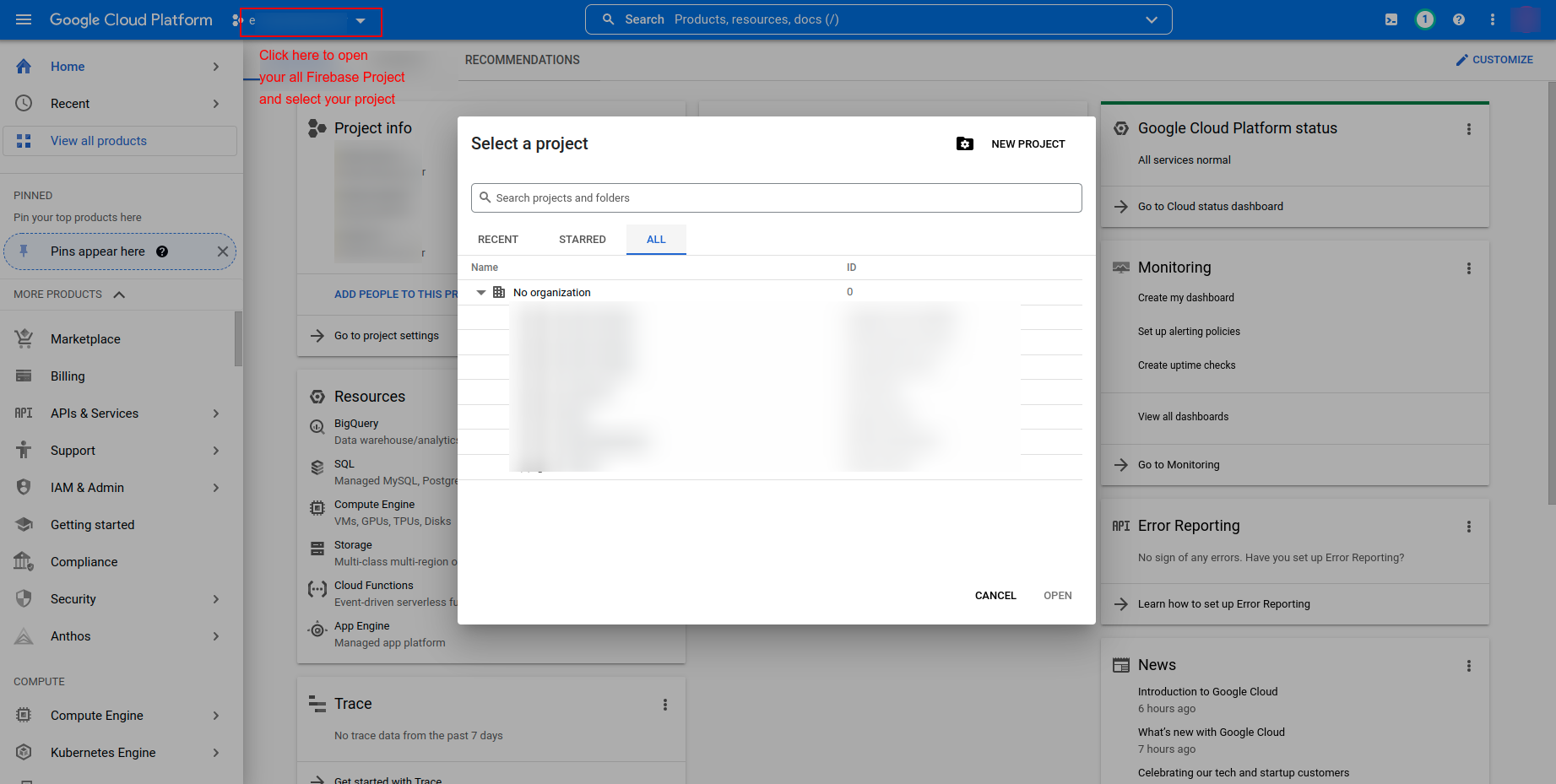
2. Select your Firebase Project
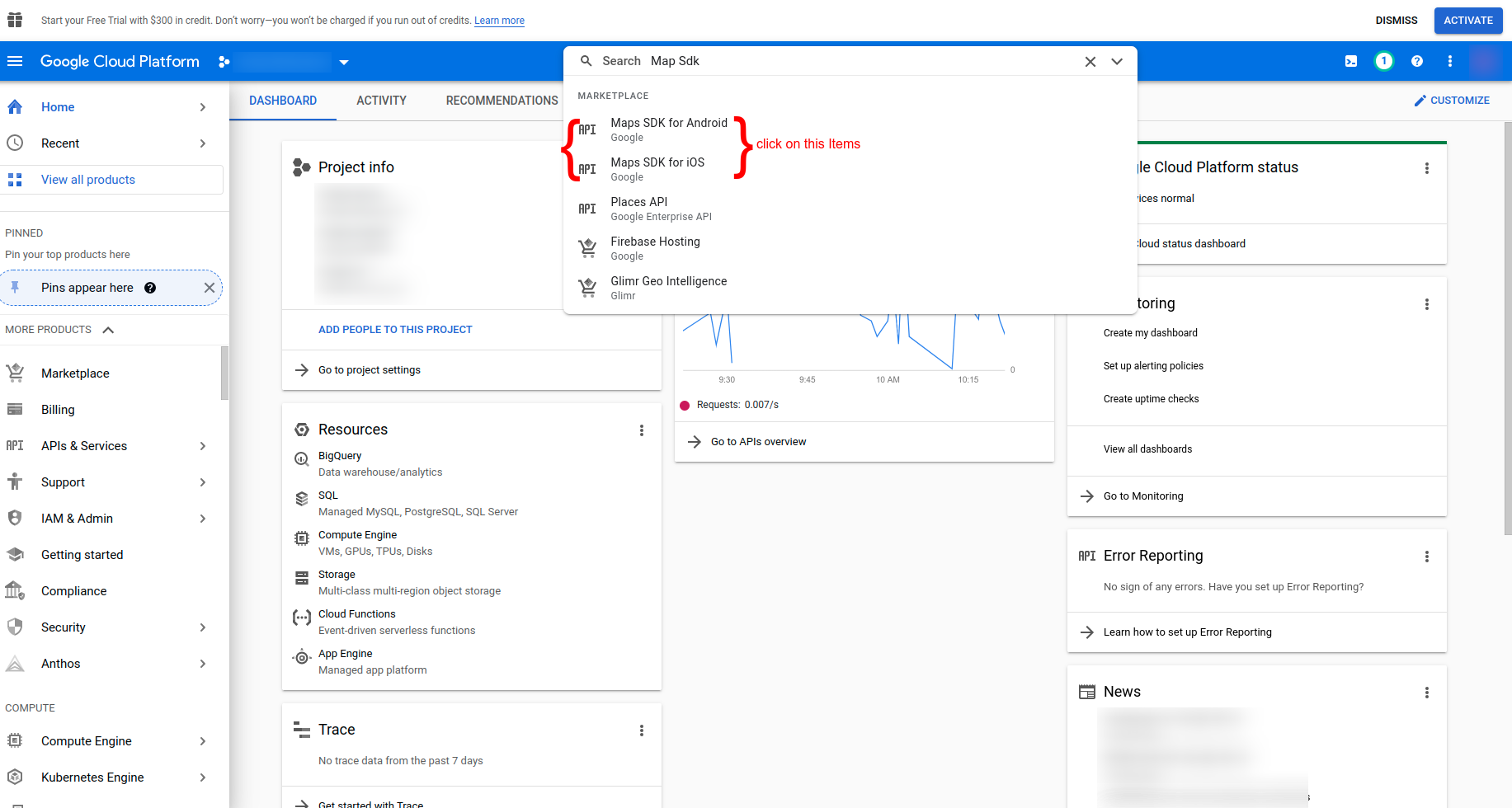
3. Search for APIs, which are shown in below image.
4. Click on Enable to, enable that APIs

5. Do above steps for below listed API. (enable all below APIs one by one by searching)
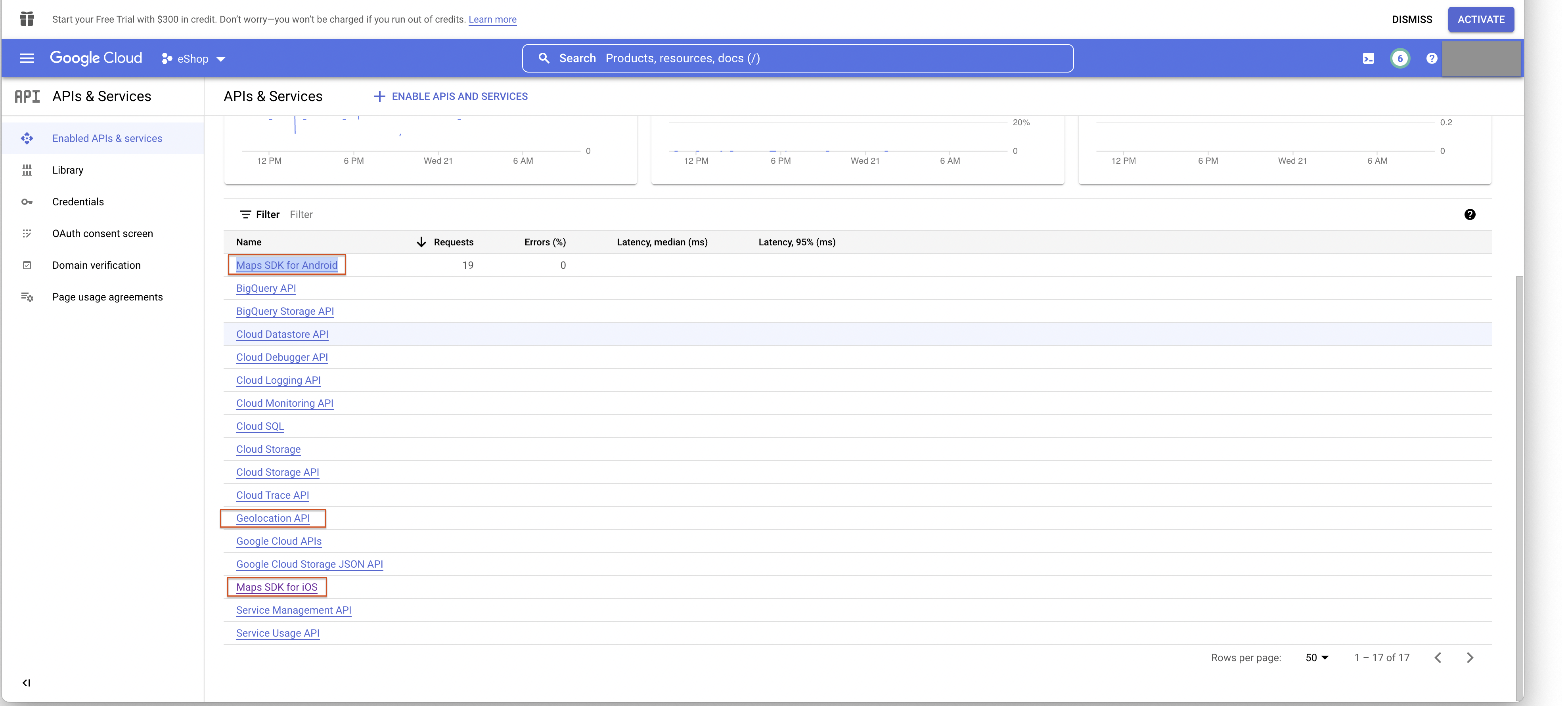
6. Go to Credential Tab. You will find your Android and iOS API keys.
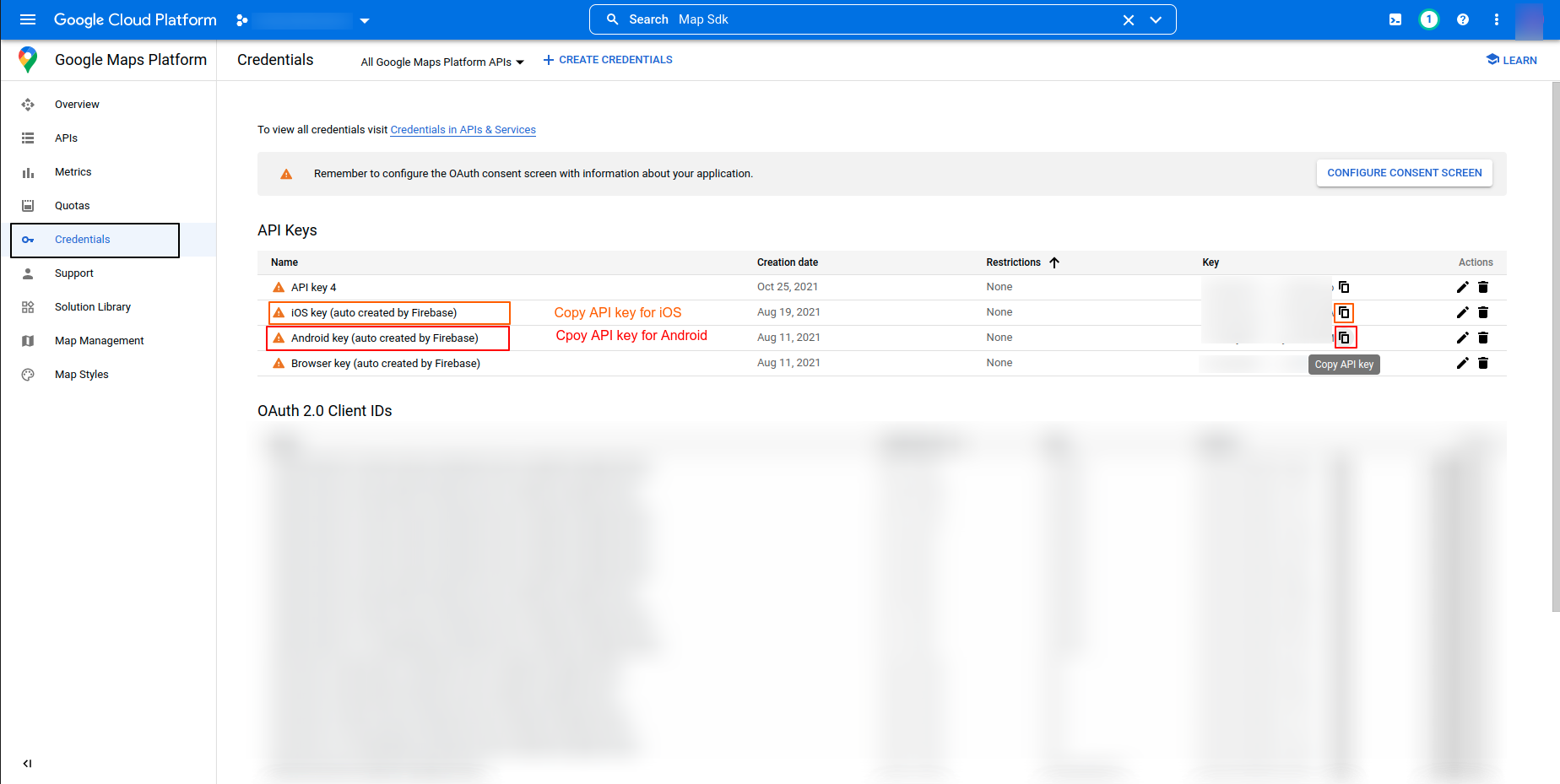
7. You have to setup those above API keys for both Platform:
Android Setup
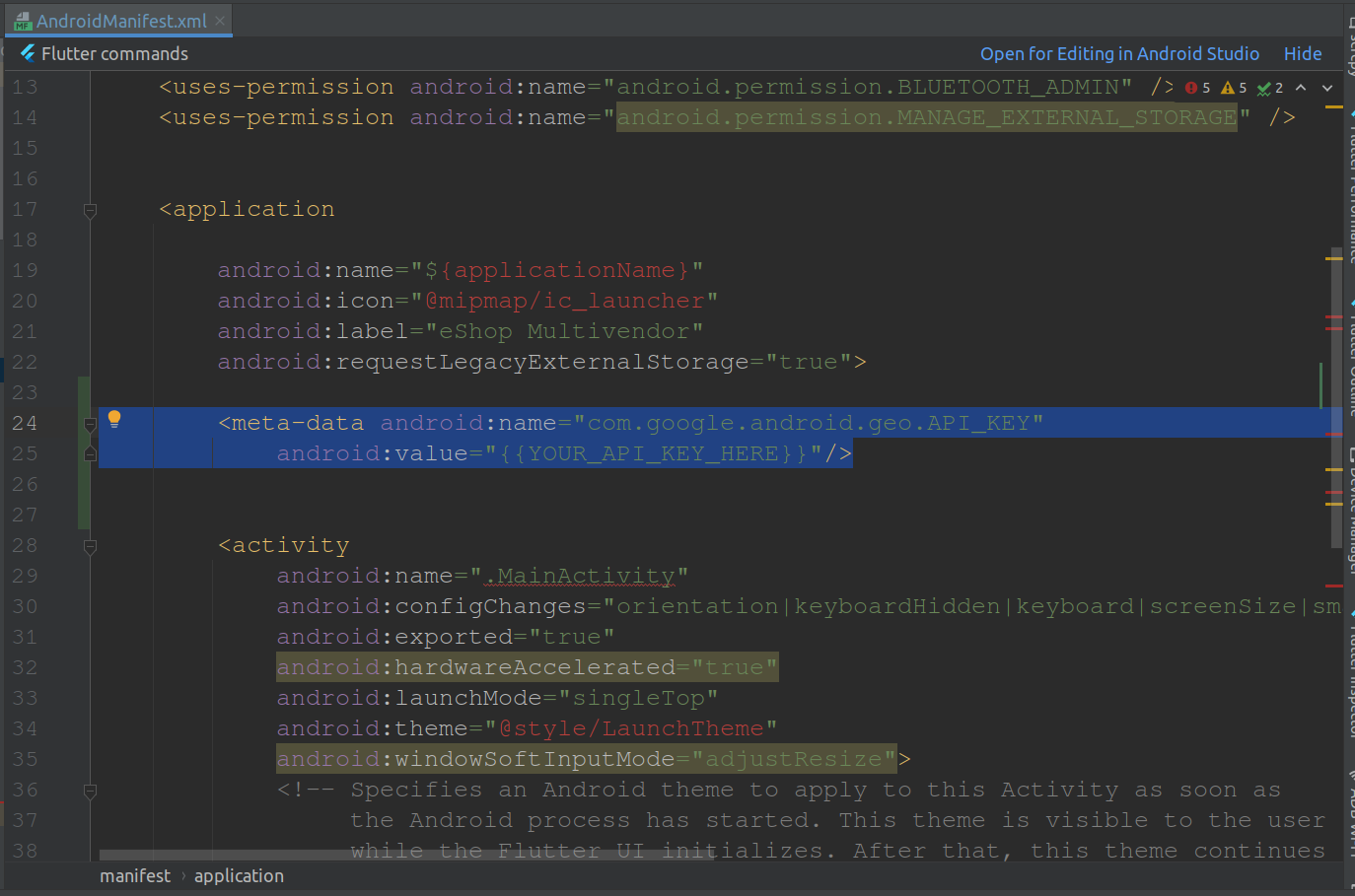
- Next, open android ‣ app ‣ src ‣ main ‣ AndroidManifest.xml and paste the Google Maps meta data tag into your application tag before the activity tag, placing the API key you copied before to replace YOUR_API_KEY_HERE.
<meta-data
    android:name="com.google.android.geo.API_KEY"
    android:value="YOUR_API_KEY_HERE" />
- Note: For the value field, please paste in your API Key from the Google Maps API registration process.
iOS Setup
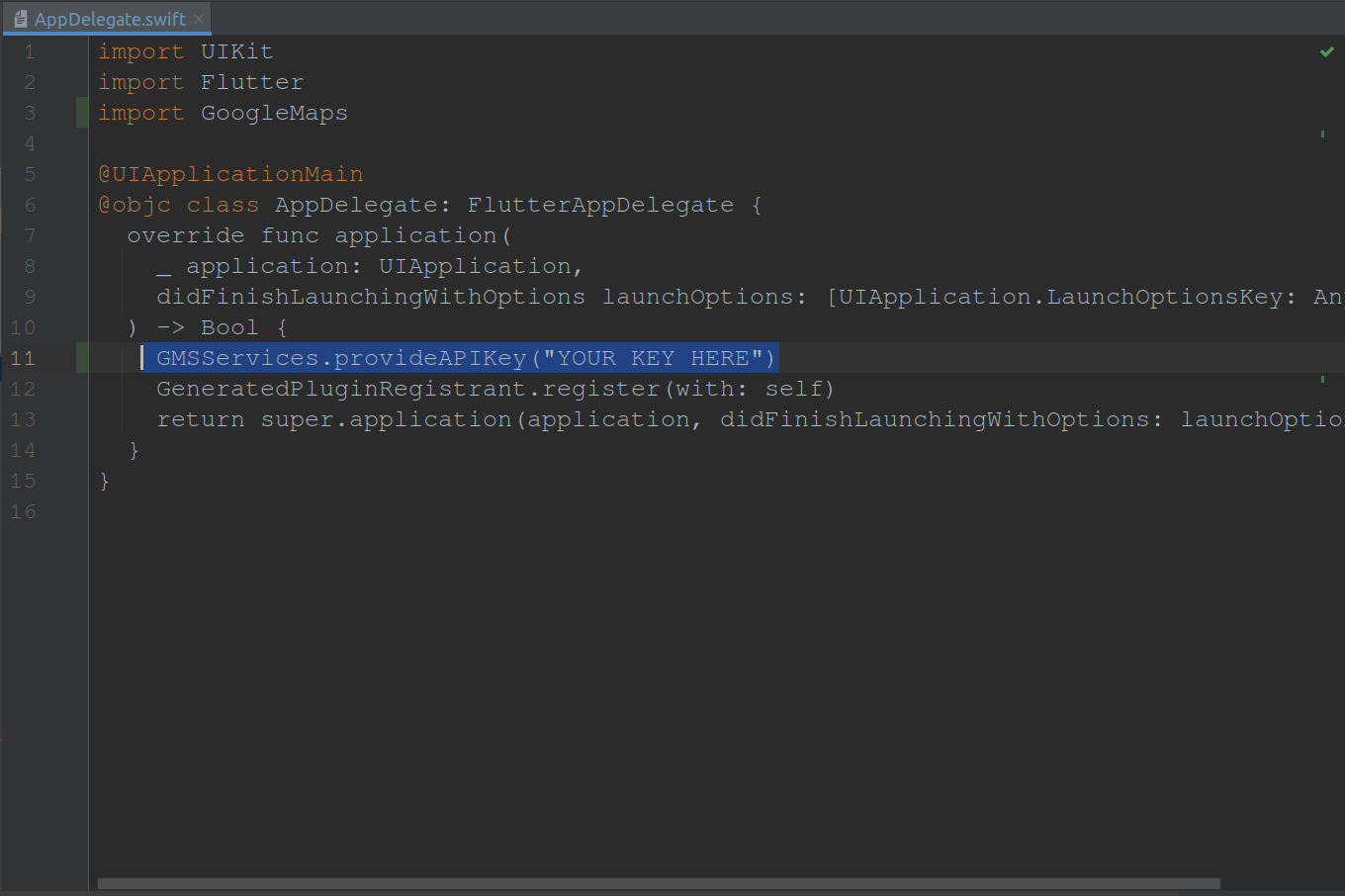
- Next, open the ios ‣ Runner ‣ AppDelegate.swift file and paste the following code as shown in image.
GMSServices.provideAPIKey("YOUR_API_KEY_HERE")
- Note: Again, for the value field please paste in your API Key from the registration process.