How to enable Firebase Phone Authentication(OTP)
How to enable Firebase Phone Authentication(OTP)
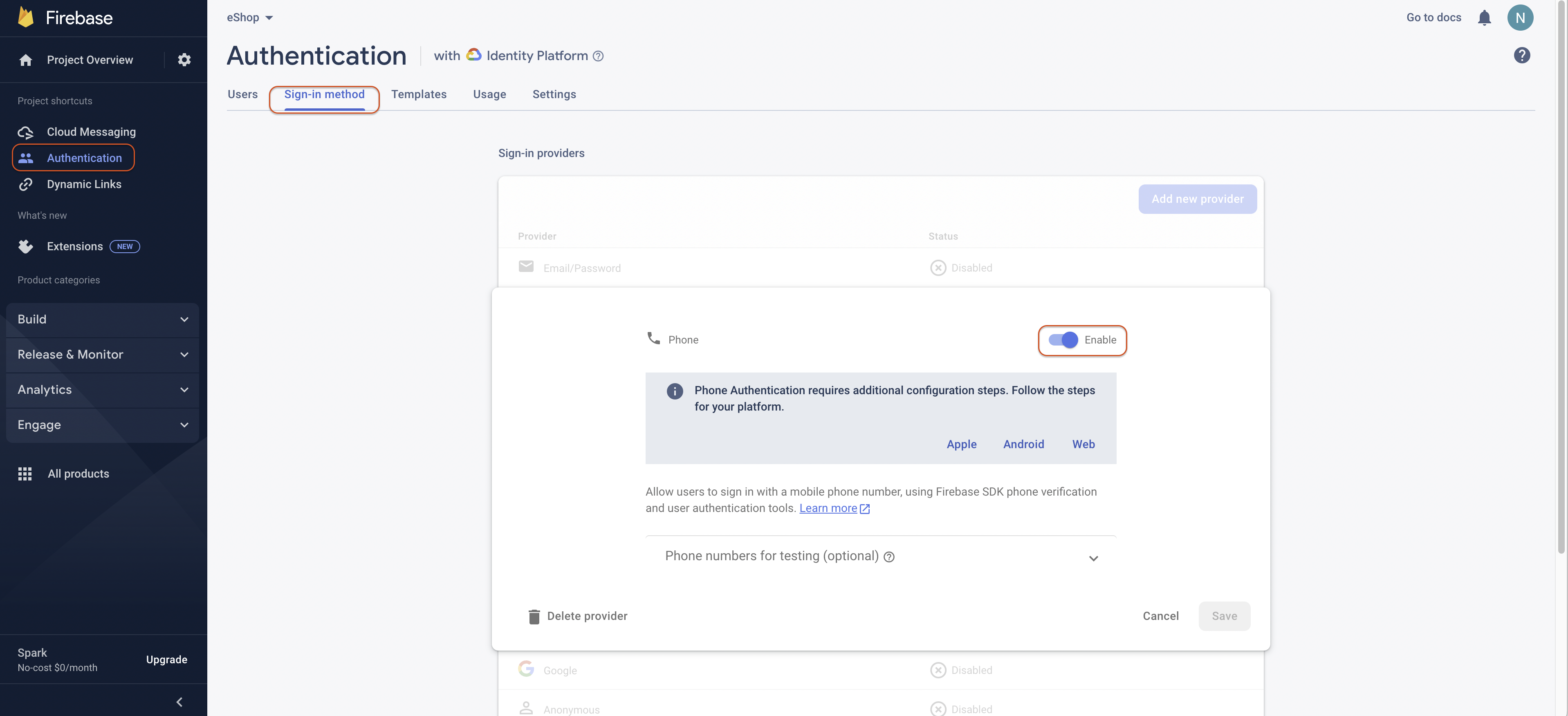
1. In Firebase Console, go to Authentication > Sign-in method, enable Phone sign-in, and click Save.
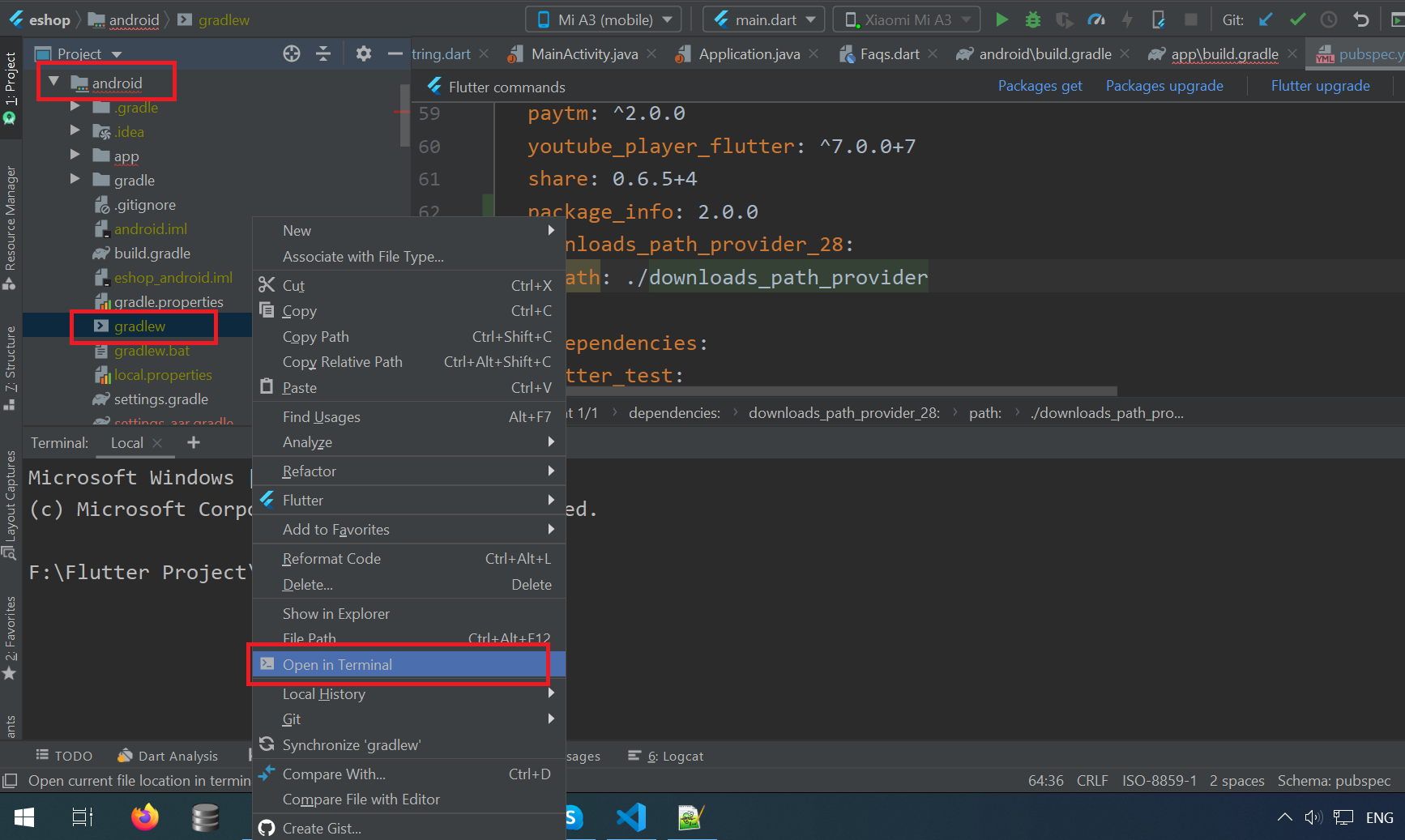
2. To add SHA1 and SHA256 keys in Firebase, go to the android folder, right-click the gradlew file, and select "Open in Terminal" as shown in the image below.
3. In the terminal view, run gradlew signingReport (on Windows), or ./gradlew signingReport (on Mac/Linux) as shown below.
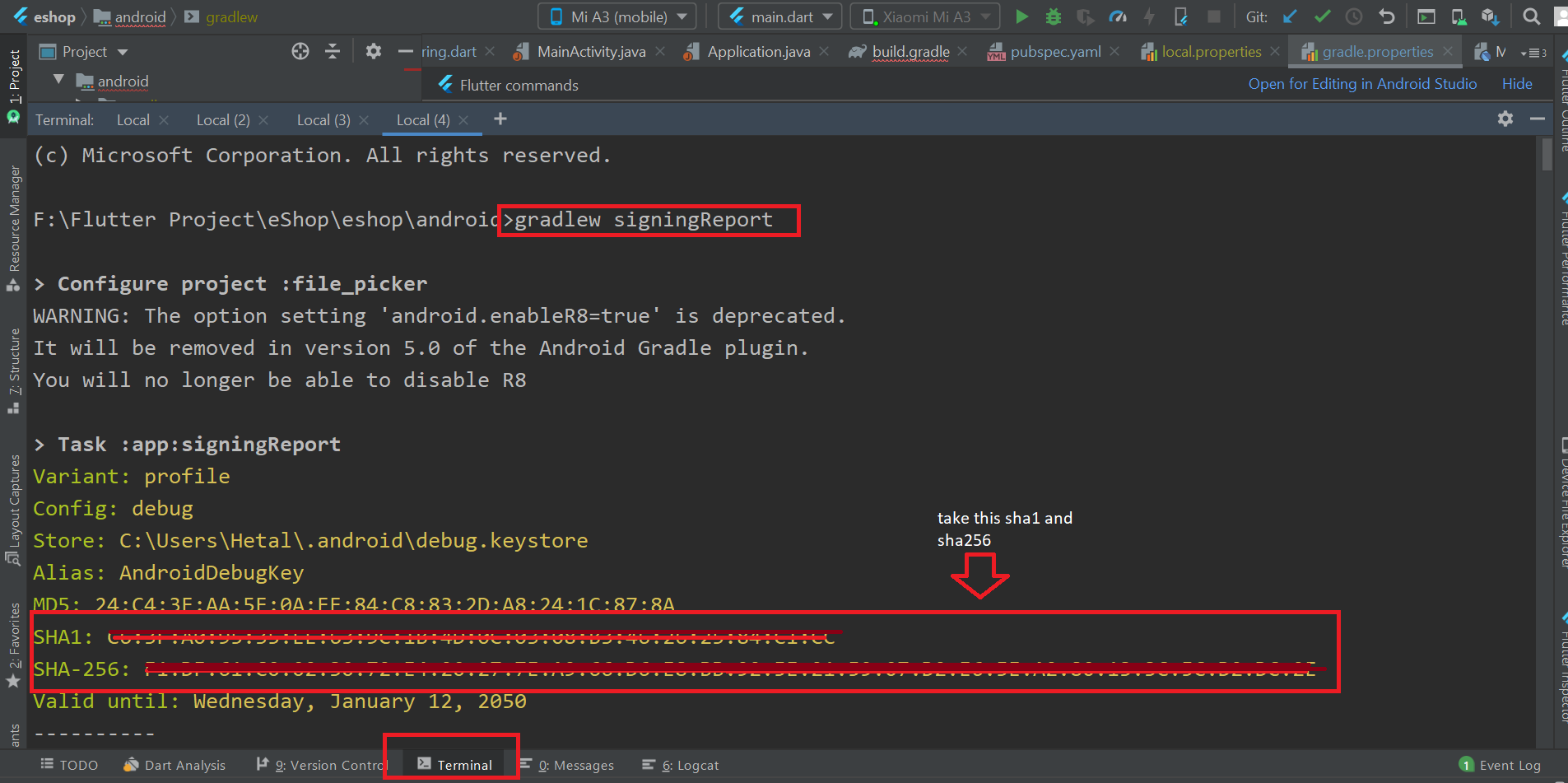
4. Now take debug sha and sha256 will print copy that and add it in firebase console. And also add sha-256 to firebase console.
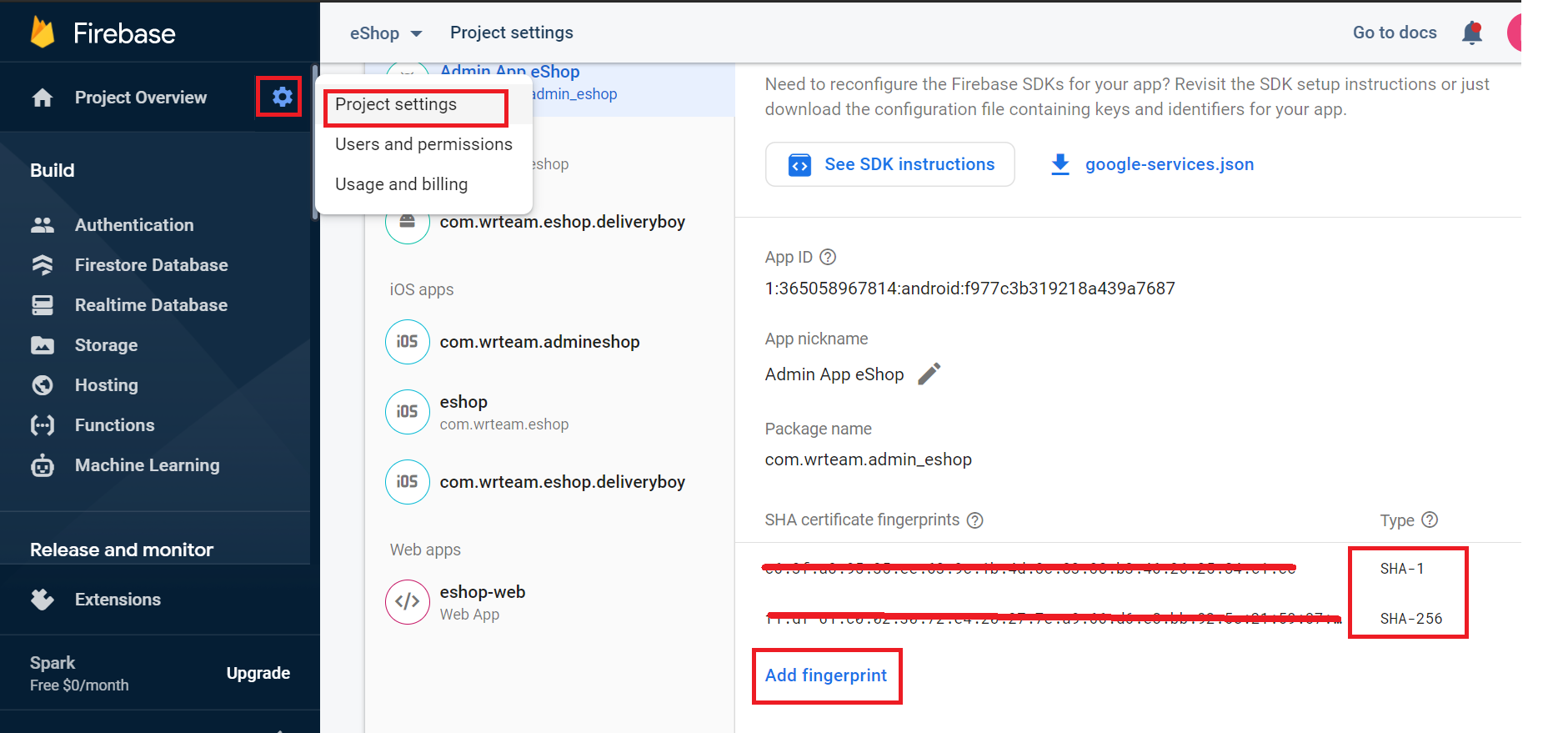
Remember:
- When releasing the APK, you must add the release SHA1 in the Firebase console; otherwise, OTP verification won't work. After release, you can get the SHA1 from the Play Console under the App Integrity section.
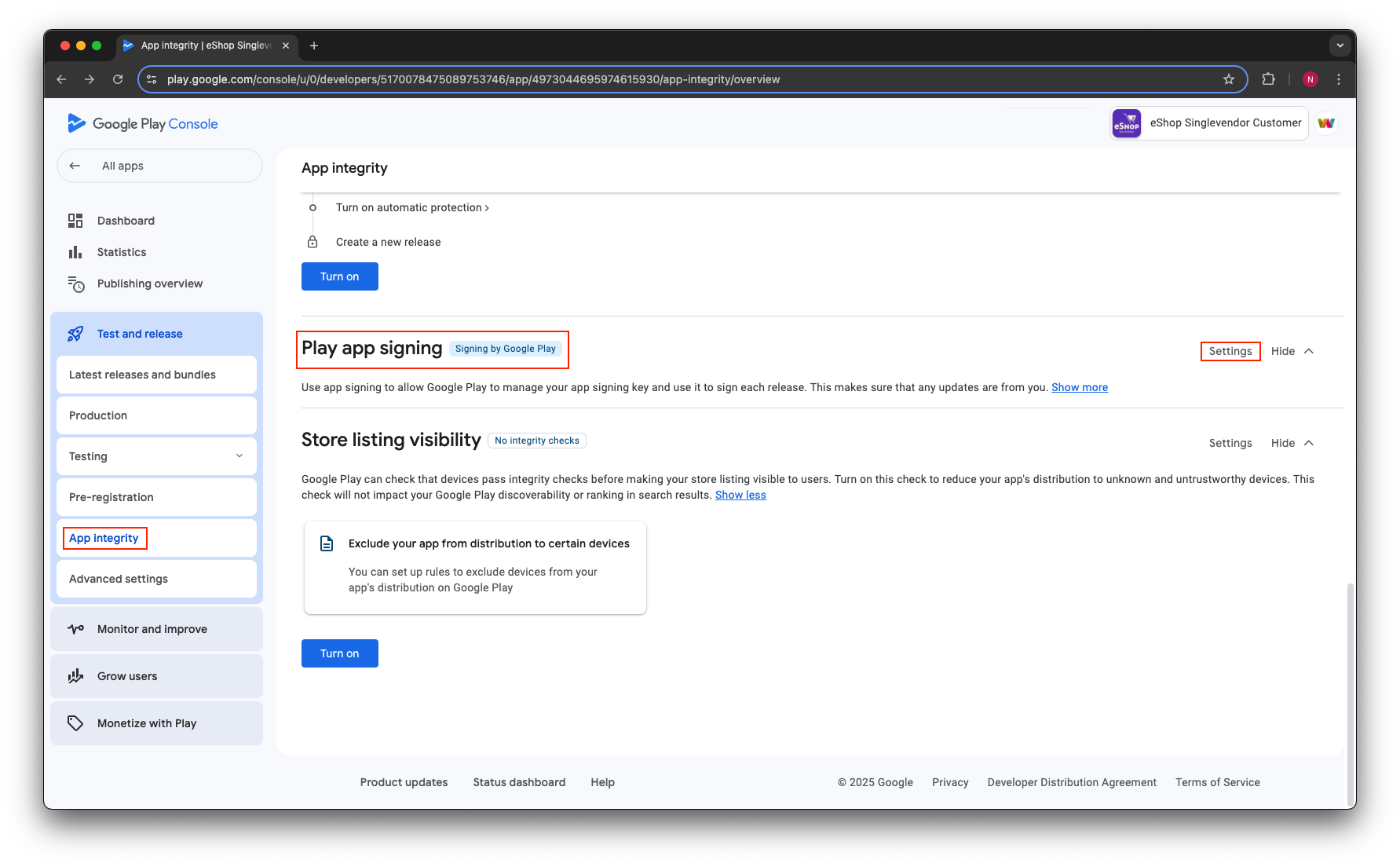
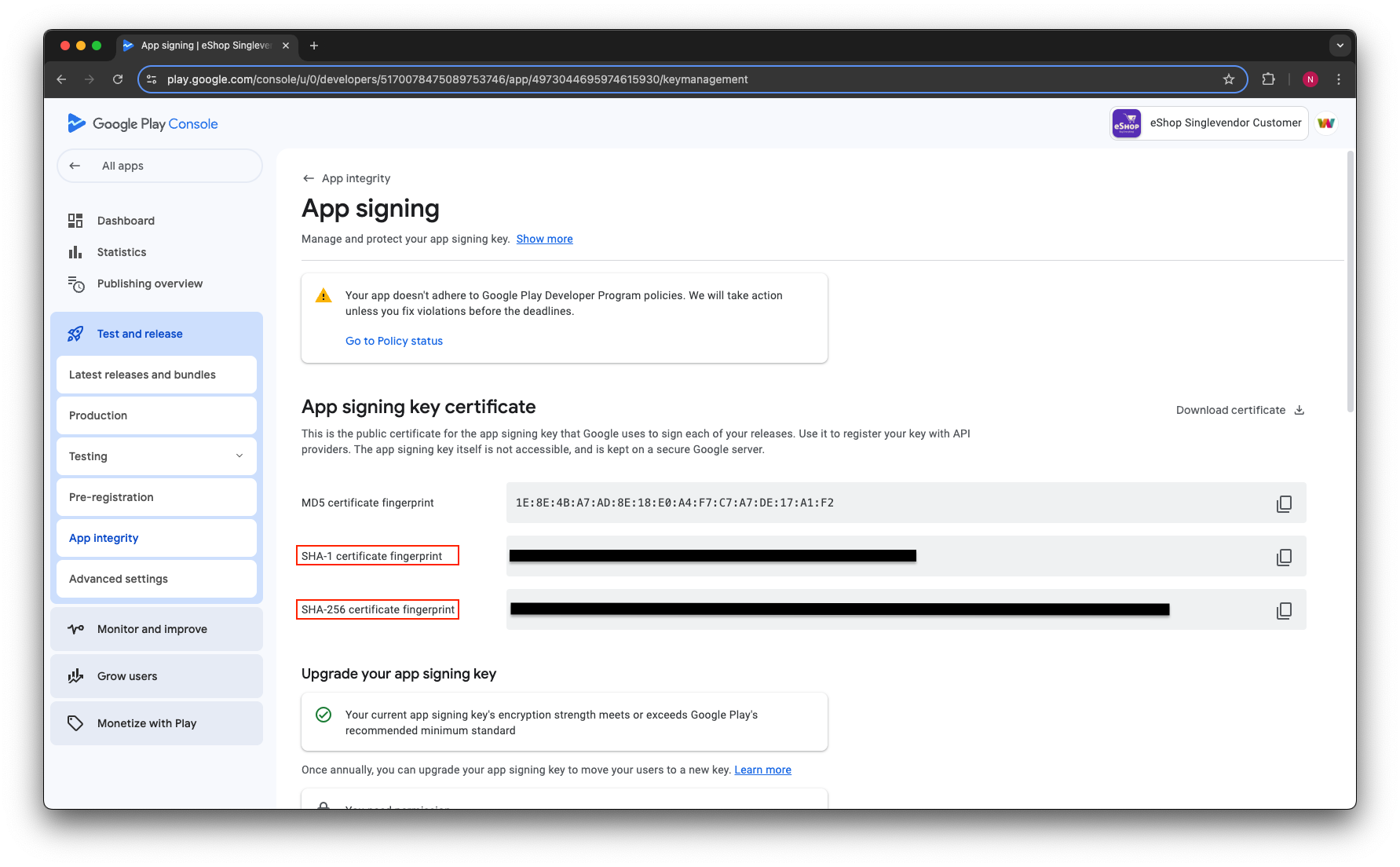
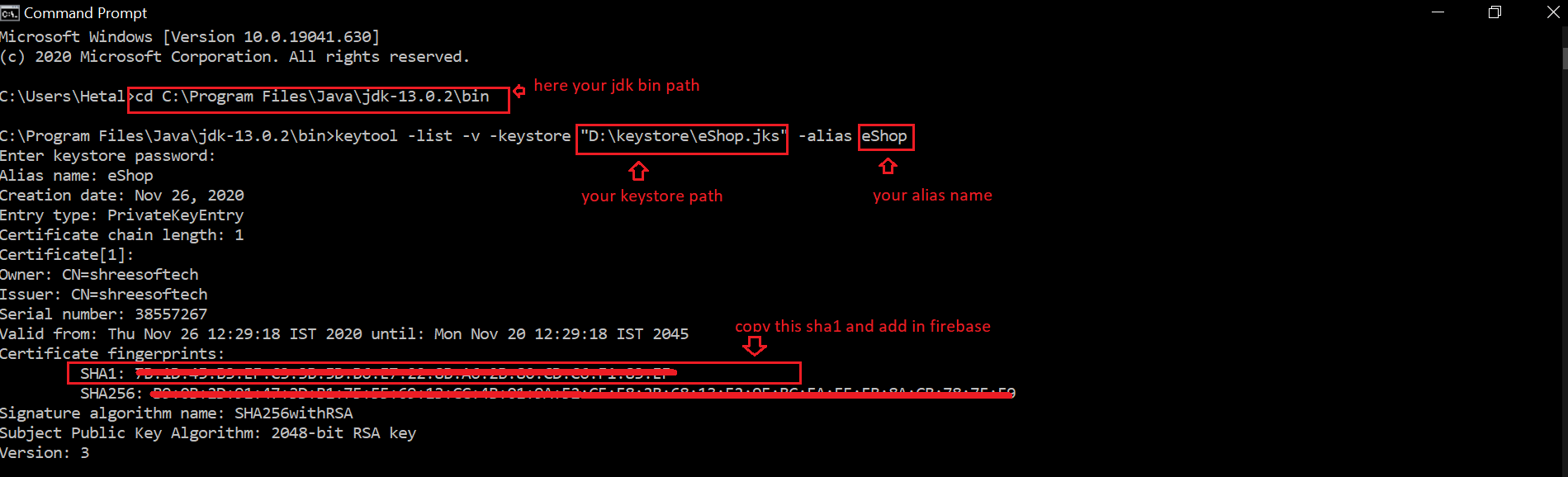
5. Alternatively, you can get the release SHA using the command line:
- Open Run, type
cmd, and press Enter. - Navigate to the Java JDK
binpath in the terminal. - Run the following command (replace the keystore path and alias):
keytool -list -v -keystore "D:\keystore\eShop.jks" -alias eShop - Enter the keystore password when prompted — it will display your release SHA1.
6. For ios you need to set following.
Add custom URL schemes to your Xcode project:
- Open your project configuration: double-click the project name in the left tree view. Select your app from the TARGETS section, then select the Info tab, and expand the URL Types section.
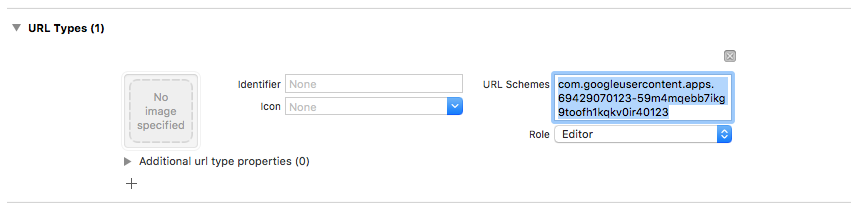
- Click the + button, and add a URL scheme for your reversed client ID. To find this value, open the GoogleService-Info.plist configuration file, and look for the REVERSED_CLIENT_ID key. Copy the value of that key, and paste it into the URL Schemes box on the configuration page. Leave the other fields blank.
- When completed, your config should look something similar to the following (but with your application-specific values):