How to generate release apks
How to generate release apks
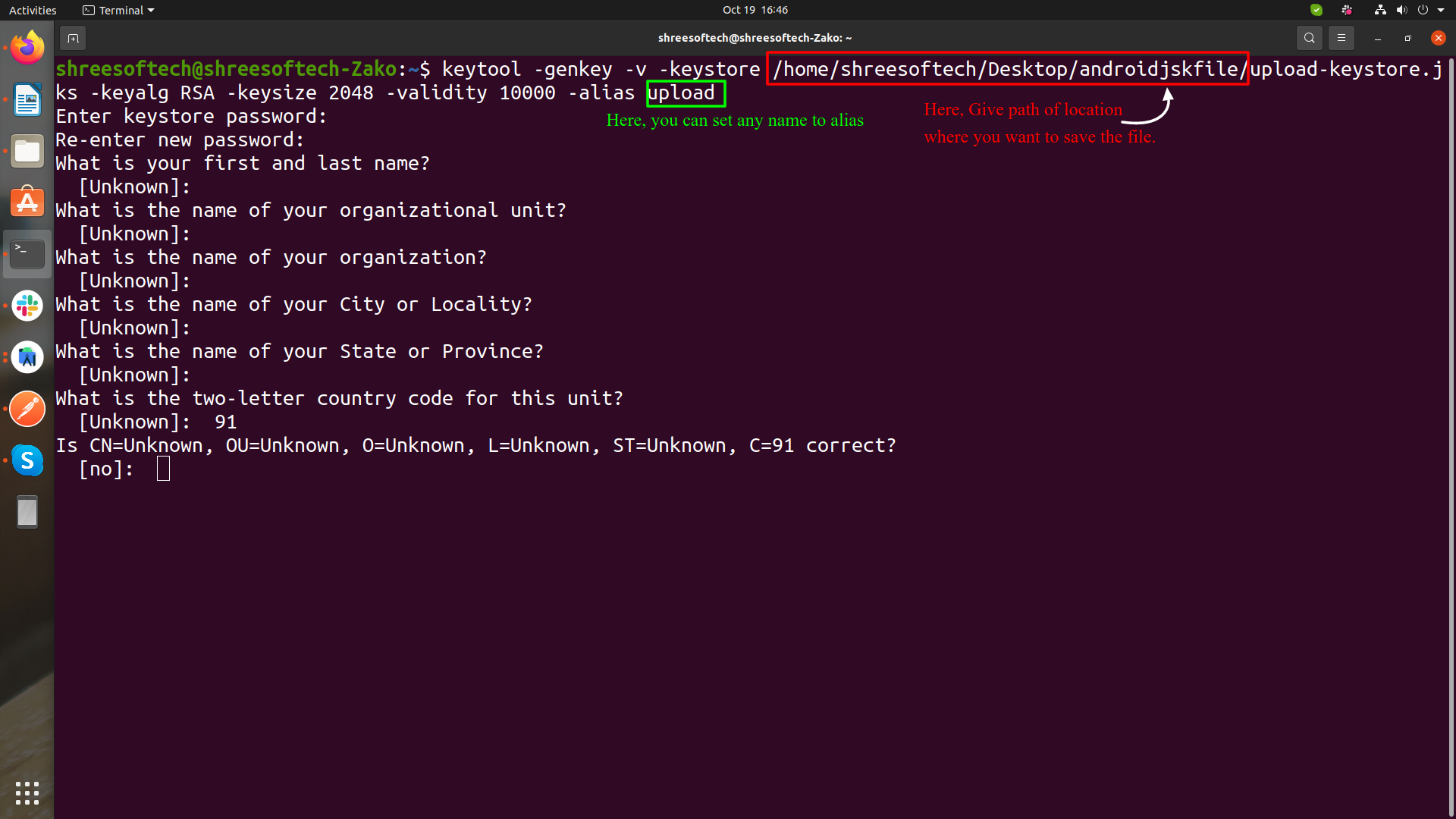
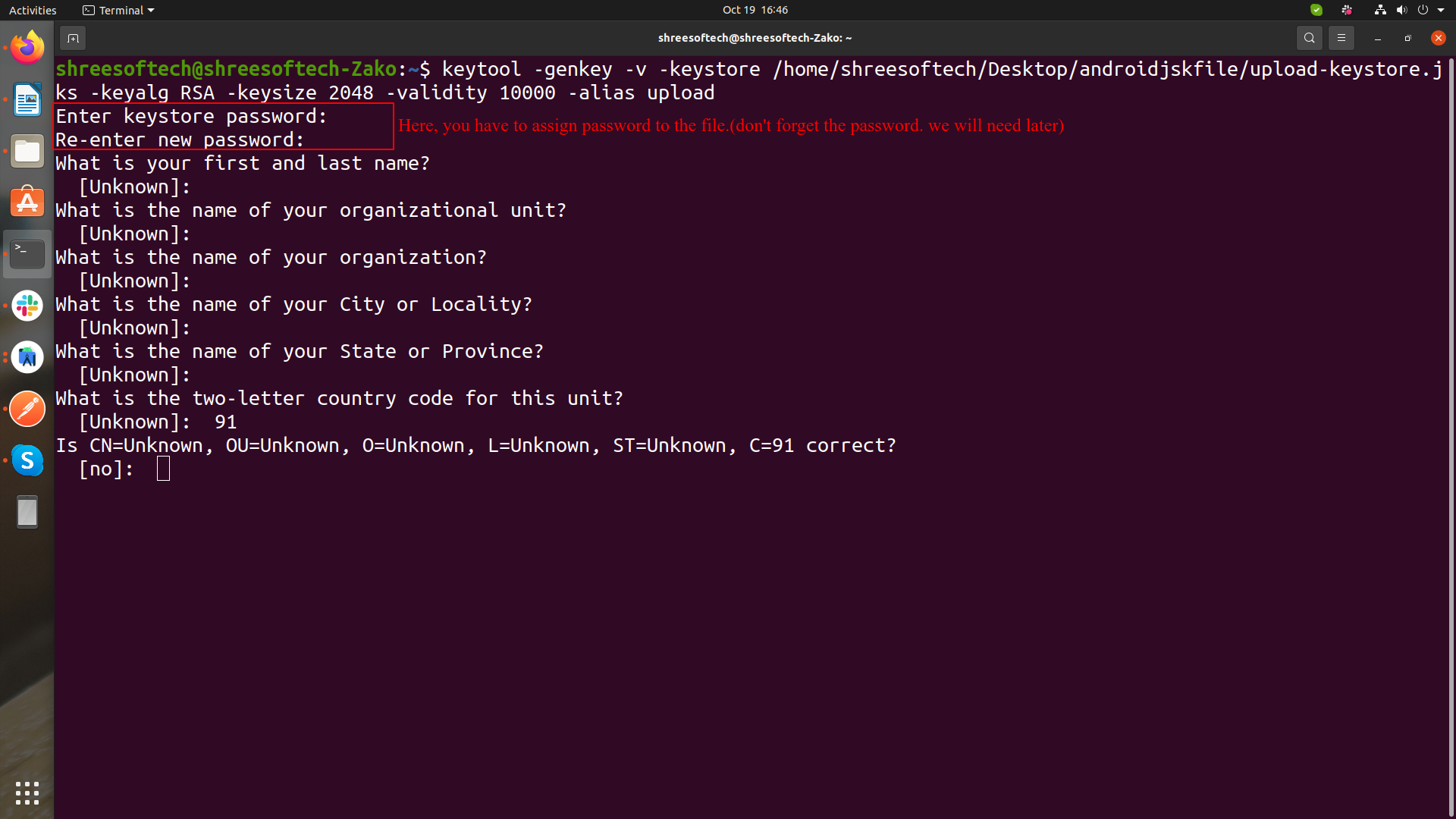
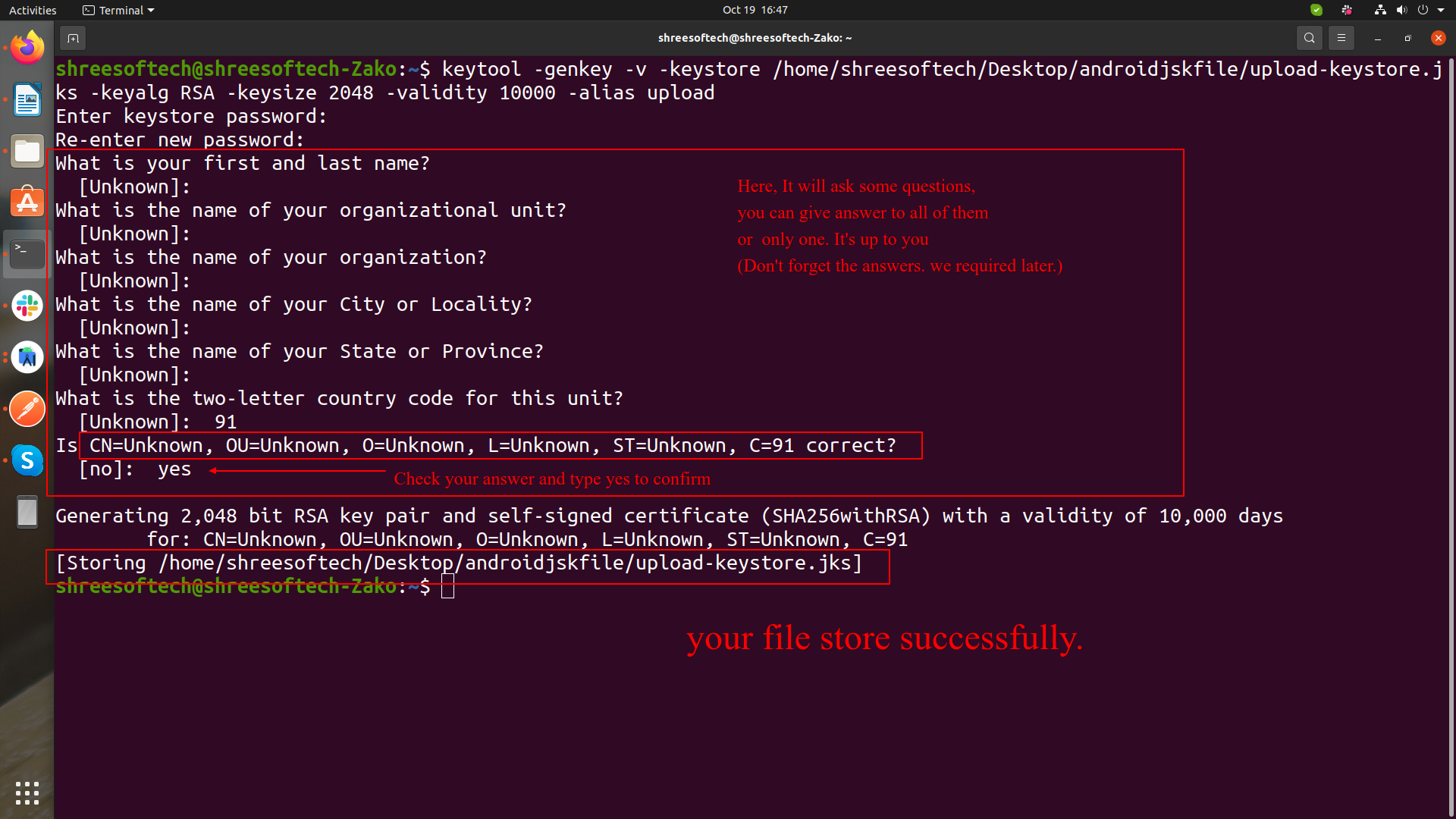
1. Create an upload keystore
Running the following at the command line:
- On Mac/Linux, use the following command:
keytool -genkey -v -keystore ~/upload-keystore.jks -keyalg RSA -keysize 2048 -validity 10000 -alias upload - On Windows, use the following command:
keytool -genkey -v -keystore c:\Users\USER_NAME\upload-keystore.jks -storetype JKS -keyalg RSA -keysize 2048 -validity 10000 -alias upload
2. Reference the keystore from the app
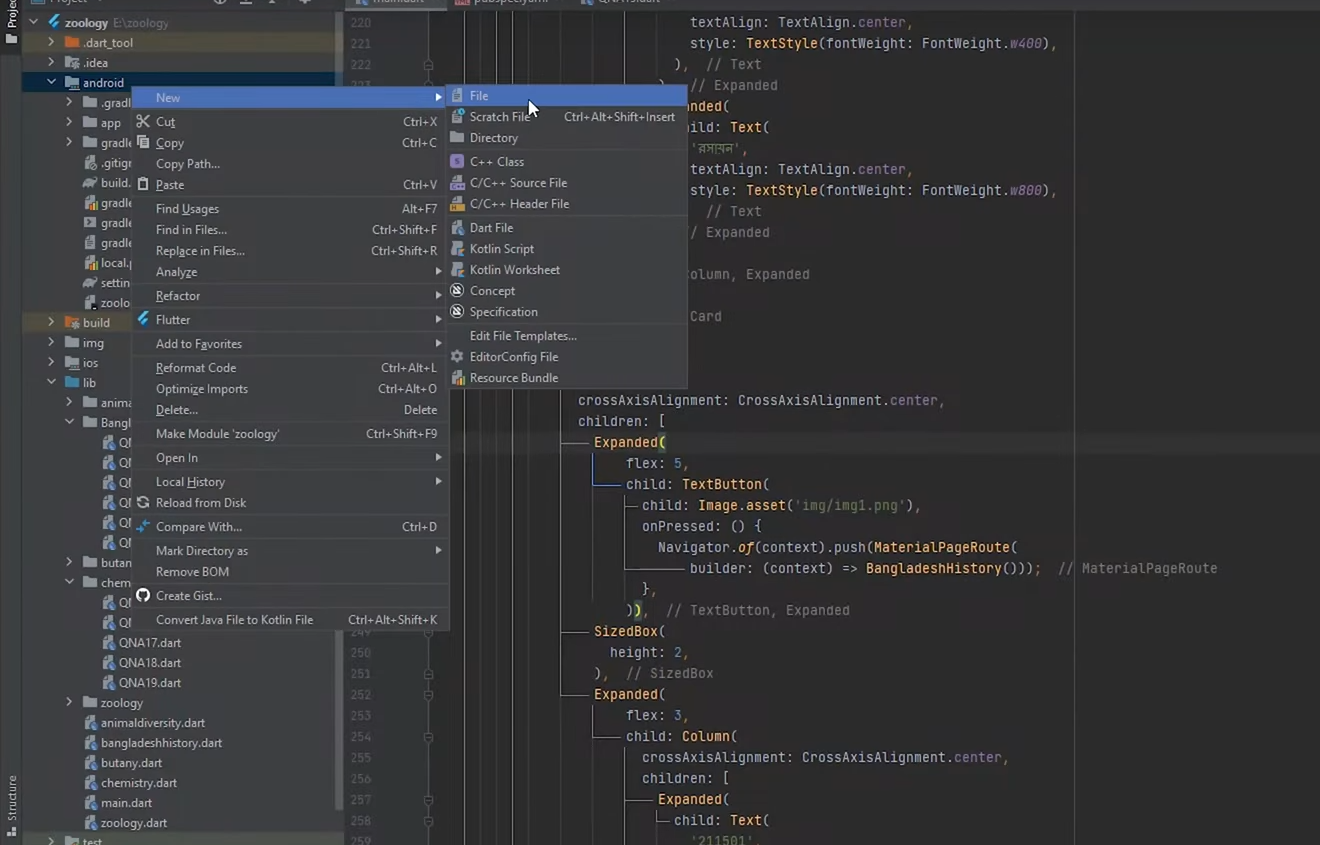
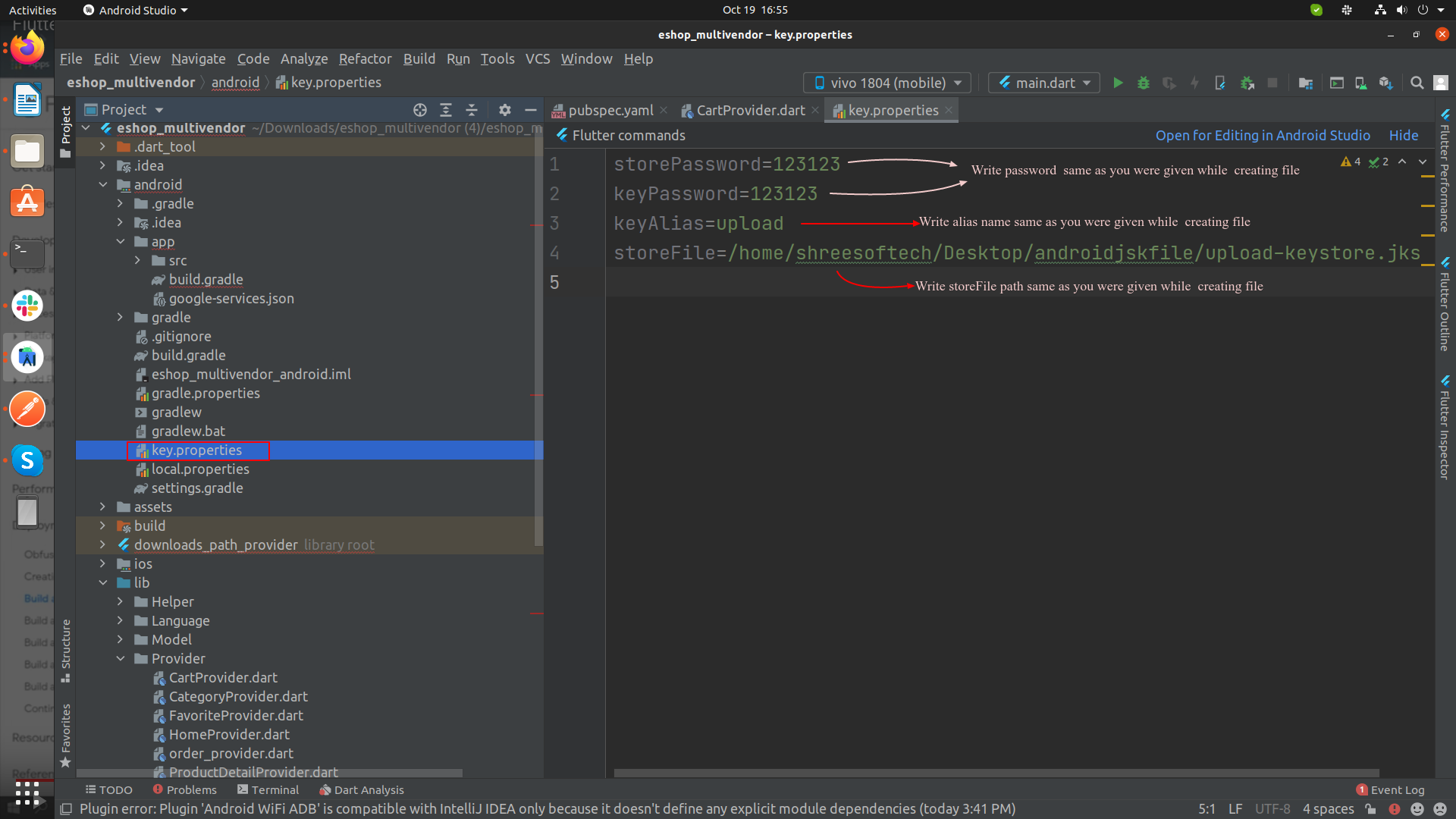
Create a file named [project]/android/key.properties that contains a reference to your keystore:
3. Copy below code, Paste in to key.propertirs file and change as per shown in image.
storePassword=<password from previous step>
keyPassword=<password from previous step>
keyAlias=upload
storeFile=location of the key store file, such as /Users/user name/upload-keystore.jks
4. Configure signing in gradle
Configure gradle to use your upload key when building your app in release mode by editing the [project]/android/app/build.gradle file.
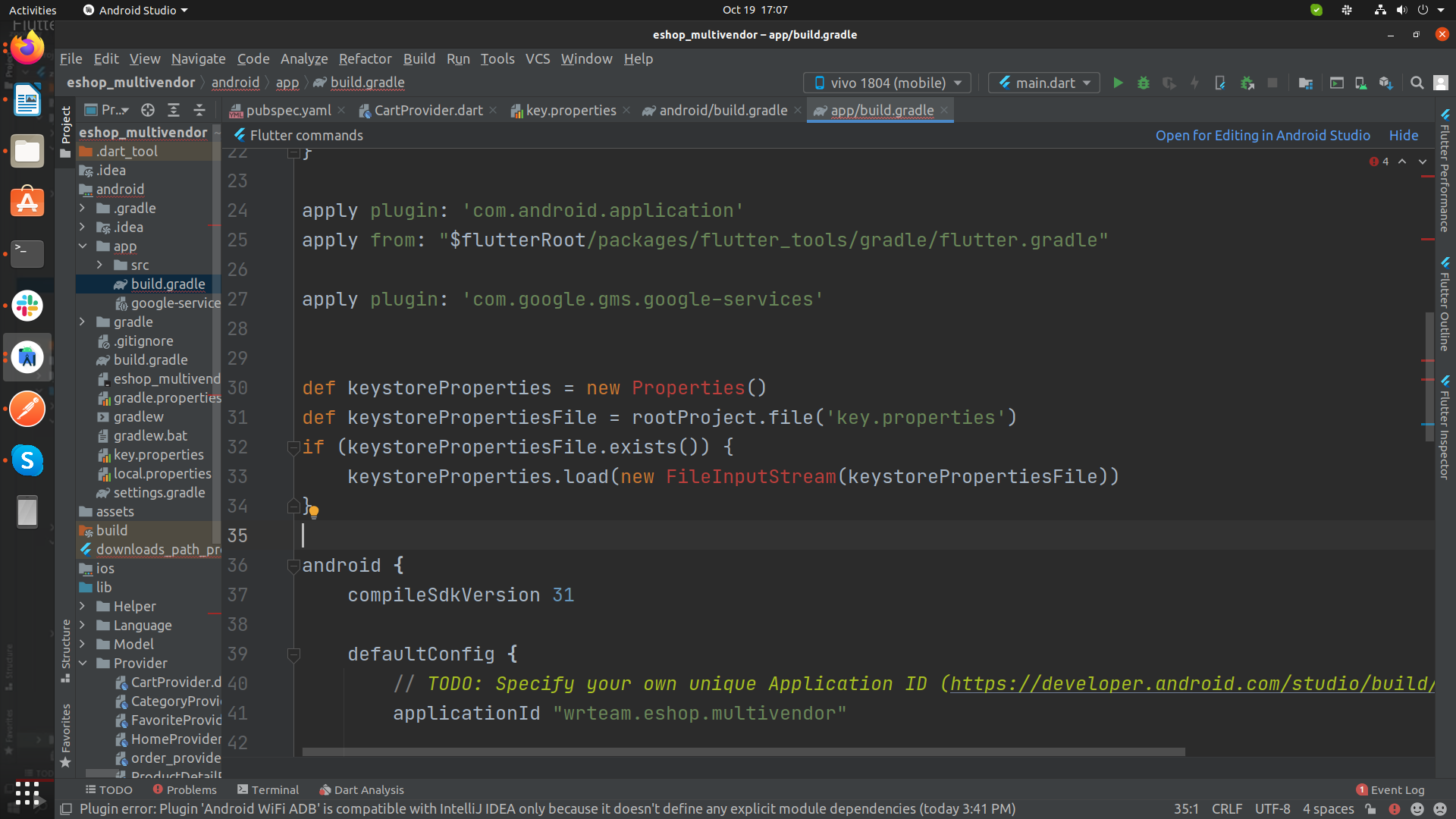
- Add the below keystore information from your properties file before the android block:
def keystoreProperties = new Properties()
def keystorePropertiesFile = rootProject.file('key.properties')
if (keystorePropertiesFile.exists()) {
keystoreProperties.load(new FileInputStream(keystorePropertiesFile))
}
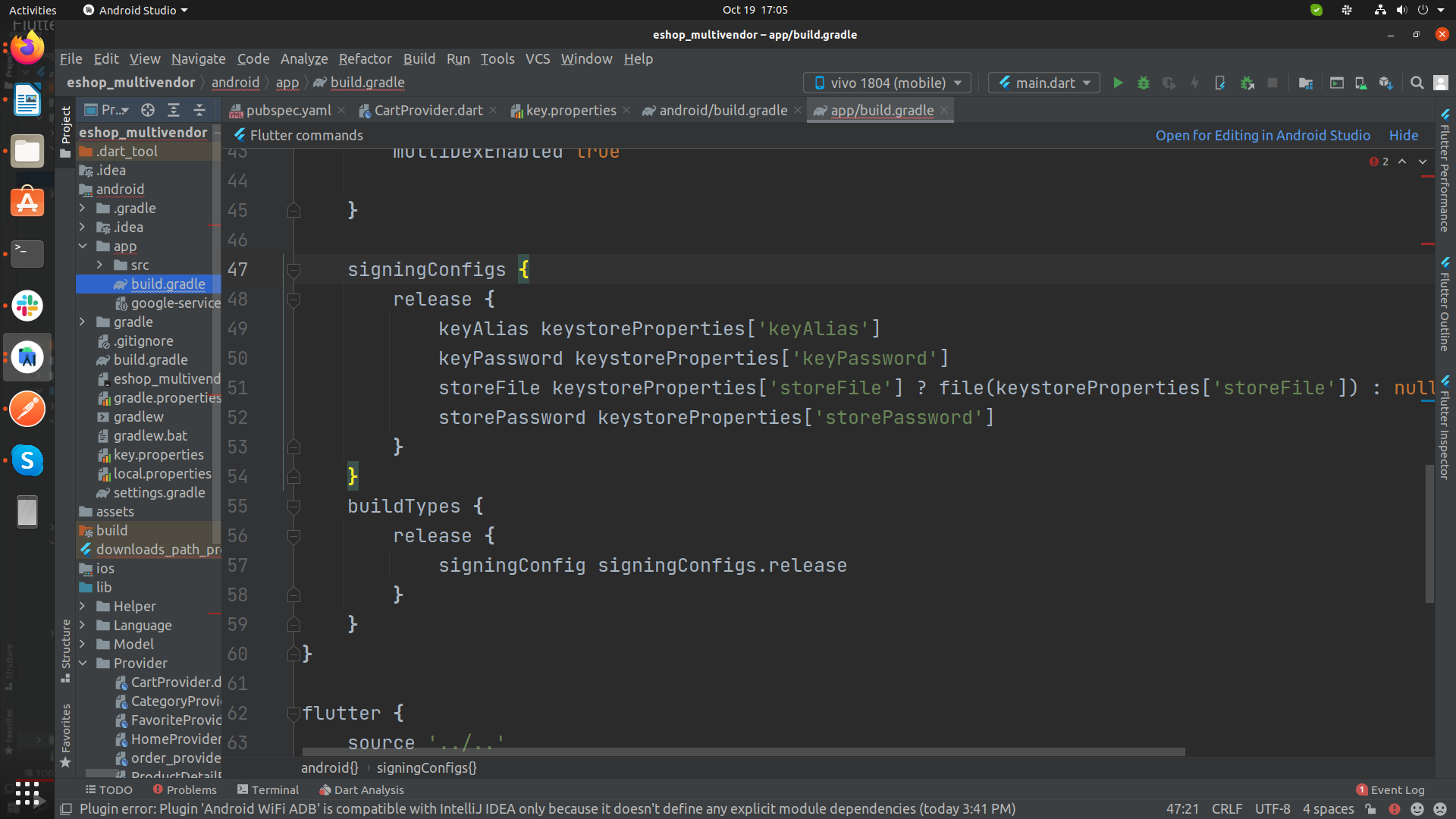
- Find the buildTypes block, and replace it with the following signing configuration info:
signingConfigs {
release {
keyAlias keystoreProperties['keyAlias']
keyPassword keystoreProperties['keyPassword']
storeFile keystoreProperties['storeFile'] ? file(keystoreProperties['storeFile']) : null
storePassword keystoreProperties['storePassword']
}
}
buildTypes {
release {
signingConfig signingConfigs.release
}
}
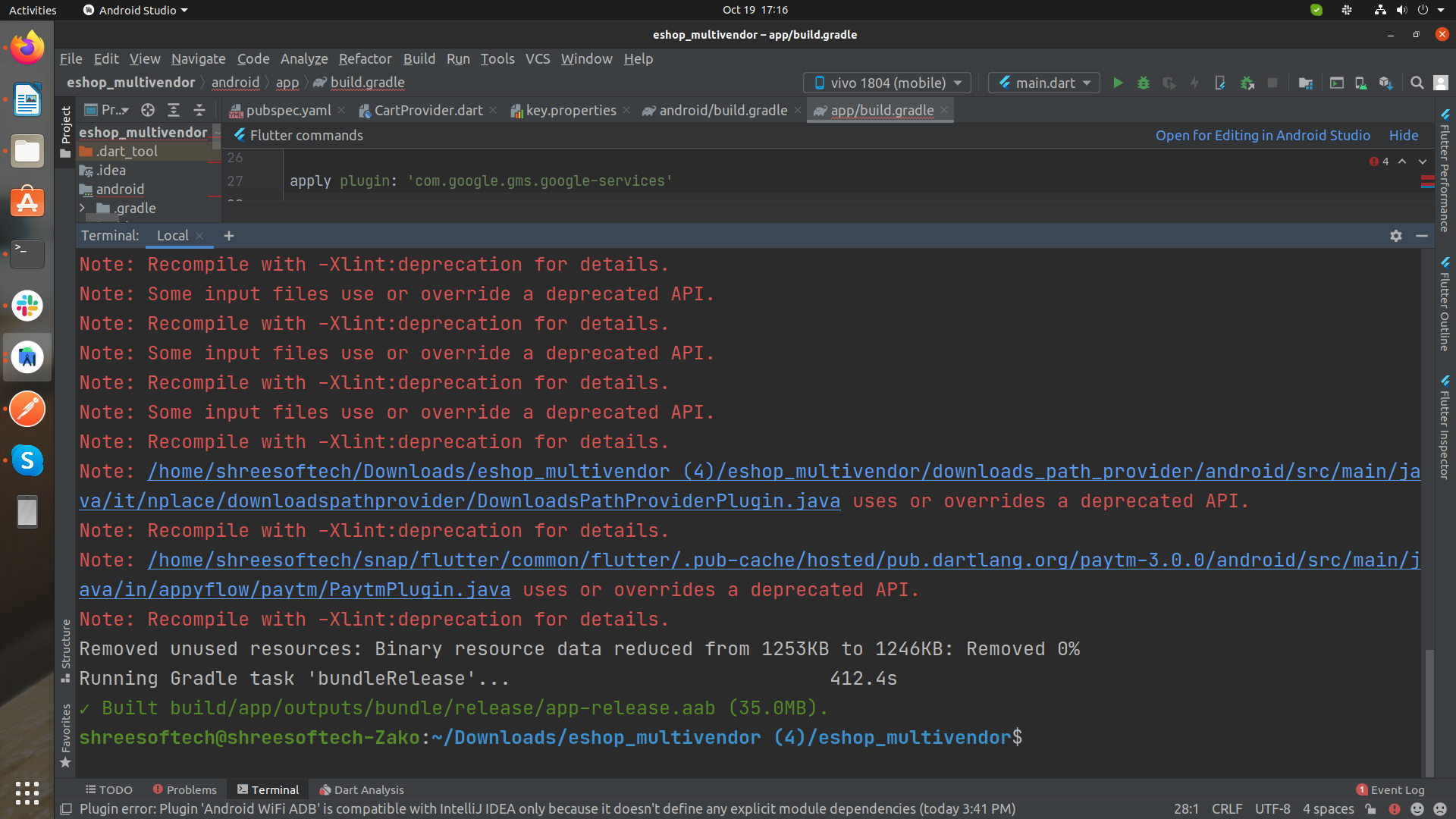
5. Run following commands in Terminal as per your need:
- To generate an APK:
flutter build apk - To generate an App Bundle:
flutter build appbundle