Brands Management
Brands Management allows you to create and manage product brands in your eShop. Organizing products by brand helps customers find their favorite manufacturers and builds trust through brand recognition.
Why Manage Brands?
- Organize products by manufacturer or brand name
- Build customer trust with recognized brand names
- Enable brand filtering for easier product discovery
- Showcase brand logos for visual recognition
- Track inventory by brand
Brands Dashboard
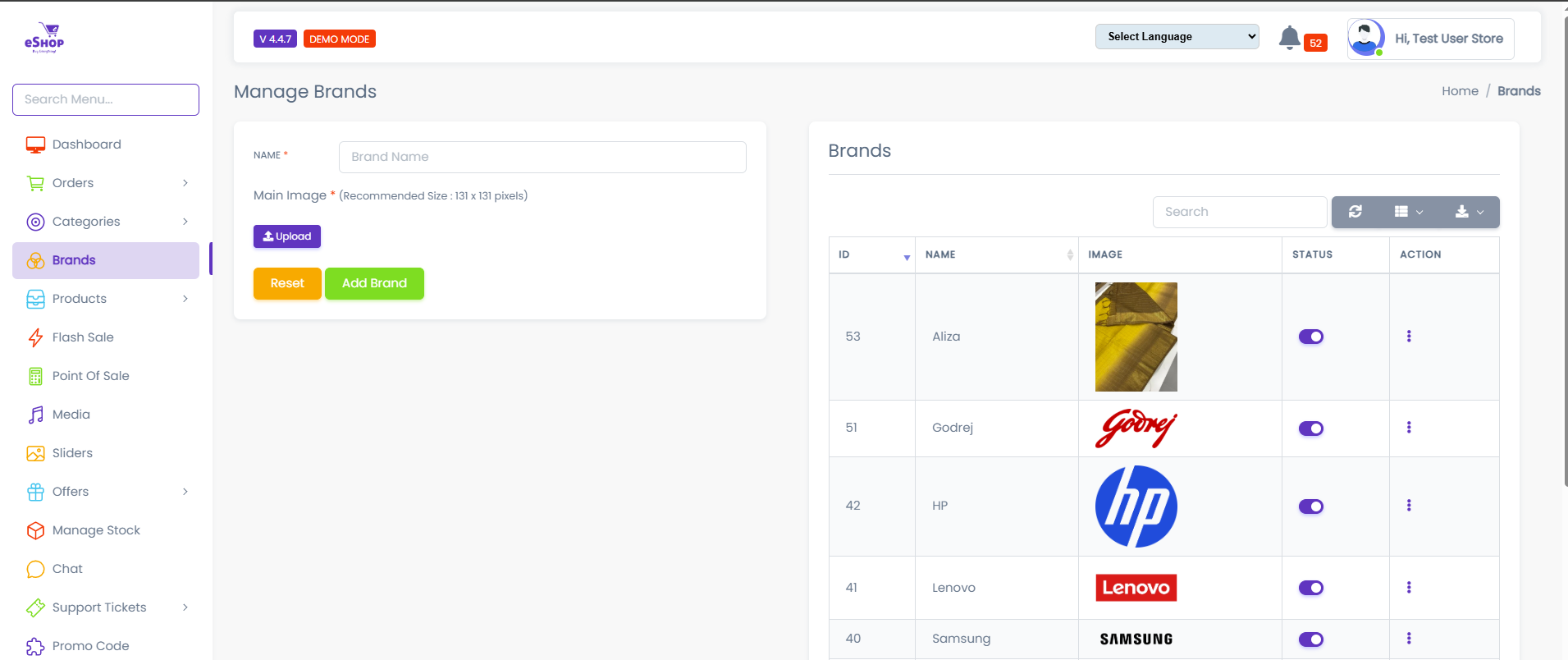
The brands dashboard displays all configured brands with their logos and status.
Interface Sections:
Left Panel - Add Brand Form:
- Name: Enter the brand name
- Main Image: Upload brand logo
- Upload button to select logo image
- Reset button to clear the form
- Add Brand button to save the new brand
Right Panel - Brands List:
- ID: Unique brand identifier
- NAME: Brand name (e.g., Altra, Godrej, HP, Lenovo, Samsung)
- IMAGE: Brand logo preview
- STATUS: Toggle switch (Active/Inactive)
- ACTION: Menu for edit/delete options
Adding a New Brand
Step 1: Enter Brand Name
In the left panel form:
- Click on the "Name" field
- Enter the brand name
- Examples: "Nike", "Apple", "Samsung", "Sony"
- Tips:
- Use official brand spelling
- Include proper capitalization
- Avoid abbreviations unless official
Step 2: Upload Brand Logo
Main Image (Brand Logo)
- Click the "Upload" button
- Select the brand logo image from your computer or media library
- Logo Requirements:
- Format: PNG (preferred for transparency), JPG, or SVG
- Size: 200x200px to 500x500px recommended
- Background: Transparent or white background
- Quality: High-resolution, clear logo
Logo Tips:
- Use official brand logos when possible
- Ensure logos are properly licensed
- Keep consistent sizing across all brands
- Use square or rectangular formats
Image Upload
For detailed instructions on uploading images, refer to the Media Management guide.
Step 3: Save Brand
- Click "Add Brand" to save the new brand
- Click "Reset" to clear the form and start over
- The new brand will appear in the brands list on the right
Deleting a Brand
How to Delete
- Find the brand you want to remove
- Click the three-dot menu (⋮) in the ACTION column
- Select "Delete" from the dropdown
- Confirm deletion in the popup dialog
- Brand is permanently removed
Important
Before deleting a brand:
- Check if products are assigned to this brand
- Deleting a brand may affect product organization
- Consider making the brand inactive instead of deleting
Using Brands in Products
Assigning Brands to Products
When adding or editing products:
- Go to Products → Add Product or Edit Product
- Find the "Brand" field in the product form
- Select the brand from the dropdown list
- Only Active brands appear in the dropdown
- Save the product
Brand Benefits
For Customers:
- Filter products by favorite brands
- Find all products from a specific manufacturer
- Trust established brand names
- Recognize products by brand logos
For Store Owners:
- Organize inventory by brand
- Track sales by manufacturer
- Create brand-specific promotions
- Analyze brand performance
Common Brand Examples
Electronics
- Apple, Samsung, Sony, LG, HP, Lenovo, Dell, Asus
Fashion & Apparel
- Nike, Adidas, Puma, Zara, H&M, Levi's, Calvin Klein