Home Slider Images
Home Slider Images are the rotating banner images displayed prominently on your website's homepage. These eye-catching visuals help showcase featured products, promotions, and important announcements to visitors.
Why Use Sliders?
- Grab attention with dynamic, rotating visuals
- Showcase multiple promotions in one space
- Highlight featured products or collections
- Drive engagement with clickable banners
- Create visual appeal on your homepage
Slider Management Dashboard
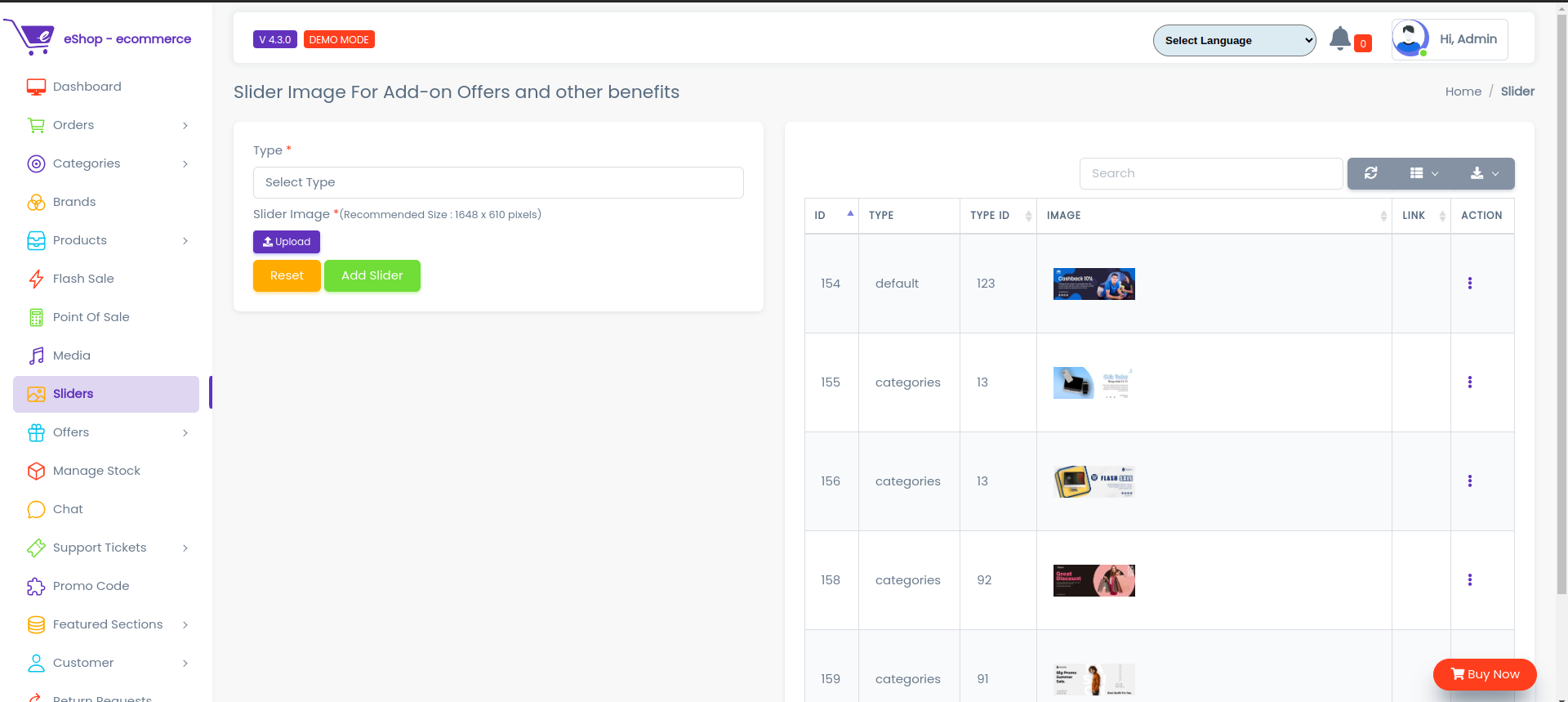
The slider dashboard displays all configured slider images with the following information:
Table Columns:
- Preview: Thumbnail of the slider image
- Type: Category or purpose of the slider
- Status: Active or Inactive
- Created Date: When the slider was added
- Actions: Quick action buttons
Adding a New Slider
Step 1: Click "Add Slider"
Click the "Add Slider" button located on the right side of the dashboard.
Step 2: Fill Slider Form
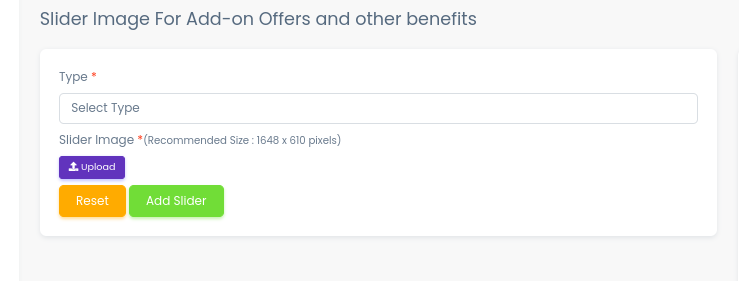
A form will appear with the following fields:
1. Type
- Enter the type or category of the slider
- Examples: "Promotional", "Featured Product", "Seasonal Sale"
- Helps organize and identify sliders
2. Upload Image
- Click the "Upload Image" button
- Select image from media library or upload new
- Recommended size: 1920x600px or 1200x400px
- Format: JPG, PNG, or WebP
Image Upload
For detailed instructions on uploading images, refer to the Media Management guide.
3. Link (Optional)
- Add a URL where users will be redirected when clicking the slider
- Example: Product page, category page, or promotional landing page
4. Status
- Set slider to Active (visible on website) or Inactive (hidden)
Step 3: Save Slider
- Click "Add Slider" to save the new slider
- Click "Reset" to clear the form and start over
- The new slider will appear in the slider list
Reflecting on Frontend
The Home Slider management system allows you to:
- Add new slider images with custom content
- Edit existing slider images and settings

How it appears to customers:
- Sliders rotate automatically on the homepage
- Visitors can click on sliders to navigate to linked pages
- Navigation dots or arrows allow manual slider control
- Only Active sliders are visible to customers
- Sliders display in the order configured