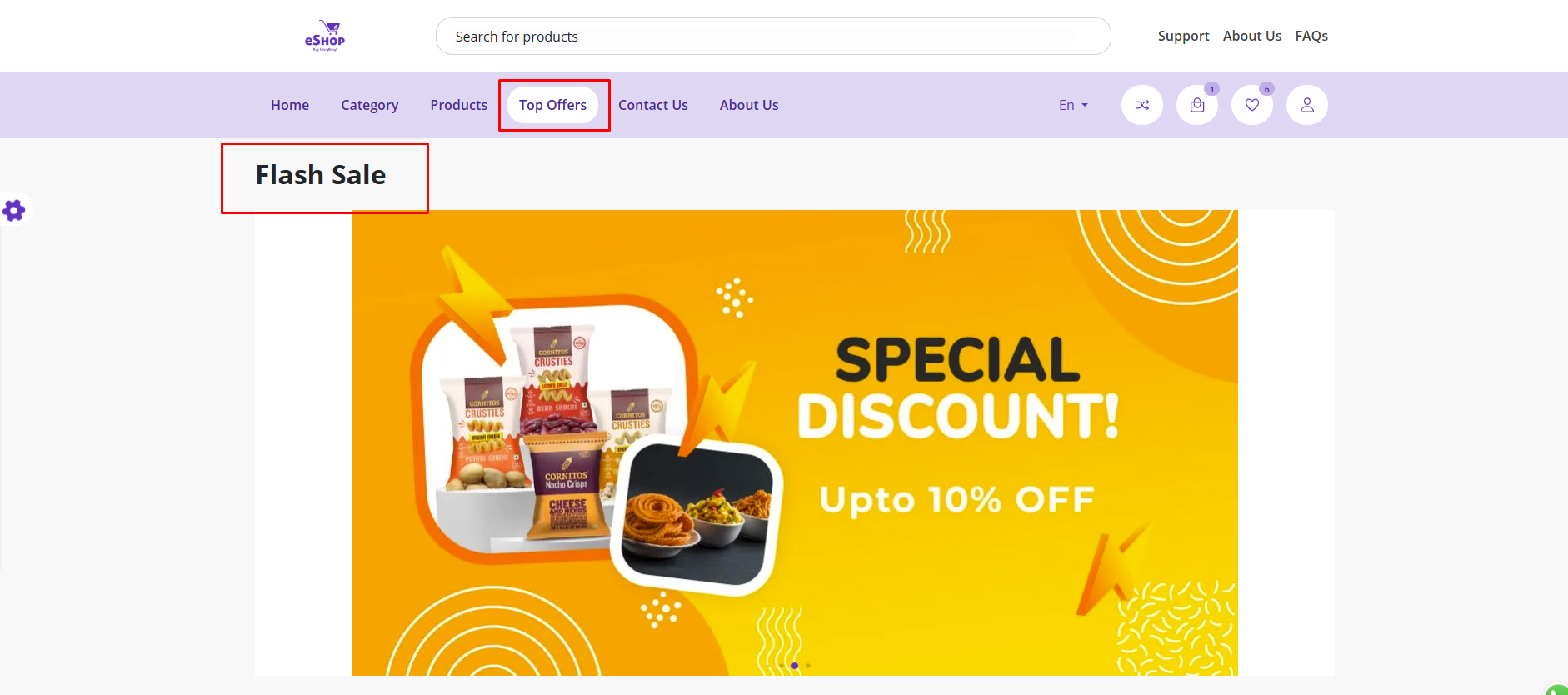
Flash Sales Management
Flash Sales are time-limited promotional campaigns that offer special discounts on selected products to create urgency and boost sales. This powerful marketing tool helps you drive customer engagement and increase revenue through strategic, limited-time offers.
Flash Sales are highly effective for:
- Clearing inventory of seasonal or slow-moving products
- Boosting sales during specific periods or events
- Attracting new customers with compelling limited-time offers
- Increasing customer engagement and creating urgency
- Testing price sensitivity for different product categories
Flash Sales Overview
The Flash Sales feature allows administrators to create and manage promotional campaigns with:
- Time-bound discounts with specific start and end dates
- Product-specific promotions targeting individual items
- Percentage-based discounts to incentivize purchases
- Visual banners to highlight ongoing sales on the website
- Automated activation/deactivation based on scheduled timings
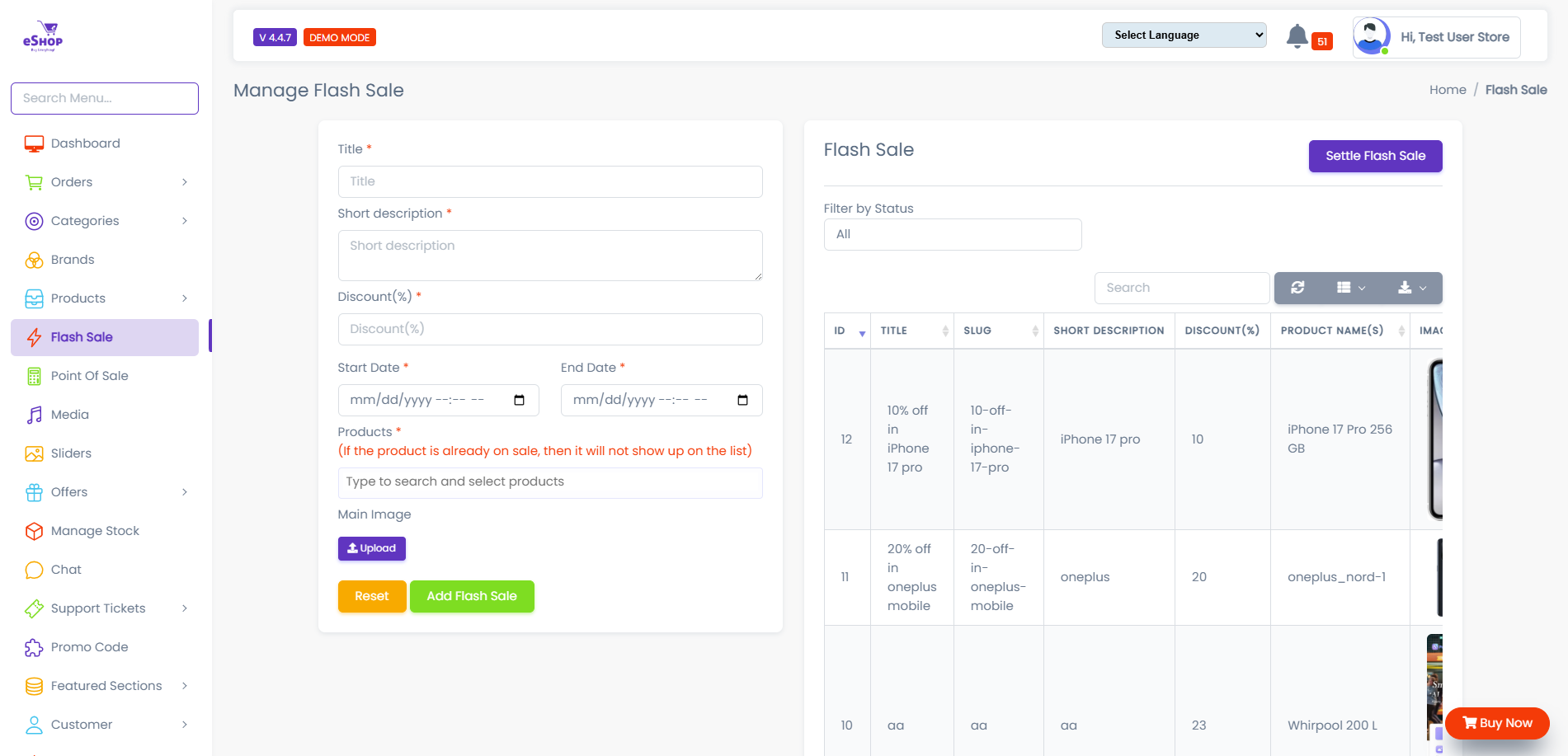
Accessing Flash Sales Management
Navigation Path:
- Log in to your Admin Panel
- Navigate to Flash Sales
- You'll see the Flash Sales management dashboard
What you can do:
- View all active and scheduled flash sales
- Create new flash sale campaigns
- Edit existing flash sales
- Delete or deactivate campaigns
Creating a New Flash Sale
Step 1: Click "Add Flash Sale"
On the Flash Sales management page, click the "Add Flash Sale" or "Create New" button to begin creating a new campaign.
Step 2: Configure Flash Sale Details
Fill in the following required information:
1. Flash Sale Title
- Enter a descriptive name for your campaign
- Example: "Summer Clearance Sale", "Weekend Special Offer", "New Year Mega Sale"
- This title helps you identify the campaign in the admin panel
Use clear, descriptive titles that indicate the campaign period or theme for easy management.
2. Select Products
- Choose which products will be included in this flash sale
- You can select:
- Individual products from your catalog
- Multiple products at once
- Products from specific categories (if supported)
How to select products:
- Click the "Select Products" dropdown or button
- Browse or search for products
- Check the boxes next to products you want to include
- Confirm your selection
Only active and published products should be included in flash sales. Ensure selected products have sufficient stock.
3. Discount Percentage
- Enter the discount amount as a percentage (e.g., 10%, 25%, 50%)
- Valid range: Typically 1% to 99%
- This discount will be applied to the original product price
Discount Calculation Example:
- Original Price: $100
- Discount: 25%
- Flash Sale Price: $75
- 10-20% discount: Good for premium products or regular promotions
- 25-40% discount: Effective for seasonal clearance or mid-range campaigns
- 50%+ discount: Best for inventory clearance or major sales events
4. Start Date & Time
- Select when the flash sale should begin
- Use the date/time picker to set the exact start moment
- The sale will automatically activate at this time
Considerations:
- Schedule sales during peak shopping hours for maximum impact
- Consider time zones if serving international customers
- Allow sufficient time for marketing preparation before launch
5. End Date & Time
- Select when the flash sale should end
- The sale will automatically deactivate at this time
- Products will revert to their original prices
Duration Recommendations:
- 24-48 hours: Creates strong urgency, ideal for flash campaigns
- 3-7 days: Good for weekend or weekly promotions
- 1-2 weeks: Suitable for seasonal or clearance sales
Ensure the end date is after the start date. The system may prevent overlapping flash sales on the same products.
6. Upload Banner Image
- Upload an attractive promotional banner image
- This banner will be displayed on your website's Flash Sale section
Banner Specifications:
- Recommended dimensions: 1200x400px or 1920x600px (check your theme)
- File format: JPG, PNG, or WebP
- File size: Keep under 500KB for optimal loading speed
- Design tips:
- Use bold, eye-catching colors (orange, red, yellow work well)
- Include clear text: "SPECIAL DISCOUNT", "Upto X% OFF"
- Add product images if highlighting specific items
- Ensure text is readable on mobile devices
Use tools like Canva, Adobe Express, or Figma to create professional flash sale banners quickly.
7. Status
- Set the flash sale status:
- Active: Sale is live (if within scheduled time)
- Inactive: Sale is disabled (won't show even during scheduled time)
- Scheduled: Sale will activate automatically at start time
Step 3: Save Flash Sale
After filling in all details:
- Review all information for accuracy
- Click "Save" or "Create Flash Sale"
- You'll see a success message confirming creation
- The flash sale will appear in your management dashboard
Managing Existing Flash Sales
Viewing Flash Sales List
The Flash Sales dashboard displays all campaigns with:
- Flash Sale Title
- Discount Percentage
- Start Date & End Date
- Status (Active, Scheduled, Expired, Inactive)
- Number of Products included
- Action buttons (Edit, Delete, View)
Editing a Flash Sale
To modify an existing flash sale:
- Locate the flash sale in the list
- Click the "Edit" icon/button
- Update any of the following:
- Title
- Products (add/remove)
- Discount percentage
- Start/End dates
- Banner image
- Status
- Click "Update" to save changes
Be cautious when editing active flash sales as changes take effect immediately and may affect customer purchases in progress.
Deleting a Flash Sale
To remove a flash sale:
- Click the "Delete" icon/button next to the flash sale
- Confirm the deletion in the popup dialog
- The flash sale will be permanently removed
Deleting a flash sale is permanent and cannot be undone. Consider setting status to "Inactive" instead if you might need it later.
Activating/Deactivating Flash Sales
Quick Status Toggle:
- Use the status toggle switch to quickly activate or deactivate a flash sale
- Active: Sale is visible and functional (if within scheduled time)
- Inactive: Sale is hidden from customers
Flash Sale Display on Website
Customer-Facing Features
When a flash sale is active, customers will see:
-
Flash Sale Banner
- Displayed prominently on the homepage or dedicated Flash Sales page
- Shows the uploaded banner image
- Includes discount information and call-to-action
-
Discounted Prices
- Original price shown with strikethrough
- Flash sale price displayed prominently
- Discount percentage badge (e.g., "25% OFF")
-
Countdown Timer (if implemented)
- Shows time remaining until sale ends
- Creates urgency and encourages immediate purchase
-
Flash Sale Badge
- Products in flash sales display special badges
- Helps customers identify promotional items quickly
Example Display