Categories
Categories Overview
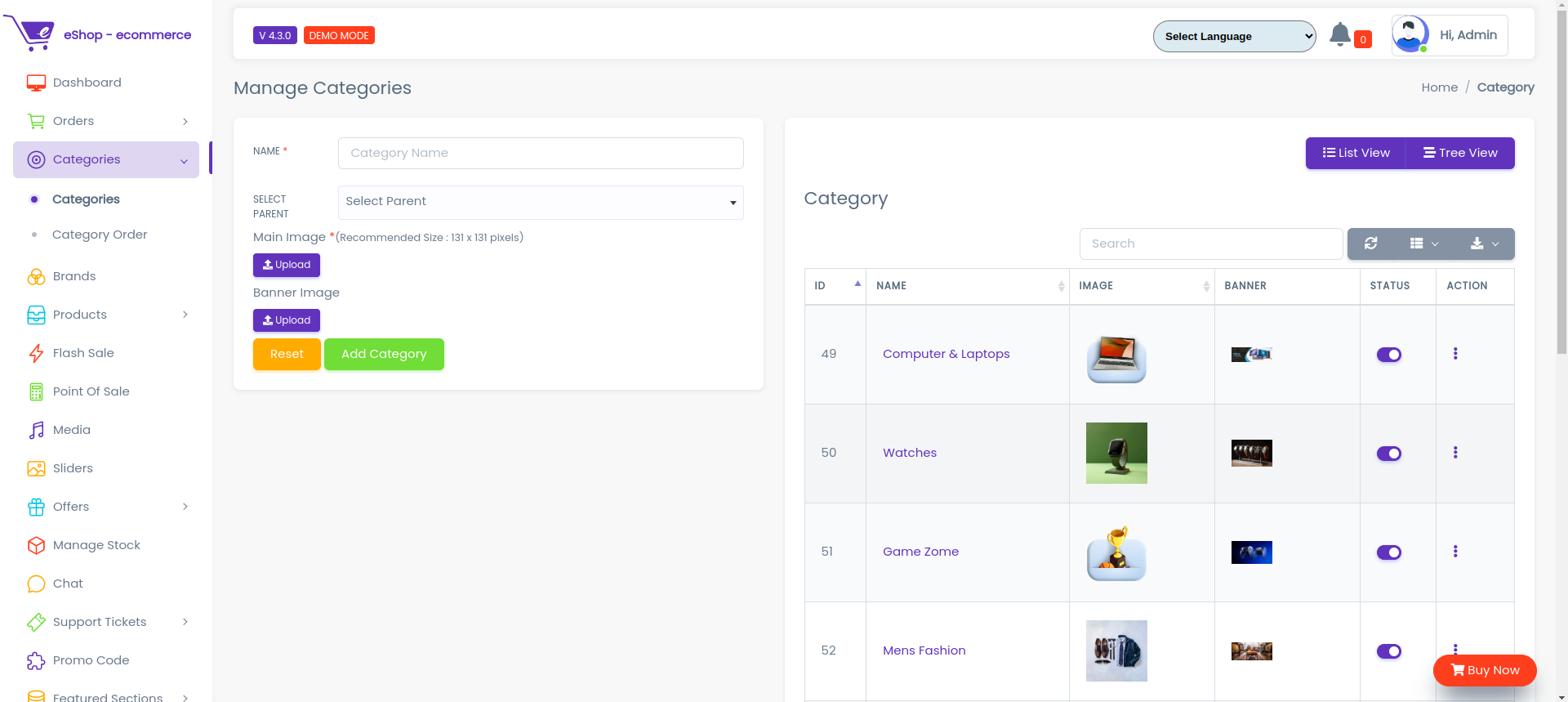
The Categories Panel allows administrators to organize products into a structured hierarchy.
Categories play a critical role in product discovery, filtering, navigation, and reporting across the eShop platform.
Every product must be assigned to a category to ensure it appears correctly on the storefront and in search results.
Why Categories Are Important
Categories help you:
- Organize products in a clear, logical structure
- Improve customer browsing and search experience
- Apply category-level tax and business rules
- Enable category-based filtering and analytics
- Maintain scalable product management as your catalog grows
Products without an assigned category may not be visible on the storefront or may appear incorrectly. Ensure every active product is linked to at least one category.
Category Structure (Tree View)
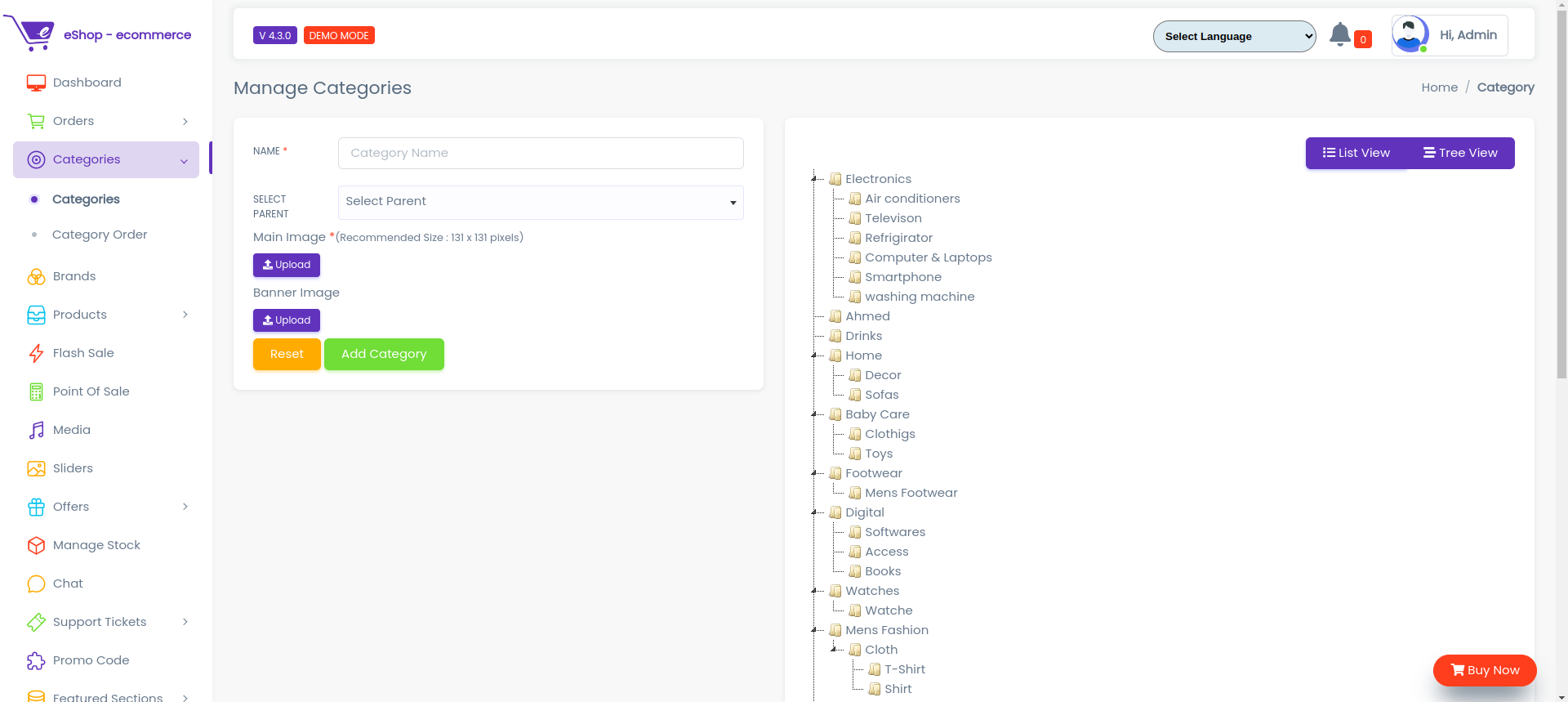
Categories are displayed in a tree view, allowing you to create:
- Parent categories (e.g., Electronics)
- Child categories (e.g., Mobile Phones, Laptops)
This hierarchical structure helps manage large catalogs efficiently and improves frontend navigation.
Category Management Flow
The typical workflow for managing categories follows this sequence:
- Create categories based on your product structure
- Organize them into parent–child relationships
- Assign categories to products
- Maintain and update categories as your catalog evolves
Creating a New Category
To add a new category, follow the steps below.
Step 1: Open Add Category
Click on the Add Category option available on the right side of the Categories Panel.

Step 2: Enter Category Details
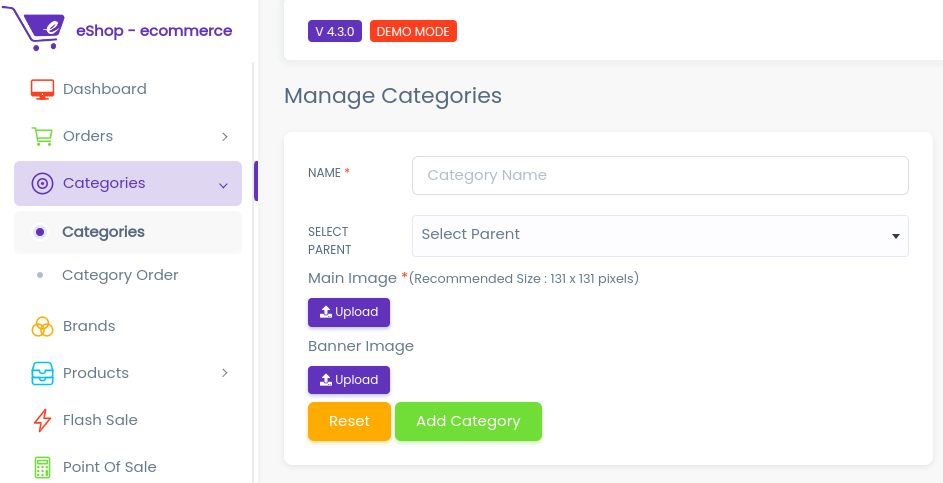
Fill in the following fields:
-
Category Name
Enter a clear and descriptive name for the category. -
Category Image
Upload an image to visually represent the category on the storefront.Image Best PracticeUse high-quality, square aspect ratio images (e.g., 512x512px) with a transparent or consistent background for the best visual appeal on your app and website.
Learn how to upload images here.
-
Parent Category (Optional)
Select a parent category if this is a subcategory.
Click Add Category to save or Reset to clear the form.
Step 3: Category Creation Confirmation
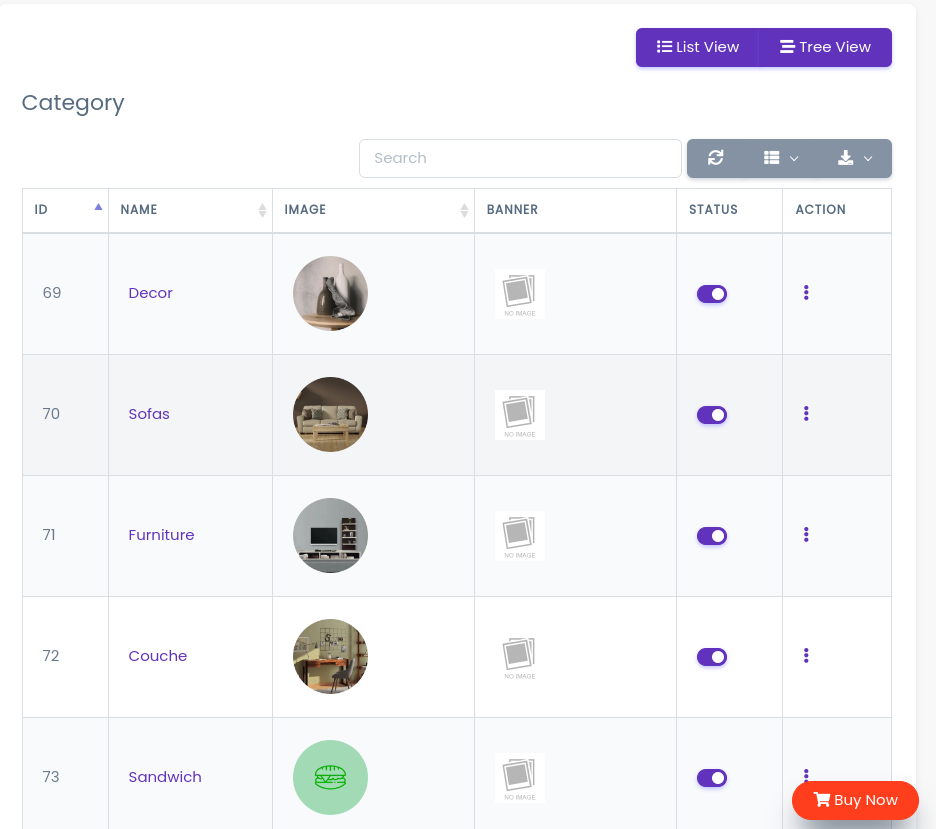
Once saved, the category appears immediately in the category tree and becomes available for product assignment.
Assigning Categories to Products
After creating categories, they must be assigned to products.
- Each product should belong to at least one category
- Category assignment is done from the Product Create / Edit screen
- Assigned categories determine:
- Product visibility
- Navigation placement
- Category-based filtering
Always create classifications (Categories) before adding products. This prevents the need to go back and edit products later, streamlining your data entry process.
Updating or Removing Categories
Categories can be managed at any time:
-
Edit Category
Update the category name, tax percentage, image, or hierarchy. -
Enable / Disable Category
Temporarily deactivate categories without deleting them. -
Delete Category
Permanently remove unused categories.
The system will prevent deletion if the category is in use.**
You cannot delete a category if:
- It is currently assigned to any assigned products.
- It has subcategories that contain products.
System Error: "Category is assigned to products or has subcategories with products, therefore cannot be deleted."
Resolution: You must reassign or remove all products and subcategories from this category before the system will allow you to delete it.
Best Practices
- Limit Nesting: Keep your category tree no more than 2-3 levels deep (e.g., Men > Clothing > T-Shirts). Deeper structures can confuse customers.
- Naming: Use simple, common terms your customers are likely to search for.
- Maintenance: Periodically review your categories to merge duplicates or remove empty ones.
Summary
The Categories Panel provides a structured foundation for managing your product catalog.
A well-organized category system ensures better customer experience, accurate taxation, and scalable product management.
Proper category setup is essential before onboarding products into the system.