Promo Code Management
Promo Codes (also known as coupon codes or discount codes) are special codes that customers can apply during checkout to receive discounts on their purchases. This powerful marketing tool helps drive sales, reward loyal customers, and attract new buyers.
- Boost sales with targeted discount campaigns
- Reward loyal customers with exclusive codes
- Attract new customers with first-time buyer discounts
- Clear inventory with product-specific codes
- Track marketing campaigns with unique codes
Promo Code Dashboard
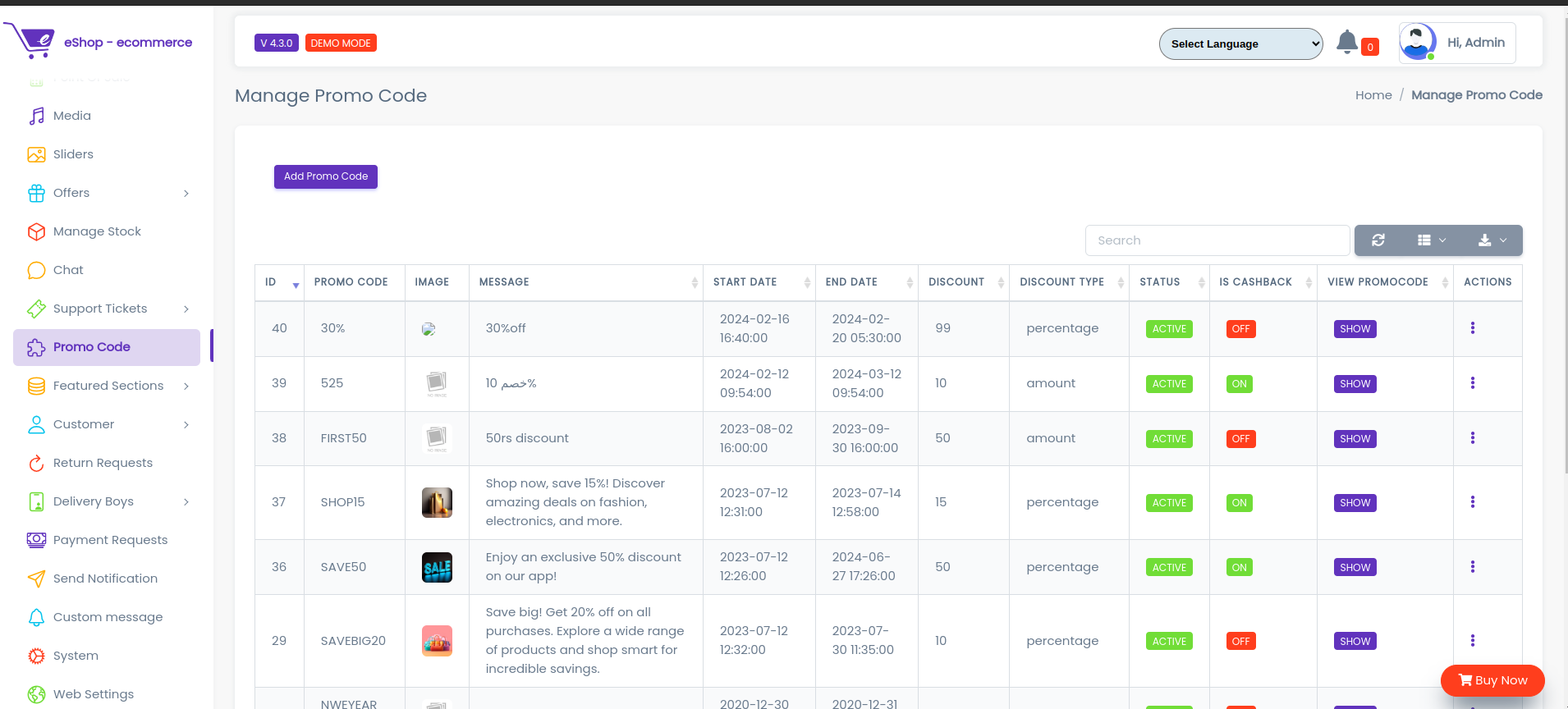
The promo code dashboard displays all configured discount codes with management tools.
Table Information:
- Code: The promo code customers will enter
- Discount: Percentage or fixed amount discount
- Valid From/To: Active period for the code
- Status: Active or Inactive
- Usage: Number of times used
- Actions: Quick action buttons
Adding a New Promo Code
Step 1: Click "Add Promo Code"
Click the "Add Promo Code" button located on the right side of the dashboard.
Step 2: Fill Promo Code Form
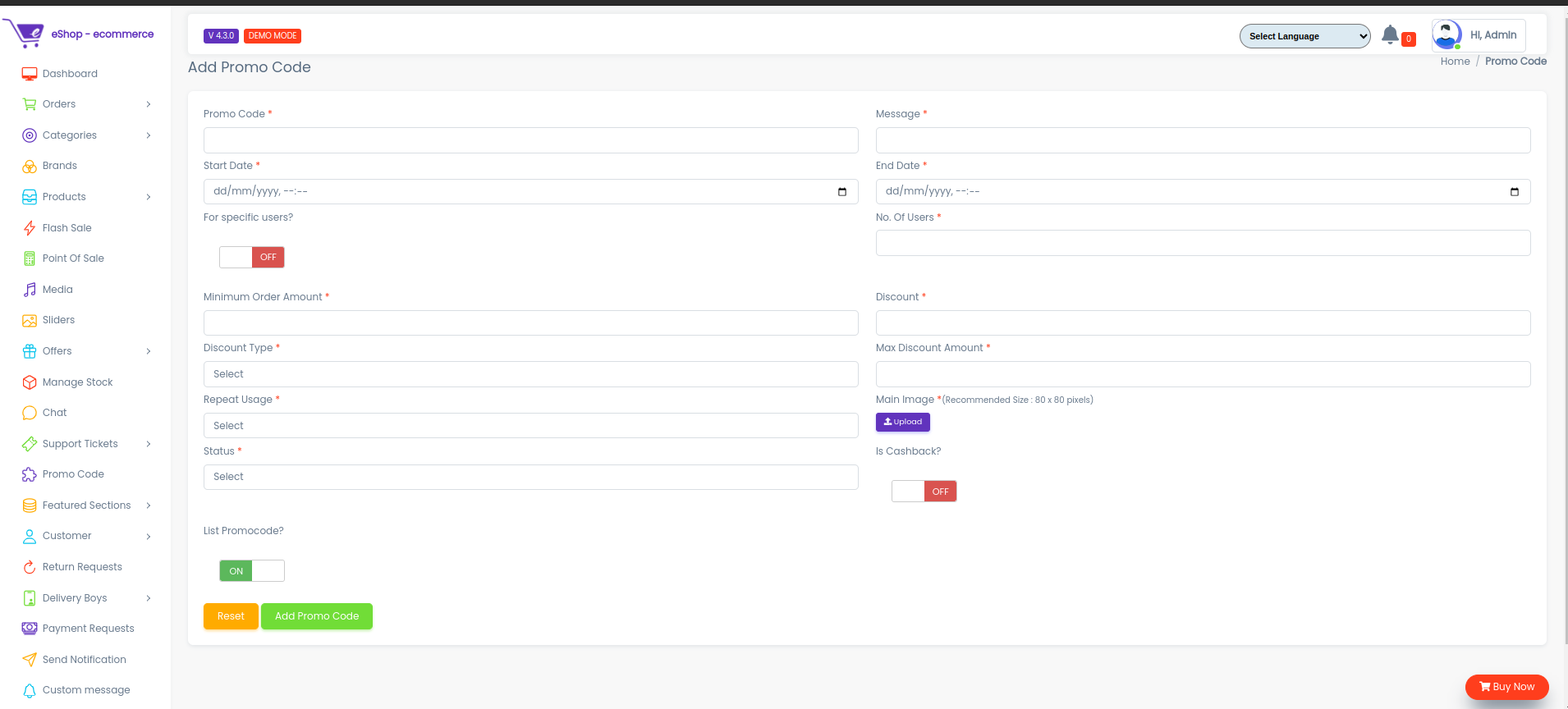
A form will appear with the following fields:
1. Promo Code
- Enter a unique code name
- Examples: "SAVE20", "WELCOME10", "SUMMER2024"
- Tips: Use uppercase, keep it short and memorable
2. Discount Type
- Percentage: Discount as a percentage (e.g., 20% off)
- Fixed Amount: Discount as a fixed value (e.g., $10 off)
3. Discount Value
- Enter the discount amount
- For percentage: Enter number (e.g., 20 for 20%)
- For fixed: Enter amount (e.g., 10 for $10)
4. Minimum Order Value (Optional)
- Set minimum purchase amount required to use the code
- Example: $50 minimum order for code to apply
5. Maximum Discount (Optional)
- Set maximum discount amount for percentage-based codes
- Example: 20% off with max $50 discount
6. Valid From
- Select the start date and time for the code
- Code becomes active from this date
7. Valid To
- Select the end date and time for the code
- Code expires after this date
8. Usage Limit (Optional)
- Total Uses: Maximum number of times code can be used overall
- Per Customer: Maximum uses per individual customer
9. Upload Image (Optional)
- Add a promotional image for the promo code
- Useful for marketing materials
For detailed instructions on uploading images, refer to the Media Management guide.
10. Status
- Set code to Active (customers can use) or Inactive (disabled)
Promo Code Application Flow
The promo code feature involves a specific interaction flow between the frontend (user interface) and the backend (validation logic).
Customer Experience (Frontend)
- Input: On the checkout or cart page, the customer locates the "Promo Code" field.
- Action: The customer enters a code (e.g., "SAVE20") and clicks "Apply".
- Feedback:
- Success: A success message appears ("Coupon Applied Successfully"), and the order summary updates.
- Error: An error message appears explaining why the code failed (e.g., "Code Expired", "Minimum Order Not Met").
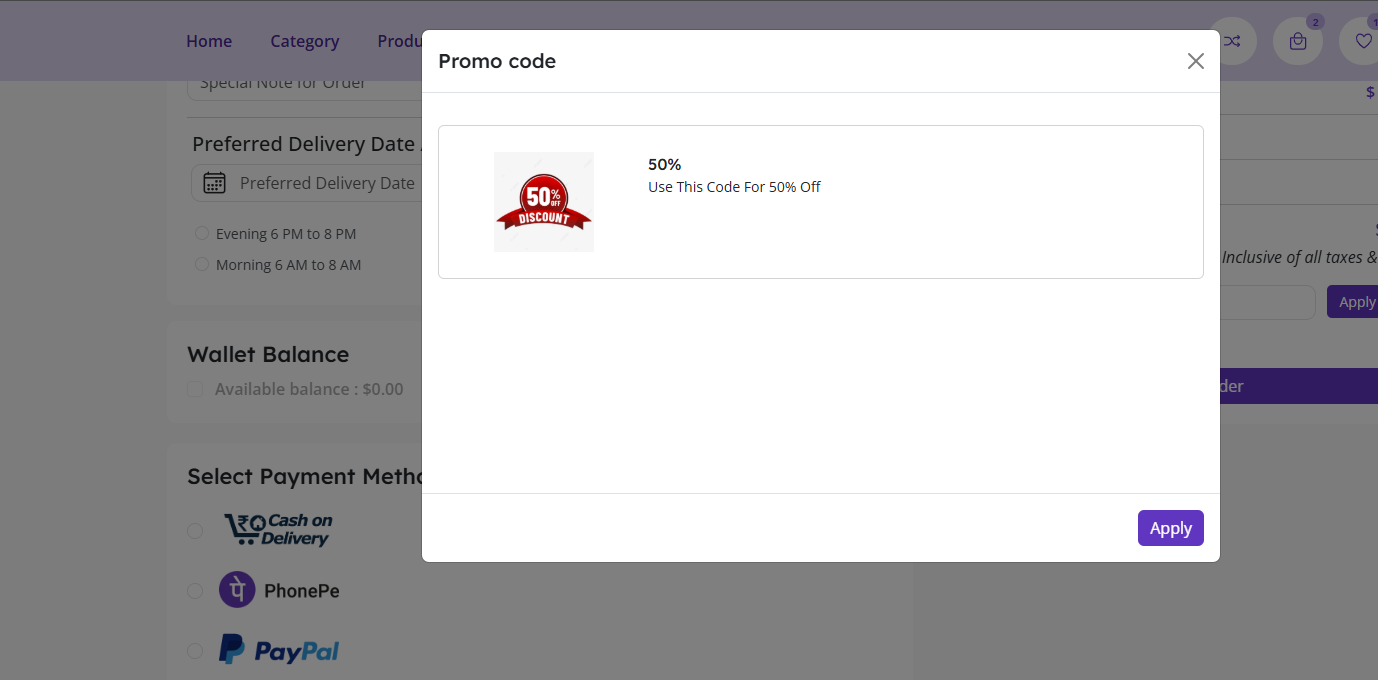
Discount Calculation & Reflection
If all validation checks pass, the discount is calculated and reflected as follows:
-
Calculate Discount:
- For Fixed Amount:
Discount = Discount Value - For Percentage:
Discount = (Cart Subtotal * Discount Percentage) / 100 - Max Cap Application: If it is a percentage discount and a Maximum Discount is set, the system caps the discount amount at that limit.
- For Fixed Amount:
-
Frontend Reflection: The Order Summary section updates dynamically to show:
- Subtotal: (Unchanged)
- Promo Code/Coupon: (New line item showing the negative discount amount, e.g.,
-$20.00) - Start Total:
Subtotal - Discount - Tax/Shipping: Calculated on the new Start Total (if applicable)
- Grand Total: The final amount the customer pays.
Always test new promo codes on the frontend to ensure the Minimum Order Value and Max Discount limits are working as expected before announcing them to customers.