Orders
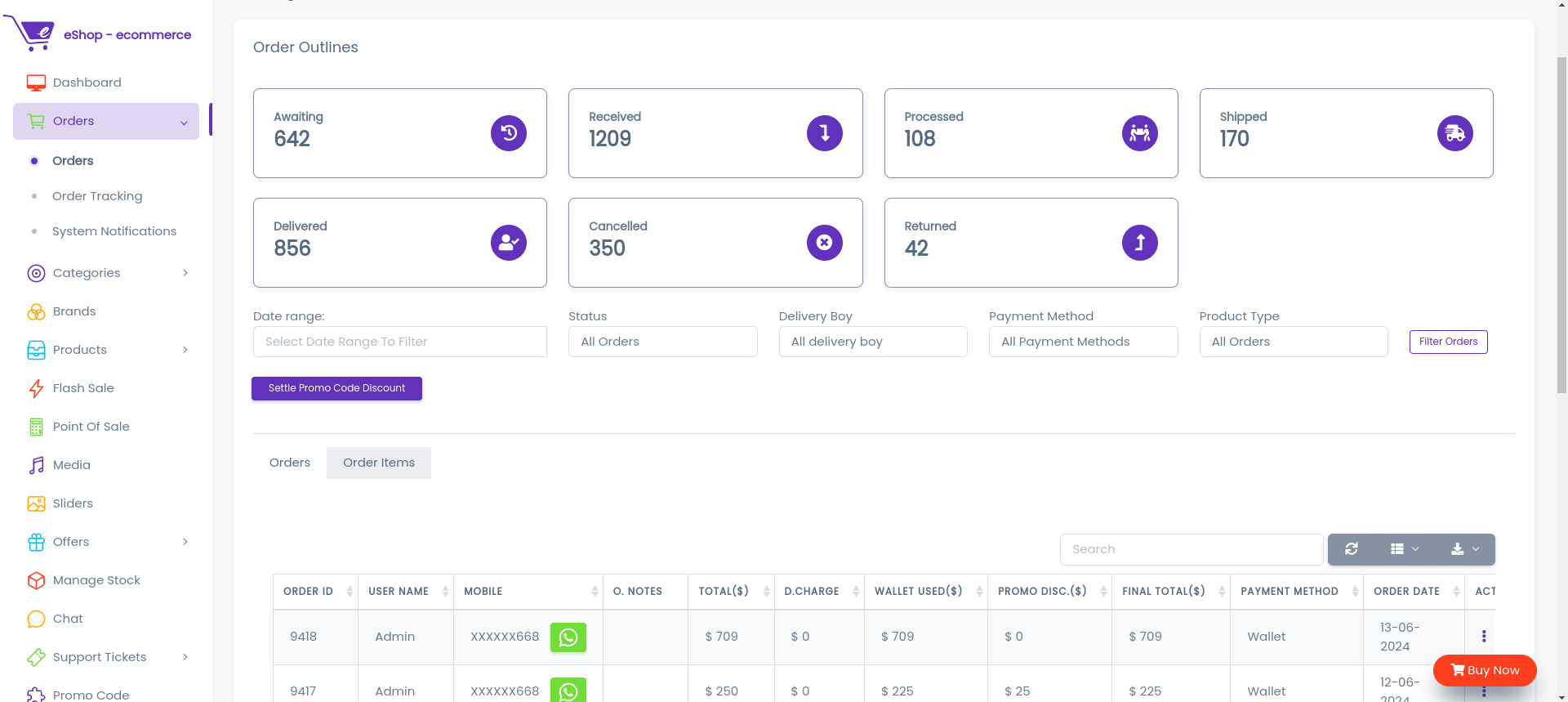
Orders Dashboard
The Orders Panel is the central hub for managing all customer purchases. It provides a comprehensive view of order statuses, payment details, and fulfillment progress.
Order Lifecycle Workflow
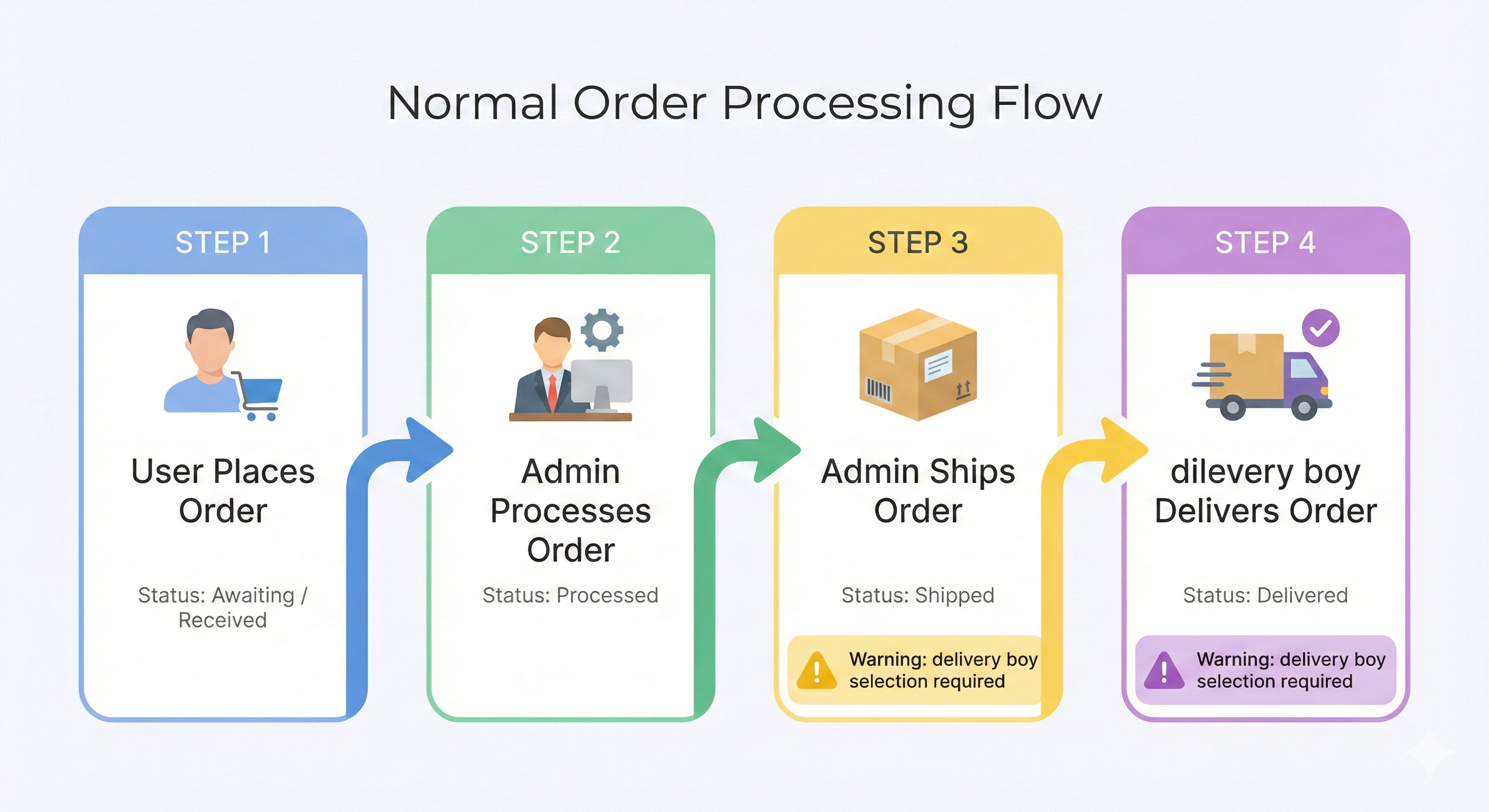
Understanding the order flow is crucial for smooth operations. The system follows a linear progression to ensure every order is tracked from creation to delivery.
Normal Order Flow – eShop System
This section describes the normal order processing flow without cancellation or return.
Order Cancellation Flow
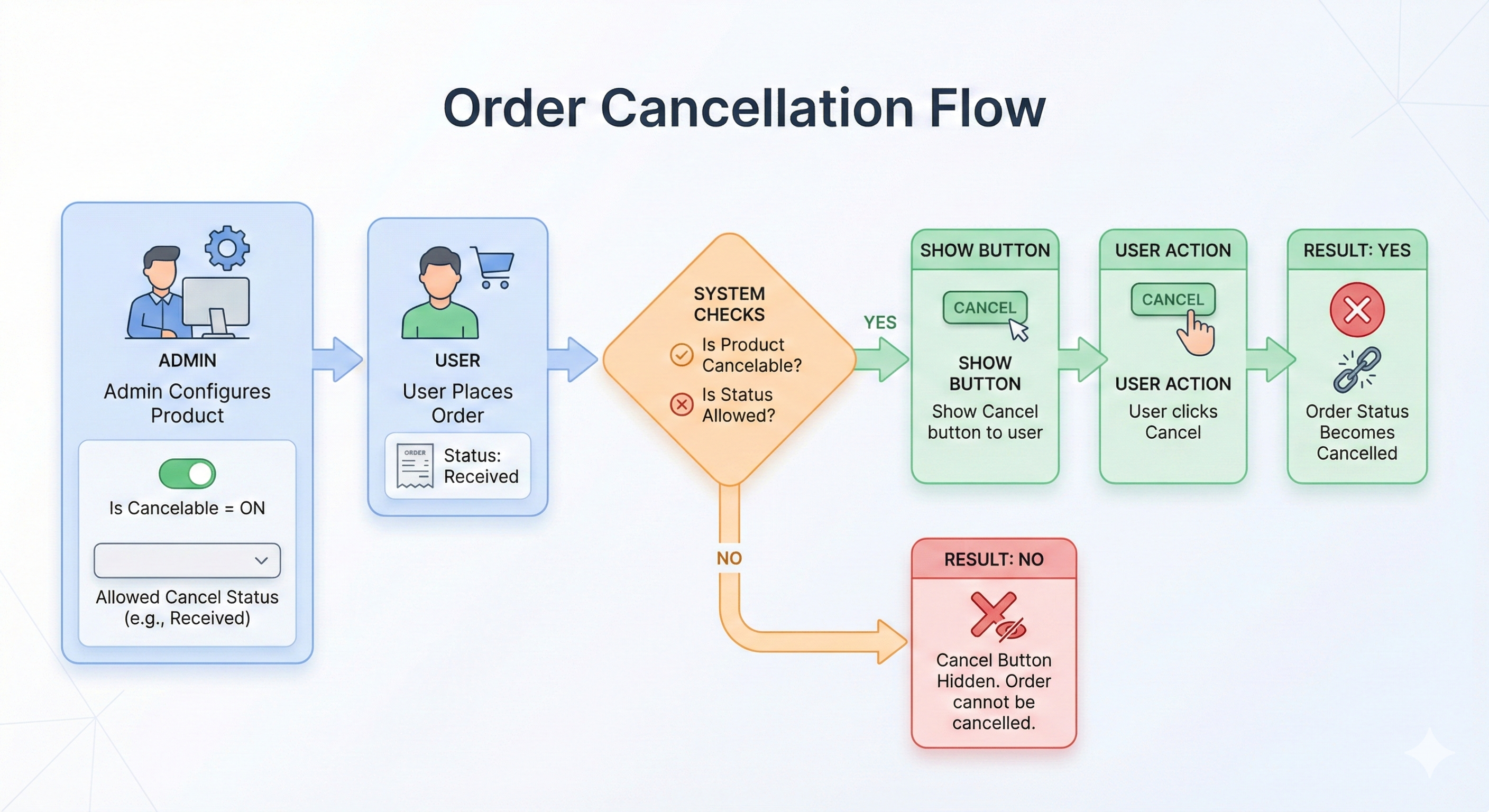
Order cancellation is controlled by product-level settings configured by the admin during product creation or update.
Product Configuration (Admin)
To allow users to cancel an order, the admin must configure the following:
-
Enable “Is Cancelable”
Turn the Is Cancelable option ON. -
Select “Till Which Status”
Choose the order status up to which cancellation is allowed
(example:Received).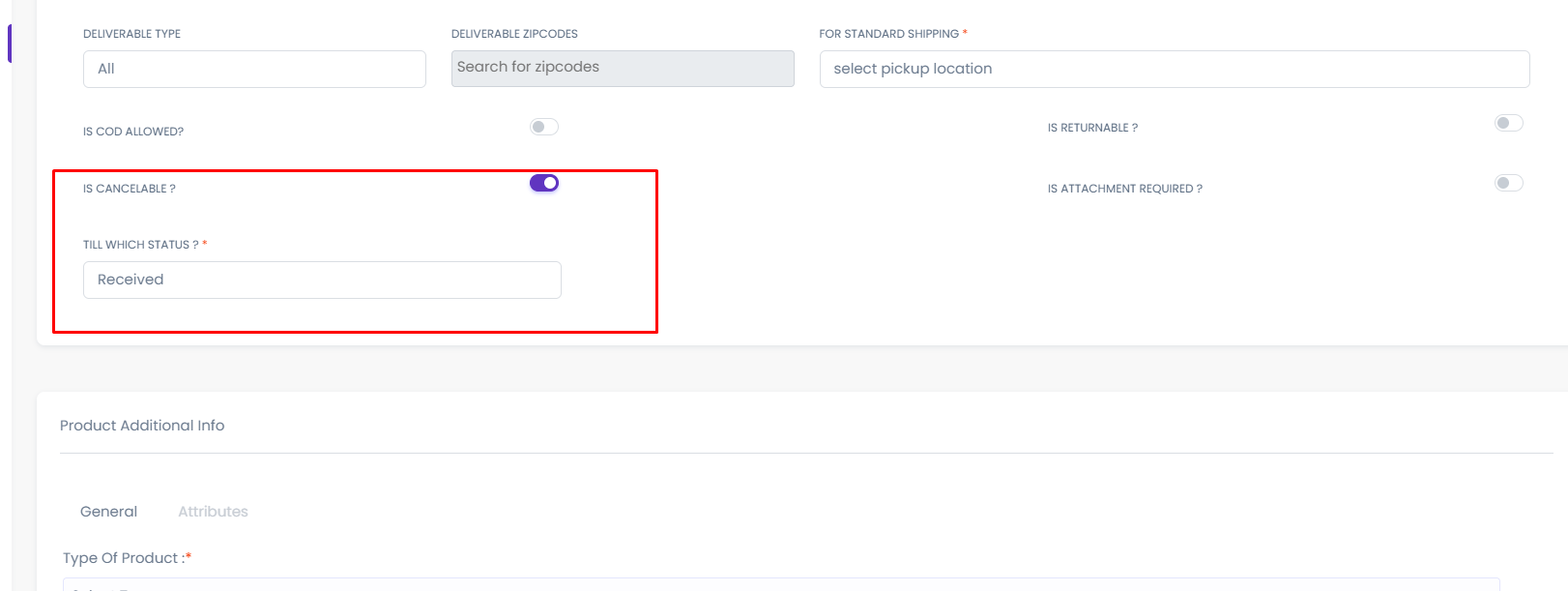
order cancel from customer side
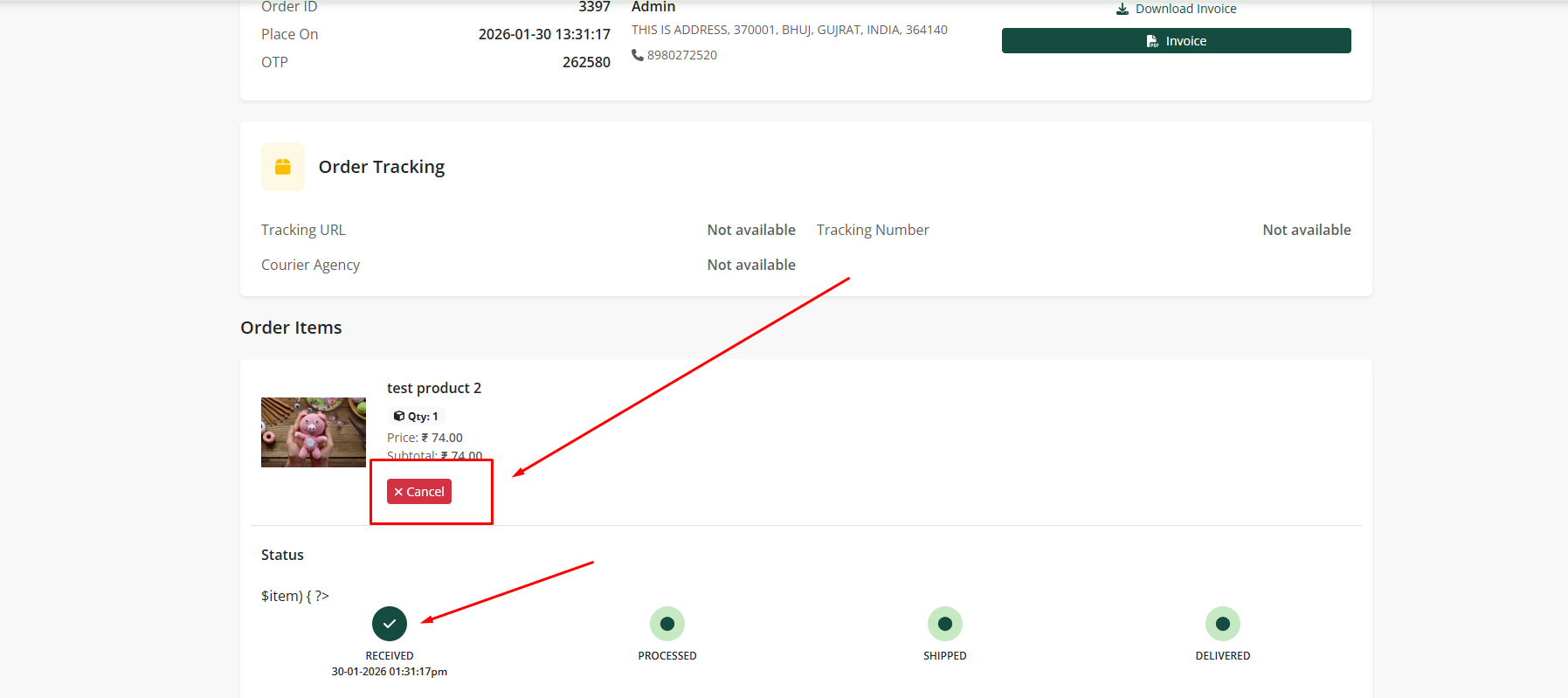
Overall final cancel order flow
Order Return Flow
The return process is governed by product configuration and the current order status. The system allows returns only when specific conditions are met.
1. Product Configuration (Admin)
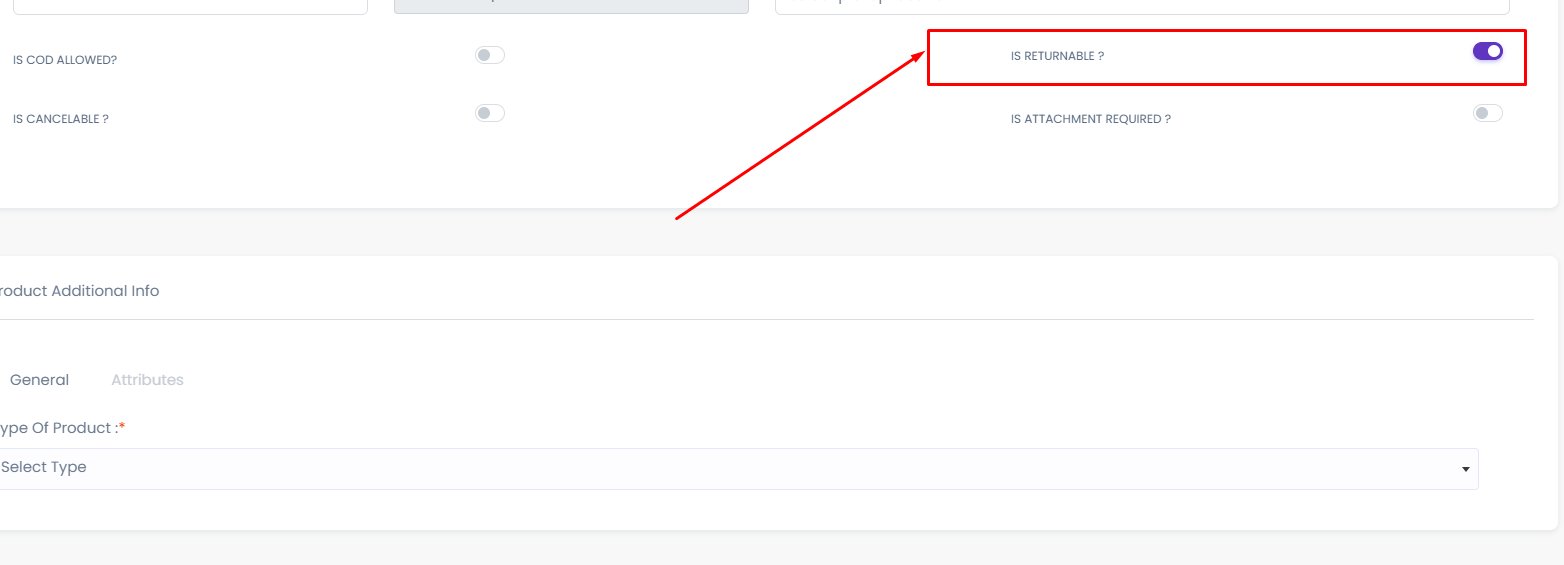
To enable returns for a specific item, the Admin must configure the product settings correctly during creation or update:
- Enable "Is Returnable": Toggle this setting to ON.
If a product is not marked as Returnable, the system will block any return requests for that item.
2. Customer Return Process
Once an order is delivered and is within the allowed return period, the customer can initiate a return from their account.
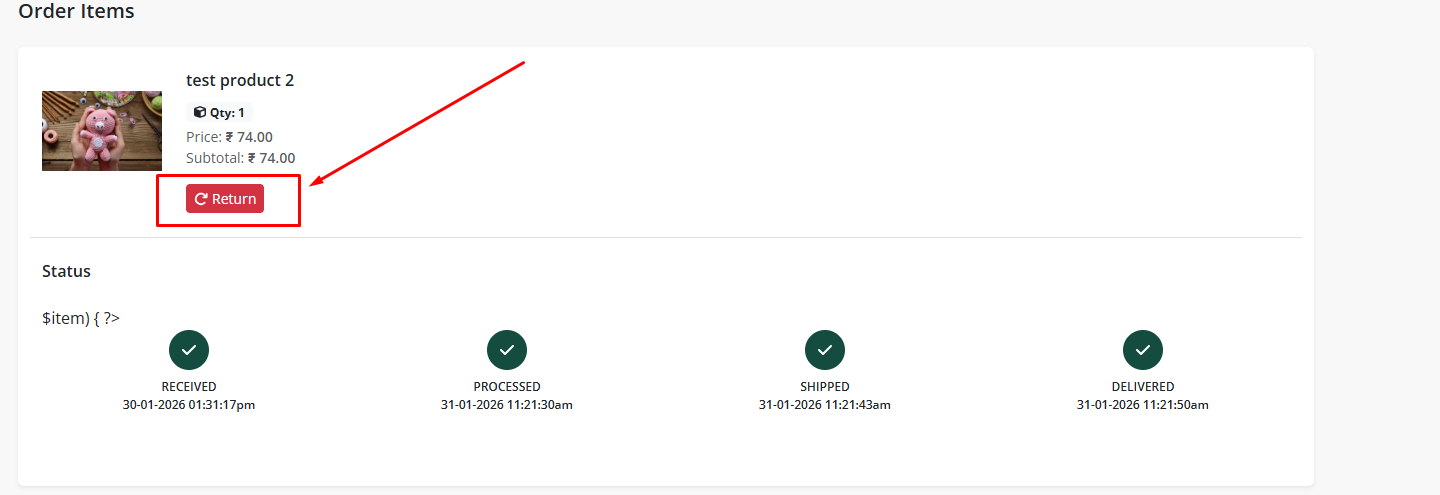
Step 1: Initiate Return
The customer views their order history, finds the delivered order, and clicks the "Return" button.
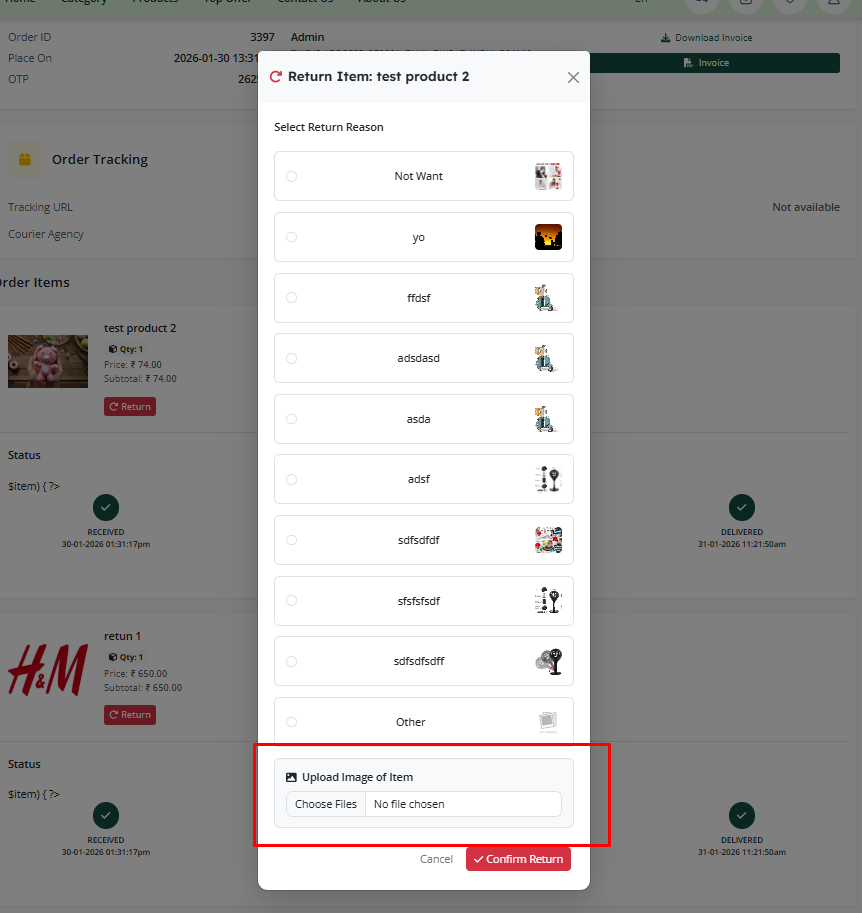
Step 2: Select Reason & Submit
The customer selects a reason for the return from the predefined list, adds any necessary comments, and submits the request.
3. Admin Processing
After a customer submits a return request, the Admin must review and process it.
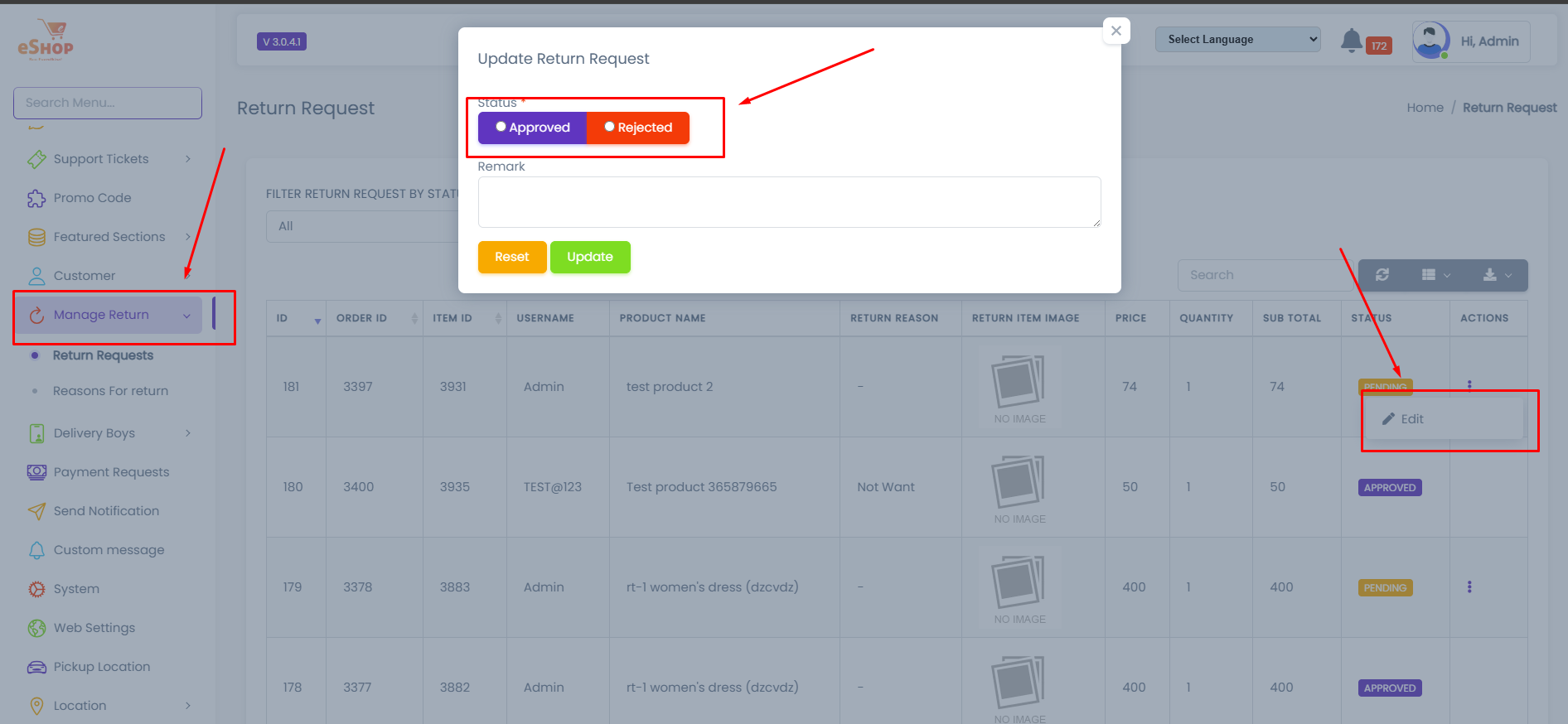
Step 3: Review Request
The Admin navigates to the return requests section to view details. They can either Approve or Reject the request based on store policy.
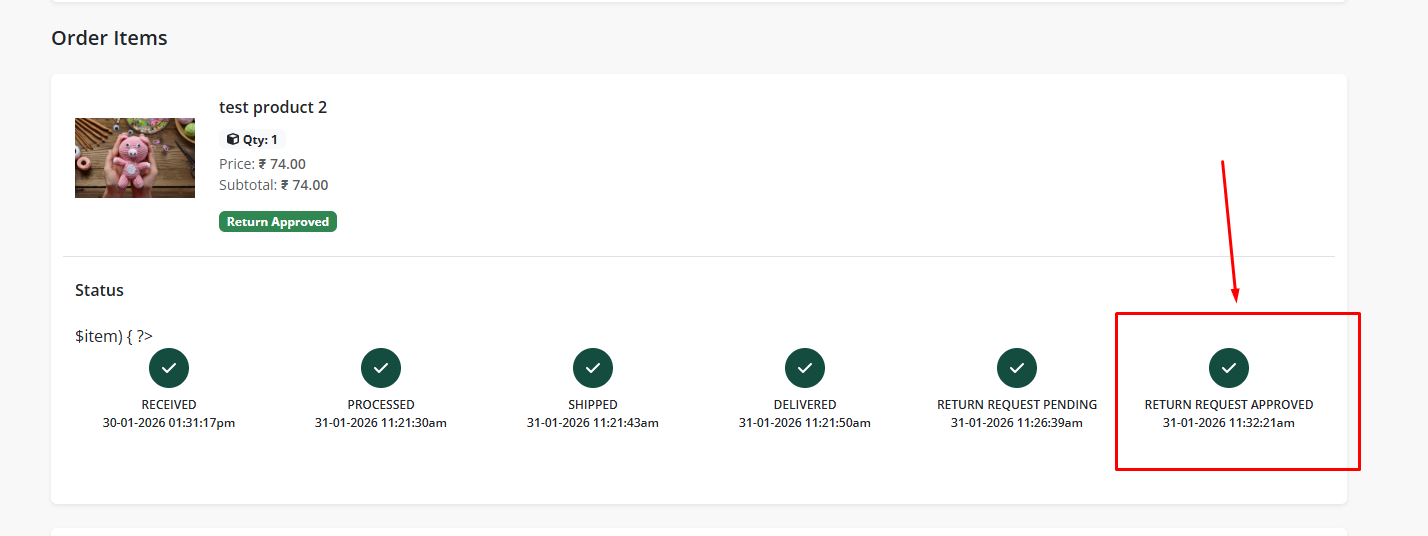
Step 4: Request Acceptance
If the Admin approves the request, the status updates to return_request_accept. This signals that the return is authorized and the item is expected back.
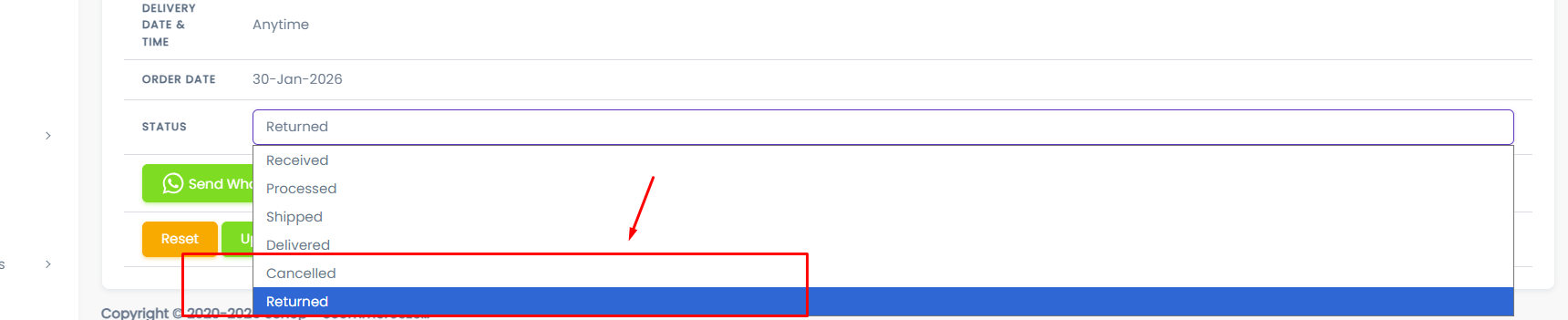
Step 5: Process Return
Once the returned item is received and verified, the Admin must physically update the order status from Delivered to Returned.
Step 6: Completion & Refund
Upon marking the order as Returned, the system finalizes the process:
- The order status closes as Returned.
- Refunds: If the original payment was Prepaid (not COD), the refund amount is automatically credited to the customer's wallet.
Bank Transfer Flow
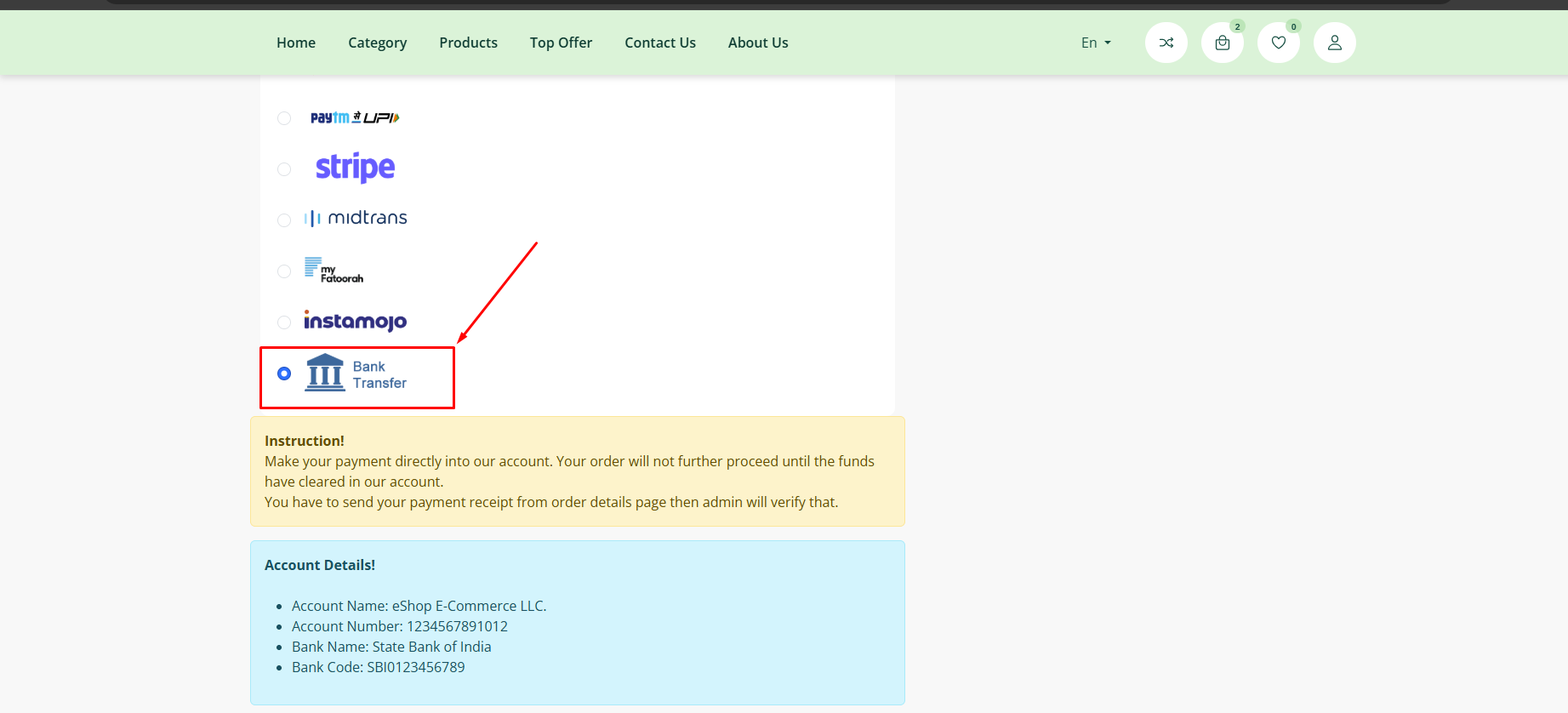
The Bank Transfer payment method requires manual verification by the Admin. The order is not considered "Paid" until the Admin confirms receipt of funds in the bank account.
Step 1: Customer Places Order The customer selects Bank Transfer (or Direct Bank Transfer) as the payment method during checkout. The order is placed successfully, but it remains in a pending state until payment is verified.
Step 2: Admin Verifies Payment Receipt The Admin navigates to the Orders Dashboard and opens the specific order. In the order details, there is a section for Bank Payment Receipts. The Admin selects this to view the transaction proof provided by the user or to verify the payment against bank records.
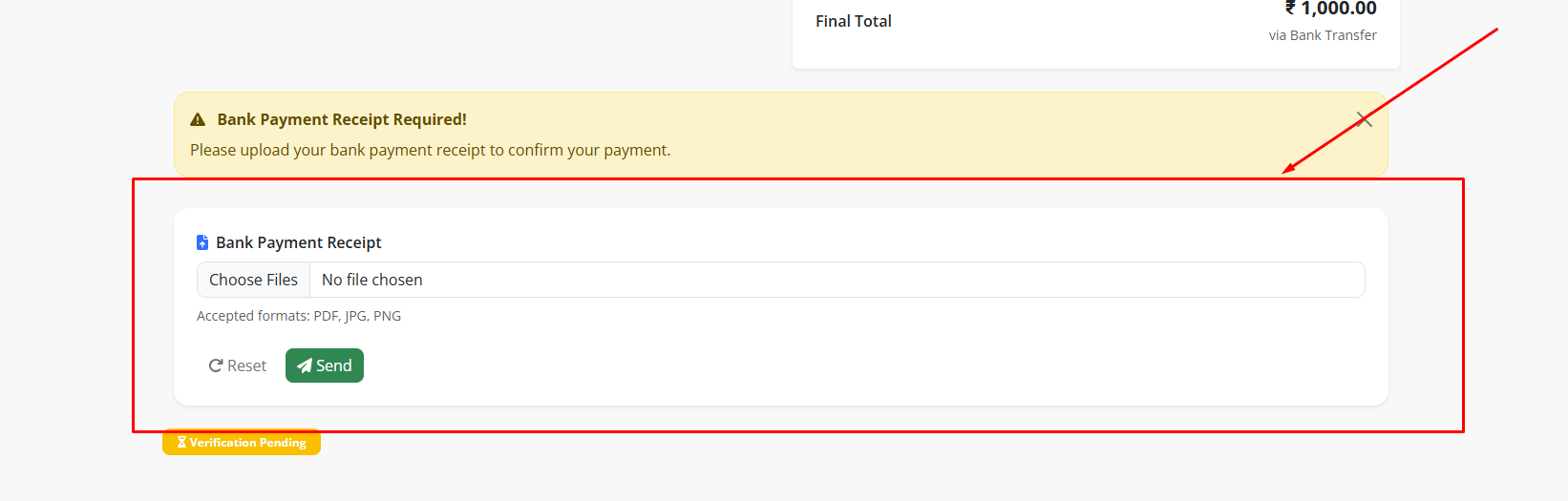
Step 3: Accept or Reject Payment After verifying the funds, the Admin updates the status of the bank receipt:
- Accept: Identifying that the money has been received.
- Reject: Identifying that the transaction is invalid or funds were not received.
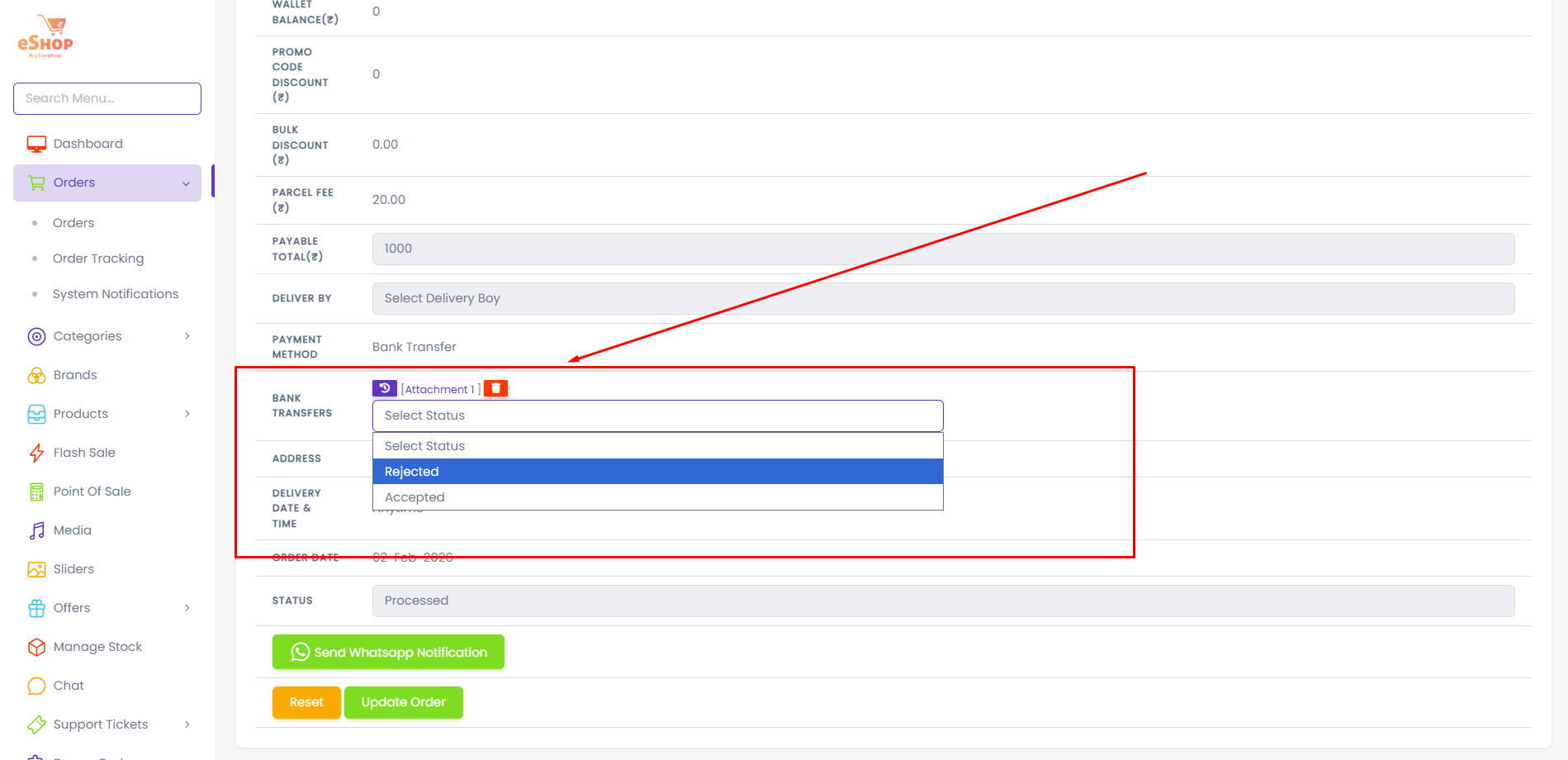
Step 4: Update Order Status
Once the bank transfer is Accepted, the Admin manually updates the main Order Status (e.g., to Processing, or Delivered) to proceed with fulfillment. The order workflow then continues as normal.