Manage Stock
Manage Stock allows you to view and update inventory levels for all product variants in your store. Keep track of stock quantities and add or reduce inventory as needed.
- Track inventory for all product variants in one place
- Update stock levels quickly when receiving new inventory
- Monitor stock status to prevent overselling
- View variants with their current stock quantities
Stock Management Dashboard
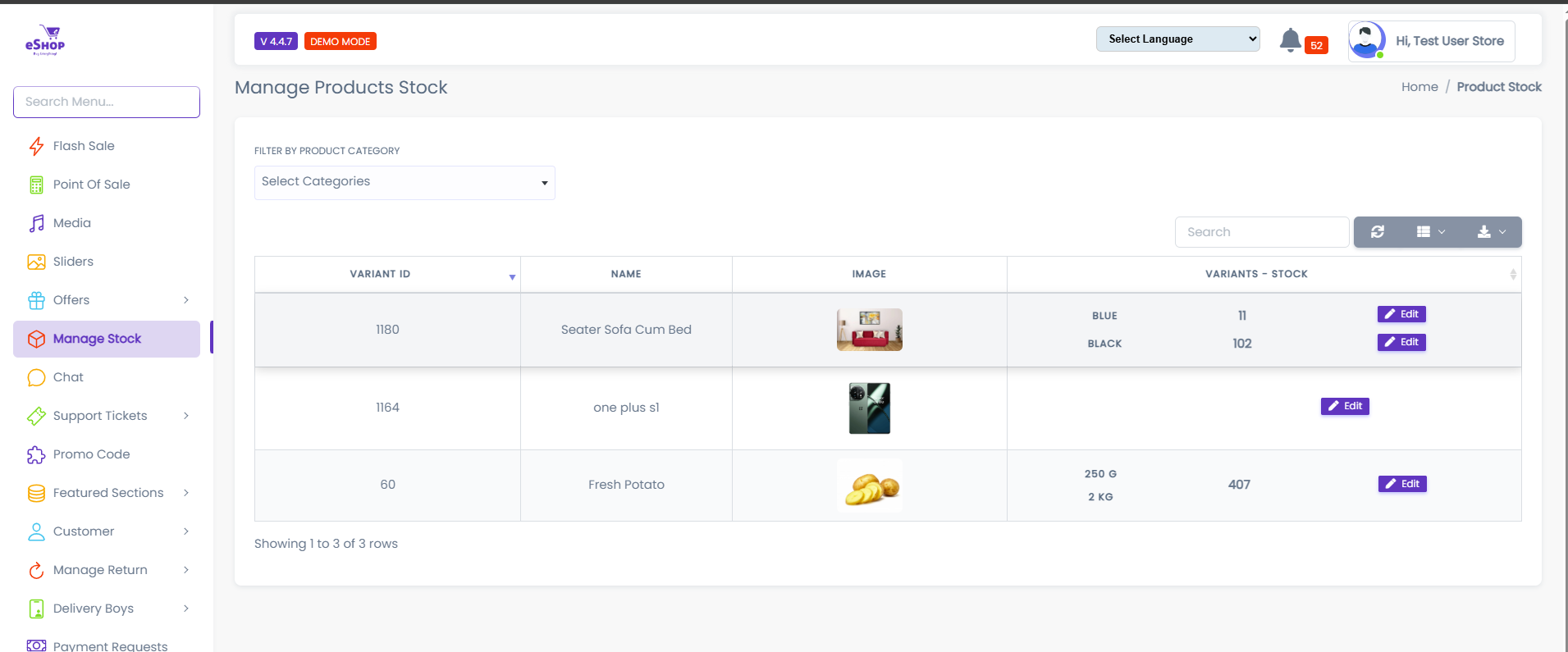
The stock management dashboard displays all product variants with their current inventory levels.
Table Columns:
- VARIANT ID: Unique identifier for each product variant
- NAME: Product name
- IMAGE: Product thumbnail
- VARIANTS - STOCK: Shows variant options (color, size, etc.) with current stock quantity
- Actions: Edit button (✏️) to update stock
Filter Options:
- Filter by Product Category: Dropdown to filter products by category
- Search: Find specific products quickly
Understanding Stock Display
Product Variants and Stock
Each product can have multiple variants (e.g., different colors or sizes), and each variant has its own stock quantity.
Example from Dashboard:
Seater Sofa Cum Bed (Variant ID: 1180)
- BLUE: 11 units in stock
- BLACK: 102 units in stock
one plus s1 (Variant ID: 1184)
- Single variant with its stock quantity
Fresh Potato (Variant ID: 60)
- 250 G: 407 units in stock
- 2 KG: Stock quantity shown
Stock quantities are set when adding products and can be updated anytime through the Manage Stock page.
Updating Stock
How to Update Stock
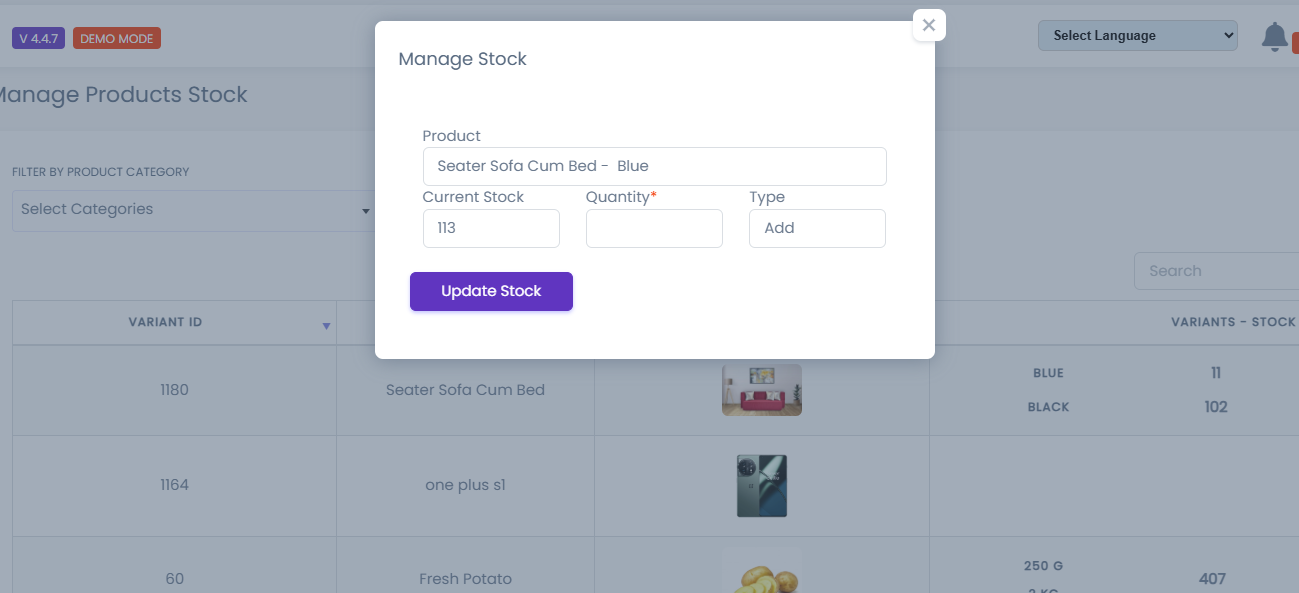
- Click the Edit button (✏️) next to the product variant
- A "Manage Stock" modal opens showing:
- Product: Product name and variant (e.g., "Seater Sofa Cum Bed - Blue")
- Current Stock: Current quantity (e.g., 113)
- Quantity: Field to enter amount to add or reduce
- Type: Dropdown to select "Add" or "Reduce"
Adding Stock
When to use: Receiving new inventory, restocking
- Enter the quantity to add (e.g., 50)
- Select "Add" from the Type dropdown
- Click "Update Stock"
- New stock = Current Stock + Quantity Added
Example:
- Current Stock: 113
- Add: 50
- New Stock: 163
Reducing Stock
When to use: Damaged goods, inventory adjustments, manual sales
- Enter the quantity to reduce (e.g., 20)
- Select "Reduce" from the Type dropdown
- Click "Update Stock"
- New Stock = Current Stock - Quantity Reduced
Example:
- Current Stock: 113
- Reduce: 20
- New Stock: 93
Be careful when reducing stock manually. This doesn't create a sale record - it only adjusts inventory levels.
Stock When Adding Products
Setting Initial Stock
When adding a new product, you set the initial stock quantity for each variant:
- Go to Products → Add Product
- In the product form, find the "Stock" or "Quantity" field
- Enter the initial stock quantity for each variant
- If product has variants (colors, sizes):
- Set stock for each variant separately
- Example: Blue - 100 units, Black - 150 units
- Save the product
Stock Fields in Product Form:
- Stock Quantity: Number of units available
- SKU: Stock Keeping Unit (optional identifier)
- Stock Status: In Stock / Out of Stock
Set accurate initial stock when adding products to avoid inventory discrepancies later.