Offers Management
Offers Management allows you to create and display promotional offer banners on your website. These visual offers help attract customer attention to special deals, discounts, and limited-time promotions.
Why Use Offer Images?
- Promote special deals with eye-catching visuals
- Highlight discounts and limited-time offers
- Drive conversions with targeted promotions
- Increase engagement on product pages
- Showcase seasonal sales effectively
Offers Dashboard
The offers dashboard displays all configured offer images with management tools.
Table Information:
- Preview: Thumbnail of the offer image
- Status: Active or Inactive
- Created Date: When the offer was added
- Actions: Quick action buttons
Adding a New Offer
Step 1: Click "Add Offer"
Click the "Add Offer" button located on the right side of the dashboard.

Step 2: Fill Offer Form
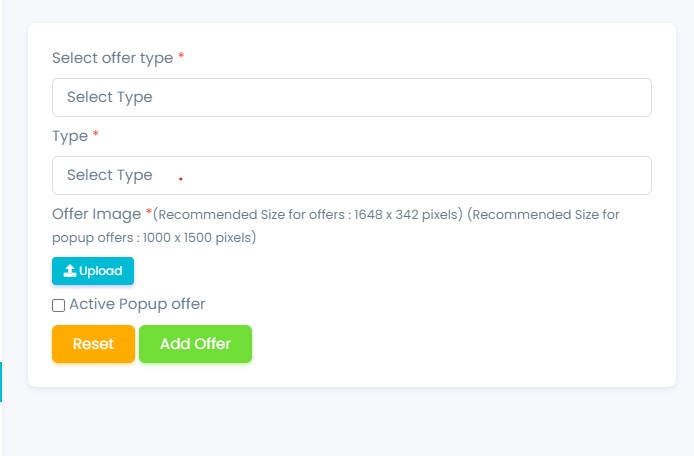
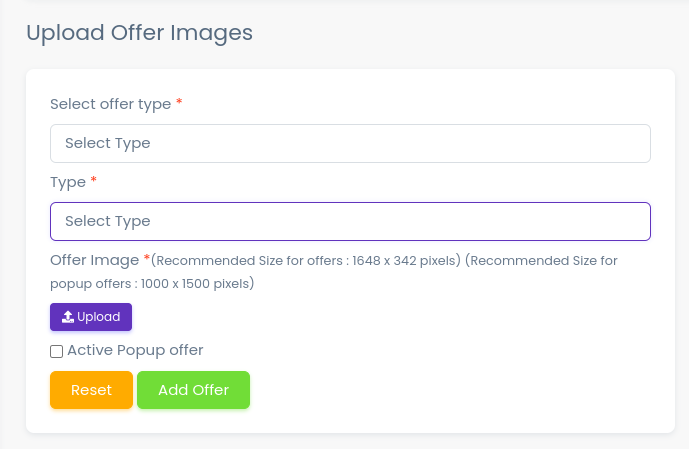
A form will appear for you to configure the offer:
Upload Offer Image
- Click the "Upload Image" button
- Select image from media library or upload new
- Recommended size: 800x400px or 600x300px
- Format: JPG, PNG, or WebP
Image Upload
For detailed instructions on uploading images, refer to the Media Management guide.
Link (Optional)
- Add a URL where users will be redirected when clicking the offer
- Example: Product page, category page, or promotional landing page
Status
- Set offer to Active (visible on website) or Inactive (hidden)
Step 3: Save Offer
- Click "Add Offer" to save the new offer
- Click "Reset" to clear the form and start over
- The new offer will appear in the offers list